
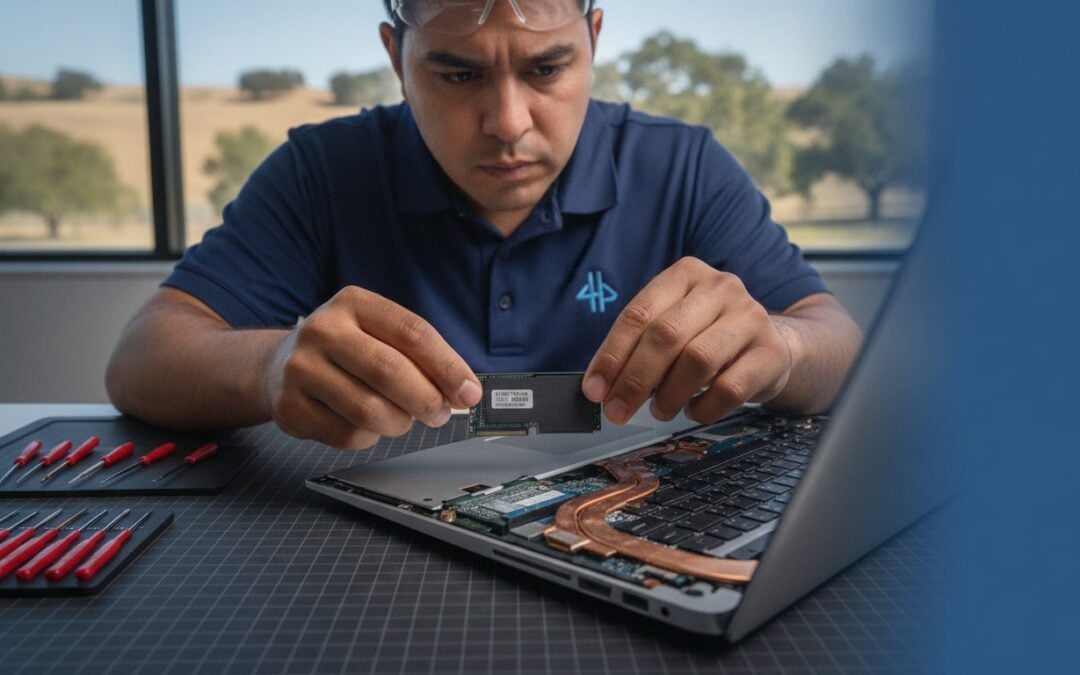
Imagine it is the night before a major deadline and your laptop suddenly decides it won’t turn on. You press the power button, check the charger, and pray for a flicker of life, but the screen stays dark. That sinking feeling of losing years of family photos or critical business documents is something no one should have to face alone. It is a stressful moment that can make even the most tech-savvy person feel completely overwhelmed.
We understand the frustration and the fear that your precious data might be gone for good. The good news is that a dead computer does not always mean your files are lost. This 2026 troubleshooting guide is designed to help you understand how to recover data from dead laptop devices safely and efficiently. You will learn the difference between a simple power issue and a serious drive failure, giving you the confidence to handle the situation without the risk of making things worse.
We will walk you through the essential steps to isolate your storage, from basic DIY hardware tricks to advanced recovery techniques. You will find out how to test if your hard drive is still functional and when it makes sense to call in a local Pleasanton expert for professional help. Whether you are moving files to a new machine or trying to save a failing drive, we are here to provide a clear path forward.
Key Takeaways
- Diagnose the difference between a total power failure and a simple display issue to save time and stress.
- Master the hardware method for how to recover data from dead laptop units using external USB adapters.
- Learn why soldered storage and encryption require a specialized approach on newer 2026 laptop models.
- Recognize physical warning signs like clicking or grinding that signal it is time for professional East Bay support.
- Streamline your migration by identifying the most critical folders to move to your new computer first.
Is Your Laptop Dead or Just Sleeping? Diagnosis First
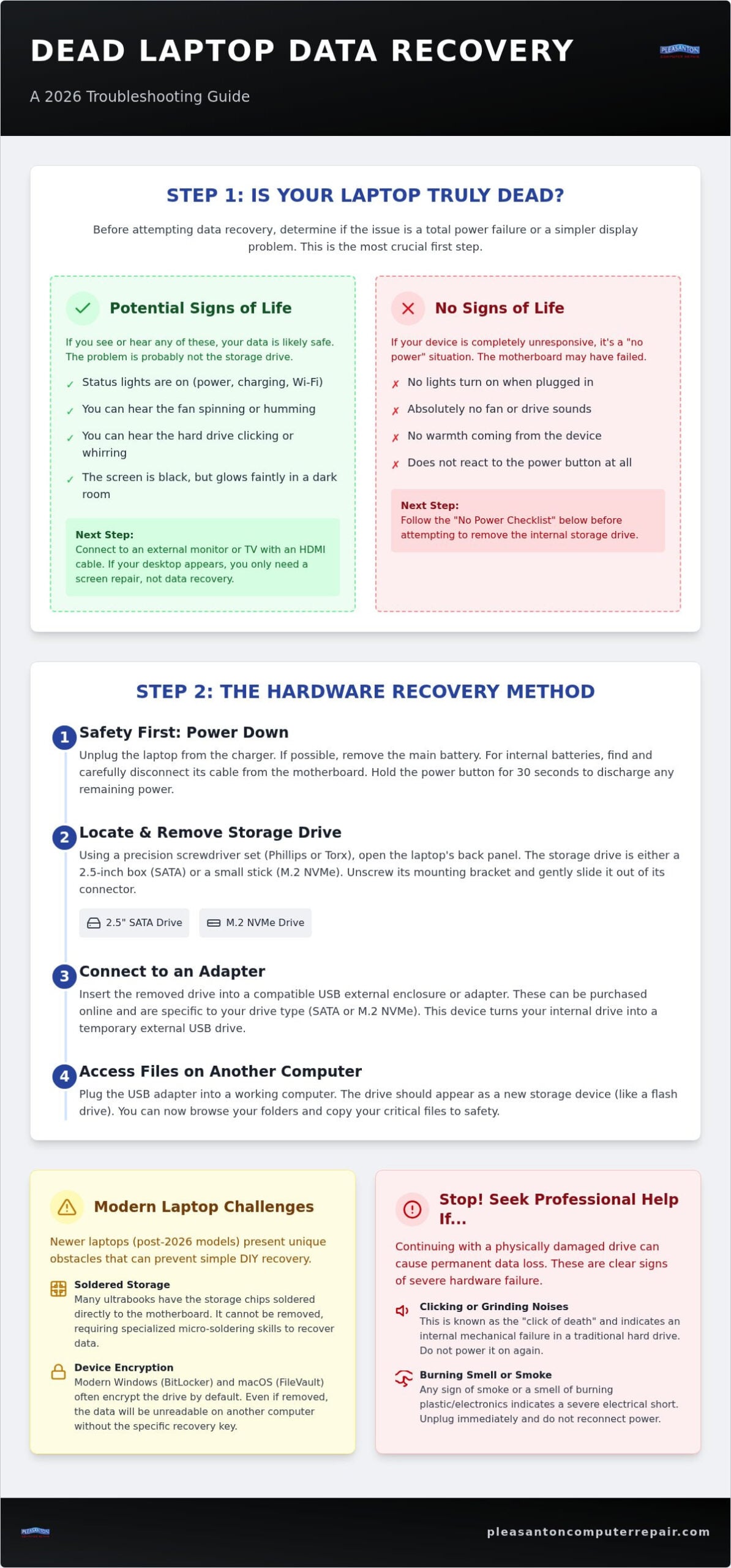
Before you assume your files are gone forever, let’s define what “dead” actually means for your device. A truly dead laptop shows zero signs of life: no status lights, no fan noise, and no reaction when you plug in the charger. Many users, however, fall into the “Black Screen Trap.” This occurs when the computer is running in the background, but the display has failed or the backlight has burned out. If you can hear the internal components humming or feel heat coming from the vents, your files are likely sitting right where you left them. Understanding this distinction is the first step in learning how to recover data from dead laptop systems without spending a fortune on unnecessary services.
It helps to think of your laptop as a collection of independent parts. The motherboard manages the power and processing, while your hard drive or SSD stores your life’s work. Even if a sudden electrical surge or a spilled drink fries the motherboard, it rarely wipes the storage drive instantly. By using professional data recovery methods, we can often bypass the broken computer entirely. We simply remove the storage and access your files directly from the source using a different machine.
Identifying Motherboard vs. Screen Failure
Is your screen dark, or is the whole system silent? You can test this by connecting your laptop to an external monitor or your living room TV using an HDMI cable. If your desktop appears on the big screen, your computer is alive, and you just need a screen replacement rather than a complex data migration. Listen closely for the faint whirring of a cooling fan or the rhythmic clicking of a traditional hard drive. On older models with removable batteries, try a “flea power” reset. Pull the battery, unplug the power, and hold the power button for 30 seconds. This simple trick can sometimes wake a motherboard that was stuck in a static power state.
The ‘No Power’ Checklist for East Bay Users
If there are no lights at all, the problem might be outside the laptop casing. Check your power adapter for frayed wires or a missing indicator light. If you have a multimeter, you can test the output voltage to ensure the brick is actually sending power to the plug. Inspect the charging port on the side of the laptop for dust, lint, or physical wiggles. If the port feels loose, it might have a broken solder joint inside. Stop troubleshooting if you smell anything burning or see a wisp of smoke. Continuing to plug in a shorted device can turn a simple power fix into a catastrophic loss. Understanding how to recover data from dead laptop hardware starts with ensuring the power path is clear before moving to more invasive steps.
How to Recover Data from a Dead Laptop: The Hardware Method
If your diagnostics confirm the motherboard is silent but the storage remains intact, it is time to perform a drive transplant. This is the most reliable strategy for how to recover data from dead laptop hardware when the device refuses to boot. You are essentially turning your internal storage into a temporary external portable drive. By bypassing the dead laptop entirely, you can access your files using a healthy computer.
To start, gather a precision screwdriver set. Most laptops use small Phillips or Torx screws, often as small as size T5 or P5. You will also need a USB drive adapter or an external enclosure that matches your specific hardware. Before you dive in, identify your drive type. Older laptops usually contain a 2.5-inch SATA hard drive or SSD. Modern ultrabooks often use NVMe M.2 drives, which look like small, thin sticks of gum. Knowing which one you have ensures you buy the correct adapter kit.
Safety is the priority here. Always unplug the laptop and remove the battery if it is an external model. For internal batteries, you must carefully disconnect the small ribbon cable leading to the motherboard. Before touching any internal components, discharge static electricity to protect the delicate electronics. If this process feels daunting, our team at Pleasanton Computer Repair can handle the extraction and migration for you with professional precision.
Removing the Hard Drive or SSD Safely
Most drives are accessible through a dedicated panel on the bottom of the laptop or by removing the entire back cover. In some older business models, you might find the drive tucked under the keyboard. Once you locate it, unscrew the mounting bracket and gently slide the drive away from its connectors. Always handle the drive by its plastic or metal edges. Avoid touching the green circuit board or the gold pins. Grounding yourself involves touching a metal part of the laptop chassis or a grounded object to dissipate any static charge that could damage sensitive silicon chips.
Using External USB Adapters and Enclosures
Once the drive is out, plug it into your USB adapter. Connect the other end to a healthy, working computer. If the drive is healthy, it should appear in your file explorer like a standard thumb drive. You might encounter “Permission Denied” errors when trying to open your old user folders. This happens because the new computer doesn’t recognize you as the owner of those files. Simply click “Continue” or “Allow” when prompted for administrator access to bypass these security blocks. This is a common part of how to recover data from dead laptop storage and usually only takes a few seconds to resolve.
Overcoming Modern Barriers: Soldered Storage and Encryption
While the hardware removal method works for many devices, modern laptop design has introduced a new set of hurdles. If you own a recent MacBook or a high-end Windows Ultrabook, you might open the case only to find there is no removable drive to pull out. Instead, the storage chips are soldered directly onto the motherboard. This design makes the laptop thinner and faster, but it complicates how to recover data from dead laptop hardware significantly. You cannot simply plug these chips into a USB adapter; the data is physically tied to the specific board it was built on.
Security chips, such as Apple’s T2 or the integrated M1, M2, and M3 series, add another layer of protection that can feel like a prison during a hardware failure. These chips act as digital gatekeepers, encrypting your files at the hardware level. If the motherboard dies, the gatekeeper goes silent, and your data stays locked behind a wall of scrambled code. In these cases, professional intervention is the only viable path forward. Experts must often perform microscopic repairs to the motherboard just to get it to turn on one last time for a data dump.
Dealing with Soldered SSDs in Modern Laptops
Traditional adapters are useless for integrated storage. When a laptop with a soldered SSD fails, recovery usually involves “donor” board swaps or temporary power rail repairs. Technicians use specialized tools to bypass blown capacitors or faulty resistors that are preventing the storage chips from receiving power. You should never attempt to desolder these chips at home. The heat required for such a task is intense, and a single slip can delaminate the circuit board, making the data permanently unrecoverable.
Navigating BitLocker and FileVault Encryption
Encryption is your best friend for privacy, but it becomes a major roadblock when your computer won’t boot. Windows often enables BitLocker by default, while Macs use FileVault. To access your files on a different machine, you will need a recovery key. You can usually find your BitLocker key by logging into your Microsoft account from another device. Mac users can often reset or retrieve FileVault credentials using their iCloud login. If you lose these recovery keys and the original motherboard is beyond repair, the encryption remains active. Without the key, the data is essentially a digital jigsaw puzzle with missing pieces, even for professional recovery labs.
Understanding how to recover data from dead laptop units in 2026 requires recognizing these digital barriers early. Identifying whether your storage is removable or soldered will dictate your next steps and help you decide when to stop the DIY attempts and seek expert help.
Migrating Your Files to a New System Safely
Successfully connecting your old drive to a new computer is a huge win. However, the work isn’t finished until those files are safely integrated into your new system. When you are figuring out how to recover data from dead laptop devices, the goal is a clean migration that doesn’t bring old problems to a new machine. Start by verifying the integrity of your recovered files. Open a few random photos or documents to ensure they aren’t corrupted. If your previous laptop died because of a failing hard drive, some sectors might be unreadable. Focus your energy on the most critical folders first: Desktop, Documents, Pictures, and Downloads. These contain your unique data. Avoid the temptation to copy the “Program Files” or “Windows” folders. Applications must be reinstalled on a new operating system to work correctly because they rely on specific registry entries that don’t transfer through a simple copy-paste.
Before you move a single byte into your new user profile, run a deep virus scan on the recovered data. If a malware infection or a system outage caused your original crash, you don’t want to infect your brand-new computer immediately. Using a professional hard drive data recovery Pleasanton service can help ensure this step is handled thoroughly, keeping your new environment pristine and secure.
Organizing Recovered Files for Your Next Laptop
Don’t just dump everything into a single folder named “Old Stuff.” Create a logical structure on your new SSD that mirrors how you work today. This is the perfect time to delete duplicate files or old system junk that has been cluttering your storage for years. An SSD upgrade Pleasanton CA is the best time to organize data because it allows you to start fresh with high-speed performance and a tidy file system. By being selective now, you ensure your new computer stays fast and responsive.
Setting Up a Robust Backup Strategy
Let this be the last time you feel the stress of a broken device during a deadline. We recommend following the 3-2-1 backup rule: keep 3 copies of your data, on 2 different media types, with 1 copy stored off-site. Automating your backups through cloud services or scheduled external drive syncs ensures you never face a “dead laptop” crisis again. Cloud storage offers convenience and off-site protection, while external hard drives provide fast, local access without subscription fees. If you need help configuring a fail-safe system, our team at Pleasanton Computer Repair is ready to set up a personalized backup plan for your home or business.
When DIY Data Recovery Fails: Local Professional Support
Sometimes, despite your best efforts with adapters and external monitors, the hardware simply won’t cooperate. If you hear a rhythmic clicking, a faint grinding noise, or if the drive isn’t recognized at all when plugged into a USB port, you have reached the limit of home troubleshooting. These are clear indicators of mechanical failure. Continuing to power on a failing drive can lead to “DIY exhaustion,” where repeated attempts cause the read/write heads to physically scrape the data platters. This results in permanent data loss that even the most advanced labs cannot reverse. Knowing how to recover data from dead laptop devices often means knowing exactly when to stop and seek professional help.
When your files are on the line, you want a neighbor who knows your name, not a scripted technician at a big-box retail squad. Pleasanton residents choose local experts because we offer personalized diagnostics that determine if a drive is failing before making the situation worse. Statistics from 2026 show that 60% of small businesses close within six months of a significant data loss event. We take that risk seriously. When you visit us, bring the dead laptop and a new storage device, such as an external hard drive or a high-capacity thumb drive, to receive your recovered files.
The Limits of Software and Home Tools
Many users try to download “free” recovery software as a first step. Be careful; installing or running software on a drive that has deleted files can actually overwrite the very data you are trying to save. Software is designed for logical issues, like accidental formatting, but it cannot fix a broken motor or a seized bearing. If your drive has suffered a mechanical crash, it requires a clean-room environment. This specialized lab prevents microscopic dust particles from landing on the platters while the drive is open for repair. Attempting to open a drive at your kitchen table will almost certainly destroy the data instantly. For a deeper understanding of what to do in the critical first moments of a drive failure, our hard drive data recovery Pleasanton emergency guide walks you through every step to prevent further damage.
Expert Data Recovery Services in the East Bay
Our Pleasanton team bridges the gap between hardware repair and total data restoration. We handle everything from complex MacBook battery replacement Pleasanton to intricate logic board repairs that modern laptops require for data access. By visiting our suite on Main Street, you get an in-person consultation where we explain the process without confusing jargon. We don’t just fix the machine; we prioritize the restoration of your digital life. Whether it is a soldered SSD on a new MacBook or a traditional hard drive in an old PC, we have the specialized tools to get your files back safely. Understanding how to recover data from dead laptop hardware is our specialty, providing you with the peace of mind that comes from 20 years of local experience.
Take the Next Step Toward Recovery
Facing a broken laptop is incredibly stressful, but you now have a clear roadmap to navigate the situation. Whether you are performing a hardware transplant at home or navigating the complexities of encrypted, soldered storage, remember that the physical computer is just a shell. Your data is the true priority. By following a methodical diagnosis and a clean migration strategy, you can protect your work and your memories from permanent loss.
Learning how to recover data from dead laptop devices requires patience and the right tools. If the task feels too risky, don’t hesitate to lean on a seasoned expert. We have been serving the Pleasanton, Dublin, and Livermore communities since 2002 with certified expertise in both PC and Mac hardware. Our secure data handling protocols ensure your privacy remains protected throughout the entire restoration process. Your files are often much closer to being recovered than they seem.
Schedule your Data Recovery Consultation at our Pleasanton Shop
Frequently Asked Questions
Can I recover data from a laptop that won’t turn on at all?
Yes, you can almost always retrieve your files even if the motherboard is completely dead. Since your data lives on the SSD or hard drive rather than the power circuit, we can extract the storage and connect it to a healthy machine. This is the primary way experts handle how to recover data from dead laptop systems when the device has suffered a catastrophic electrical failure.
How much does professional data recovery cost in 2026?
Industry costs vary significantly based on whether the failure is logical or physical. Software based recoveries for deleted files are generally more affordable, while physical repairs involving clean room work or donor parts represent a higher investment. Most reputable shops will provide a firm estimate after a diagnostic session to determine the exact complexity and hardware requirements of your specific case.
Is it possible to get files off a laptop with a broken screen?
It is very possible and often quite simple. If the laptop still powers on but the display is shattered, you can plug in an external monitor via HDMI or USB-C to access your desktop. If the operating system is unresponsive, we treat it like a dead laptop and pull the internal drive. This ensures your data is safe even if the chassis or screen is beyond economical repair.
What if my laptop was encrypted with BitLocker and now it’s dead?
Recovery is possible, but you must have your 48 digit BitLocker recovery key or your Microsoft account credentials. Without this key, the data on the drive remains scrambled and unreadable by any other computer. We recommend checking your Microsoft account online or looking for a printed copy you might have saved. This is a critical step in how to recover data from dead laptop units that use modern security standards.
Can you recover data from a water-damaged laptop?
Yes, but you must act quickly and avoid the temptation to power it on. Liquid causes corrosion and electrical shorts that can eventually reach the storage chips if left untreated. Professional recovery involves ultrasonic cleaning of the components and specialized drying techniques. If you’ve had a spill, keep the device off and bring it to a specialist immediately to prevent permanent oxidation and chip failure.
How long does the data recovery process typically take?
Most standard data migrations and logical recoveries are completed within two to five business days. However, the timeline depends heavily on the health of your drive and the total volume of data being moved. If a drive has physical damage and requires clean room intervention or donor parts, the process can take longer as technicians meticulously work to stabilize the hardware for a successful clone.
Do I need to buy a special cable to recover my data myself?
If you are attempting a DIY recovery on a removable drive, you will need a USB adapter or an external enclosure that matches your drive’s interface. Common types include SATA to USB for older hard drives and M.2 NVMe to USB for modern SSDs. Using the wrong adapter can lead to physical damage, so it is vital to identify your specific drive type before making a purchase.
Will opening my laptop to remove the hard drive void my warranty?
It depends on your specific manufacturer’s policy and local consumer laws. While many modern laptops allow for storage upgrades without voiding the entire warranty, breaking “warranty void” stickers or damaging internal clips can cause issues with future claims. If your device is still under a protection plan, you should check your terms or consult with a certified technician to ensure your coverage remains intact.