
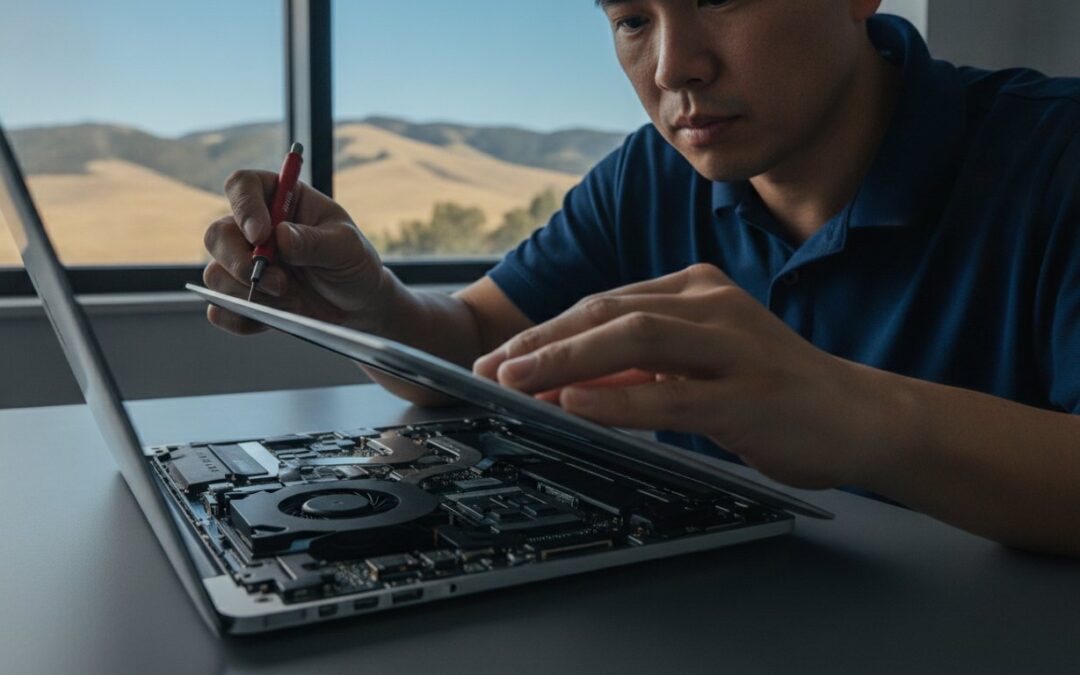
Your aging MacBook isn’t necessarily ready for the recycling bin; it might just be bottlenecked by a single outdated setting or a simple hardware upgrade. We’ve all been there, staring at the spinning wait cursor while a deadline looms and wondering why is my MacBook so slow all of a sudden. It’s incredibly frustrating to feel your productivity slip away because of constant lag, especially when you start worrying about the high cost of a brand new M5 Pro model. You aren’t alone in this frustration, and you certainly don’t need to be a software engineer to get your speed back.
You can restore that original, snappy performance without spending thousands on a replacement. In this guide, we’ll show you the exact reasons your system is lagging and provide step-by-step methods to fix it. We’ll cover everything from managing the high demands of macOS 26 Tahoe to identifying when a professional SSD upgrade is the smartest move for your specific machine. By the end, you’ll have a clear understanding of what’s wrong and a plan to turn your sluggish laptop back into a responsive, reliable tool for your daily life. If the DIY steps don’t do the trick, you’ll know exactly how a local expert can help cross the finish line.
Key Takeaways
- Identify the background processes and browser tabs that drain your memory by using Activity Monitor for real-time troubleshooting.
- Maintain peak performance by keeping at least 15-20% of your storage free and clearing out hidden system bloat.
- Learn why is my MacBook so slow by distinguishing between simple software glitches and hardware bottlenecks like outdated hard drives.
- Stop thermal throttling from slowing your processor by keeping your internal cooling fans clear of dust and debris.
- Know when to opt for a professional diagnostic to resolve complex hardware failures that DIY software fixes can’t reach.
Identifying Immediate Software Culprits for MacBook Lag
Many users ask themselves, “why is my MacBook so slow?” when the hardware itself is actually perfectly capable. Most of the time, the bottleneck isn’t a failing processor but a software “resource hog” quietly draining your system’s power in the background. As macOS 26 Tahoe becomes more integrated with on-device AI, the demand on your system memory has increased. Identifying these culprits is the first step toward reclaiming your speed.
Browser tabs are often the primary offender. Each open tab in Safari or Chrome acts like a mini-application, consuming a slice of your unified memory. If you have dozens of tabs open while trying to run professional creative software, your Mac will eventually run out of “breathing room” and begin to lag. Closing unnecessary tabs or using a tab management extension can provide an instant performance boost without costing a dime.
Mastering the Activity Monitor
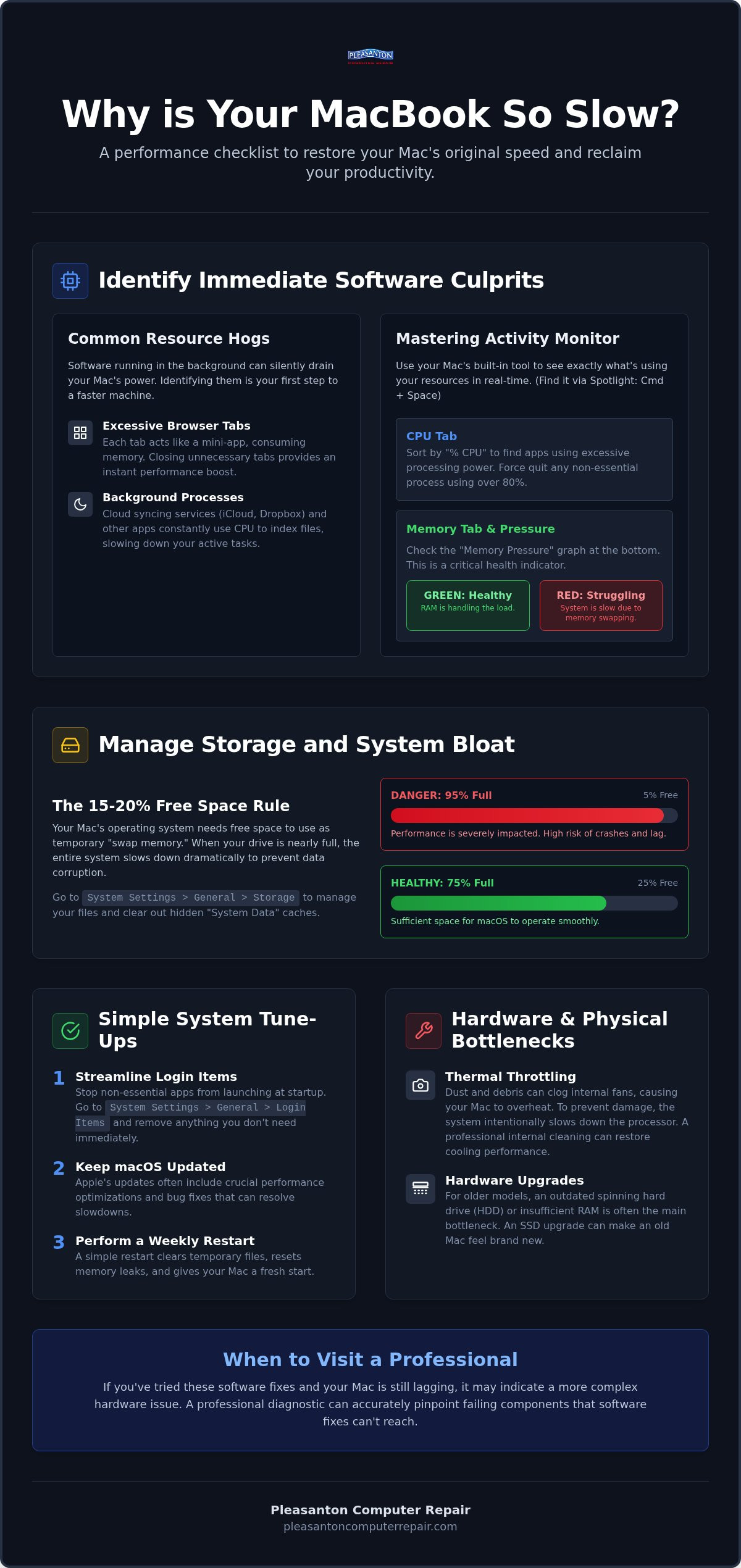
Activity Monitor is your Mac’s flight recorder; it shows you exactly what’s happening under the hood in real-time. You can find it by pressing Command + Space and typing “Activity Monitor.” Once open, click the CPU tab and sort by “% CPU” to see which apps are working the hardest. If you see an app you aren’t even using taking up 80% or more of your CPU, it’s time to force quit that process.
Pay close attention to the Memory tab as well. Look at the Memory Pressure graph at the bottom of the window. If the graph is green, your RAM is handling the load well. If it turns red, your Mac is struggling to swap data between the memory and the SSD, which causes significant slowdowns. You might also notice a process called “Kernel Task” using high CPU. This is often your Mac’s way of managing internal heat by intentionally slowing down the processor to prevent damage. It’s a sign that your software is pushing your hardware too hard or that your cooling system needs a checkup.
Streamlining Your Startup Process
Every app you install seems to want to start the moment you log in. This creates a massive bottleneck during your boot sequence and leaves hidden processes running all day. To fix this, navigate to System Settings, click General, and select Login Items. Review the list of apps that open at login and remove anything that isn’t essential for your daily workflow.
- Check “Allow in Background”: Below the login items, you’ll see a list of background helpers. Disable any that belong to apps you rarely use.
- Update macOS: Ensure you’re running the latest version of macOS 26 Tahoe. Apple frequently releases patches that optimize how the OS handles background tasks.
- The Weekly Restart: Modern Macs are so reliable that we often just close the lid. However, a full restart once a week clears out temporary cache files and resets memory leaks that naturally accumulate over time.
By cleaning up these software drains, you often find that your MacBook feels brand new again. If these steps don’t resolve the lag, the issue might be deeper in your storage or hardware configuration.
Managing Storage and System Bloat
If you’ve already trimmed your background apps and still find yourself wondering why is my MacBook so slow, the issue likely resides in your storage. Modern MacBooks rely on their internal drives for more than just saving photos and documents. Your operating system uses the free space on your drive as a temporary workspace. When that space disappears, the entire system’s logic begins to stumble, leading to lag, app crashes, and the dreaded spinning wheel.
Cloud syncing services like iCloud, Dropbox, or OneDrive are often overlooked culprits. While they’re great for backups, they consume local CPU cycles every time they index a change. If you’re syncing thousands of files simultaneously, your processor is working overtime just to keep your folders updated. This background activity can make even a powerful M5 chip feel sluggish during routine tasks.
The 80% Rule for SSD Health
To keep macOS 26 Tahoe running smoothly, you should aim to keep at least 15% to 20% of your SSD empty. This headroom is necessary for “Swap Memory,” a process where your Mac uses the SSD to assist the RAM when you’re running heavy workloads. Without this buffer, your Mac has nowhere to move temporary data. A full SSD forces the system to slow down to protect data integrity and prevent system-wide corruption.
You can manage this easily by navigating to System Settings, clicking General, and then Storage. Use the built-in “Optimize Storage” tool to identify which categories are eating up your space. Pay close attention to “System Data” (formerly known as “Other”), which often hides massive cache files or old iOS backups that are no longer needed. Clearing these out can provide immediate relief to a gasping system.
Clearing Cache and Temporary Files
Every time you visit a website or open an app, your Mac saves “cache” files to make the next visit faster. Over months of use, these files can grow into tens of gigabytes of digital sludge. You can manually clear these by opening Finder, selecting “Go” from the top menu, clicking “Go to Folder,” and typing ~/Library/Caches. While it’s generally safe to delete these contents, you should avoid deleting the folders themselves.
Cleaning out these deep directories can be intimidating for many users. If you’re worried about accidentally deleting something important, a professional PC optimization service near me can handle the heavy lifting. We can perform a deep-system scrub that restores your speed while ensuring your essential files remain untouched. This is often the fastest way to reclaim performance without the stress of a DIY mistake.
Hardware Bottlenecks: SSD Upgrades and RAM
Sometimes, software cleaning simply hits a wall. If you’ve cleared your cache and managed your login items but still find yourself asking why is my MacBook so slow, the bottleneck is likely physical. While software can be optimized, hardware has hard limits. In 2026, the demands of macOS 26 Tahoe and on-device AI tasks mean that older components, particularly traditional hard drives and low RAM configurations, just can’t keep pace with modern workflows.
The gap between older technology and current requirements is wider than ever. A MacBook from several years ago was designed for a different digital era. Today’s web browsers and productivity suites are built for the near-instantaneous speeds of flash storage. If your machine is still hunting for data on a mechanical platter, no amount of software “cleaning” will ever make it feel truly fast again.
Reviving Older Macs with an SSD Upgrade
For those using Intel-based MacBooks, the single most effective performance boost is moving away from a traditional Hard Disk Drive (HDD). These older drives use spinning magnetic platters that are physically incapable of matching modern software speeds. A MacBook SSD upgrade Pleasanton replaces that mechanical bottleneck with NVMe flash storage, which can make your machine up to 10x faster. We understand that your files are precious; that’s why we include a comprehensive data migration service Pleasanton to ensure every document and photo moves safely to your new, faster drive. It’s a sustainable way to extend your computer’s life by years.
Understanding Unified Memory in Apple Silicon
Choosing between a hardware upgrade and a new $1,699 MacBook Pro with an M5 chip is a big decision. For many East Bay residents, a strategic hardware boost is the more logical, cost-effective choice. It saves money, reduces electronic waste, and restores the snappy experience you remember. If you aren’t sure which path is right for your specific model, a quick diagnostic can clear up the confusion and help you move forward with confidence.
Thermal Throttling and Physical Maintenance
If you’ve noticed your fans spinning like a jet engine while your cursor lags across the screen, you’re likely dealing with thermal throttling. This is a built-in safety feature where your Mac intentionally slows down its processor to prevent permanent damage from overheating. When people ask why is my MacBook so slow during high-intensity tasks, the answer is often found in the physical environment rather than the code. Heat is the natural enemy of electronics; your MacBook is designed to prioritize survival over speed when internal temperatures spike.
Living in the East Bay brings specific challenges for laptop longevity. Our local climate and seasonal dust can quickly clog the narrow intake vents of a MacBook Pro or Air. Over time, this debris forms a “blanket” over the logic board and cooling fans, trapping heat inside the chassis. If your Mac is several years old, the factory thermal paste, which helps transfer heat away from the CPU, may have also dried up and become less effective. This physical degradation creates a bottleneck that no software update can fix.
The Hidden Impact of Dust and Debris
Many users try to solve this by spraying compressed air into the vents. We don’t recommend this as a primary solution. Without opening the case, you’re often just pushing the dust deeper into the delicate fan bearings or compacting it against the heat sink. A thorough, professional internal cleaning is much safer and more effective. If your machine is running hot even on a flat surface, it might be time to visit a local Mac repair specialist Pleasanton for a deep-clean and a fresh application of high-quality thermal paste. This simple maintenance can often drop operating temperatures significantly, instantly restoring lost performance.
Resetting the SMC and PRAM/NVRAM
Sometimes the hardware is fine, but the “brain” that manages power and cooling gets confused. On older Intel-based Macs, the System Management Controller (SMC) handles everything from battery charging to fan speeds. If your fans are stuck at full blast for no reason, resetting the SMC can help. To do this, shut down your Mac, hold Shift, Control, and Option along with the Power button for ten seconds, then release and restart. It’s a quick way to recalibrate how your machine handles its physical resources.
If you’ve upgraded to a newer M-series Silicon Mac, you don’t need to worry about manual PRAM or SMC resets. These modern chips handle these calibrations automatically during a “Cold Boot.” Simply shut the computer down completely, wait thirty seconds, and turn it back on. This clears the hardware’s temporary state and can resolve lingering performance glitches. If your machine still feels sluggish after a cold boot and a physical cleaning, the issue might be a more serious hardware failure. You can always book a diagnostic with us to get a definitive answer and stop the guesswork.
When to Visit a Professional Mac Repair Shop in Pleasanton
Sometimes, even the most diligent software cleaning and physical maintenance can’t overcome deep-seated hardware issues. If you’ve followed every step in this guide and still find yourself asking why is my MacBook so slow, it’s likely that a critical component is reaching the end of its functional life. Hardware failure often disguises itself as software lag. A failing internal drive or a degrading battery can force the system into a permanent state of low performance that no amount of restarting will fix.
Identifying the difference between a simple software glitch and a failing logic board requires specialized tools and years of experience. Guessing at the problem often leads to wasted time and unnecessary expenses on parts you don’t actually need. Professional diagnostics remove the uncertainty. We provide you with a clear, honest path to a fast and responsive machine. At Pleasanton Computer Repair, we specialize in cutting through the confusion to find the root cause of your Mac’s performance struggles.
Expert Diagnostics in the East Bay
We’ve seen every possible performance bottleneck since we began serving the East Bay in 2002. Our diagnostic process is designed to be transparent and efficient, often restoring your device’s speed within 24 to 72 hours. Unlike corporate service centers that may ship your laptop away for a week or more, we handle our Mac repair Pleasanton services right here at our local shop. This neighborly approach ensures faster turnaround times and a direct line of communication with the technician who is actually working on your machine.
Planning Your Visit to Our Pleasanton Shop
Before bringing your MacBook to our shop at 400 Main Street, we recommend a few simple steps to ensure a smooth experience. First, try to perform a full backup of your data using Time Machine or an external drive. While we take every precaution with your hardware, protecting your personal files is always the top priority. Remember to bring your power adapter along with your laptop and have your login passwords ready so we can begin the testing process immediately.
If you’re a local entrepreneur, we also offer specialized small business computer repair in Pleasanton to keep your professional workflow uninterrupted. Whether you need a simple system optimization or a complete hardware overhaul, we’re here to act as your dependable technology partner. Stop by our shop or give us a call to get your MacBook back to its original peak performance and reclaim your productive hours.
Reclaiming Your MacBook’s Peak Performance
You don’t have to accept a lagging laptop as your new normal. By managing your background software and keeping your storage lean, you can resolve the most common reasons people ask why is my MacBook so slow. For older Intel models, a hardware refresh like an SSD upgrade remains the single most effective way to breathe new life into a machine that still has years of service left to give. Physical maintenance, like clearing out internal dust, also plays a critical role in keeping your processor running at full speed without thermal throttling.
Sometimes the best solution is a professional set of eyes to distinguish between a simple software glitch and a physical hardware failure. We’ve spent over 20 years serving the Pleasanton, Dublin, and Livermore communities with an A+ rating for local tech support. Our specialists are experts in hardware revival and high-speed SSD upgrades that can make your system feel like new again. Don’t let technical frustration stall your productivity any longer.
Schedule Your Professional Mac Diagnostic in Pleasanton Today
We’re here to help you get back to work with a fast, reliable machine you can trust.
Frequently Asked Questions
Will an SSD upgrade really make my old MacBook faster?
An SSD upgrade is the single most effective way to revive an older MacBook. Transitioning from a mechanical hard drive to flash storage can make your system up to 10x faster by eliminating physical movement in the drive. This allows your machine to boot in seconds and launch apps almost instantly. It is a sustainable, cost-effective alternative to buying a brand new M5 model.
How much free space do I actually need on my MacBook?
You should maintain at least 15% to 20% free space on your internal drive at all times. macOS 26 Tahoe uses this empty space as a temporary workspace for “Swap Memory” when your physical RAM is full. If you drop below this threshold, the system logic struggles to move data. This storage bottleneck is a common reason people ask why is my MacBook so slow.
Why does my MacBook fan run so loud when I’m just browsing?
Loud fans usually indicate that your processor is generating excessive heat. This often happens because of dust buildup in the intake vents or dried-out thermal paste on the CPU. When the fans can’t cool the system efficiently, the Mac uses thermal throttling to slow down the processor. A professional internal cleaning can often silence the fans and restore your original speeds immediately.
Is it worth repairing a MacBook that is more than 5 years old?
It is absolutely worth repairing a vintage MacBook if the logic board and screen are in good condition. While Apple may stop supporting these devices, local shops and dedicated specialists like MacITWork can still perform hardware upgrades that keep them functional for modern tasks. A strategic SSD upgrade is significantly cheaper than the $1,699 starting price for a new 14-inch MacBook Pro with an M5 chip.
Can a virus make my MacBook run slowly?
Yes, malware and adware can significantly drain your system resources. These malicious programs often run hidden background processes that consume CPU cycles and memory, leading to constant lag. If you notice your browser home page has changed or you see unexpected pop-ups, you likely need a professional virus removal service to reclaim your machine’s performance and protect your sensitive personal data.
What is the difference between RAM and Storage for speed?
RAM determines how many apps you can run simultaneously without lag. Storage determines how fast your Mac turns on and how quickly it opens large files. If your Mac lags while switching between browser tabs, you likely need more RAM. If it takes several minutes to boot up or save a document, your storage drive is likely the bottleneck causing your performance issues.
How often should I restart my MacBook to keep it fast?
You should perform a full restart of your MacBook at least once a week. While modern Macs are designed to sleep and wake instantly, a restart clears out temporary system caches and resets minor memory leaks from background apps. This simple habit ensures that macOS 26 Tahoe remains snappy and helps prevent the buildup of digital sludge that causes long-term performance degradation.
Does upgrading to the latest macOS always make it slower?
Upgrading to macOS 26 Tahoe doesn’t always cause slowdowns; it often includes critical performance patches. However, newer operating systems are optimized for the latest M5 chips and on-device AI. If you are running an older Intel Mac with only 8GB of RAM, the increased system requirements might cause lag. We can help determine if your hardware can handle the latest update before you install it. If your display is also showing signs of wear, you may want to review the MacBook screen repair cost Pleasanton residents can expect in 2026 before deciding whether to upgrade or repair your current machine.