
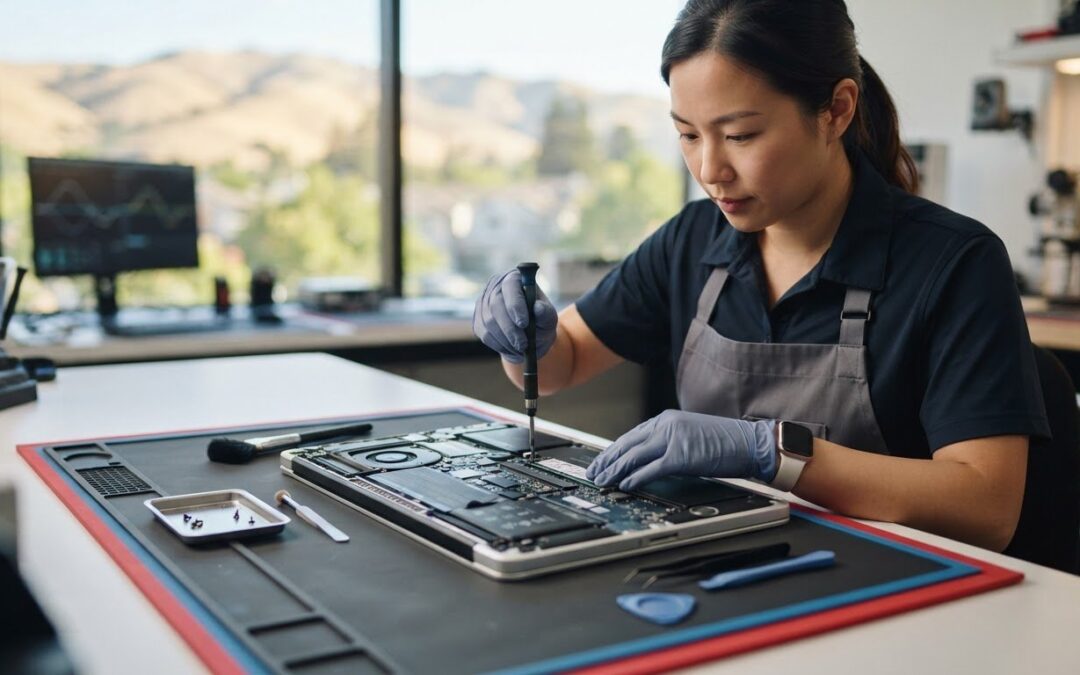
Replacing your reliable laptop might actually be the most unnecessary expense you face this year. If startup disk alerts and spinning beach balls are constantly halting your workday, investing in an SSD upgrade for MacBook Pro San Ramon setups can instantly restore seamless performance. We understand the daily frustration of lagging applications in your home office, along with the anxiety of wondering whether your sensitive personal files and family photos will stay safe during a drive replacement.
You shouldn’t have to guess whether your specific Apple model features modular storage or permanently soldered chips. In this guide, you will discover which MacBook Pro models support internal drive upgrades, evaluate modern high-speed storage options, and locate dependable local installation near the Tri-Valley. We’ll show you exactly how to extend your computer’s lifespan, preserve your critical data, and skip the steep cost of a brand-new machine.
Key Takeaways
- Confirm your laptop’s eligibility first, as modular drive expansion depends entirely on your specific model year and whether storage is removable or soldered.
- Select the ideal balance of storage capacity and drive architecture to eliminate startup disk alerts and significantly boost daily read and write performance.
- Protect your personal files and operating system settings by choosing between full disk cloning and a clean macOS installation before swapping hardware.
- Recognize the physical risks of DIY servicing, from stripped proprietary chassis screws to hazardous lithium-ion battery exposure during disassembly.
- Discover why booking an expert SSD upgrade for MacBook Pro San Ramon setups just minutes away down I-680 ensures reliable, stress-free data preservation.
MacBook Pro SSD Upgrade Compatibility: Which Models Qualify?
Determining whether your laptop supports an internal storage swap starts with checking your machine’s exact identity. Click the Apple icon in your menu bar, choose About This Mac, and look for your official model name and year. You can also view your specific Model Identifier inside System Information. Because physical drive slots changed dramatically across production cycles, identifying your machine prevents the frustration of buying incompatible components. Planning an SSD upgrade for MacBook Pro San Ramon workstations requires matching the chassis to the right hardware design.
Upgradable Unibody Models (2008–Mid 2012)
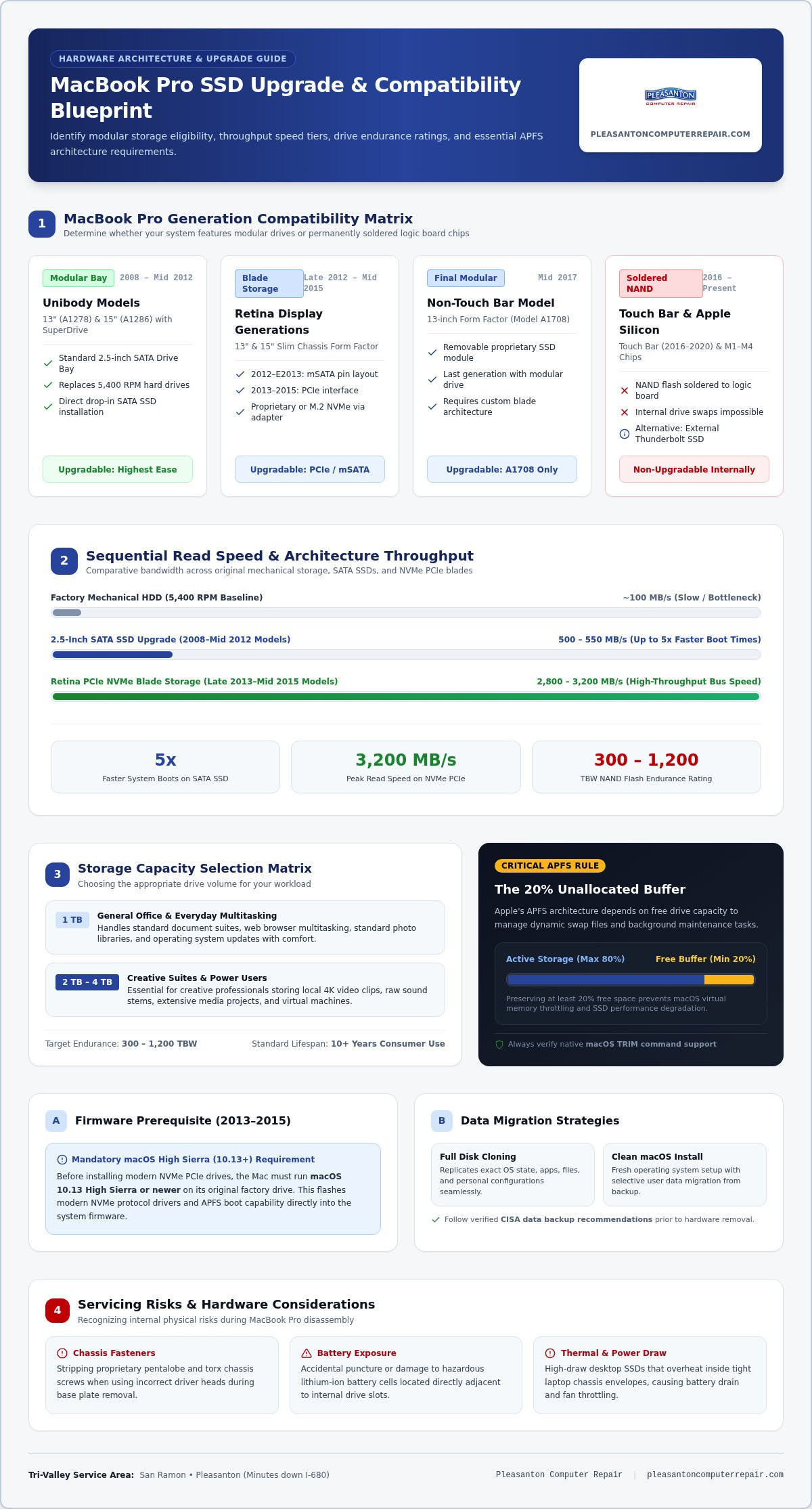
Classic unibody MacBook Pros featuring built-in optical SuperDrives remain the easiest machines to modernize. These systems (such as the 13-inch A1278 and 15-inch A1286) utilize standard internal 2.5-inch SATA hard drive bays. Replacing an original 5,400 RPM mechanical hard drive with a modern solid-state drive delivers up to five times faster system boots and instant application launching. It transforms an aging workhorse into a responsive, quiet computer for everyday office tasks.
Retina Display Generations (Late 2012–Mid 2015)
Apple moved away from standard drive bays when introducing the slimmer Retina display chassis. These machines use proprietary blade storage. Late 2012 to early 2013 systems rely on an mSATA-based pin layout, while late 2013 through mid 2015 laptops feature high-throughput PCIe interfaces. Understanding modern solid-state drive architecture and endurance helps you choose between drop-in proprietary blades and standard M.2 NVMe drives connected via precision pin adapters.
There is a critical software requirement before installing NVMe drives in 2013 to 2015 models. Your Mac must run macOS 10.13 High Sierra or newer on its factory drive first. This step flashes modern NVMe protocol drivers and APFS boot capability directly into the computer’s system firmware.
Non-Upgradable Models and External Alternatives
Apple phased out modular storage entirely after releasing the mid-2017 non-Touch Bar 13-inch model (A1708). Touch Bar revisions from 2016 through 2020, as well as the entire modern Apple Silicon lineup (M1 through M4 chips), feature flash NAND memory soldered permanently onto the main logic board. User-serviceable internal swaps are impossible on these devices.
If you own one of these newer systems, high-speed external Thunderbolt enclosures provide an effective way to offload large media libraries without swapping internal boards. For broader hardware diagnostics or performance issues, read our guide on expert Mac repair in Pleasanton to explore reliable solutions tailored to your setup.
Choosing the Right SSD: Capacity, Speed, and Endurance
Selecting the right drive involves balancing storage capacity, raw bus speed, and thermal efficiency. Older 2.5-inch SATA setups max out around 500 to 550 MB/s, which still provides an immediate, noticeable leap over mechanical disks. In contrast, modern NVMe PCIe blades installed in supported Retina models reach sequential read speeds up to 2,800 to 3,200 MB/s. This bandwidth accelerates massive file transfers and launches creative suites almost instantly.
Before swapping internal hardware, following verified safety protocols like the CISA data backup recommendations ensures your valuable files remain completely protected against accidental loss. When evaluating drives, look for quality NAND flash with endurance ratings between 300 and 1,200 Terabytes Written (TBW). These ratings easily deliver over a decade of daily consumer use. In addition, verifying native macOS TRIM command support keeps the storage controller operating cleanly without long-term performance degradation.
Storage Sizing: 1TB, 2TB, or 4TB Capacities
A 1TB solid-state drive comfortably handles general office workflows, web multitasking, and standard photo libraries. Creative professionals working with local 4K video clips, raw sound stems, or virtual machines should step up to 2TB or 4TB configurations. Apple’s APFS architecture depends on free disk space to handle dynamic swap files and background maintenance. Always preserve at least twenty percent unallocated free space to prevent macOS virtual memory throttling.
Drive Speed, Thermal Efficiency, and Battery Impact
Laptops operate within tight, enclosed thermal envelopes. High-end desktop SSDs can draw excessive power, causing internal fans to spin up and draining your battery quickly. For a dependable SSD upgrade for MacBook Pro San Ramon mobile setups, selecting an energy-efficient controller keeps temperatures manageable while preserving battery runtime away from your desk.
Sleep behavior matters just as much. Certain aftermarket NVMe drives can cause kernel panics when waking from deep hibernation unless power management settings are adjusted properly in terminal. If you want help pairing your machine with the ideal drive hardware, the team at Pleasanton Computer Repair can match your specific workflow to thoroughly tested, heat-efficient components.
Data Migration Strategies: Protecting Files During Upgrades
Protecting your files is the most critical step of any hardware transition. Before loosening a single chassis screw, you must establish an intact, verified backup of your operating system, personal media, and work documents. Swapping drives without redundant copies risks permanent data loss if an unformatted drive fails initialization or an original connector flex cable tears during extraction. For detailed procedural steps on handling storage transitions safely, check our comprehensive SSD upgrade service guide.
Understanding user access barriers and internal storage hurdles is a recognized conversation across modern hardware design, as documented in the FTC report on consumer repair restrictions. Transferring your environment cleanly to new storage determines whether your restored MacBook feels truly refreshed or continues dragging along old software errors.
Sector-by-Sector Cloning vs. Clean macOS Installation
Direct bit-level cloning creates an exact duplicate of your current system environment onto the new drive. This option suits professionals who need immediate continuity without reinstalling complex software suites, re-authenticating enterprise licenses, or rearranging desktop configurations. Every file, bookmark, and background application transfers instantly to the faster drive.
A fresh macOS installation takes the opposite approach by starting completely from scratch. Installing a clean copy of macOS purges years of accumulated cache files, obsolete launch daemons, and system clutter that clone images carry forward. If your MacBook Pro has suffered unexplained stability problems, random crashes, or stubborn permission errors, clean installations resolve those chronic bugs permanently. You can then use Apple Migration Assistant to selectively restore user accounts and essential documents without dragging old junk along.
Time Machine and Cloud Backup Verification
Never rely entirely on automatic cloud sync when staging an SSD upgrade for MacBook Pro San Ramon machines. Cloud folders frequently desync large video caches or photo databases without noticeable warning banners. Follow these verification steps beforehand:
- Connect an external drive and trigger an immediate, manual Apple Time Machine backup.
- Inspect local user folders to confirm complete synchronization across Desktop and Documents folders.
- Temporarily pause active background cloud syncing utilities to prevent lockouts or file duplication during data restoration.
Completing this verification gives you total peace of mind before your laptop goes under the screwdriver.
Professional Installation vs. DIY Upgrade: Managing the Risks
Opening an Apple laptop appears deceptively straightforward in online video clips. In practice, working inside an ultra-compact chassis exposes delicate internal components to serious hazards. A single slipped driver or electrostatic discharge event can instantly permanently damage a logic board. When deciding how to execute an SSD upgrade for MacBook Pro San Ramon systems, evaluating these physical and firmware obstacles helps you weigh personal effort against professional reliability.
Tooling, Pentalobe Screws, and Physical Hazards
Apple relies on specialized fasteners that household toolkits cannot safely handle. Retina enclosures require proprietary P5 Pentalobe drivers for the exterior case and precise T5 or T8 Torx bits for interior brackets. Using slightly misaligned bits quickly strips soft aluminum screw heads, trapping the lower cover permanently in place.
The interior layout carries physical dangers as well. High-capacity lithium-ion battery packs sit directly adjacent to internal drive bays. Puncturing or bending these soft pouch cells with metal spudgers presents an immediate fire and chemical hazard. Even disconnecting the battery requires extreme care. Dislodging surface-mount circuit elements or tearing paper-thin ribbon cables during the process will prevent the laptop from powering back on.
Firmware Support and macOS Installer Preparation
Beyond hardware tools, software hurdles frequently stall home installations. Swapping to modern storage without preparing a dedicated bootable USB macOS installer leaves you stranded at an empty screen. Here are the most frequent software roadblocks encountered during unassisted upgrades:
- Missing EFI BootROM updates: Host systems must be flashed to newer macOS builds before swapping drives, or the laptop will fail to recognize non-Apple storage.
- Blinking question mark folders: A completely blank drive cannot boot until it is properly partitioned under GUID Partition Map using Apple File System (APFS).
- Recovery partition failures: Older Apple internet recovery servers often fail on vintage systems, requiring standalone installation media built on a secondary Mac.
Partnering with a seasoned local repair technician eliminates these frustrating complications entirely. If you want seamless hardware integration without the stress of stripped screws or data loss, contact Pleasanton Computer Repair to let experienced technicians handle your drive installation safely.
Upgrading Your MacBook Pro Drive Near San Ramon
When you need an SSD upgrade for MacBook Pro San Ramon hardware, finding dependable support nearby saves you both time and unnecessary stress. Because official retail stores no longer service legacy modular laptops, Tri-Valley residents need a trustworthy local partner. Pleasanton Computer Repair has served residential and commercial clients across the East Bay continuously since 2002. If your laptop turns out to be a newer model with soldered storage that cannot be upgraded internally, our shop also offers quality refurbished laptops to give you expanded capacity at a sensible price point.
Convenient East Bay Location and Fast Turnaround
Scheduling an SSD upgrade for MacBook Pro San Ramon setups shouldn’t involve packaging your laptop in bubble wrap and shipping it to an out-of-state facility. Mailing your computer introduces risks of transit damage, lost shipments, and extended downtime. Instead, you can take a quick drive south down Interstate 680 or Crow Canyon Road directly to historic downtown Pleasanton.
The shop is located at 400 Main Street, Suite 205, with convenient nearby parking. Dropping off your laptop locally gives you direct access to the technician working on your machine, providing prompt diagnostic evaluations so you can get back to work quickly.
What to Expect During Your Service Visit
Every upgrade follows a transparent, methodical process designed to protect your device and your personal data:
- Initial hardware inspection: Technicians verify your exact model identifier, test internal bus connectivity, and evaluate battery condition to confirm complete system health.
- Precision hardware installation: Your system receives the proper solid-state drive, correct pin adapters, and essential firmware updates required for reliable sleep and boot cycles.
- Complete in-house data migration: We transfer your existing operating system, user accounts, and personal files directly, ensuring zero file loss during drive replacement.
You pick up your upgraded MacBook Pro running smoothly and quietly, ready to handle daily workloads with renewed speed and plenty of open storage space.
Revitalize Your MacBook Pro with Local Tri-Valley Expertise
You don’t need to replace a dependable laptop just because storage warnings and sluggish application launches disrupt your workflow. Checking your model compatibility and installing a high-capacity solid-state drive delivers lightning-fast boot times, spacious local storage, and years of additional productivity. Most importantly, pairing the right hardware with professional installation eliminates the real risks of chassis damage, stripped fasteners, and system firmware errors.
When you are ready for a reliable SSD upgrade for MacBook Pro San Ramon setups, our local team is here to help. Serving East Bay clients continuously since 2002, we deliver complete end-to-end data migration ensuring zero file loss during your drive replacement. Our shop sits right in downtown Pleasanton at 400 Main Street, Suite 205, just minutes south via I-680. Schedule your MacBook Pro SSD upgrade with Pleasanton Computer Repair today and get back to working smoothly with total peace of mind.
Frequently Asked Questions
Can all Apple MacBook Pro models have their SSD upgraded?
No, only select vintage and legacy MacBook Pro models feature removable internal solid-state drives. Systems built between 2008 and mid-2012 use standard 2.5-inch SATA bays, while late-2012 through mid-2015 models use proprietary blade slots. The mid-2017 non-Touch Bar model was the final version with modular storage. Models featuring Touch Bars and newer Apple Silicon machines have flash storage soldered permanently to the logic board.
Will upgrading my MacBook Pro SSD make the computer run faster?
Yes, upgrading to a modern solid-state drive dramatically increases system speed and daily responsiveness. Replacing an older mechanical hard drive cuts boot times and launches software up to five times faster. Even replacing an earlier factory solid-state blade with an NVMe drive boosts sequential read throughput past 2,800 MB/s. Applications load without hesitation, and file transfers take seconds instead of minutes.
How long does a professional MacBook Pro SSD upgrade take?
Most in-shop hardware upgrades take between one and two business days depending on file volume. The physical drive installation requires less than an hour, but cloning several hundred gigabytes of data and verifying filesystem integrity takes additional time. Scheduling an SSD upgrade for MacBook Pro San Ramon computers locally avoids shipping delays, letting technicians run comprehensive diagnostics before returning your laptop.
Will I lose my existing files and applications during the upgrade?
No, your personal files, installed programs, and operating system settings remain completely intact when handled professionally. Technicians perform direct drive cloning or migration transfers to duplicate your current desktop environment onto the new hardware. Your original drive is preserved as a physical fallback during the process, ensuring zero data loss before you collect your newly upgraded computer.
Can I upgrade the storage on newer M1, M2, or M3 MacBooks?
No, Apple Silicon laptops cannot have their internal storage expanded or swapped modularly. Apple solders NAND memory chips directly alongside unified system memory on the main logic board. For these machines, high-speed external Thunderbolt or USB4 solid-state drives provide the best performance for expanding local storage. If you need larger internal storage, trading up to a refurbished model is the safest alternative.
Why choose a local repair shop over shipping my laptop away?
Choosing a local shop eliminates the significant risks of transit damage, lost parcels, and prolonged shipping delays. You speak directly with the technician who inspects your machine and manages your personal data. For residents seeking an SSD upgrade for MacBook Pro San Ramon systems, Pleasanton Computer Repair offers a convenient Main Street location just minutes down I-680, backed by over two decades of East Bay service.