
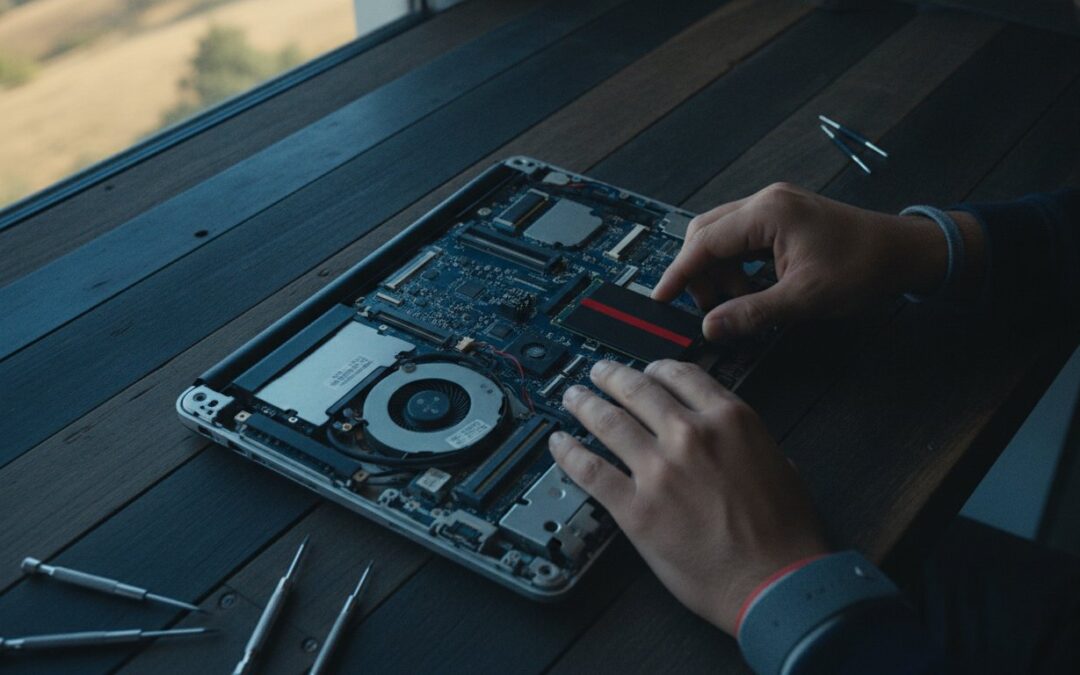
Is your once-reliable laptop now testing your patience every single morning? It’s incredibly frustrating when you’re just trying to start your workday, but you’re met with endless boot times and apps that freeze the moment you click them. You might be wondering if it’s finally time to buy a replacement, but there are actually several proven ways to speed up old laptop performance without the heavy expense. We understand that the fear of losing your data during a cleanup often keeps you from taking action, but you don’t have to settle for a sluggish device any longer.
In this 2026 performance guide, you’ll discover the exact steps needed to restore your system and make it feel snappy again. We’ve balanced the latest software tweaks for Windows 11 and macOS Tahoe with strategic hardware upgrades that provide the best return on your investment. You’ll learn how to breathe new life into your aging tech without risking your files or overspending on unnecessary parts. From optimizing your startup sequence to understanding when a professional SSD upgrade is your best move, we’re providing a clear path to a faster, more reliable computer.
Key Takeaways
- Identify the specific resource demands of modern operating systems like Windows 11 and macOS Tahoe that cause older processors to lag.
- Master safe software debloating techniques to speed up old laptop response times without the risk of losing your important data.
- Evaluate the high-impact benefits of SSD and RAM upgrades to determine the most cost-effective path for your specific device in 2026.
- Distinguish between simple system sluggishness and critical hardware warning signs like drive clicking or battery-induced CPU throttling.
- Learn how a professional system tune-up provides a deeper level of optimization and security than standard DIY methods.
Why Laptops Slow Down: The 2026 Performance Bottleneck
Waiting for a slow computer to respond is more than a minor annoyance; it’s a real disruption to your productivity. Many users assume their hardware is simply “too old,” but the reality is often a mismatch between aging components and modern software demands. In 2026, operating systems like Windows 11 (build 28000.2704) and macOS 26 Tahoe require rapid data access that older technology just wasn’t built to provide. Gaining a better grasp of understanding computer performance helps clarify why your device struggles with tasks that used to feel effortless.
Modern digital environments are crowded with “background bloat.” Even when you aren’t actively using an app, dozens of processes are often running in the background to sync data, check for updates, or monitor security. These processes tax your processor and memory constantly. If you’re trying to speed up old laptop systems, you’re fighting against software that expects a level of efficiency your hardware might not currently have. It isn’t just one big program slowing you down; it’s the cumulative weight of many small ones competing for resources.
Mechanical Hard Drives vs. Modern Software
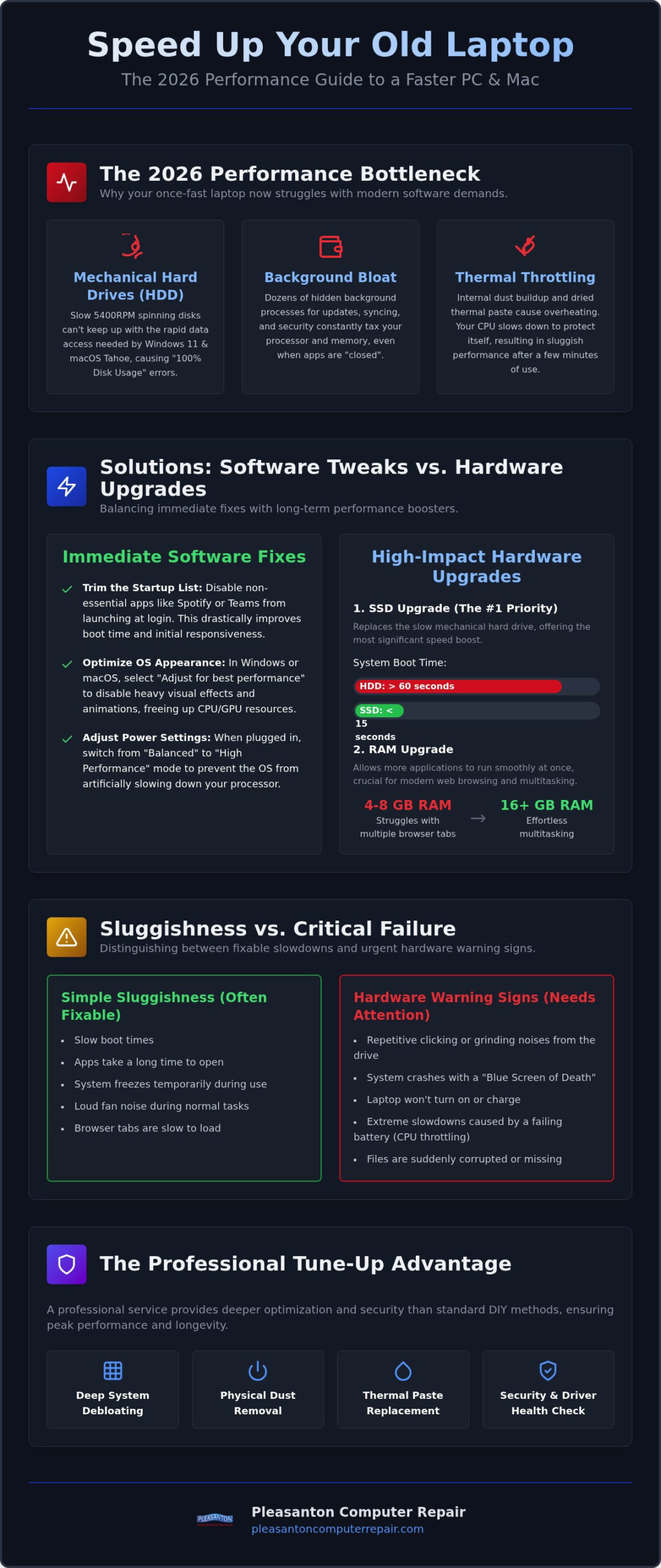
The primary culprit for a sluggish experience is frequently the mechanical hard drive (HDD). If your laptop relies on a 5400RPM spinning disk, it’s fighting a losing battle. Modern applications are optimized for the near-instantaneous speeds of Solid State Drives (SSDs). When you try to speed up old laptop units equipped with HDDs, you’ll frequently see the “Disk Usage 100%” error in Task Manager. This happens because the drive can’t read and write data fast enough to keep up with OS background tasks. Browsers like Chrome and Edge now consume significant system memory, making a slow drive even more of a bottleneck during your daily multitasking.
Thermal Issues and Performance Throttling
Have you noticed your laptop fan spinning at maximum speed even during simple tasks? This is a clear sign of thermal throttling. Over time, dust accumulates inside the chassis, creating a “clogged radiator” effect that traps heat. Additionally, the thermal paste that transfers heat away from your processor can dry out and become brittle after three or four years. When your CPU gets too hot, it protects itself by slowing down its performance. This is why a laptop might feel fast for the first ten minutes but then becomes sluggish as the heat builds up. Keeping the internals clean is essential for maintaining consistent speed and protecting your hardware.
Immediate Software Tweaks for Better Response Times
While hardware upgrades offer the most dramatic results, you can often find significant relief through software maintenance. Many users turn to third-party “cleaner” apps, but these often add more bloat than they remove. Instead, focus on built-in tools that help you speed up old laptop performance safely. By stripping away unnecessary processes, you allow your processor to focus on the tasks you actually care about. It’s about reclaiming the resources your software is currently wasting.
Trimming the Startup List
Every time you log in, several apps likely fight for attention. On Windows, right-click the taskbar and select Task Manager, then navigate to the Startup tab. On a Mac, head to System Settings, click General, and select Login Items. You’ll likely see “vampire” apps like Spotify, Microsoft Teams, or various cloud sync services that start automatically. Startup impact is the measurable delay an application adds to the boot process and initial system responsiveness by consuming CPU and disk resources immediately upon login. Disabling high-impact apps that you don’t need daily will make your device feel much faster from the moment you turn it on.
Operating System Optimization
Modern operating systems are visually beautiful, but those animations cost resources. In Windows, search for “Adjust the appearance and performance of Windows” and select “Adjust for best performance” to disable heavy animations. Mac users can reduce transparency and motion in the Accessibility settings. These small changes reduce the load on your graphics chip and processor. For more technical insights, Intel’s guide to speeding up a PC highlights how managing disk space and background services remains a cornerstone of system health.
Don’t ignore power settings. Both Windows and macOS often default to “Balanced” or “Power Saver” modes to preserve battery. If you’re plugged in, switch to “High Performance” to ensure your CPU isn’t being artificially slowed down. Keeping your OS updated to the latest 2026 patches also ensures you have the most efficient drivers and security fixes. If these steps feel overwhelming, our team at Pleasanton Computer Repair can perform a professional debloating service to ensure your system runs at its peak without risking your personal files.
Browser Hygiene and Tab Management
Your web browser is likely where you spend most of your time. Each extension you install and every tab you leave open consumes RAM. In 2026, browsers like Chrome and Edge have built-in “Memory Saver” modes that should be enabled. Periodically clearing your browser cache and removing unused extensions will prevent your laptop from choking during simple web surfing. It’s a simple habit that keeps your daily workflow smooth and responsive, preventing that familiar feeling of the computer “locking up” when you have too many windows open.
The Heavy Hitters: High-Impact Hardware Upgrades
Software maintenance is a great start, but it can only do so much if the engine under the hood is outdated. To truly speed up old laptop performance in 2026, you must address the physical bottlenecks that software simply cannot fix. While modern operating systems are more demanding than ever, a few strategic hardware changes can make a five-year-old machine feel faster than it was on the day you bought it. It’s about giving your system the physical resources it needs to handle today’s heavy digital workload.
The SSD Transformation
Replacing a mechanical hard drive with a Solid State Drive (SSD) remains the single most effective upgrade you can perform. If your laptop still uses an old HDD, you’re likely waiting two or three minutes just to see your desktop. After an SSD upgrade Pleasanton CA, that same laptop can often boot in under twenty seconds. SSDs have no moving parts, which means they access data almost instantly. This change eliminates the “Disk Usage 100%” errors we discussed earlier and makes every click feel immediate.
When upgrading, you have two choices: cloning or a clean install. Cloning creates an exact bit-for-bit copy of your current drive, so all your files, settings, and apps stay exactly where they are. A clean install involves a fresh start with a new operating system, which offers the absolute maximum speed but requires you to reinstall your programs. Professional cloning is the safer route for most users. It ensures your hidden recovery partitions and specific hardware drivers remain intact, preventing the “missing file” headaches that often plague DIY attempts.
Expanding Your RAM
If your laptop stutters when you switch between browser tabs or open a second app, you’re likely running out of RAM. When your memory is full, the computer starts “swapping” data to your storage drive, which is significantly slower. This causes the freezing and lag that makes work so frustrating. In 2026, 8GB of RAM is the bare minimum for basic web browsing. For a smooth multitasking experience with modern apps, 16GB has become the new sweet spot for home and office use.
Before you buy new memory, check your laptop’s compatibility. Many modern “ultra-thin” laptops have RAM soldered to the motherboard, meaning it cannot be upgraded. However, most older business-class laptops and larger models still offer expandable slots. Even with the rising costs of DDR4 and DDR5 memory in 2026, adding more RAM is a cost-effective way to extend your device’s life. It provides the breathing room your processor needs to handle multiple tasks without breaking a sweat. When you combine more memory with a new SSD, you’re essentially building a new computer inside your old case for a fraction of the cost of a replacement.
Identifying Hardware Failure vs. Simple Sluggishness
Sometimes, a slow computer is just a system that needs a cleanup. Other times, your hardware is sending out a distress signal. Distinguishing between these two scenarios is vital because attempting to speed up old laptop software when a physical component is failing can lead to permanent data loss. If you hear a faint clicking or grinding sound coming from your chassis, stop what you’re doing immediately. These are the mechanical sounds of a hard drive’s read/write head failing, and every minute the drive remains powered on increases the risk of a total crash.
Hardware issues often manifest as “Blue Screens of Death” on Windows or the persistent “Spinning Wheel of Death” on macOS. While these can sometimes be driver related, they often point to failing memory or storage. Another hidden culprit is your battery. In 2026, modern power management systems in both PCs and Macs may intentionally throttle your CPU speed if the battery can no longer provide a consistent voltage. If your laptop feels significantly faster when plugged into the wall than when on battery power, your “slowness” is actually a hardware safety feature.
Smart Diagnostics for Hard Drives
You don’t have to wait for a crash to know your drive is in trouble. Most modern drives use S.M.A.R.T. (Self-Monitoring, Analysis, and Reporting Technology) to track their own health. If your system warns you about a “S.M.A.R.T. Status” error, believe it. This is your hardware predicting its own demise. For Apple users, our Expert Mac Repair Pleasanton service uses specialized tools to read these internal health markers before they become catastrophic. Remember that proactive repair is always the more affordable choice. Professional data recovery is often 10x more expensive than simply replacing a failing drive before it dies completely.
The ‘New Computer’ Threshold
Is your laptop still worth saving? We generally suggest the five-year rule. If your machine was manufactured before 2021, the gap between its processing power and the demands of 2026 software might be too wide to bridge effectively. At this stage, the cost of multiple hardware upgrades might approach the price of a newer machine. In these cases, we often recommend looking at Refurbished Laptops Pleasanton CA for a more modern, reliable experience that still fits your budget. Repairing your current device is a fantastic way to reduce e-waste, but we’ll always be honest if a replacement offers you better long-term value. If you’re unsure where your device stands, bring it to Pleasanton Computer Repair for a professional diagnostic and a clear, honest assessment of your options.
Professional Laptop Optimization in Pleasanton
There comes a point where DIY guides and online tutorials reach their limit. To truly speed up old laptop systems that have years of wear, a professional intervention is the most reliable way to ensure a stress-free resolution. Our tune-up process is designed to be methodical and logical, mirroring a well-organized repair workflow that prioritizes your data’s safety. We don’t just look at the software; we examine the entire ecosystem of your device to find hidden bottlenecks that are often missed by standard cleanup tools.
Why choose us over a massive retail chain? Local service means you’re talking to a seasoned expert who lives in your community. We offer a level of transparency and accountability that big-box “Geek” squads simply can’t match. We understand that your laptop is essential for your work and personal life. Because of this, we focus on a brisk, efficient process that respects your time. For our neighbors throughout the Tri-Valley area, we offer the flexibility of both in-store diagnostics at our shop and on-site support for those with busy schedules.
Our Comprehensive Optimization Service
Our optimization service starts with a deep hardware cleaning. We remove years of accumulated dust and apply fresh, high-quality thermal paste to your processor. This directly addresses the thermal throttling issues we mentioned earlier, allowing your CPU to run at its intended speed. We also perform professional virus and malware removal using advanced tools that are far safer and more thorough than “free” online alternatives. Every laptop is different. We provide a customized upgrade path tailored specifically to your model and how you use it, ensuring you only pay for the performance you actually need.
Serving the East Bay Community
We’ve been serving the East Bay since 2002, building a 20-year reputation for honesty and transparent service. Residents in Pleasanton, Livermore, and Dublin trust us because we’re their neighbors, not a distant corporate entity. We’ve seen every possible technical challenge and remain unfazed by the most complex issues. We act as a protective barrier between you and your technology headaches. If you’re ready to stop struggling with a slow computer, it’s time to schedule your laptop speed assessment today. Let’s work together to restore your device’s function and improve your daily digital experience.
Restore Your Laptop’s Peak Performance
You don’t have to accept a slow computer as your new normal. By combining smart software debloating with high-impact hardware upgrades like an SSD, you can effectively speed up old laptop performance to match modern 2026 standards. Whether it’s managing startup items or recognizing the warning signs of hardware failure, taking proactive steps today saves you from the frustration of a total system crash tomorrow. Your data is precious and your time is valuable; don’t let aging hardware hold you back from your daily tasks.
If you’re ready for a stress-free resolution, our team is here to help. Serving the East Bay since 2002, we specialize in expert SSD upgrades and comprehensive system optimization. We provide same-day diagnostics to get you back to work quickly. Visit us at our local shop on Main Street in Downtown Pleasanton to see how we can make your aging device feel brand new again. Book Your Laptop Speed Consultation at Pleasanton Computer Repair and reclaim your productivity today. We look forward to helping you get the most out of your technology.
Frequently Asked Questions
Will an SSD upgrade make my old laptop as fast as a new one?
An SSD upgrade provides the single most noticeable boost in speed, often making a five-year-old machine feel faster for daily tasks than a brand-new budget laptop with a mechanical drive. While it won’t change your processor’s raw power, it eliminates the data bottlenecks that cause freezing. For most users in the Tri-Valley area, this is the most cost-effective way to speed up old laptop performance without buying a new device.
How much RAM do I need for Windows 11 in 2026?
In 2026, 8GB of RAM is the absolute minimum required for basic operations on Windows 11. However, we strongly recommend 16GB for a truly smooth multitasking experience. Modern web browsers and background apps consume memory quickly. If you frequently have multiple tabs and documents open, 16GB prevents your system from slowing down by “swapping” data to your storage drive. This ensures your laptop remains responsive during your entire workday.
Is it safe to use ‘PC Booster’ or ‘System Cleaner’ software?
We generally advise against using third-party “PC Booster” or “System Cleaner” software. Many of these tools are actually “vampire” apps that consume more resources than they save; some may even contain malware. Instead, we recommend using built-in OS tools or professional virus removal services. At Pleasanton Computer Repair, we use safe, industry-standard methods to debloat your system without risking your personal data or system stability.
Why is my laptop fan always running so loud?
A loud fan usually indicates that your laptop is struggling to keep its internal components cool. Over time, dust accumulates in the vents and the thermal paste on the processor dries out, forcing the fan to work harder. This heat leads to thermal throttling, where the CPU slows down to protect itself. A professional cleaning and thermal paste re-application can quiet your device and restore the speed you’ve been missing.
Can you speed up an old MacBook as well as a PC?
Yes, we can certainly improve the performance of older MacBooks. While newer Apple Silicon models have soldered components, many Intel-based Macs benefit significantly from SSD upgrades and professional software optimization. We help local residents manage the transition to newer macOS versions like Tahoe. If your Mac is struggling with the “Spinning Wheel of Death,” a targeted hardware or software tune-up can often provide several more years of reliable service.
How long does a professional laptop tune-up take?
Most professional laptop tune-ups at our Pleasanton shop are completed within 24 to 48 hours. We begin with a same-day diagnostic to identify the specific bottlenecks affecting your device. Whether you need a hardware installation or a deep software cleanup, our goal is to return your computer as quickly as possible. We prioritize efficiency so you don’t have to be without your essential technology for any longer than necessary.
What should I do if my laptop is still slow after a factory reset?
If a factory reset doesn’t restore your speed, the issue is almost certainly hardware-related. A reset clears software clutter but cannot fix a slow mechanical hard drive or insufficient RAM. It could also indicate a failing component that needs immediate attention. In these cases, we recommend a professional diagnostic to determine if an SSD upgrade or a memory expansion is required to finally speed up old laptop response times.
Do you offer on-site laptop repair in San Ramon or Danville?
Yes, we provide on-site support for both residential and business clients throughout San Ramon, Danville, and the wider Tri-Valley area. Since 2002, our team has traveled to local homes and offices to resolve performance issues and network challenges. If you can’t make it to our Main Street location in Pleasanton, we can bring our expertise directly to you to ensure your technology is running at its absolute best.