

Random shutdowns, slow startup, and strange pop-ups can point to a fixable problem rather than a failing computer. When symptoms come and go, guessing can lead to frustration or repair decisions before you understand the cause. A computer diagnostics service Pleasanton residents can use helps turn those clues into a clearer picture of what’s happening with a PC or Mac.
It’s reasonable to want answers before deciding on a repair, especially when computer trouble interrupts work or daily tasks. Diagnostics can help identify whether the issue involves hardware, software, malware, or another underlying cause, giving you a more informed next step.
In this guide, you’ll learn what technicians examine, how the diagnostic process works, and what details or equipment can help with the investigation. You’ll also see how in-store, on-site, and remote support fit different situations. Pleasanton Computer Repair serves local residential and business customers from its location at 915 Main Street Suite A. By the end, you’ll know how to move from confusing symptoms toward a practical repair decision.
Key Takeaways
- A computer diagnostics service Pleasanton helps turn confusing symptoms into clues about possible causes. Symptoms alone do not establish a diagnosis.
- Learn how technicians move from your description of the problem to device checks, findings, and possible next steps.
- Record when issues occur, any error messages, and recent changes to give the technician useful details.
- Compare in-store, on-site, and remote support to choose a practical route for your device and situation.
What a computer diagnostics service in Pleasanton can and cannot tell you
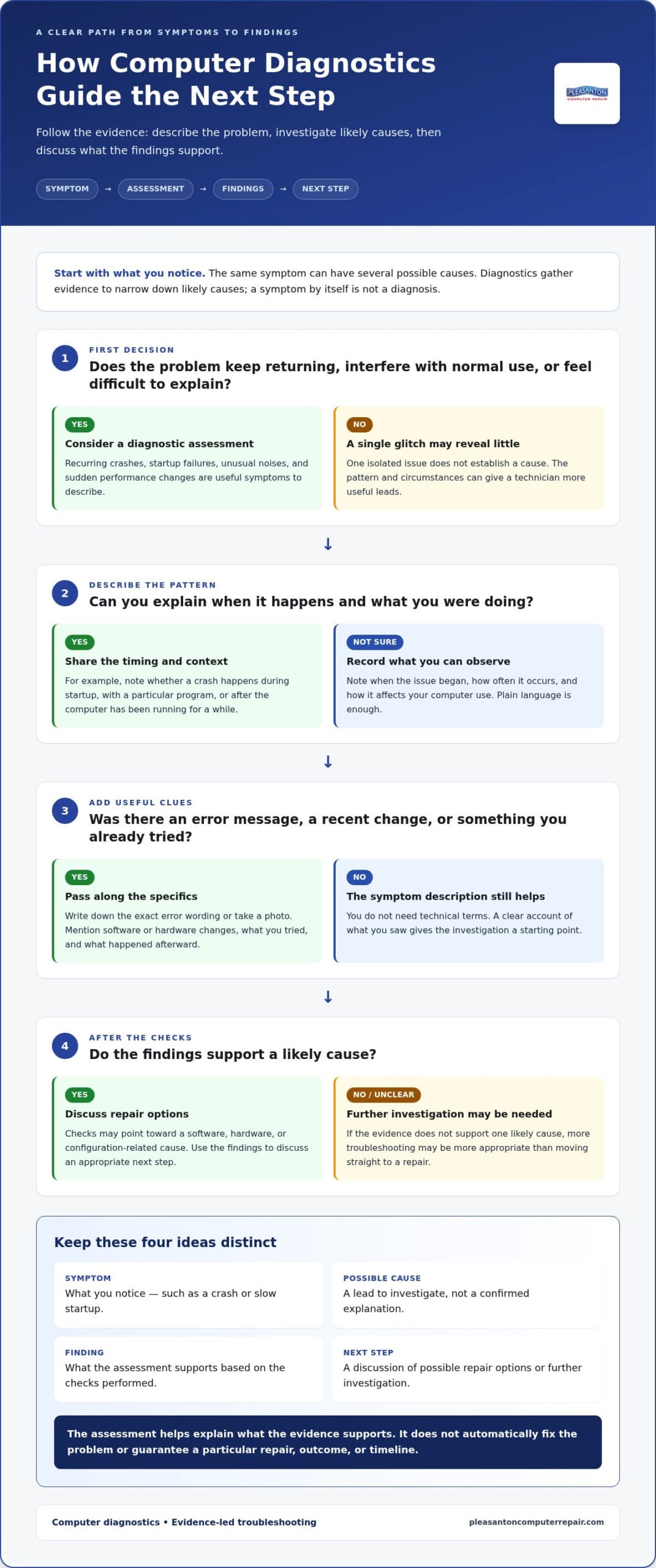
Crashes, slow performance, error messages, and unexplained shutdowns can make it hard to know whether a computer needs a simple adjustment or a repair. The same symptom can have several possible causes. A computer diagnostics service Pleasanton residents and businesses can use involves structured troubleshooting: a technician reviews the symptoms and assesses the device to narrow down likely causes before discussing repairs.
Diagnostics are different from repairs. The assessment gathers evidence and helps explain what may be wrong; it does not automatically fix the problem or guarantee a particular result. Diagnostic programs are one possible part of that work. For background on how these tools can examine a computer, see What is a Diagnostic Program?
When does a computer problem call for professional diagnostics?
Consider an assessment when a problem keeps returning, interferes with normal use, or is difficult to explain. Recurring crashes, startup failures, unusual noises, and sudden changes in performance are all worth describing. One isolated glitch may reveal little, but a pattern can help a technician identify when the issue occurs and what conditions might be related.
For example, note whether a crash happens during startup, while using a particular program, or after the computer has been running for a while. Timing does not prove the cause, but it gives the technician a useful lead to investigate. If business downtime disrupts daily work or important files have become inaccessible, a clearer assessment can help you understand the next steps and plan around the problem.
What can diagnostics establish before a repair?
Testing can narrow the possibilities to software, hardware, or configuration-related causes. A technician may investigate whether a reported issue appears connected to the operating system or an application, a physical component, or a setting. The appropriate checks depend on the device, symptoms, and findings so far. A PC and a Mac may require different diagnostic approaches.
Diagnostics are evidence-led troubleshooting that helps identify likely causes before you decide whether to proceed with a repair.
The distinction between a suspicion and a finding matters. If a computer shuts down without warning, for instance, the symptom alone does not establish why it happened. An assessment may point toward a likely cause, or show that more investigation is needed. The findings help you make an informed decision, but they cannot promise a specific repair, outcome, or timeline.
- Symptom: What you notice, such as a crash or slow startup.
- Possible cause: A lead to investigate, not a confirmed explanation.
- Finding: What the assessment supports based on the checks performed.
- Next step: A discussion of possible repair options or further investigation.
This evidence-led approach can help you avoid treating a guess as a diagnosis. Share what you have observed, then use the findings to understand the available next steps before choosing how to proceed.
How computer diagnostics work in Pleasanton: from symptoms to findings
A useful assessment follows a clear path: you explain what is happening, a technician examines the computer, and the findings inform a conversation about what to do next. A computer diagnostics service Pleasanton residents and businesses can use should make the process understandable, so you know what was checked and what the results mean.
The checks depend on the computer, the symptoms, and what the technician finds along the way. A PC that fails to start may call for a different investigation than a Mac that slows down during particular tasks. The process follows the evidence rather than a one-size-fits-all checklist.
- Describe the symptoms. Explain what you notice, when it happens, and how it affects your computer use.
- Assess the device. The technician considers the computer’s condition and the information you have shared.
- Investigate possible causes. Checks focus on the most relevant leads and may change as findings emerge.
- Explain the findings. You should understand what the assessment supports and where uncertainty remains.
- Discuss next steps. Use the findings to consider an appropriate repair or further troubleshooting.
What information helps diagnose a computer problem?
A short, specific account can help focus the investigation. Note when the problem began, how often it occurs, and what you were doing at the time. If an error message appears, write down its exact wording or take a photo. These details are especially useful when an issue comes and goes and may not appear during the assessment.
Also mention recent software or hardware changes and anything you have already tried. Include what happened afterward, even if the attempt made no difference. This helps distinguish useful clues from checks that have already been performed. You do not need technical language; a plain description of what you saw is a strong starting point.
How do diagnostic findings guide repair decisions?
Findings can help prioritize a practical next step. For instance, if checks point toward a particular component or software issue, that gives the repair discussion a clearer direction. Established repair providers like Tech Center use these diagnostic findings to recommend practical computer repair solutions before any work begins. If the evidence does not support one likely cause, additional troubleshooting may be more appropriate than moving straight to a repair. Either way, the assessment provides a basis for discussing options.
Diagnostic evidence narrows the next step; it does not authorize repair work by itself. Review what was found and the proposed approach before deciding how to proceed. An assessment may identify a likely cause without settling every question, and it cannot guarantee a particular repair or outcome. Clear communication helps you understand what is known, what remains uncertain, and what each next step is intended to address.
For local PC and Mac troubleshooting, Pleasanton Computer Repair’s diagnostic service helps identify and assess computer problems. The business supports residential and business customers through in-store, on-site, and remote options in Pleasanton and the East Bay.
Computer diagnostics in Pleasanton: distinguishing software, hardware, and network issues
A slow startup, sudden slowdown, or failed connection does not point to just one cause. Software, hardware, settings, and network conditions can create similar symptoms, sometimes in combination. A computer diagnostics service Pleasanton residents turn to can compare these clues and guide further checks, but a symptom by itself is not proof of what is wrong.
Use the patterns below as observations to share with a technician, not as a self-diagnosis. The right diagnostic direction depends on the device and what happens during assessment.
| Issue category | Possible clues | Diagnostic direction |
|---|---|---|
| Software | Errors tied to an app, changes after an update, or slowdowns during certain tasks | Consider application behavior, system settings, or software configuration |
| Hardware | Unusual noises, startup failures, or performance changes across different tasks | Assess relevant physical components and the device’s overall condition |
| Connectivity | Connection drops, one device losing access, or several devices having trouble | Compare the affected device with others and note where and when the issue occurs |
These categories can overlap. A startup problem might relate to software or configuration, but hardware may also need assessment. A computer that feels slow could be handling a heavy software load, using a configuration that affects performance, or experiencing storage limitations. A connection failure might involve the computer, the router, or a broader connection issue. The pattern helps narrow what to investigate; it does not settle the cause.
Could a slow computer have a hardware or software cause?
Yes. Several factors can produce similar slowdowns, so describe whether the computer is slow all the time or only during particular activities. Share any recent changes and note whether startup, opening files, or using certain programs is affected. An assessment can help identify whether software load, system configuration, or storage should be investigated before anyone recommends an upgrade. If storage is part of the discussion, this SSD upgrade guide for Pleasanton offers related context.
How can error messages and connection problems narrow the issue?
Record the exact wording of an error message, when it appears, and what you were doing just before it showed up. For network problems, note whether the issue affects one computer or other devices too, and whether it happens in one location or across different locations. These comparisons offer useful clues about where to focus the investigation, but no single message or connection symptom confirms a diagnosis.
Clear observations make it easier to distinguish a device-specific concern from a possible network-wide one. Share what you have noticed, and let diagnostic checks guide the next step instead of replacing one guess with another.
How to prepare for computer diagnostics in Pleasanton and choose a service route
A little preparation can make a computer assessment more focused. Before arranging a computer diagnostics service Pleasanton residents or business owners can use, jot down what the device is doing, when the issue started, and whether anything changed around that time. Choose a service route that suits the device and where the problem is occurring.
When is in-store, on-site, or remote support a practical fit?
In-store support is a straightforward option if you can bring the computer to the Pleasanton location at 915 Main Street Suite A. On-site support can suit equipment at a home or workplace, especially when the issue relates to how devices are set up there. Remote support may fit issues that can be investigated without physical access to the computer.
The best route depends on the symptoms and what the technician needs to assess. When arranging service, share where the computer is and what it is doing. Pleasanton Computer Repair provides in-store, on-site, and remote support for residential and business customers.
What should you prepare before a diagnostic appointment?
Bring or share a short timeline, exact error messages, recent changes, and the steps you have already tried. You do not need technical terms. A clear account of what happened after each attempt can help the technician understand the sequence and avoid treating an old clue as a new one.
- Symptom timeline: Note when the issue began, how often it occurs, and whether it happens during a particular task.
- Error details: Copy the exact wording or take a clear photo of the message.
- Recent changes: Mention software or hardware changes that happened before the problem appeared.
- Previous attempts: Describe what you tried and whether it changed the symptoms.
- Work impact: For a business computer, explain which tasks are disrupted and whether staff can access the files or tools they need.
That last detail helps frame the practical effect of the issue without assuming how quickly it can be resolved. If several employees rely on the affected computer, or a particular task is blocked, say so. This gives the technician useful context for discussing the assessment and possible next steps.
For a broader overview of local repair options, explore computer repair services in Pleasanton. With your notes ready, choose the support route that best matches your device and situation. Schedule computer diagnostics online to get started.
Get computer diagnostics service in Pleasanton from a local repair team
When a computer issue disrupts your day, a clear local starting point can make the next step easier. Pleasanton Computer Repair is an independent local business serving residential and business customers with PC and Mac diagnostics and repair. The assessment helps clarify what may be causing the trouble so you can consider the next step with more context.
Support is available in-store, on-site, and remotely, giving customers different ways to approach computer problems. The Pleasanton location is at 915 Main Street Suite A, serving customers in Pleasanton, Livermore, Dublin, San Ramon, Danville, Brentwood, Walnut Creek, and San Jose. Whether you rely on a home computer for everyday tasks or a work device for business operations, describe how the issue affects you as well as what the computer is doing.
What local customers can expect from Pleasanton Computer Repair
Residential customers may need help understanding an unexpected computer issue, while business customers may need to explain how it interrupts daily work or access to important tools. PC and Mac diagnostics provide a starting point for investigating those concerns. Choose the route that suits the situation: visit in-store, arrange on-site support, or use remote support for issues that can be addressed that way.
Business owners looking at broader technology needs can also explore this small business computer repair guide for related context. Sharing what is affected, who relies on the device, and what work is currently disrupted helps frame the diagnostic conversation.
How to arrange computer diagnostics in Pleasanton
To begin, schedule online or visit the Pleasanton location at 915 Main Street Suite A. Give a concise description of the symptoms, including when they happen and any error messages you have noticed. You do not need to identify the cause yourself. Specific observations help start the conversation and give the technician useful context about the issue.
- For a home computer: Describe which tasks are difficult or interrupted.
- For a business device: Note the work affected and whether other people or devices are involved.
- For an intermittent problem: Share when it tends to appear, even if it is not happening at the moment.
A computer diagnostics service Pleasanton customers can access through a local team offers a practical way to move from uncertainty toward an informed repair discussion. Findings can clarify possible next steps, while the choice to proceed with repair remains yours.
Ready to get a clearer picture of what is happening? Schedule computer diagnostics online or visit the Pleasanton location and describe the symptoms. Start with what you have noticed, and arrange the next step from there.
Move Forward With a Clearer Plan for Your Computer
Computer trouble can make familiar tasks feel uncertain, but you do not need to solve the mystery before asking for help. The useful next move is to turn what you have noticed into a starting point for a conversation. An assessment can give you information to weigh as you decide how to proceed, rather than leaving you to rely on guesses.
If you are looking for a computer diagnostics service Pleasanton, focus on understanding what the findings support, what may still need investigation, and which next step fits your needs. You remain in control of the repair decision. Knowing more about the issue can also help you plan around its impact on work or everyday tasks.
Take the next step when you are ready. Schedule computer diagnostics with Pleasanton Computer Repair and start moving toward a more informed plan. A clearer picture can make the way forward feel manageable.
Frequently Asked Questions
Can computer diagnostics identify an intermittent problem?
Yes, an assessment can investigate an intermittent issue, although it may be harder to reproduce than a constant failure. Keep a brief log on your phone with the time, what you were doing, and whether the computer was plugged in or running a particular app. Save any error message exactly as it appears. For a computer diagnostics service Pleasanton, those details help guide troubleshooting, but they do not prove the cause on their own.
Can a computer be diagnosed if it will not start?
Yes, a computer that will not start can still be assessed, though the checks may differ from those used on a working device. Note whether any indicator lights appear, whether you hear sounds, and whether the screen displays a message. Mention changes just before the startup problem began. If repeated startup attempts produce unusual sounds or behavior, stop and share what happened rather than continuing to force it on.
Will computer diagnostics erase my files?
Not every diagnostic check has the same effect on stored files, so do not assume that all troubleshooting will either erase or preserve data. If important documents, photos, or business files are on the device, explain that before authorizing repair work. If you suspect drive trouble, avoid unnecessary use and describe what you have observed. Diagnostics and data recovery are separate services, and file concerns should be part of the repair discussion.
Can remote support diagnose every computer problem?
No. Remote support can help investigate issues that are accessible through a computer session, such as some software or settings concerns. It cannot physically inspect internal components, so suspected hardware problems may need an in-person assessment. Describe what you can still access and whether the problem affects one application or the whole device. That information helps determine whether remote troubleshooting or hands-on attention is the more suitable route.
Should I bring my computer charger to a diagnostic appointment?
If your laptop uses a removable power adapter, bring the one you normally use, especially if the device has trouble charging or starting. That gives the technician relevant context about the setup involved. For a desktop, make a note of which display, power, or other cables are connected when the problem occurs. You can also bring a written timeline or error-message photo so useful details are easy to refer to.
Can Pleasanton Computer Repair help diagnose business computers?
Yes. Pleasanton Computer Repair provides diagnostics and support for business as well as residential customers. When describing a work-device issue, explain which tasks are blocked, how many users are affected, and whether there is a workaround. The team serves customers in Pleasanton, Livermore, Dublin, San Ramon, Danville, Brentwood, Walnut Creek, and San Jose. That context helps connect the computer’s symptoms with their practical effect on the business.