
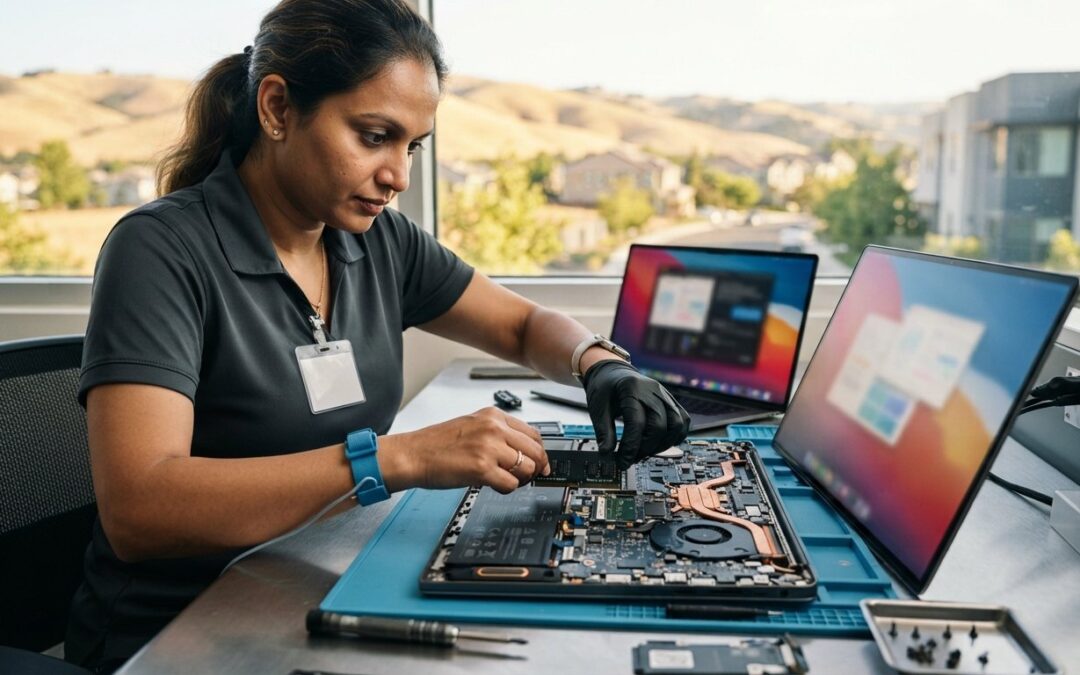
What if the secret to a faster computer isn’t an expensive new purchase, but a simple ten-minute hardware update? If your laptop stutters every time you open a few browser tabs or join a video call, you’re likely feeling the strain of modern software on older hardware. It’s a common frustration for many of our neighbors here in Pleasanton, especially now that Windows 10 support has ended and new AI features demand more power than ever before.
We’re here to help you understand the process to upgrade ram on laptop devices with confidence. You’ll discover how to identify if your specific model allows for memory expansion, how to choose between standard DDR5 and the new LPCAMM2 modules, and how to avoid the static discharge risks that keep many users from opening their cases. Whether you want to tackle the project at your own desk or prefer the peace of mind that comes with professional East Bay support, this guide ensures your laptop stays fast, reliable, and out of the landfill for years to come.
Key Takeaways
- Understand how RAM acts as your laptop’s digital workspace and why adding more prevents the system from slowing down during heavy multitasking.
- Learn how to quickly check your system settings to see if you can upgrade ram on laptop hardware or if your memory is soldered and non-removable.
- Weigh the cost savings of a DIY installation against the risks of static damage and broken hardware clips that an East Bay specialist can help you avoid.
- Master the essential safety steps for a successful upgrade, including data backups, proper grounding, and disabling internal batteries before you begin.
- Discover why combining a memory boost with an SSD upgrade and a clean OS installation provides the most significant performance restoration for older devices.
What is RAM and Why Should You Upgrade Your Laptop?
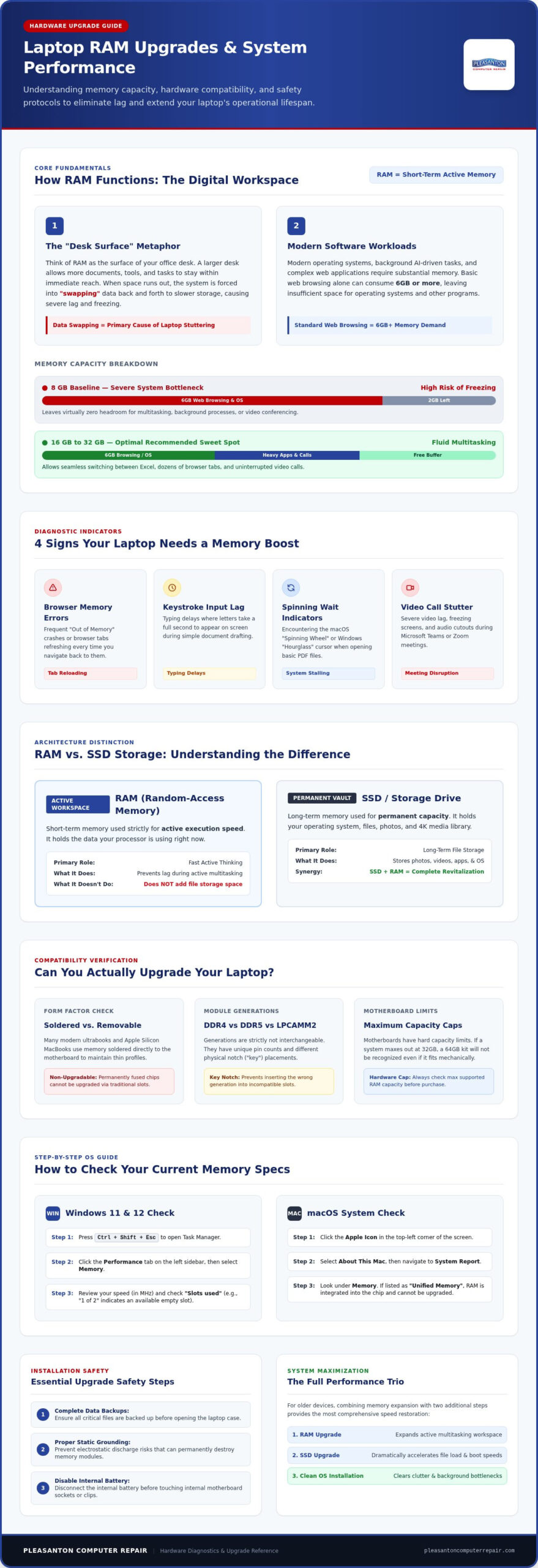
Think of your computer’s random-access memory (RAM) as the physical surface of your office desk. The larger the desk, the more documents, books, and tools you can keep within arm’s reach for immediate use. When you choose to upgrade ram on laptop hardware, you are essentially expanding that workspace. Without enough room, your laptop must constantly move data back and forth between this fast memory and the much slower storage drive. This process, often called “swapping,” is the primary reason for system lag and stuttering.
By 2026, software demands have reached a critical tipping point. Modern operating systems and AI-driven background tasks are incredibly memory-hungry. While 8GB was once sufficient for basic office work, it now acts as a severe bottleneck for most users. Even simple web browsing can consume 6GB or more, leaving almost nothing for your system to handle other applications. Transitioning to 16GB or 32GB provides the breathing room your processor needs to function without constant, frustrating interruptions.
The immediate benefits of increasing your memory include:
- Seamless Multitasking: You can switch between heavy applications like Excel and specialized business software without the system freezing.
- Improved Browser Stability: You can keep dozens of tabs open in Chrome or Edge without them refreshing every time you click back to them.
- Fluid Video Calls: You’ll stop the embarrassing lag and audio cutouts during Microsoft Teams or Zoom meetings.
Signs Your Laptop Needs a Memory Boost
Your laptop usually provides clear warnings before it reaches a total standstill. You might see frequent “Out of Memory” errors in your browser, or notice that your keyboard typing takes a second to appear on the screen. If you see the “Spinning Wheel” on a Mac or the “Hourglass” on a PC during simple tasks like opening a PDF, your system is likely gasping for more memory. These frustrations don’t mean you need a new computer; they just mean your current workspace is too small for your daily workload.
RAM vs. Storage: Understanding the Difference
It’s vital to distinguish between speed and space. RAM is your short-term memory used for active speed, while your SSD or hard drive is for permanent storage. Adding more RAM won’t provide extra room for your 4K video library or thousands of family photos. However, it ensures that when you do open those files, they load instantly. For a complete system transformation, we often recommend an SSD upgrade Pleasanton CA alongside a RAM boost. This combination addresses both how fast your computer thinks and how quickly it accesses its long-term files.
Compatibility Check: Can You Actually Upgrade Your RAM?
Before you purchase new components, you must determine if your device actually permits hardware changes. Many modern ultrabooks and almost all Apple Silicon MacBooks use soldered memory. This means the chips are permanently fused to the motherboard to achieve a thinner profile. If your memory is soldered, you cannot upgrade ram on laptop units through traditional means. It’s a frustrating reality for many users who hope to extend their device’s life, but checking your specific model early saves you from buying parts you can’t use.
Beyond physical attachment, you must navigate the generational gap between DDR4 and DDR5. These modules are not interchangeable. They feature different pin counts and the physical “key” or notch is located in a different spot to prevent accidental insertion. Even if you have the right generation, your motherboard has a hard limit on its maximum capacity. A system designed for a maximum of 32GB won’t recognize a 64GB kit, even if it fits perfectly in the slot. Consulting a step-by-step laptop RAM upgrade guide can help you identify these physical markers before you open the case.
How to Identify Your Current Memory Specs
Windows 11 and 12 users can find their current specs without specialized tools. Press Ctrl + Shift + Esc to open Task Manager, then select the Performance tab and click Memory. This screen shows your current speed in MHz and the number of “Slots used.” If it says “1 of 2,” you likely have an empty socket waiting for an upgrade. Mac users should click the Apple icon, select About This Mac, and then click System Report. Look under the Memory section. If you see “Unified Memory,” the RAM is integrated into the processor and cannot be changed. If you find the technical details confusing, bringing your laptop in for a quick diagnostic can provide the professional confirmation you need.
Understanding Form Factors: SODIMM vs. Desktop RAM
Laptops use a specific form factor called SODIMM (Small Outline Dual In-line Memory Module). These sticks are roughly half the size of the DIMM modules found in desktop towers. A common error involves ordering standard desktop RAM by mistake, which simply won’t fit the smaller laptop footprint. You also need to be aware of voltage requirements. While 2026 standards for DDR5 typically run at 1.1V, older systems might require specific “L” or Low Voltage modules (like DDR4L) to function correctly. Additionally, some high-performance 2026 laptops have begun using the new LPCAMM2 standard. These are modular and removable but use a different connection style than traditional SODIMMs, requiring specific replacement parts.
DIY RAM Upgrade vs. Professional Service in the East Bay
Opening up your own hardware can feel like a rite of passage for many tech enthusiasts. The appeal of the DIY approach is clear: you save on labor costs and enjoy the immediate satisfaction of a “quick fix” performed at your own kitchen table. Many online communities suggest that to upgrade ram on laptop devices is as simple as snapping building blocks together. While this is true for some older models, the complexity of 2026-era hardware introduces risks that a three-minute video tutorial might not fully explain.
Hidden dangers like electrostatic discharge (ESD) can damage sensitive internal components without you ever seeing a spark or feeling a shock. Modern laptops are also held together by delicate, proprietary plastic clips and specialized security screws. One misplaced pry tool can snap a bracket or leave a permanent scar on your chassis. Professional service provides a protective barrier between you and these technical headaches. Beyond the physical installation, experts ensure that your software is optimizing Windows performance so the new hardware and the operating system work in perfect harmony.
Common DIY Mistakes That Lead to Repair Shop Visits
We often see laptops brought into our Pleasanton shop after a well-intentioned DIY attempt goes wrong. The most frequent error is failing to fully disconnect or disable the internal battery before touching the RAM slots. Even when the power is off, residual current can cause a short circuit the moment a metal tool or new memory module makes contact. Other common issues include stripping tiny Torx or Pentalobe screws by using the wrong driver size, or purchasing high-frequency RAM that the motherboard’s BIOS cannot stabilize, leading to frequent system crashes.
What to Expect from a Professional Upgrade in Pleasanton
Choosing a local specialist means you aren’t just paying for a part; you’re paying for peace of mind and system longevity. When you bring your machine to us, we perform a full diagnostic to confirm that a memory boost is truly the best solution for your specific lag issues. While the case is open, we provide a professional internal cleaning to remove dust that causes overheating. This comprehensive care is a hallmark of quality Computer Repair Pleasanton CA. We ensure your data remains untouched and your hardware remains under warranty, giving you a faster machine without the stress of “doing it alone.”
How to Upgrade RAM on Your Laptop: A Step-by-Step Process
Successfully choosing to upgrade ram on laptop hardware is only half the battle; the physical installation requires a steady hand and a clean workspace. Start by backing up your data to the cloud or an external drive. While we rarely see data loss during a simple memory swap, it’s a vital safety net that provides peace of mind. Once your data is secure, shut down the laptop completely and unplug the power adapter.
Safety is your top priority when the case is open. Grounding yourself is non-negotiable to prevent electrostatic discharge (ESD) from frying sensitive circuits. Most modern laptops now require you to remove the entire bottom casing to access the motherboard. Be extremely patient with the specialized screws. If a screw feels stuck, stop immediately; stripping a head can turn a simple performance boost into a major hardware headache. If you encounter resistance, reach out to our local experts for a professional installation instead.
When you reach the memory slots, the installation method depends on your hardware standard. For traditional SO-DIMM slots, align the notch on the RAM stick with the ridge in the socket. Slide the module in at a 45-degree angle. You should see very little of the gold contacts once it’s correctly seated. Gently press the top of the module down until the metal arms on the side click into place. If your 2026-era laptop uses the newer LPCAMM2 standard, you’ll place the module flat and secure it with specific screws rather than using the angle-and-click method.
Tools You Will Need for the Job
You don’t need a full workshop, but the right tools prevent cosmetic and internal damage. A set of precision screwdrivers with Torx and Phillips heads is essential for modern chassis. Use plastic spudgers instead of metal flatheads to pry open the seams of the casing; metal tools will scratch and dent your laptop’s finish. Finally, a magnetic parts tray is a lifesaver for keeping track of the microscopic screws that often vary in length across the bottom panel.
The First Boot: Verifying Your New Memory
Don’t panic if your laptop takes an extra minute or two to turn on after the upgrade. Modern systems, particularly those with DDR5, often perform “memory training” on the first boot to calibrate the new timings and voltages. Once the system starts, enter the BIOS or UEFI by tapping the assigned key, usually F2 or Delete. Verify that the system recognizes the full capacity of your new modules. To be completely sure of your system’s stability, run a diagnostic tool like MemTest86 to check for any rare factory defects in the new RAM sticks before you return to your normal workflow.
Maximizing Your Investment: RAM, SSDs, and System Optimization
While you’ve learned how to upgrade ram on laptop hardware, memory is just one piece of the performance puzzle. Think of your laptop like a professional kitchen. If you expand the counter space (RAM) but keep a slow, outdated stove (hard drive), your cooking time won’t improve much. To get the most out of your investment, you need to address the “Holy Trinity” of laptop speed: high-capacity RAM, a fast SSD, and a lean, optimized operating system. When these three elements work together, even a four-year-old machine can outperform a brand-new budget model.
Software cleanup is equally vital. Over time, laptops accumulate “bloatware” and background processes that eat into your newly installed memory. We specialize in helping Pleasanton residents strip away these digital weights to create a “Like New” experience. By combining hardware power with software efficiency, we ensure your machine isn’t just faster on paper, but feels snappier during your actual workday. This holistic approach is what transforms a simple part swap into a total system restoration.
Is Your Laptop Too Old to Upgrade?
We generally recommend the “5-Year Rule” for hardware. If your laptop was manufactured more than five years ago, the processor (CPU) might become a bottleneck that even 64GB of RAM can’t fix. In these cases, investing in an upgrade might not provide the value you expect. If your current machine has reached its limit, it might be time to look at Refurbished Laptops Pleasanton CA. These units offer modern processing power at a fraction of the cost of a new retail device, providing a better long-term return on your tech budget.
Custom Optimization for East Bay Professionals
Remote workers in Dublin, San Ramon, and the Hacienda Business Park have unique needs. If you’re running heavy corporate VPNs alongside creative suites, standard settings might not be enough. We help you fine-tune advanced features like the Windows “Page File” settings. This ensures your operating system knows exactly how to use your new hardware for maximum stability. Don’t leave your performance to chance or default settings. If you want to ensure your system is truly ready for the demands of 2026, schedule your hardware diagnostic at our Pleasanton shop today and let our team verify your compatibility and performance goals.
Restore Your Speed with Confidence
Your laptop doesn’t need to be a source of daily frustration. By understanding how memory functions as your system’s workspace, you’ve taken the first step toward a smoother, more efficient digital experience. Whether you’re navigating the complexities of soldered hardware or choosing between DDR4 and DDR5, the goal remains the same: a machine that keeps up with your pace. When you decide to upgrade ram on laptop components, you’re choosing to extend the life of your device while avoiding the high cost of a total replacement.
If you’re feeling hesitant about opening your expensive hardware, our team is here to help. We’ve been serving the East Bay since 2002 and specialize in both PC and Mac hardware. We offer same-day diagnostics to ensure you’re getting the exact performance boost you need without any of the DIY stress. Don’t let system lag hold you back from your best work in the Tri-Valley area. Get a Professional RAM Upgrade in Pleasanton and enjoy the peace of mind that comes with expert care. We look forward to helping you get back to full speed.
Frequently Asked Questions
Will upgrading my RAM void my laptop warranty?
In most cases, choosing to upgrade ram on laptop devices does not void your warranty under the California Right to Repair Act. Manufacturers cannot legally cancel your protection simply for opening the chassis or adding components. However, if you accidentally damage a delicate internal connector or short the motherboard during a DIY attempt, that specific damage won’t be covered. This is why many Dublin and Livermore residents prefer our professional installation to ensure their factory warranty remains fully intact.
Can I mix different brands or speeds of RAM in the same laptop?
You can technically mix different brands or speeds, but your system will automatically downclock all modules to match the slowest one installed. This often leads to minor performance losses or rare system instability. For the most reliable results, we recommend using a matched pair from the same manufacturer. If you are unsure about compatibility, our Pleasanton technicians can perform a quick diagnostic to find the perfect hardware match for your specific motherboard before you make a purchase.
How much RAM do I really need for Windows 11 or macOS in 2026?
By 2026, 16GB of RAM has become the essential baseline for both Windows 11 and macOS users in the East Bay. Modern AI features and browser footprints now consume significantly more resources than older systems. If you are a professional in San Ramon or Danville handling video editing, large spreadsheets, or dozens of browser tabs, 32GB is the ideal target for a stutter-free experience. Anything less than 16GB will likely lead to noticeable system lag during your daily workflow.
Why does my laptop say I have 16GB but only 15.8GB is usable?
It is completely normal for your system to show slightly less usable RAM than what is physically installed. Your laptop reserves a small portion of memory, often called “Hardware Reserved,” for the integrated graphics processor (iGPU) and essential system firmware. This ensures your screen can display images and your hardware can communicate effectively. If you see a massive discrepancy, such as only 8GB usable out of 16GB, it might indicate a faulty module or a seating issue that requires professional attention.
Can I upgrade the RAM on a MacBook Air or MacBook Pro?
Most modern MacBook Air and MacBook Pro models released after 2020 use Apple Silicon with “Unified Memory” that is soldered directly to the chip. These machines cannot be upgraded after purchase. However, if you own an older Intel-based MacBook Pro or an iMac, you might still have upgradeable slots. We frequently help Walnut Creek and Brentwood residents identify their specific Mac architecture to see if a cost-effective memory boost is still an option for their older hardware before they consider replacement.
Does more RAM make my internet speed faster?
More RAM does not increase your actual internet bandwidth or download speeds. Your internet speed is determined by your service provider and router. However, a memory boost can make your web experience feel much faster. With more RAM, your browser can keep more tabs active in the background without reloading them, and complex websites will render more smoothly. It removes the local processing bottlenecks that often get mistaken for a slow internet connection during heavy multitasking sessions.
What happens if I install RAM that is faster than my motherboard supports?
If you install RAM that is rated for a higher speed than your motherboard supports, the system will simply run the memory at the maximum speed allowed by your processor. For example, 5600MHz RAM will downclock to 4800MHz if that is your system’s limit. While this won’t damage your laptop, it is often a waste of money to buy premium enthusiast-grade modules for a standard office laptop. We always recommend a diagnostic to ensure you are buying the most cost-effective parts for your machine.
Is it better to have one 16GB stick or two 8GB sticks of RAM?
It is almost always better to install two 8GB sticks rather than one 16GB stick. Using two modules allows your laptop to run in “Dual-Channel” mode, which effectively doubles the communication bandwidth between your memory and the processor. This leads to a measurable performance increase in gaming, video rendering, and heavy multitasking. If your goal is to upgrade ram on laptop performance for professional work in San Jose, always aim for a balanced, two-stick configuration to maximize your hardware’s potential.