
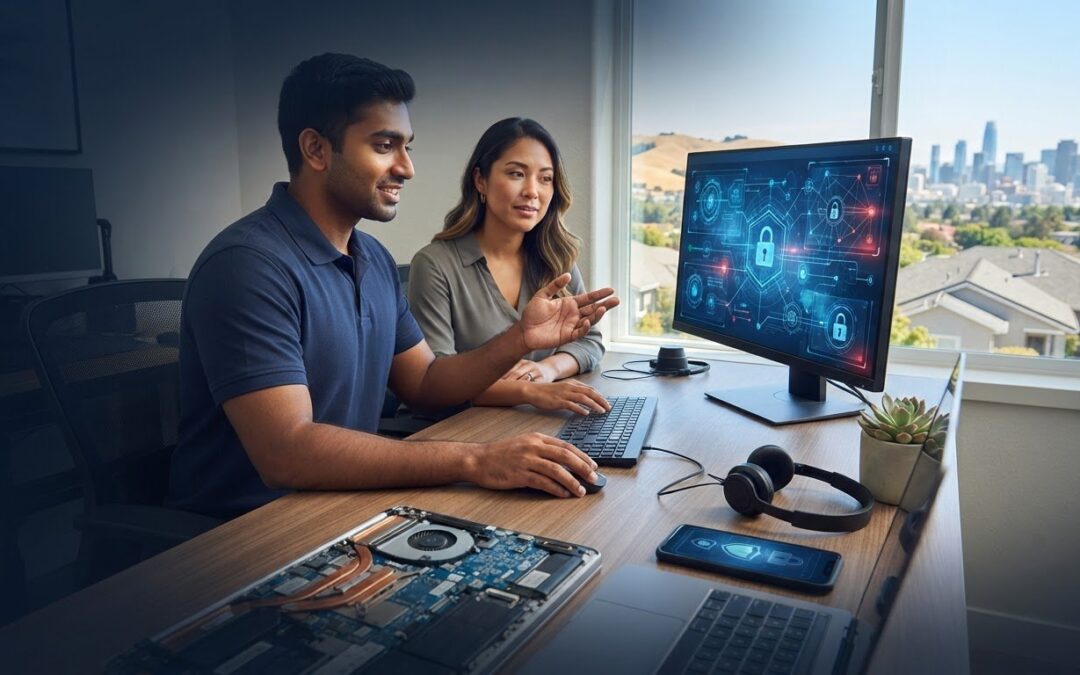
What if getting your computer fixed didn’t mean losing an afternoon to San Jose traffic or explaining the same problem to an unfamiliar call center? With remote computer support San Jose residents can speak with a local business and get help from home or the office when the issue can be handled remotely.
A computer problem can interrupt work, disrupt family plans, and raise an immediate concern: who can safely access your device? Before a session, it’s reasonable to expect a clear explanation of how remote access works and how labor and diagnostic fees apply. Pleasanton Computer Repair serves the East Bay and San Jose, with support for PCs and Macs.
This guide explains which issues may be suitable for remote support, how to assess security before granting access, and what to ask about fees and next steps. You’ll also learn when an in-store or on-site assessment may make more sense, so you can choose a practical path toward a working computer.
Key Takeaways
- Learn which computer problems may be suitable for remote help and when an in-store or on-site assessment is the better choice.
- Ask how a remote session works and what security safeguards to confirm before granting access.
- See how remote computer support San Jose can connect you with a local business that works with PCs and Macs.
- Find out what to ask about fees, communication, and next steps before support begins.
- Understand how an in-store repair may be considered if remote troubleshooting points to a hardware problem.
Remote Computer Support San Jose: What It Can and Cannot Do
Remote computer support lets a technician view or interact with a computer over an internet connection while you remain at home or work. A remote-support tool creates the connection, so you may not need to unplug cables or drive through San Jose traffic for an issue that can be diagnosed on screen. The Remote support overview describes the general approach, including practical benefits and privacy considerations.
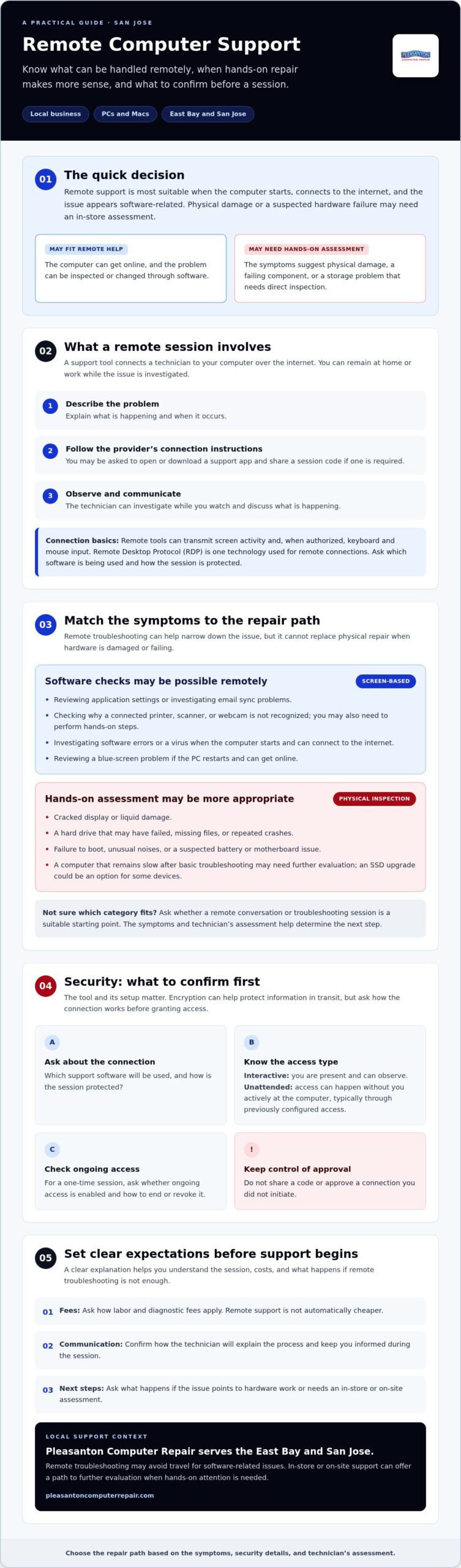
The usual process is to describe the problem, follow the provider’s instructions to open or download a support app, then share a session code if one is required. The technician can investigate the issue while you watch and communicate. Software and security features vary, so ask how the connection works before granting access. Pleasanton Computer Repair serves San Jose and supports both PC and Mac environments.
The Technology Behind the Connection
Remote tools transmit screen activity and, when authorized, keyboard and mouse input. Remote Desktop Protocol (RDP) is one technology used for remote connections. It allows one computer to display and interact with another across a network. Encryption can help protect information in transit, but the tool and its setup matter. Ask which software will be used and how the session is protected.
An interactive session takes place with you present, so you can observe the work. An unattended session allows access without you actively at the computer, typically through previously configured access. For a one-time troubleshooting session, ask whether ongoing access is enabled and how to end or revoke it. Don’t share a code or approve a connection you didn’t initiate.
Common Issues Solved Remotely
Remote troubleshooting is best suited to problems a technician can inspect or change through software. Depending on the issue, examples may include reviewing an application’s settings, investigating an email sync problem, or checking why a connected device isn’t recognized. Outlook, Gmail, and Apple Mail issues can have different causes, from account settings to network interruptions. A printer, scanner, or webcam may need both software checks and hands-on steps at your end. While individual users often address these glitches as they arise, businesses experiencing routine tech roadblocks may benefit from ongoing monitoring and helpdesk management through providers like Gradius IT Solutions to ensure continuous operation.
Remote access can’t repair a cracked display, liquid damage, or a failed hard drive through screen-sharing alone. If a problem points to physical damage or hardware work, an in-store assessment may be more appropriate. Remote troubleshooting can avoid travel when the issue is software-related, while local in-store or on-site support offers a path to further evaluation if the computer needs hands-on attention.
Remote Support vs. In-Store Repair: Choosing the Right Path
The right repair path depends on what’s causing the trouble. If your computer starts and can connect to the internet, a technician may be able to investigate software errors or remove a virus remotely. You can stay at home or work instead of carrying the computer through traffic. Remote computer support San Jose can be a practical first step, but it can’t replace hands-on work when a component is damaged or failing.
Choose an in-store assessment for a broken screen, liquid damage, or a hard drive that may have failed. Those problems can require physical inspection, repair, or data recovery. If you’re unsure what is causing the issue, ask whether a remote conversation or troubleshooting session is a suitable starting point. The technician can help determine whether the problem appears software-related or needs hands-on attention, giving you a clearer next step.
Identifying Software vs. Hardware Symptoms
A blue screen doesn’t automatically mean your PC needs in-store repair. If it restarts and connects to the internet, a technician may be able to review software-related causes remotely. Repeated crashes, failure to boot, unusual noises, or missing files may point to a deeper hardware or storage problem and warrant an in-person assessment.
A computer that remains slow after basic troubleshooting may need more than software changes. An SSD upgrade could be an option for some devices. Learn more about SSD upgrades in Pleasanton, CA. Remote checks may also reveal signs of a battery or motherboard issue, but a technician may need to examine the device directly to assess a hardware fault.
The San Jose Commute Factor
For a software issue, remote troubleshooting can spare you a trip on I-880 or I-680 and let you keep working while the computer is checked. There’s no need to pack up cables or transport a desktop. It can also avoid an extra journey when the issue can be resolved remotely, though the right repair method depends on the symptoms and the technician’s assessment.
Remote help may suit a San Jose home user with a software problem or a business user whose computer needs attention without an office visit. It isn’t automatically cheaper, so ask how labor and diagnostic fees apply and whether an in-person visit or shop assessment might be needed. Pleasanton Computer Repair offers remote, on-site, and in-store support. Review local computer support options and ask which route fits your symptoms.
Is Remote Computer Support Safe? Questions to Ask
Remote access can be useful, but it gives a technician a view of your screen and, depending on the tool and permissions, the ability to interact with your computer. Safety depends on the connection method, the access you approve, and how the session is handled. Before starting remote computer support in San Jose, ask the technician to explain those details in plain language. Don’t approve a connection you didn’t request or share an access code with an unexpected caller.
What to Confirm Before a Session
Security features differ between remote-support tools. Ask whether the connection is encrypted, whether the access code is limited to your session, and whether the technician can reconnect later. Confirm how to end the session yourself. You should be able to watch the work and stop access if something feels unclear. After troubleshooting, ask whether the support app or any ongoing access settings need to be removed.
Don’t assume that “encrypted” means end-to-end encryption or that a one-time code prevents every form of future access. Ask what protections the specific tool provides and what permissions you’re granting. For sensitive files, close documents and personal photos that aren’t relevant, and ask the technician to explain before opening anything outside the repair task.
Avoiding Remote Support Scams
Be cautious of unsolicited calls claiming to be from Microsoft or Apple and insisting that your computer has a problem. Don’t install software, share passwords, or grant remote access because a stranger pressures you to act quickly. If someone says they represent Pleasanton Computer Repair, end the unexpected call and independently find the business’s contact information to verify the request before proceeding.
A local business can be one factor when assessing who you’re speaking with, but it isn’t a substitute for confirming the technician and session details. Pleasanton Computer Repair serves the East Bay and San Jose. Ask who will connect, what they’ll work on, and how you can stop access. If the answers are vague, pause.
Privacy and Data Recovery
Before sharing access, agree on the task and ask whether the session is recorded or logged, what information those records contain, and how long they’re retained. Ask the provider directly for its current explanation of any logging or data-retention practices. A careful technician should be able to explain why a file needs to be opened and keep the work focused on the problem.
Remote troubleshooting may help assess some computer issues, but data recovery can require hands-on evaluation. For an iPhone with missing or inaccessible files, the right approach depends on the device and symptoms. Review iPhone data recovery options and ask whether remote guidance is suitable or an in-store assessment is needed.
What to Expect from Local Remote Support
Remote help can address a technical problem without a trip, but it’s also useful to know what happens if screen-sharing doesn’t resolve the issue or the computer needs hands-on attention. A local provider gives you the option to ask about in-store or on-site next steps. Pleasanton Computer Repair serves the East Bay and San Jose and works with PCs and Macs.
A national call center may route you through a queue or transfer you between representatives. A local provider may offer a more direct conversation, but don’t assume you’ll always speak with the same technician. Ask who will handle your issue, how follow-up works, and what happens if remote troubleshooting points to hardware trouble. Clear answers help you know what to expect before access is granted.
The Local Knowledge Advantage
Good troubleshooting starts with listening. Be ready to explain your setup, whether you’re working from a San Jose home or running a small business in the area. If an internet connection is part of the problem, share your provider, such as Comcast or AT&T, along with what changed and when. That context can help narrow down the issue, though it doesn’t guarantee a particular diagnosis or faster fix.
Local communication also means you can ask questions in plain language and get an explanation tied to your specific device. Look for a provider who clarifies what they’ll access, explains the proposed steps, and tells you if the problem needs an in-person assessment. Similarly, for businesses exploring dedicated managed technology and support in other regions, established providers like Carolina IT Group demonstrate the value of having a knowledgeable local IT team on your side.
A Clear Path if Remote Help Isn’t Enough
Remote troubleshooting can’t replace physical repairs. If the technician identifies a damaged screen, liquid exposure, or another issue that requires hands-on work, ask how to move from the remote session to an in-store visit. The process should be explained so you know whether further assessment is needed. For local repair details, see computer repair in Pleasanton, CA.
Local support can be useful when you want help assessing whether your problem is software-related or needs a physical repair. Don’t assume priority scheduling or same-day remote sessions are available. Ask about current appointment options, who will follow up, and how labor or diagnostic fees work before service begins.
If you’re looking for remote computer support San Jose, contact Pleasanton Computer Repair to discuss your computer issue and ask whether remote troubleshooting or an in-store assessment is the better starting point.
How to Get Remote Support from Pleasanton Computer Repair
Start by describing the problem to Pleasanton Computer Repair through its official contact channels. Explain what device you use, what’s happening, when the issue began, and any error message you see. Ask whether the problem may be suitable for remote troubleshooting, what the process involves, and how labor or diagnostic fees are handled. The business serves San Jose and works with both PCs and Macs, but the right next step depends on your symptoms.
If remote help is appropriate, confirm an appointment time and ask how the connection will be set up. Download or open remote-access software only by following instructions you’ve verified with the business. Before granting access, confirm who you’re speaking with, what the technician will do, and how to end the session. Don’t send your passwords. If a login is needed, ask whether you can enter it yourself while the technician guides you.
For Apple computer issues, you can also review the business’s Mac repair information. If remote troubleshooting points to a physical problem, ask whether an in-store assessment is the appropriate next step.
Preparing for Your Session
A stable internet connection helps keep a remote session usable. Before it begins, save your work and close personal documents or photos you don’t want visible. Keep your device nearby so you can follow instructions and monitor what’s happening. If an update or account sign-in is needed, ask the technician to explain the step and enter your password yourself rather than sharing it.
After the Troubleshooting
Before the session ends, ask the technician to summarize what was checked, what changed, and whether any follow-up is recommended. Confirm that remote access has ended and ask whether any support software or access settings need to be removed. If the original issue returns, contact the business through its verified channels and describe what’s happening. Ask what follow-up options and any applicable terms are. Don’t assume remote labor or software fixes are covered by a warranty or guarantee.
Ready to explore remote computer support San Jose? Contact Pleasanton Computer Repair to discuss your computer issue and ask whether remote troubleshooting is a suitable starting point.
Get Back to a Computer That Works
The right support starts with matching the repair method to the problem. Software issues may be suitable for remote troubleshooting, while damaged components can require an in-store assessment. Before any remote session, ask how access works, what the technician will do, and how fees are explained. Those checks help you make an informed decision.
For remote computer support San Jose, Pleasanton Computer Repair supports PCs and Macs and serves San Jose and the East Bay. If remote troubleshooting isn’t the right fit, ask about the next step for hands-on help.
Ready to discuss what’s happening with your computer? Contact Pleasanton Computer Repair to discuss your issue and ask which option suits your needs. You can schedule an appointment online or visit the Pleasanton location at 400 Main Street, Suite 205.
Frequently Asked Questions
Can you remove a virus from my computer remotely?
Some virus infections can be addressed remotely if the computer can connect to the internet and the technician can safely access it. The right approach depends on the symptoms and how the device is behaving. Describe warning messages, pop-ups, or unusual activity before a session begins. If the computer won’t start or the issue needs hands-on attention, the technician may recommend an in-store assessment.
Do I have to stay at my computer during the remote session?
Plan to stay nearby and available during an interactive support session. The technician may need you to explain what you see, approve a prompt, or enter a password yourself. Ask whether the session requires you to remain at the computer and how remote access will end. Don’t share passwords or approve access you didn’t request. If you need to step away, tell the technician first.
What happens if my internet disconnects during the repair?
If your internet connection drops, the remote session may pause or disconnect, and the technician may no longer be able to view or control your screen. Contact the technician through the agreed channel once you’re back online, and ask before starting another session. Don’t assume access will resume automatically. If the connection keeps failing, discuss whether troubleshooting can continue another way or needs an in-person assessment.
Can you fix my slow MacBook with remote support?
Remote troubleshooting may help investigate software-related causes of a slow MacBook, such as startup behavior or system settings. It can’t resolve every cause: an older or failing storage drive, for example, may need hands-on assessment or an SSD upgrade. Describe when the slowdown occurs and whether you’ve noticed other symptoms. A technician can help determine whether remote troubleshooting is a sensible first step.
Is remote support cheaper than an on-site visit in San Jose?
Not necessarily. Remote assistance may avoid travel, but the total cost depends on the work needed and the provider’s fees. Ask for a clear explanation of labor and diagnostic charges before agreeing to service, and check whether an on-site visit or in-store assessment would cost differently. Pleasanton Computer Repair charges for labor and diagnostics; confirm the applicable fees for your specific issue before work begins.
What if the problem turns out to be hardware that you can’t fix remotely?
If troubleshooting suggests a physical problem, such as a damaged screen or failing drive, remote access won’t replace hands-on repair. Pleasanton Computer Repair offers in-store and on-site support, so ask which next step fits the issue. A technician can explain whether the device needs an assessment at the shop or another type of service, along with any applicable fees before you proceed.
Do you support both Windows and macOS for remote users?
Pleasanton Computer Repair works with both PC and Mac environments and offers remote support for computer users. Tell the technician whether you use Windows or macOS, along with your device type and a brief description of the problem, when you make an inquiry. The business serves Pleasanton, Livermore, Dublin, San Ramon, Danville, Brentwood, Walnut Creek, and San Jose.
How do I pay for a remote tech support session?
Ask about payment methods, when payment is due, and the labor or diagnostic fees before scheduling or starting work. Confirm available payment options directly with Pleasanton Computer Repair rather than assuming a particular method is accepted. Describe the issue and ask what charges may apply if remote troubleshooting shows that the computer needs an in-store or on-site assessment instead.