
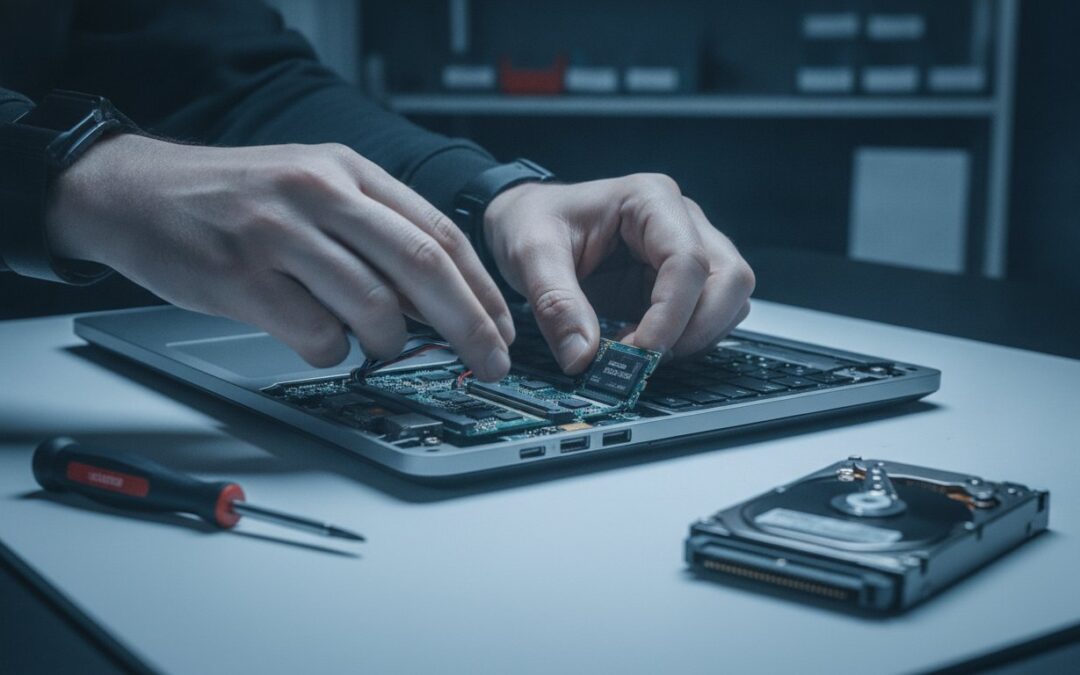
Is your Mac actually reaching the end of its life, or is it just suffocating behind a slow, outdated drive? It’s incredibly frustrating to sit through a three-minute boot sequence or watch the “spinning beach ball” every time you try to open a simple document. We understand that tech anxiety; it’s the nagging fear that your reliable workhorse is finally giving up on you. You might even be considering a costly replacement as macOS 27 Golden Gate approaches, but the solution is often much simpler and more affordable than a brand-new computer.
Learning the specific signs your Mac needs SSD upgrade can save you from unnecessary stress and the nightmare of sudden data loss. In this guide, we will help you identify the five red flags that indicate your storage is failing or simply falling behind. You will discover how a professional SSD upgrade can deliver instant app launches and extend your computer’s lifespan for years. We are going to walk through the common symptoms of a storage bottleneck and show you how a safe data migration can make your Mac feel faster than the day you first unboxed it.
Key Takeaways
- Learn why your Mac’s processor often isn’t the problem and how an outdated drive creates a performance bottleneck.
- Identify the five specific signs your Mac needs SSD upgrade to prevent sudden hardware failure and frustrating downtime.
- Understand the real-world performance gains you’ll see, from 15-second boot times to lag-free multitasking with demanding applications.
- Compare the financial and environmental benefits of upgrading your current machine versus buying a brand-new replacement.
- Discover how professional data migration services ensure your photos and documents move safely to your faster new drive.
Why Your Once-Fast Mac Is Crawling
It’s a common story we hear at our Pleasanton shop. You bought a high-end MacBook Pro or iMac a few years ago, and for a long time, it was perfect. Now, it feels like every click is a chore. The reason usually isn’t that your processor has “worn out.” Instead, the mechanical components inside your hard drive are simply failing to keep up with modern demands. If you’re noticing the signs your Mac needs SSD upgrade, it’s likely because your system is struggling with a hardware bottleneck.
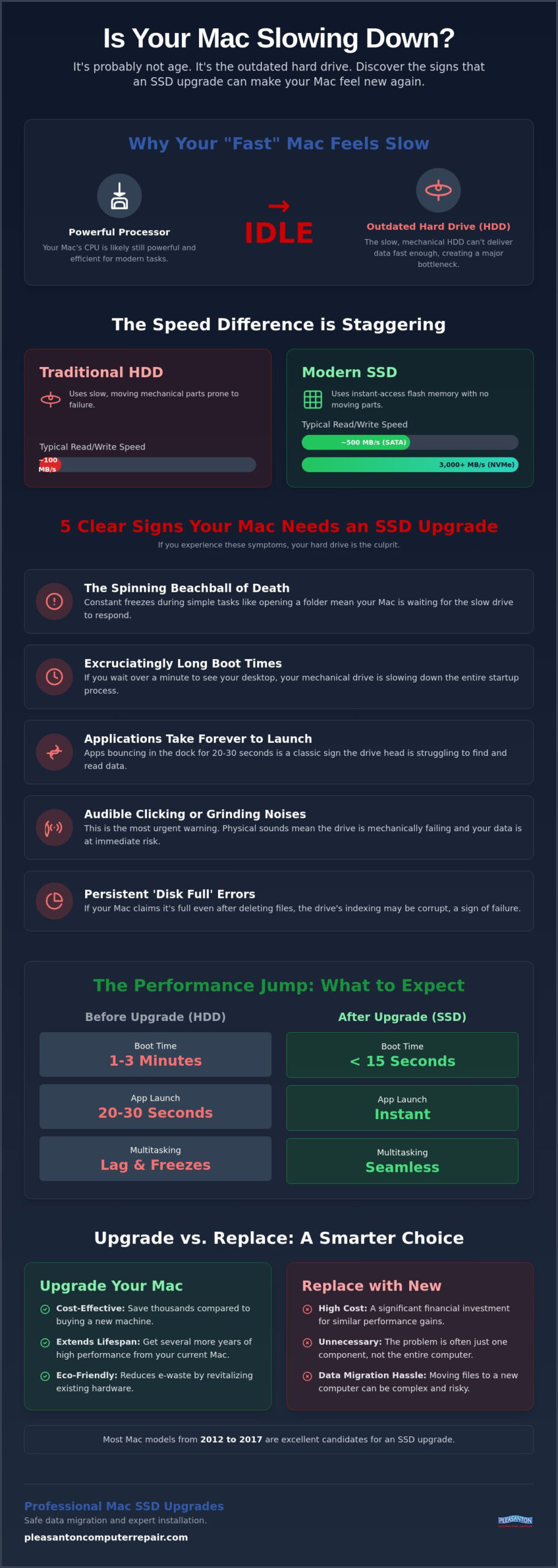
Traditional Hard Disk Drives (HDDs) rely on physical spinning platters and a moving read/write head. Think of it like a record player. Over time, these mechanical parts slow down or fail entirely. A Solid-State Drive (SSD) is different. It uses flash memory with no moving parts, making it significantly more durable and exponentially faster. By mid-2026, software like macOS 26 Tahoe expects high-speed data throughput that old mechanical drives simply cannot provide. When your drive can’t deliver data fast enough, your powerful processor sits idle, waiting for the hardware to catch up.
HDD vs. SSD: A Speed Comparison
The performance gap between old and new technology is staggering. A standard mechanical drive usually tops out at around 100MB/s. In contrast, even a basic SATA SSD reaches 500MB/s, while modern NVMe drives can exceed 3,000MB/s. This speed difference changes everything about how you use your Mac. Mechanical drives also suffer from file fragmentation, where pieces of data are scattered across the spinning disk, forcing the drive head to work harder and slower. Because an SSD has no moving parts, it accesses data instantly, regardless of where it’s stored. Moving parts in an HDD are a ticking time bomb for your data; eventually, the motor or the head will fail.
Is Your Mac Still Compatible for an Upgrade?
Most Macs manufactured between 2012 and 2017 are excellent candidates for this procedure. We often see “vintage” MacBook Pros and iMacs from this era that still have plenty of life left in their processors and screens. After 2018, Apple began soldering drives directly to the logic board in many models, which makes internal upgrades much more difficult. However, for those iconic unibody and early Retina models, a new drive can breathe fresh life into the hardware. By identifying these signs your Mac needs SSD upgrade now, you can save your data before the drive fails completely. An SSD upgrade is the single most effective hardware boost for older Macs.
5 Clear Signs Your Mac Needs an SSD Upgrade
If your Mac feels like it’s stuck in slow motion, it’s usually trying to tell you something. Identifying the signs your Mac needs SSD upgrade early can prevent a total system failure and the loss of your precious files. One of the most obvious red flags is the frequent appearance of the ‘Spinning Beachball of Death.’ This colorful icon appears when your system is waiting for the hard drive to respond. While a second or two is normal, constant freezes during simple tasks like opening a folder suggest your drive is struggling to keep up.
Boot times are another clear indicator of hardware health. A healthy Mac with an SSD should be ready to work in under 15 seconds. If you’re waiting over a minute just to see your desktop, your mechanical drive is likely the culprit. Similarly, watch your applications in the dock. Do they bounce for 20 or 30 seconds before opening? This delay happens because the drive head has to physically find and read the software’s data. You can read more about the technical benefits of an SSD upgrade to understand why flash storage eliminates these physical delays.
- Audible clicking or whirring: If you hear physical noises coming from your iMac or MacBook, the drive is failing.
- Persistent ‘Disk Full’ warnings: If your Mac claims it’s full even after you delete large files, the drive’s indexing is likely broken.
- Applications freezing: Software that used to be snappy now hangs or crashes during launch.
Physical sounds are the most urgent warning. Unlike modern Macs, older models use mechanical drives with spinning platters. If you hear audible clicking or grinding, your drive is physically failing. This is a critical situation where your data is at immediate risk. If you notice these sounds, it’s best to bring it into Pleasanton Computer Repair for a professional assessment before the drive stops spinning entirely.
Is it a Disk Issue or a RAM Issue?
Many users confuse a slow drive with a lack of memory. You can check this yourself by opening Activity Monitor and looking at the ‘Memory’ tab. If the ‘Memory Pressure’ graph is green, but your Mac is still crawling, the bottleneck is likely your storage. A nearly full HDD mimics low RAM symptoms because macOS uses ‘swap space’ on your drive to help run programs. If that drive is slow, the whole system lags. Recognizing these signs your Mac needs SSD upgrade helps you target the right repair rather than spending money on unnecessary parts.
The ‘Invisible’ Sign: Failing to Update macOS
Storage limits often prevent critical security updates. If your Mac refuses to install the latest version of macOS or fails halfway through, your disk might be too slow or too crowded to handle the temporary files needed for the update. This leaves you vulnerable to security risks. A larger SSD provides the breathing room necessary for these patches, ensuring your system stays safe and current for years to come.
The Performance Jump: What to Expect After an Upgrade
Once you address the signs your Mac needs SSD upgrade, the transformation is immediate and dramatic. It isn’t just a minor speed bump; it’s a fundamental change in how your machine handles every single task. If you’ve been struggling with a slow system, the first thing you’ll notice is the “instant-on” feel. Cold boots that used to take three minutes now happen in roughly 15 seconds. Waking your Mac from sleep becomes a seamless experience, allowing you to get straight to work without waiting for the hardware to catch up with your thoughts.
Multitasking becomes a reality again rather than a recipe for a system crash. You can run resource-heavy applications like Google Chrome, Zoom, and Adobe Photoshop simultaneously without the stuttering or lag that plagued your old drive. This happens because an SSD can read and write data at much higher speeds, preventing the bottleneck that occurs when your processor is forced to wait for a mechanical disk to spin. Beyond just speed, you’ll enjoy several physical benefits:
- Extended battery life: Because SSDs have no moving parts, they require significantly less power than a traditional HDD, often adding 30 to 60 minutes of use per charge.
- Quiet operation: Say goodbye to the whirring and clicking sounds of a spinning disk. Your Mac will run silently.
- Lower heat: Less friction means less heat. Your MacBook will stay noticeably cooler on your lap, even during intensive tasks.
Data Migration: Keeping Your Files Safe
The biggest concern for most users is their data. When we perform an upgrade, we use professional bit-for-bit cloning techniques to ensure every photo, document, and setting moves to the new drive. DIY data transfers often run into “Permissions” errors that can lock you out of your own files or cause software glitches. A professional migration provides a clean transition, giving you the peace of mind that your digital life is secure. We always perform a full backup before opening the case, acting as a safety net for your most important information.
SSD Lifespan and Reliability in 2026
Modern storage technology has come a long way. In 2026, SSDs are built with high TBW (Total Bytes Written) ratings, meaning they are designed to last a decade or more under normal use. They are also much more resistant to physical damage. If you accidentally drop your laptop, an SSD is far more likely to survive than a mechanical drive with a fragile reading head. If you’ve ignored the signs your Mac needs SSD upgrade for months, making the switch now protects you from the sudden mechanical failure inherent in older technology. An SSD upgrade essentially gives you a ‘new’ computer experience for a fraction of the price.
Upgrade vs. Replace: Calculating the ROI
When your computer starts to lag, the common advice from big-box stores is often to just buy a new one. But does that really make sense for your wallet or the planet? If you’ve identified the signs your Mac needs SSD upgrade, you’re standing at a crossroads. An upgrade typically costs between $150 and $300, while a new MacBook Pro can easily exceed $1,200. That is a massive price gap for performance that often feels nearly identical for daily tasks like browsing, email, and office work. With average PC prices projected to climb significantly in 2026, finding a reliable PC optimization service near me to revive your existing hardware has never made more financial sense.
Beyond the simple math, there is a significant environmental factor to consider. Electronic waste is a growing problem in the East Bay and beyond. By choosing to refresh your current hardware, you’re keeping a perfectly functional machine out of a landfill. Many older Macs were built with incredible durability. They deserve a second chance. We often find that a well-maintained 2015 or 2017 model with a fresh SSD performs better than a budget-tier new laptop.
The Hidden Value of Your Older Mac
Making the Decision: A Simple Flowchart
Not every Mac should be saved. We generally follow a “10-year rule” to ensure you get the best value for your money. If your machine was made after 2015, it likely has years of productive life left. Use this quick three-step check to decide:
- Step 1: Check the processor. Is it an Intel i5 or better? If yes, it has the raw power to handle modern web browsing and document editing.
- Step 2: Check the screen. Is it a Retina display? These high-resolution screens still look beautiful and sharp by 2026 standards.
- Step 3: Call an expert. A quick diagnostic can tell you if the rest of your hardware is healthy enough to justify the investment.
If your Mac meets these criteria but shows the signs your Mac needs SSD upgrade, the return on investment is clear. You can schedule a diagnostic with our Pleasanton team to confirm if your specific model is a candidate for a performance boost that will last for years.
Professional Mac SSD Upgrades in Pleasanton
Once you recognize the signs your Mac needs SSD upgrade, the next step is finding a technician you can trust with your data and your hardware. Pleasanton Computer Repair has been serving the East Bay since 2002. We’ve spent over two decades helping our neighbors navigate technology failures with calm, expert guidance. Our shop is conveniently located at 400 Main Street, Suite 205, right in the heart of the community. You don’t have to deal with the stress of a crowded mall or a distant service center to get your computer running like new again.
We believe in a methodical, transparent approach to every repair. Our process is designed to give you peace of mind from start to finish. It begins with a comprehensive diagnostic to ensure an SSD is truly the best solution for your specific issues. From there, we follow a strict workflow:
- Specialized Data Backup: We perform a full backup of your existing files before we ever touch the hardware.
- Professional Installation: Our techs carefully open your Mac and replace the failing drive with a high-speed SSD.
- Data Migration: We move your documents and photos back to the new drive, ensuring everything is exactly where you left it.
- System Optimization: We update your macOS and tune your settings for maximum speed and efficiency.
Time is valuable. We know you need your machine back for work, school, or personal projects. Most of our SSD upgrades are completed within 24 to 48 hours. This fast turnaround ensures you aren’t without your computer for a week or more, which is common at larger corporate repair centers.
Why Choose Local Over the Apple Store?
Choosing a local partner offers a level of personalized service that big-box retailers simply can’t match. When you visit us, you can speak directly to the technician who will be working on your Mac. We offer competitive flat-rate pricing, so you know exactly what to expect before the work begins. One of the biggest advantages of working with us is our commitment to “vintage” hardware. While the Apple Store may refuse to service a Mac that is more than a few years old, we specialize in breathing new life into these reliable older models. We see the value in the hardware you already own.
Schedule Your Mac Tune-Up Today
Ready to reclaim your computer’s performance? Booking an appointment is straightforward. You can reach out via phone or use our online system to find a time that works for you. When you come in for your repair, please remember to bring your power cables and any system passwords we might need to complete the data migration. We prioritize your functional continuity and aim to make the entire process as stress-free as possible. Don’t let those signs your Mac needs SSD upgrade turn into a permanent hardware failure. Schedule your Mac SSD upgrade at our Pleasanton shop today!
Give Your Mac a Second Life Today
Don’t let a slow hard drive convince you that it’s time to retire a perfectly good computer. By recognizing the signs your Mac needs SSD upgrade, you can stop the frustration of long boot times and frozen applications before they lead to permanent data loss. Choosing an upgrade over a replacement isn’t just a smart financial move; it’s a way to keep high-quality hardware in use for years to come. We’ve seen hundreds of older Macs transformed from sluggish machines into high-speed workstations with this one simple change.
Book Your Professional Mac SSD Upgrade in Pleasanton and experience the difference that modern storage technology can make. We look forward to helping you get back to work with a Mac that finally keeps up with you.
Frequently Asked Questions
Will an SSD upgrade delete my files?
A professional upgrade does not delete your files because we include specialized data migration as part of our service. We clone your existing hard drive bit-for-bit onto the new SSD, ensuring your photos, emails, and settings remain exactly where you left them. While we always recommend having a current backup, our process is designed to keep your digital life completely intact during the transition.
How long does a Mac SSD upgrade take at your Pleasanton shop?
Most upgrades at our Pleasanton location are completed within 24 to 48 hours. We understand that being without your computer is a major inconvenience for both home users and business owners. Our efficient workflow includes a diagnostic, data backup, and physical installation. This quick turnaround helps you get back to your routine without the long wait times often found at corporate service centers.
Can I upgrade the SSD in a MacBook Air with a soldered drive?
Internal upgrades are generally not possible for MacBook Air models manufactured from 2018 onwards because the storage is soldered directly to the logic board. For these newer machines, we recommend using a high-speed external SSD via a Thunderbolt or USB-C port to expand your storage. If you own an older model from 2012 to 2017, we can still perform a full internal replacement to boost performance.
Is an SSD upgrade better than adding more RAM?
For the majority of users, an SSD upgrade provides a much more noticeable speed boost than adding RAM. While more memory helps with running many applications simultaneously, a slow drive is the primary cause of long boot times and “bouncing” dock icons. If you’ve noticed the signs your Mac needs SSD upgrade, replacing the storage will make the entire system feel more responsive than a memory boost alone.
How much does a professional Mac SSD upgrade cost in the East Bay?
The total cost for a professional upgrade in the East Bay depends on the storage capacity you choose and the specific model of your Mac. We utilize a combination of flat-rate and hourly fees to keep our services predictable and transparent. While we don’t provide specific quotes without seeing the device, we can give you a clear estimate after a quick in-store diagnostic of your hardware’s health.
Can an SSD fix a Mac that won’t turn on at all?
An SSD replacement can fix a Mac that won’t turn on only if the original drive has suffered a catastrophic mechanical failure that prevents the system from booting. If your Mac shows a folder with a question mark at startup, it’s a clear indicator that the system cannot find your data. However, if there is no power at all, the issue might be the battery or logic board, which requires a deeper diagnostic.
What is the difference between a SATA SSD and an NVMe SSD for my Mac?
The main difference lies in the connection speed and the age of your Mac’s internal architecture. SATA SSDs are the standard for older unibody Macs and offer speeds up to 500MB/s, which is still five times faster than a traditional hard drive. NVMe SSDs are much smaller and can reach speeds over 3,000MB/s. We select the specific drive type that matches your Mac’s hardware to ensure maximum compatibility.
Will an SSD upgrade make my Mac compatible with the latest macOS?
An upgrade provides the storage space and speed needed for modern software, but it doesn’t change your Mac’s processor. For example, macOS 27 Golden Gate will not support Intel-based Macs regardless of the drive speed. Even so, identifying the signs your Mac needs SSD upgrade and making the switch ensures your current operating system runs smoothly and securely for its remaining lifespan.