
What if a slow Windows laptop needs a careful diagnosis, not a replacement? Long startup times and apps that take ages to open are frustrating, but they can come from fixable issues such as too many startup programs, crowded storage, or apps running in the background. If you’re searching for how to fix slow windows laptop performance, start with safe checks before making major changes or deleting files.
This guide covers practical first steps, from checking startup apps and available storage to looking for signs of malware or limited memory. You’ll learn how to approach each step without putting your personal files at unnecessary risk, and how to tell when a slowdown may point to storage or another hardware concern instead of routine software clutter.
Try the simple checks in order, and note whether performance improves. If it doesn’t, a local technician can help distinguish a software issue from a hardware problem. Pleasanton Computer Repair provides diagnostics and repair support for East Bay customers when basic troubleshooting isn’t enough.
Key Takeaways
- Treat sluggish startup or apps as symptoms, then look for clues before choosing a fix.
- Use Task Manager to spot unusually busy apps, but interpret activity in context.
- Start with reversible steps, and avoid risky system changes unless you understand their impact.
- To fix slow windows laptop performance, check whether software, storage, memory, or another issue may be behind the slowdown.
- If safe troubleshooting doesn’t help or you’re concerned about your files, a technician can assess possible software and hardware causes.
Why Is Your Windows Laptop Slow? Start With the Symptoms
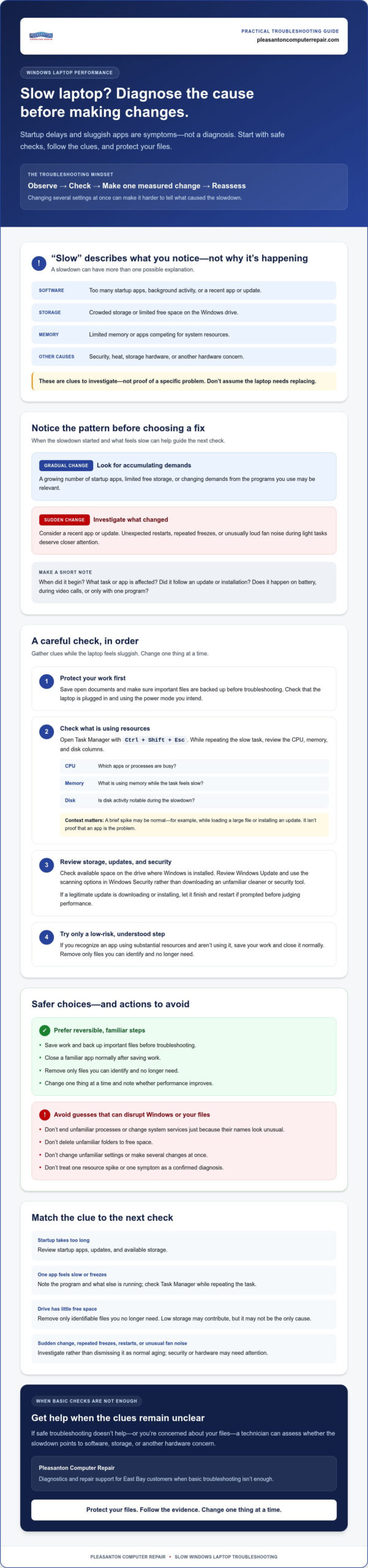
You press the power button, then wait. An app takes too long to open, and even a simple task feels like a chore. Before you try to fix slow windows laptop performance, remember that “slow” describes what you’re experiencing, not what’s causing it. A performance slowdown means the laptop takes longer than expected to start, respond, or complete routine tasks. The cause could be software, storage, memory, security, heat, or another issue, so don’t assume you need to replace the computer.
The pattern offers useful clues. A slowdown that develops gradually may relate to a growing number of startup apps, limited free storage, or changing demands from the programs you use. A sudden change deserves closer attention. A new app or update may coincide with the problem, while unexpected restarts, repeated freezes, or unusual fan noise can point to a security or hardware concern that needs investigation. These signs aren’t a diagnosis, but they can help you decide what to check next.
Think of troubleshooting as a form of performance tuning: observe how the computer behaves, then make measured changes based on what you find. Guessing and changing several settings at once can make it harder to identify the cause.
Which slow-laptop symptoms point to different causes?
Notice which task feels slow. If startup is the main problem, startup apps, updates, or limited storage could be contributing. If the laptop freezes while opening a particular program, note the app and what else is running. Unexpected restarts or fans that stay unusually loud during light tasks are reasons to investigate rather than dismissing the slowdown as normal aging.
Write down when the issue began and what was happening at the time. Did it follow an update, a newly installed app, or a change in how you use the laptop? Does it happen on battery power, during video calls, or only with one program? A short record can reveal a pattern and make further diagnosis more useful.
What to check before changing Windows settings
Protect your work first. Save open documents, then make sure important files are backed up before troubleshooting. This precaution can reduce the risk of losing something valuable if the problem worsens or a later step needs more care.
Next, check the basics. Is the laptop plugged in, and is it using the power mode you intend? Some devices behave differently on battery. Consider whether an update, new app, or other recent change came just before the slowdown. For now, observe and record what you find. Avoid deleting files or changing unfamiliar settings until you have a clearer idea of what’s going on.
How to Find What Is Slowing Down a Windows Laptop
Before downloading a cleaner or changing system settings, gather a few clues. One symptom alone rarely identifies the cause. Slow startup, for example, could relate to apps launching automatically, pending updates, limited storage, or something else. Check the laptop while the slowdown is happening, and change one thing at a time so you can tell whether it helps.
- Open Task Manager while the laptop feels sluggish and check which apps or processes are using the most CPU, memory, or disk.
- Review how much free space remains on the main drive.
- Check Windows Update and run a scan with the built-in security tools.
- Note what you found before deciding whether to close an app or try a low-risk cleanup step.
Use Task Manager to spot resource-heavy apps
Press Ctrl + Shift + Esc to open Task Manager. Select the processes view, then look at the CPU, memory, and disk columns while repeating the task that feels slow. An app near the top may be busy because it’s handling a legitimate task, such as loading a large file or installing an update. Readings change depending on what you’re doing, so a brief spike isn’t proof that an app is the problem.
Start with apps you recognize. If a familiar program is using substantial resources and you aren’t actively using it, save your work and close it normally. Don’t end unfamiliar processes or change system services just because their names look unusual. Windows needs background processes to run, and stopping the wrong one can disrupt normal operation.
Check storage, updates, and security carefully
Open File Explorer and check the available space on the drive where Windows is installed. A drive with little room left can make routine tasks harder, but low storage isn’t the only possible explanation for sluggish performance. If you need to free space, remove only files you can identify and no longer need. Don’t delete unfamiliar folders to make room.
Then review Windows Update. If a legitimate update is downloading or installing, let it finish and restart if prompted before judging the laptop’s speed. For a security check, use the scanning options in Windows Security rather than downloading an unfamiliar cleanup tool. Untrusted utilities can add unwanted software or encourage changes you don’t understand.
If these checks don’t reveal a clear cause, or you’re unsure how to interpret what you see, a diagnostic assessment can help distinguish software, security, storage, and hardware concerns before you decide how to fix slow windows laptop performance. For local PC diagnostics and repair, consider contacting a technician rather than making risky changes by guesswork.
Which Slow-Laptop Fixes Are Safe, and When Is an Upgrade Relevant?
Choose the least disruptive step that fits what you’ve observed. Reviewing startup apps or removing a program you recognize and no longer use is generally reversible. Editing the registry, changing system services, or resetting Windows carries more risk and can affect settings, apps, or files. Don’t make those advanced changes just to see whether they help. First check whether a straightforward adjustment addresses the specific slowdown.
Age alone doesn’t prove a laptop needs new hardware. A computer can feel slow for several reasons, and an upgrade is useful only if a particular component is both contributing to the problem and compatible with the device.
When software cleanup may be enough
Review startup apps and disable only programs you recognize and don’t need to open automatically. You can also uninstall software you know you no longer use. Make one change at a time, restart the laptop after updates or adjustments, then repeat the task that was slow. This helps you judge whether the original symptom remains without making several changes whose effects are hard to separate.
If freezing continues or resource use stays unusually high, don’t keep removing apps at random. Those patterns deserve further investigation, especially if the problem persists during ordinary use.
When storage or memory may need professional assessment
An SSD may improve responsiveness if an older drive is confirmed as a bottleneck, but the right option depends on the laptop and the actual cause of the slowdown. The SSD upgrade guide can help you understand what to consider before pursuing a storage upgrade.
Memory limits can also affect multitasking. If the laptop struggles with several programs open, memory may be worth assessing, but first confirm the device supports an upgrade. Some laptops have limited upgrade options, and adding memory won’t fix a slowdown caused by another issue. Compatibility matters for both memory and storage, so check the exact laptop model before buying parts or attempting installation.
A sensible decision path:
- Try first: Make a targeted, reversible software change, then restart and retest.
- Pause and assess: If the symptom persists, freezing repeats, or hardware seems involved, get the cause checked before buying parts.
To fix slow windows laptop performance, match the remedy to the bottleneck rather than relying on a generic rule or one symptom. A technician can assess whether storage or memory is compatible and relevant before recommending an upgrade. That way, you can consider repair based on findings instead of assuming a component change will solve the problem. For organisations evaluating workplace devices or preparing for broader IT and communications upgrades, check out HJS Technology Ltd for guidance on modernising business infrastructure.
How to Fix Slow Windows Laptop Performance Without Risking Your Files
Take the cautious route: protect your work, try simple steps, then reassess. Before troubleshooting, save open documents and back up important files you can’t afford to lose. A restart or basic check is different from resetting Windows, editing the registry, or opening the laptop. Save those higher-risk actions for when you understand the consequences or have appropriate help.
A low-risk troubleshooting sequence to try first
Follow these steps in order, testing the task that felt slow after each meaningful change. That makes it easier to tell what helped.
- Save your work and restart. A restart closes apps and clears temporary activity. Once Windows loads, try the same task again.
- Check power and updates. Plug in the laptop if appropriate and confirm it’s using the power mode you intend. Check whether an update is still installing; allow legitimate updates to finish and restart if prompted.
- Close unnecessary apps. Exit programs you recognize and aren’t using. Avoid ending unfamiliar background processes.
- Review startup apps. Disable only entries you recognize and don’t need to launch automatically. If you’re unsure what an entry does, leave it alone.
- Review storage carefully. Remove only files you can identify and no longer need. Change one thing at a time, then check whether the original slowdown remains.
Be wary of quick-fix downloads. Unfamiliar cleanup tools can introduce risk rather than solve the cause. Stick with Windows’ built-in options unless you have a trusted reason to use another tool.
When to stop DIY troubleshooting
Pause if Windows reports drive errors, the laptop repeatedly crashes, or important files aren’t backed up. If the device contains irreplaceable files, avoid resets, repair attempts, or other major changes until you have a backup plan. Data recovery concerns call for extra care, not more experimentation.
Don’t open the laptop or replace a component just because it seems like the next step. First check the exact model, component compatibility, and whether you have the skills and tools for the work. A mistake can create a new problem or put data at risk.
If performance worsens suddenly, suspicious activity appears, or the slowdown continues after these safe steps, stop guessing. A technician can assess possible software, security, storage, or hardware issues before recommending what to do next. For help with persistent laptop problems, request PC repair assistance from Pleasanton Computer Repair.
When to Get Local Help for a Slow Windows Laptop
If the slowdown continues after careful troubleshooting, gets worse suddenly, or comes with repeated crashes, drive errors, suspicious activity, or concern about important files, a diagnostic assessment can help you choose a safer next step. You don’t need to know the cause before asking for help. A technician can assess software, security, storage, and hardware factors before recommending work, rather than treating one symptom as proof that a particular repair or upgrade is needed.
Pleasanton Computer Repair serves residential and business customers across the East Bay, with in-store, on-site, and remote support options. Nearby communities served include Pleasanton, Livermore, Dublin, San Ramon, Danville, Brentwood, Walnut Creek, and San Jose. Which support option fits depends on the issue. If you’re comparing nearby options, the Pleasanton computer repair guide offers more information about local support.
What information to prepare before requesting help
A few details can make it easier to explain what’s happening and help a technician understand where to begin. Note the laptop’s make and model, the Windows version if you know it, what feels slow, and when you first noticed the change. Mention whether it happens during startup, with a particular app, or during everyday tasks.
Also list the troubleshooting steps you’ve already tried and any updates or software installations that preceded the slowdown. This helps avoid repeating steps without context. If possible, back up important files before service. If you can’t access them, or you’re concerned about losing data, explain that before any repair attempt so the concern is clear from the start.
Choosing a convenient local support option
In-store, on-site, and remote support are available options, but not every issue is suitable for every approach. Ask which option fits the symptoms and what you should prepare. For Pleasanton, Livermore, Dublin, San Ramon, Danville, Brentwood, Walnut Creek, and San Jose, sharing the laptop model and a clear description of the problem can help guide that conversation.
You’ve already taken a useful first step by noticing the pattern and trying safe checks. If you’re unsure how to fix slow windows laptop performance without risking your files, you can contact Pleasanton Computer Repair to discuss the symptoms and assess possible next steps. A clear diagnosis can help separate a software issue from a storage or hardware concern before you decide what to do.
Take the Next Step Toward a More Responsive Laptop
A slow laptop is a clue to investigate, not automatic proof that it’s time for a replacement. Start with safe checks, protect your important files, and use the symptoms to guide your next move. If the slowdown persists or you suspect a storage, security, or hardware issue, a professional assessment can help clarify your options.
To fix slow windows laptop performance with confidence, focus on finding the cause before making major changes or buying components. Pleasanton Computer Repair provides in-store, on-site, and remote support for residential and business customers across the East Bay. Its services include virus removal, SSD upgrades, and data recovery.
Contact Pleasanton Computer Repair to discuss your slow laptop and ask which support option may suit your situation. A careful assessment can help you understand the next step.
Frequently Asked Questions
Why is my Windows laptop suddenly so slow?
A sudden slowdown can follow a Windows update, a newly installed app, or a change in security or hardware. It can also happen if an app is using unusually high resources, the laptop is overheating, or the storage drive is having trouble. Note what changed and whether the slowdown affects every task or just one program. If you also see crashes, drive warnings, or unfamiliar activity, avoid risky fixes and seek a closer assessment.
How can I make my Windows laptop faster without downloading software?
You can try built-in Windows tools and simple steps first. Restart the laptop, close apps you recognize but aren’t using, review startup apps, and check available storage and Windows Update status. Windows Security can scan for threats without a separate cleaner download. Make one change at a time and check whether it helps. To fix slow windows laptop performance, avoid unfamiliar utilities that promise one-click results but may add unwanted software.
Can low storage make a Windows laptop slow?
Yes, low free space can contribute to sluggish everyday use, though it doesn’t prove storage is the only cause. Check the Windows drive’s available space in File Explorer. If it’s nearly full, remove files you recognize and no longer need, or move personal files to a trusted backup location. Don’t delete unfamiliar system folders. If storage remains tight after careful cleanup, the drive’s capacity or condition may need assessment.
Will adding an SSD fix a slow Windows laptop?
An SSD can help if an older storage drive is confirmed as a performance bottleneck, but it won’t address every cause of a slow laptop. First verify the laptop supports a compatible SSD and that storage is actually the issue. A slowdown caused by software, security concerns, overheating, or another hardware problem needs a different response. Pleasanton Computer Repair offers SSD upgrades; a diagnosis can help determine whether one is relevant to your device.
Is it safe to use a free PC cleaner to fix a slow laptop?
Not necessarily. Some cleanup utilities make broad changes or bundle unwanted software, and deleting files without knowing their purpose can create new problems. Windows includes tools for reviewing startup apps, storage, and security, so try those before installing another program. If you’re considering a cleaner, verify its source and understand what it will change. Stop if it asks you to remove unfamiliar files or disable protections.
When should I take a slow Windows laptop to a repair shop?
Seek a diagnostic assessment if the slowdown persists, worsens suddenly, or comes with repeated crashes, drive errors, suspicious activity, or data you can’t risk losing. A technician can assess software, security, storage, and hardware before recommending next steps. Pleasanton Computer Repair serves customers in Pleasanton, Livermore, Dublin, San Ramon, Danville, Brentwood, Walnut Creek, and San Jose, with in-store, on-site, and remote support options depending on the issue.
How much does it cost to fix a slow Windows laptop?
The cost depends on what’s causing the slowdown and what work, if any, is needed. A software or security issue differs from a failing drive or a compatible SSD upgrade, so a symptom alone isn’t enough to estimate the work. Ask the repair provider what the assessment covers and request a current estimate before approving service. Pleasanton Computer Repair offers PC-related services including virus removal, SSD upgrades, and data recovery; contact the business to discuss your situation.