
Before trying to speed up an old PC, find out what’s slowing it down. Long startups and sluggish everyday tasks are frustrating, but deleting files or changing settings at random can create new problems. These tips for speeding up old PC performance start with safe checks to help you protect your personal files while narrowing down the cause.
You don’t necessarily need a new computer. A slow PC may be held back by too many startup apps, limited storage or memory, an aging drive, or hardware that’s reaching its limits. This guide covers practical software and cleanup steps, what to check before making changes, and how to decide whether an upgrade or repair is worth considering. The goal is to identify the bottleneck before choosing what to do next.
Key Takeaways
- Look at whether slow startup, freezing, or app delays point to software, storage, memory, heat, or another issue before changing settings.
- Start with low-risk cleanup and startup checks. Disable only apps you recognize and don’t need to launch automatically.
- Use these tips for speeding up old PC performance to assess whether an aging drive or limited memory may be holding your computer back.
- Back up important files, note how the PC performs, and change one thing at a time so you can tell what helps.
- If slowness persists or you suspect malware or drive trouble, troubleshooting can help identify the next step, such as virus removal, data recovery, or an SSD upgrade.
Why is an old PC slow? Start by identifying the symptoms
A long wait at startup is frustrating. So are apps that open slowly, a screen that freezes mid-task, or lag when switching between ordinary windows. But an older computer isn’t automatically a slow computer, and age alone won’t tell you what needs attention. The cause could be software loading in the background, a storage drive struggling to keep up, limited memory, heat, or another system issue.
A bottleneck is the component or process holding back the rest of the computer. For example, a busy drive can make several apps feel sluggish even if the processor isn’t fully occupied. Heat can also be a clue: if the computer gets hot, its fan runs loudly, and performance drops during demanding tasks, airflow or cooling may be contributing. These factors all affect computer performance, so look for a pattern before changing settings at random.
A slow computer takes longer to complete work; a less responsive computer may simply take longer to react to your input. Knowing which you’re experiencing can help you describe the problem clearly and choose which tips for speeding up old PC performance to try.
Match the slowdown pattern to a likely cause
Notice when the delay starts. If startup drags but the computer becomes more usable once the desktop loads, apps launching in the background may be contributing. If slowness continues throughout the session, storage, memory, heat, or another system issue may need a closer look.
Check how much of the PC is affected, too. One slow application may have a problem of its own; several slow apps can point to a broader resource issue. Write down whether lag occurs during a particular task, after the PC has been running for a while, or seemingly at random. That pattern is more useful than immediately deleting files or disabling unfamiliar settings.
Check the basics before troubleshooting
Note the PC’s model, operating system, and approximate age if you know them. These details put its performance in context and may be useful if you later need repair advice. Don’t worry if you can’t find every detail; record what you can.
On Windows, open Task Manager with Ctrl + Shift + Esc and look at CPU, memory, and disk activity while the PC is slow. A resource that stays heavily occupied may offer a clue, but a single snapshot isn’t a diagnosis. Check it during the delay, then compare it with a calmer moment. If an unfamiliar process appears busy, note its name rather than ending it immediately.
Record a simple baseline, such as how long startup takes or how long a familiar app needs to open. Repeat the same test after making a change. A quick note gives you a fair comparison and helps distinguish a real improvement from one that only feels different.
Speed up an old PC with safe software and storage checks
Once you’ve noticed a pattern, start with changes that are easy to undo. Review what launches with Windows, see which apps and files use storage, and remove only items you recognize and no longer need. These steps can reduce unnecessary background activity or free space, but they won’t fix every cause of slow performance. Make one small change at a time, then check whether the computer behaves differently.
Reduce startup delays and unnecessary background activity
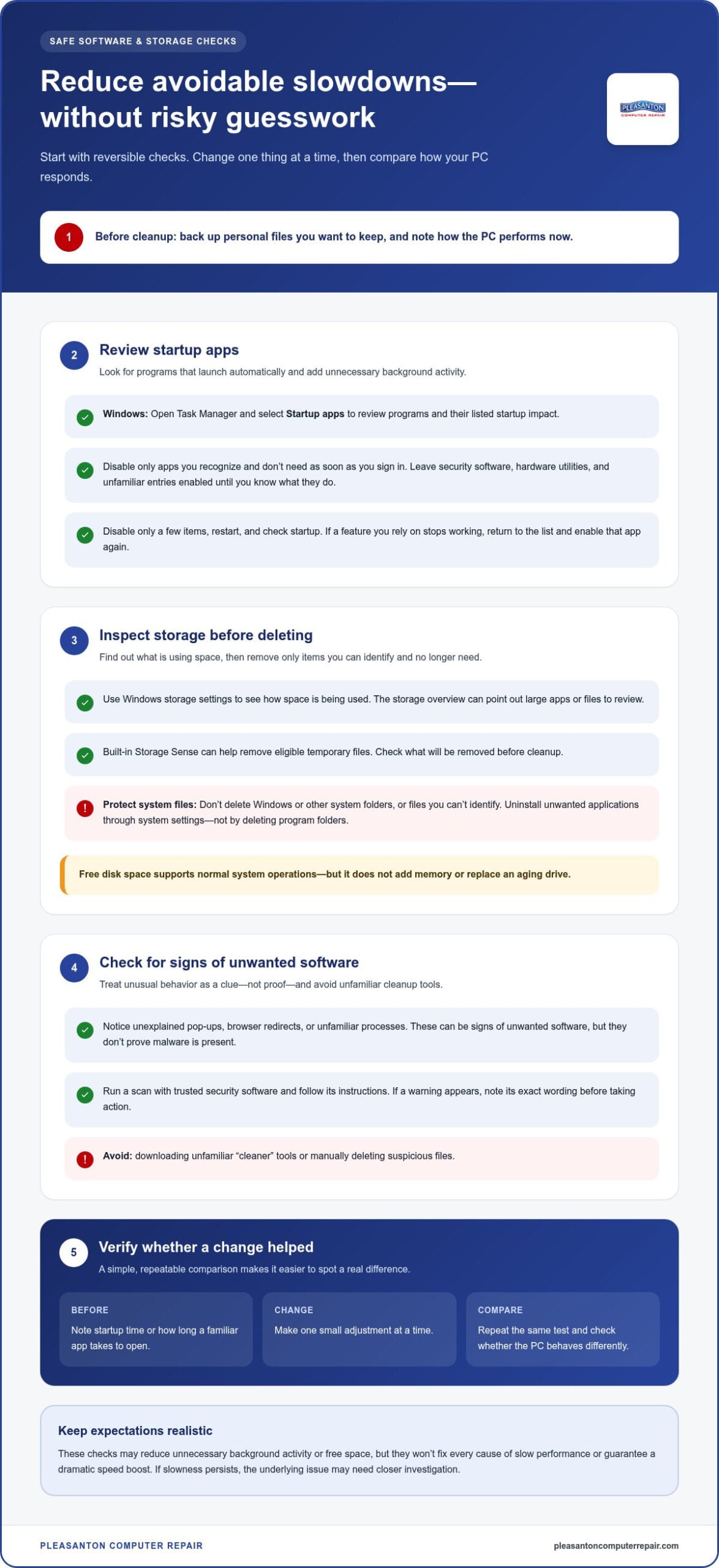
In Windows, open Task Manager and select Startup apps to review which programs launch automatically and their listed startup impact. Disable only apps you recognize and don’t need as soon as you sign in. Leave security software, hardware utilities, and unfamiliar entries enabled until you know what they do. If you use another operating system, look for its startup or login-items settings.
Change only a few items, then restart the PC and check whether startup feels smoother. If a feature you rely on stops working, return to the same list and enable the app again. Avoid disabling many entries at once; that makes it harder to identify which change helped or caused a problem.
Free space and check for unwanted software
Use Windows storage settings to see how space is being used before deleting anything. Built-in Storage Sense can help remove eligible temporary files, while the storage overview can point you to large apps or files to review. Check the items carefully first. Uninstall unwanted applications through system settings rather than deleting program folders yourself, since those folders may contain files other software needs.
Back up personal files you want to keep before cleanup. Don’t delete Windows or other system folders, or files you can’t identify, just because they take up space. Free disk space supports normal system operations, but it doesn’t upgrade your hardware. If the drive is nearly full, removing files you no longer need may help Windows and your apps work more comfortably, but it won’t add memory or replace an aging drive.
Pay attention to unexplained pop-ups, browser redirects, or unfamiliar processes. These can be signs of unwanted software, though they don’t prove malware is present. Run a scan with trusted security software and follow its instructions instead of downloading unfamiliar “cleaner” tools or deleting suspicious files manually. If a warning appears, note its exact wording before taking action.
These tips for speeding up old PC performance can reduce avoidable software and storage strain, but they can’t promise a dramatic speed boost. If you’ve tried cautious checks and the PC remains slow, system optimization can help investigate what’s holding it back. Pleasanton Computer Repair provides PC optimization support for persistent performance issues.
When an old PC needs an SSD, more memory, or another solution
Software cleanup can help with unnecessary background activity, but it won’t remove every hardware limit. A traditional hard disk drive (HDD), low available memory, an aging processor, overheating, or a failing component can each make a PC feel slow in different ways. Treat symptoms as clues, not proof that a particular upgrade is needed. First identify what’s holding the computer back, then decide whether an upgrade or repair makes sense.
What you notice: Startup and apps load slowly. Possible bottleneck: An HDD or a busy drive. Next check: Confirm the drive type and look for persistent high disk activity.
What you notice: The PC slows when several apps or browser tabs are open. Possible bottleneck: Limited available memory. Next check: Review memory use during the slowdown and check what memory the PC supports.
What you notice: Demanding tasks lag, even when few apps are open. Possible bottleneck: The processor, heat, or another system issue. Next check: Notice whether performance changes as the PC warms up, and consider a broader diagnosis.
What you notice: Freezes, repeated errors, or drive warnings. Possible bottleneck: A fault that may need repair. Next check: Prioritize important files and avoid unnecessary use until you understand the cause.
How storage and memory affect everyday responsiveness
An HDD reads and writes data using moving parts; an SSD stores data electronically. On some PCs that still boot from an HDD, an SSD can make startup and app loading feel more responsive. It won’t fix slowdowns caused by limited memory, an aging processor, overheating, malware, or another fault. For upgrade-specific considerations, see the SSD upgrade guide for Pleasanton.
Memory, often called RAM, is the workspace apps use while they’re open. If available memory runs low with several programs running, the PC may rely more on storage to keep tasks moving, which can add delays. Before considering a component change, check the PC’s model and supported parts. Compatibility matters: not every computer can accept the same drive or additional memory.
Decide whether an upgrade or repair is the better next step
A software issue may respond to careful cleanup or troubleshooting. A compatible, replaceable component may be an upgrade candidate if the symptoms fit and the rest of the PC is working reliably. A component showing signs of failure is different: replacing or upgrading parts without diagnosing the problem may not address the cause.
Repeated errors, unusual noises, or drive warnings call for extra caution. Back up important files if you can do so safely, and don’t treat a potentially failing drive like a routine upgrade. For help weighing repair against an upgrade, the Pleasanton computer repair guide offers broader troubleshooting context. These tips for speeding up old PC performance work best when the next step matches the actual bottleneck.
Follow a safe, step-by-step process to make an old PC faster
A careful process makes it easier to see what helps and lowers the chance of losing files or disrupting something you rely on. Don’t change several settings at once. Work from simple, reversible software checks toward hardware assessment, and test the same task after each meaningful change. These tips for speeding up old PC performance are most useful when you can tell which action made a difference.
- Back up important files. Make a current copy of irreplaceable documents, photos, and other personal files before troubleshooting. Use a backup method you can access, and check that the files you care about are there. If the PC is showing drive warnings or making unusual noises, avoid unnecessary use and prioritize preserving data.
- Record a baseline. Note how the PC starts, how much storage is available, and which everyday task feels slow. For example, time how long a familiar app takes to open, or note whether a document takes a few seconds or much longer. You don’t need a perfect measurement. A consistent starting point is enough to compare later.
- Try one low-risk software change. Begin with a setting you understand, such as disabling a recognized, nonessential startup app or uninstalling an application you no longer use through system settings. Avoid registry edits, unfamiliar cleanup utilities, and deleting files or folders you can’t identify. Those steps can cause new problems without addressing the actual slowdown.
- Restart and repeat the same task. After each meaningful change, restart the computer if appropriate, then repeat your baseline test under similar conditions. Did startup improve? Does the same app still hesitate? Give the computer a little time to settle after signing in, and note any feature that no longer works as expected.
- Undo a change that causes trouble. Return to the setting you changed and restore its previous state. For example, re-enable a startup app if a feature you use stops working. If you’re unsure how to reverse a change, stop rather than layering more adjustments on top of it.
- Move to diagnosis, not guesswork. If the original symptom remains after safe software checks, use your notes to revisit the clues: persistent disk activity, limited available memory, unexplained security symptoms, or signs of a component fault. Check compatibility before considering hardware changes. Don’t replace parts based only on a hunch.
Keep a short log with the change, the date, and what happened during the retest. This helps you avoid repeating unsuccessful steps and gives a repair professional a clearer picture if the problem persists. If the cause is still unclear, troubleshooting can help determine whether system optimization, virus removal, data recovery, or an SSD upgrade is the sensible next step. Get help diagnosing a slow PC from Pleasanton Computer Repair.
When simple tips are not enough, get help with a slow PC
Some slowdowns don’t respond to routine cleanup. Persistent freezing, repeated error messages, suspected malware, or drive warnings can point to a problem that needs more than another settings change. A focused diagnosis can help distinguish a software issue from a storage, memory, or hardware fault and clarify which next step makes sense.
Know when to stop troubleshooting yourself
Pause experiments if important files may be at risk, the computer reports storage warnings, or the drive makes unusual noises. Back up essential files if you can do so safely, but don’t keep restarting or running cleanup tools just to see what happens. Unusual symptoms can have more than one cause, and changing several things at once may make the original problem harder to trace.
Complex repairs and opening a computer aren’t good beginner troubleshooting steps. The wrong part, an incompatible component, or accidental damage can add to the trouble. If you’re unsure what a setting or warning means, stop and get guidance rather than guessing.
Get local help for a slow computer
Pleasanton Computer Repair serves home and business customers in Pleasanton and nearby East Bay communities, including Livermore, Dublin, San Ramon, Danville, Brentwood, Walnut Creek, and San Jose. Support is available in-store, on-site, and remotely. The company can help determine whether system optimization, virus removal, an SSD upgrade, data recovery, or another repair is appropriate. The right option depends on what’s causing the slowdown, so don’t assume one fix will suit every PC.
A diagnosis can bring the clues together: when the slowdown occurs, what errors appear, and whether storage or another component may be involved. It can also help you avoid focusing on the wrong symptom or attempting a change that won’t address the underlying issue. If you’ve tried safe steps and the PC still freezes or struggles with routine tasks, Pleasanton Computer Repair can help assess what’s happening and identify a practical next step.
You don’t need to solve every computer problem on your own. Keep a note of the symptoms and any changes you’ve already tried. That gives troubleshooting a clearer starting point and helps protect your files while you work toward a more dependable PC.
Choose a clear next step for your PC
You don’t have to decide today whether to keep, repair, or replace an older computer. Let the evidence guide that choice. If a cautious change makes your usual tasks easier, keep track of what worked. If the slowdown continues, your notes can help pinpoint what needs attention and prevent another round of guesswork.
The most useful tips for speeding up old PC performance aren’t about making every computer feel brand new. They’re about finding a sensible path forward while protecting your files and avoiding changes that don’t address the real issue. A professional assessment can help clarify whether your PC is a good candidate for repair or an upgrade, or whether another cause is behind the delay.
For a practical next step, get help troubleshooting your PC from Pleasanton Computer Repair. The company provides support in Pleasanton, Livermore, Dublin, San Ramon, Danville, Brentwood, Walnut Creek, and San Jose.
Frequently Asked Questions
Can an old PC run Windows 11?
Some older PCs can run Windows 11, but age alone doesn’t determine compatibility. Microsoft sets hardware and security requirements, so check your exact model with Microsoft’s official PC Health Check app or the compatibility notice in Windows Update before attempting an upgrade. If the PC isn’t supported, don’t force an installation without understanding the possible support limitations. If it is eligible, back up your files first and check that essential apps and peripherals will work with the newer system.
Is it safe to keep using a PC that no longer receives security updates?
You can still use it, but without security updates, newly discovered vulnerabilities may go unfixed, increasing the risk of malware or data theft. Windows 10 support ended on October 14, 2025. For consumers enrolled in its Extended Security Updates program, security updates are available through October 2027. If your PC isn’t covered, avoid using it for sensitive activities such as banking, and plan a supported operating system or replacement that fits the computer’s capabilities.
Can a factory reset make an old PC faster?
A factory reset can help if accumulated software problems are slowing the computer, but it won’t repair failing hardware or make an old processor faster. It removes apps and may erase personal files, so back up documents, photos, and saved information first. Make sure you can reinstall the programs you rely on and access any needed account details. Among the tips for speeding up old PC performance, a reset is a more disruptive step, not the first one to try.
Can browser extensions make an old computer slow?
Yes. Some extensions use memory or run tasks in the background, and several active extensions can contribute to sluggish browsing, especially with many tabs open. To test this, review your browser’s extension settings and temporarily disable one extension you don’t need. Then revisit the same pages and compare performance. If browsing improves, re-enable extensions one at a time to identify a possible source. Remove only extensions you recognize and no longer want.
Do I need an internet connection to speed up an old PC?
No. You can review startup apps, uninstall unused programs, and check local storage without being online. An internet connection is useful for downloading operating system updates or security scans, accessing cloud backups, and looking up unfamiliar error messages. If the PC has suspicious pop-ups or redirects, avoid entering passwords or payment details until you’ve checked its security. Back up files using a method you can access, and don’t download cleanup tools from unfamiliar websites.
What should I do if my old PC becomes slow and makes unusual noises?
Take the noise seriously, particularly if it’s clicking, grinding, or coming from a storage drive. Save essential files only if the computer remains stable and you can do so without repeated attempts. Otherwise, shut it down and avoid running cleanup tools or restarting it repeatedly, as continued use may complicate data recovery if a drive is failing. Pleasanton Computer Repair serves customers in Pleasanton, Livermore, Dublin, San Ramon, Danville, Brentwood, Walnut Creek, and San Jose, and can assess the PC and discuss repair or data recovery options.