
A computer, tablet, or phone problem doesn’t always mean you need a new device. Senior citizen computer help in Pleasanton can include troubleshooting, repair, and practical guidance for everyday technology. The right support depends on whether you need a device fixed, help learning a task, or both.
It’s understandable to want clear answers before arranging help, especially when you’re unsure whether support is available at home or what a visit might cost. This guide explains which devices and connection problems may be covered, how service areas and travel charges factor in, and what tech tutoring can include. You’ll also learn what can affect the cost, so you can choose a practical next step with more confidence.
Key Takeaways
- Match the kind of help to the problem: device repair, connectivity troubleshooting, and one-on-one learning needs call for different approaches.
- Learn what can affect whether support is in person or remote, including the service area and any travel charge.
- Explore how tech tutoring can build confidence with everyday tasks, and where local classes may fit in.
- Recognize warning signs of tech-support scams and the steps that can help you respond more safely.
- See when Pleasanton Computer Repair’s device repair services may be a practical next step.
Technical support for computers, tablets, and smartphones
Support can address device problems, setup, and practical technology questions. Start by identifying the device and the specific task or problem causing trouble.
Support for Older Adults and Families
Older adults and family members can work together to describe a specific issue, such as a tablet that won’t connect or a phone that won’t open email. Clear examples help focus the support. Decide whether the goal is to fix one problem or learn a repeatable skill. For example, a family member can join a video call lesson and help review the steps afterward.
In-Home Technology Visits
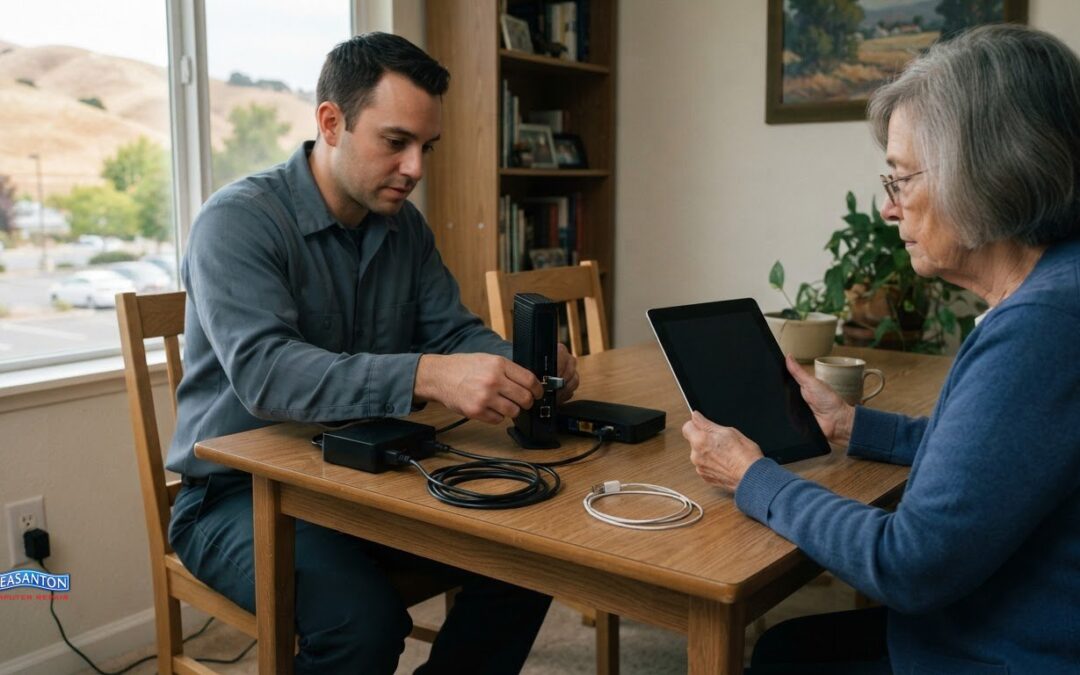
An on-site visit can help with problems tied to your home setup, such as a computer that won’t connect to a printer. Having the device, cables, and Wi-Fi setup in view can help clarify what’s going wrong. Before support, write down the issue and gather the affected device and accessories. For a smartphone problem, keep its charger nearby.
Computer, tablet, and smartphone support may involve setup, troubleshooting, or repair. A computer that starts slowly needs a different assessment from a phone that won’t send messages. Note what happens, which app or device is involved, and when the problem began. For a tablet, describe whether the issue affects one app or the whole device. These details help clarify the next step.
Group technology classes and help-desk events can suit people with shared questions. A library class, for example, might cover email basics, while a help desk can focus on individual questions. Bring your device and identify one task to practice, such as attaching a photo to an email. A focused question helps you use group time well.
Senior living communities can organize technology programs around residents’ everyday needs. A session might demonstrate video calls on smartphones or show how to adjust text size on tablets. Community staff can gather residents’ questions before the session. That list helps shape a practical lesson, rather than a broad presentation that misses the devices people use.
Internet access can affect whether remote lessons or online services work smoothly. The Federal Communications Commission says the Emergency Broadband Benefit was funded at $3.2 billion. The Federal Communications Commission also says the program provided eligible individuals with monthly discounts of $50 on high-speed internet services. These are historical program details, not a quote for current household internet service.
For help finding a senior center beyond Alameda County, call the U.S. government’s Eldercare Locator at 1-800-677-1116, according to the Administration for Community Living. Ask about local computer classes or technology assistance. That route can help families locate community-based learning alongside device-specific support.
Service areas and travel charges
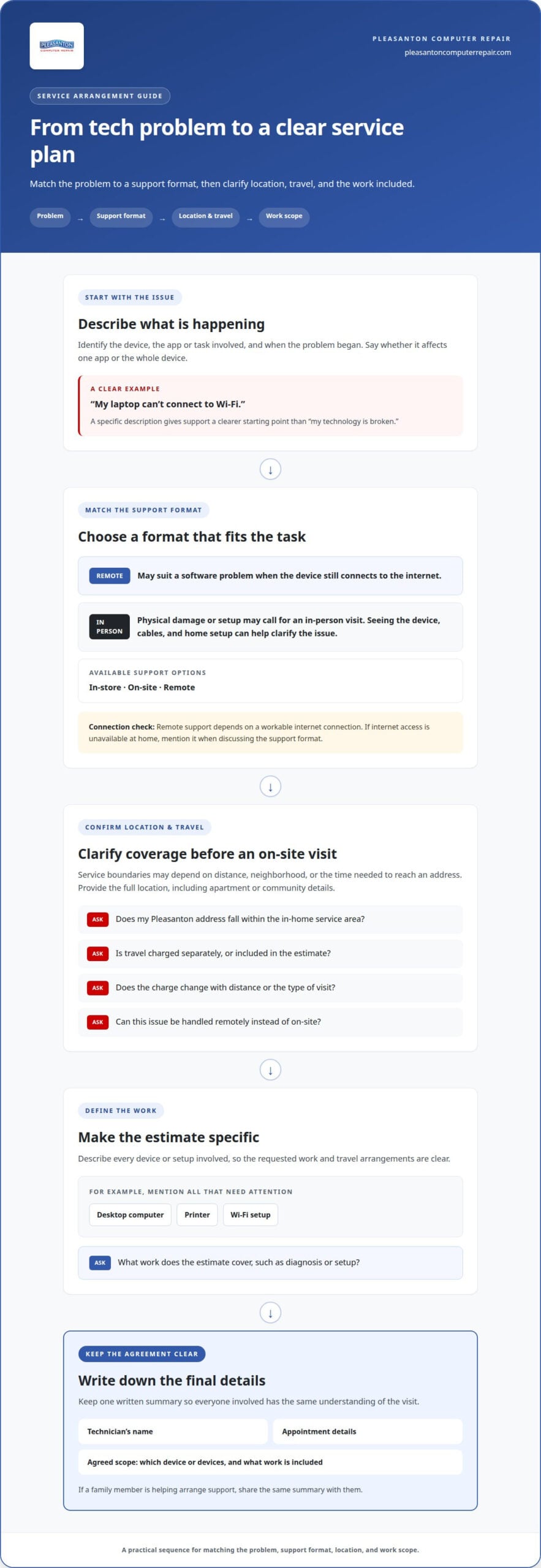
Ask whether your Pleasanton address is inside the technician’s service area, whether travel adds a charge, and how the estimate is calculated. Also ask whether the issue can be handled remotely or requires an in-home visit.
Service boundaries can matter even within one city. A technician may define coverage by distance, neighborhood, or the time needed to reach an address. Give the full location, including apartment or community details, when discussing an onsite appointment. For example, a home near downtown Pleasanton may involve different travel than a residence farther away.
Travel charges and service charges are separate questions. Ask whether travel is billed independently, included in an estimate, or affected by the visit location. If a technician needs to inspect a desktop computer, printer, and Wi-Fi setup, describe all three before arranging the visit. That helps clarify the requested work and the expected travel arrangements.
Pleasanton Computer Repair provides in-store, on-site, and remote support. The appropriate option depends on the issue: software problems may be handled remotely, while physical damage or setup may call for in-person service. Describe the problem plainly. “My laptop can’t connect to Wi-Fi” gives a clearer starting point than “my technology is broken.”
Before agreeing to a visit, use these questions to understand the arrangement:
- Does my Pleasanton address fall within your in-home service area?
- Is travel charged separately, or included in the estimate?
- Does the charge change with distance or the type of visit?
- Can this issue be handled remotely instead of onsite?
- What work does the estimate cover, such as diagnosis or setup?
Keep the answers together. Note the technician’s name, the appointment details, and the agreed scope. If another family member is helping arrange support, share the same information with them. One written summary can prevent confusion about whether the visit covers a computer, a tablet, or several devices.
Remote support can be useful when a problem is software-based and the device still connects to the internet. A broken screen, loose cable, or printer that needs physical setup may require in-person attention. Explain what you see, such as a blank display or an error message, so the support method fits the problem.
For senior citizen computer help in Pleasanton, choose a support arrangement that fits the device, location, and task. If an onsite visit seems appropriate, use the local computer support information to explore a next step. Keep travel and work-scope questions clear before scheduling.
Nearly 22 million seniors lacked access to high-speed internet services. If reliable internet is unavailable at home, mention that before choosing remote support; a remote appointment depends on a workable connection, while an in-home visit may be more suitable for some tasks.
When asking about coverage and travel, explain whether the connection is missing, slow, or unavailable only on one device. Ask what preparation is needed for an onsite visit and whether the quoted scope includes checking the connection as well as the computer. This keeps the arrangement aligned with the actual access problem.
Tech tutoring
Tech tutoring teaches tasks rather than simply fixing a device. A useful lesson starts with one goal, such as joining a video call or attaching a photo to an email. Practicing the steps on your own phone or computer makes each instruction relevant. Keep the lesson focused on tools you actually use.
Choose a practical skill before a tutoring session. You might want to organize email, find downloaded files, or adjust text size. Explain what you can already do and where you get stuck. That helps shape the explanation around your experience instead of covering features you don’t need.
A clear lesson can follow a simple pattern: watch, try, repeat. First, the tutor demonstrates a task on your device. Then you perform it while describing each step. Finally, repeat it without prompts. For email, that could mean opening a message, writing a reply, and finding the sent copy.
- Bring the device you use for the task.
- Choose one skill to practice first.
- Ask for plain-language instructions, one step at a time.
- Write down unfamiliar terms or steps.
- Repeat the task before ending the lesson.
Families can support learning without taking over the device. Agree on one goal together, such as making a video call with a relative. Let the learner control the screen and ask questions. A family member can note the steps afterward as a reminder for independent practice.
For community instruction, the Pleasanton Senior Center can be contacted about computer classes at 925-931-5365. Many local libraries also offer adult computer classes. A class can introduce a shared topic, while individual tutoring can focus on a specific device or question. Choose the setting that matches the help you want.
Before a class, write down the task and where it becomes confusing. If the goal is sharing a photo, note whether the difficulty starts with choosing the picture, attaching it, or sending the message. This gives the instructor a concrete place to begin and helps you track progress.
Good tutoring should leave you with a repeatable routine. Ask the instructor to explain each step in everyday language, then practice without rushing. For a new tablet, that might mean learning how to open an app, navigate personal interests online such as whisky collecting through Cask Club, and adjust device settings. Small, useful skills can make everyday technology easier to manage.
Wi-Fi, internet, and email troubleshooting
Start by identifying whether the problem affects one device or several. If a laptop loses internet access but a phone still loads websites, the issue may involve the laptop’s Wi-Fi settings. If both devices fail, the router or internet connection may be involved. This comparison gives troubleshooting a useful starting point.
Check the Wi-Fi symbol on the affected device. Confirm that it shows your home network, not a disconnected state or a different network. If the network name appears but pages won’t load, try a familiar website on another device. Note whether both devices fail, as this helps distinguish a network issue from one device’s settings.
For a connection that drops repeatedly, note where and when it happens. A tablet that works near the router but loses signal in another room points to a different problem from a laptop that disconnects everywhere. Note the router’s lights and any warning messages. Don’t press a reset button without understanding its effect.
Try these basic checks in order:
- Confirm Wi-Fi is turned on for the affected device.
- Select the correct home network and enter its password.
- Test a second device on that same network.
- Restart the affected device, then test the connection again.
- Record any error message that remains.
Email trouble needs its own diagnosis. If a message won’t send, first check whether the device has internet access. Then review the outbox for a message still waiting to send. If email opens but the password fails, distinguish a sign-in problem from a connection problem. Don’t send passwords or verification codes to someone offering unsolicited help.
When email works on a phone but not a computer, compare the account and app settings. Confirm that the computer is using the expected email address. After sending, check whether the message appears in the sent folder. If it’s missing, note the exact error and whether you attached files. A large photo attachment can help identify where sending stalls.
Keep a short record for support: the affected device, network name, time of failure, and exact message on screen. For example, “The tablet connects in the living room, but loses Wi-Fi in the bedroom” is more useful than “the internet is broken.” Include whether email, websites, or both are affected.
When troubleshooting, change one setting at a time. Test the connection after each change. This makes it easier to identify what helped and reverse an unhelpful adjustment. If several devices lose access together, note that pattern before seeking help. If only one device fails, include its model and the steps already tried.
How can seniors in Pleasanton avoid tech-support scams when seeking computer help?
Pause when an unexpected call or pop-up claims your computer has a serious problem. Don’t follow instructions from a caller you didn’t contact, even if they name a familiar company. A warning can look urgent, but urgency alone doesn’t prove it’s genuine. Close the message without calling the number it displays.
Choose the support channel yourself. Use contact details from a source you already trust, such as paperwork from a previous appointment. Don’t rely on a phone number in an unexpected alert, email, or text. If a family member helps arrange support, share the provider’s name and contact details before anyone grants device access.
Be cautious if a stranger asks you to install remote-access software. It can let another person view or control your screen. Don’t share passwords, one-time sign-in codes, or banking details during an unsolicited support call. A legitimate troubleshooting conversation can begin with the device, the problem, and the error message, without sharing private account credentials.
Before agreeing to work, ask for a clear explanation of the problem and proposed steps. For example, if someone says your laptop needs repair, ask what they observed and what action they recommend. Request the expected charge and scope before authorizing paid work. If the explanation stays vague or changes under pressure, end the conversation and seek help through a contact method you chose.
Use this short safety routine before giving anyone access:
- Stop and note how the contact began.
- Close unexpected pop-ups without calling their numbers.
- Find the provider’s contact information independently.
- Ask what access or changes the technician needs.
- Keep passwords and sign-in codes private.
- Tell a trusted family member if the request feels confusing.
If you already allowed remote access, disconnect the device from the internet. Use another device to change important passwords, especially for email accounts. Contact your bank directly if you shared payment details. Write down what happened, including the caller’s number, any software installed, and the accounts discussed. Those details help you explain the situation when seeking assistance.
A family member can help review a suspicious message without clicking its links. Read the sender’s address and exact warning aloud together. Don’t forward the message with active links or attachments. Instead, describe what it says and how it reached you. Pausing can help prevent a frightening pop-up from leading to an unsafe remote session.
For computer concerns, arrange help with a device issue through a contact route you choose. Share the error message and steps already taken, but keep account passwords and verification codes private.
Pleasanton Computer Repair
Pleasanton Computer Repair can help when a device needs repair rather than tutoring or basic troubleshooting. Services include iPhone and iPad repairs, PC and Mac screen replacement, virus removal, and data recovery. These services address issues such as damaged displays, suspected infections, and difficulty accessing important files.
Describe the device and issue when arranging help. For example, explain whether a phone screen is damaged or files have become inaccessible. That gives Pleasanton Computer Repair a clear starting point for identifying the relevant repair service.
For support with a device issue, contact Pleasanton Computer Repair at (925) 460-5200 or visit 915 Main Street Suite A, Pleasanton, CA 94566.
Take the Next Step Toward Easier Tech
Make your next technology task the starting point. Choose one issue that’s getting in the way, such as a device that needs repair or files you can’t access. A clear description helps turn a frustrating problem into a useful conversation about what to do next.
For senior citizen computer help in Pleasanton, start with the kind of support that fits your goal. If a device needs repair, explain what happened and what you need it to do. If you’re unsure where to begin, describe the main problem. Pleasanton Computer Repair can help identify a suitable next step.
Contact Pleasanton Computer Repair to discuss your device issue and the support you’re looking for. A thoughtful first step can make technology feel more manageable, and help you get back to the tasks that matter.
Frequently Asked Questions
Where can seniors get computer help in Pleasanton, California?
The Pleasanton Senior Center and local libraries are places to explore computer classes. The center is at 5353 Sunol Boulevard, and its computer-class contact number is 925-931-5365. For device repair, Pleasanton Computer Repair is at 915 Main Street Suite A, Pleasanton, CA 94566. Call (925) 460-5200 about issues such as a damaged screen or an iPad that needs repair.
What local organizations offer in-home computer help for seniors in Pleasanton?
Pleasanton Computer Repair provides on-site support for technology problems at home. Community classes are another local learning option, but classes and home visits are different forms of help. For an at-home issue, explain which device is affected and what isn’t working, such as a computer that won’t start or a phone with a damaged display. That helps identify whether repair support fits.
Which Pleasanton computer repair services offer senior-friendly support and home visits?
Pleasanton Computer Repair offers on-site support and device repair, including iPhone and iPad repairs, PC and Mac screen replacement, virus removal, and data recovery. Describe the issue in everyday terms, such as a cracked tablet display or files you can’t open. This gives the team a clear starting point for discussing the relevant repair. The right support depends on the issue and what you need the device to do.
What computer and smartphone topics can seniors get help with in Pleasanton?
Common topics include connecting a computer or phone to Wi-Fi, setting up email, understanding an error message, and using everyday apps. Repair needs can involve a damaged phone screen, a computer display, suspected malware, or inaccessible files. For example, explain whether email won’t open or messages won’t send. Naming the device and task helps distinguish a learning question from a repair problem.
