

Cloud backup is useful, but it may not be the whole answer. A damaged laptop or accidental deletion can interrupt work, and a backup only helps if your team can restore the files it needs. When files are already inaccessible, a data recovery service Pleasanton businesses can access locally can assess the recovery options.
A backup plan should be simple enough to maintain alongside daily work. This guide compares cloud, local, and combined backups, then explains how to choose an approach that fits your business devices and workflow.
You’ll also learn how to check that files can be restored and what to do when data goes missing. Pleasanton Computer Repair provides data recovery and migration services, with in-store, on-site, and remote support. We serve businesses across Pleasanton, Livermore, Dublin, San Ramon, Danville, Brentwood, Walnut Creek, and San Jose. A dependable plan starts with the right backup approach, but a restore test shows whether it’s ready when you need it.
Key Takeaways
- Identify the customer, finance, project, and operational files your business can’t afford to lose, then prioritize them in your backup plan.
- Compare cloud-only, local-only, and combined storage based on how your team accesses files and how quickly it needs them restored.
- Build a practical setup process that includes assigning a backup owner and testing file restoration, not just checking that backups run.
- Know when inaccessible files call for a data recovery service Pleasanton businesses can access locally, and when migration support can help move files between systems.
- Understand how prevention and recovery fit together so your business has a clearer path forward if data becomes unavailable.
Why Pleasanton small businesses need a data backup plan before files disappear
Losing access to customer records, finance files, project documents, or information that keeps daily operations moving can leave a small business scrambling. A file may be deleted by mistake, a computer or storage drive may fail, or malicious software may make data inaccessible. The immediate problem is often practical: employees can’t find what they need to serve customers, complete work, or keep records current.
A business data backup is a separate copy of important files that can be used to restore them if the originals are lost, damaged, or unavailable. That’s the preventive layer. Data recovery is a response when files are already inaccessible and no usable copy is available. A data recovery service Pleasanton businesses can turn to can assess an affected device or file problem, but recovery doesn’t replace maintaining backups. For a plain-language overview of understanding data backup principles, see the general explanation of backup types and storage methods.
Which business files and systems should be protected first?
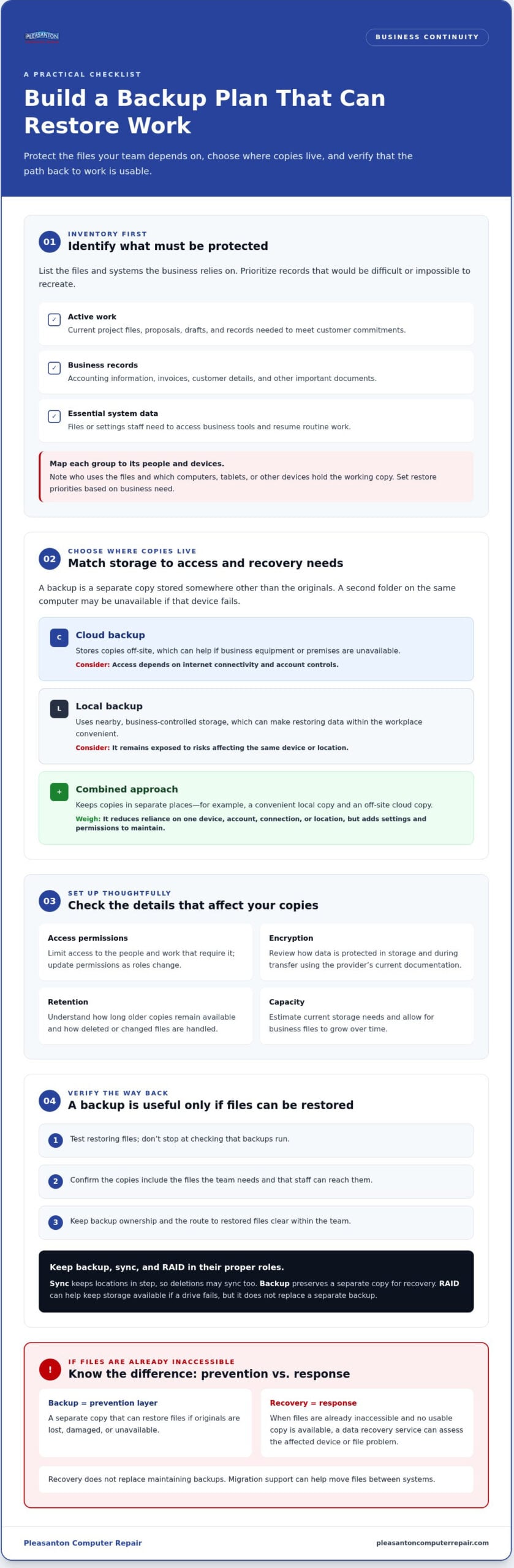
Start with an inventory, not a storage plan. List the files and systems the business relies on, then separate records that would be difficult or impossible to recreate from materials that could be rebuilt with modest effort. This helps you set priorities and avoid overlooking data stored on individual employees’ devices.
- Active work: Current project files, proposals, drafts, and records needed to meet customer commitments.
- Business records: Accounting information, invoices, customer details, and other important documents.
- Essential system data: Files or settings staff need to access business tools and resume routine work.
For each group, note which employees use it and which computers, tablets, or other devices hold the working copy. A customer file used by several people may need a different restore priority from an old document stored on one computer. This simple map shows owners what to protect first and where copies need to be available.
What can happen when a business has no usable backup?
Without a restorable copy, a missing file can mean re-creating work, pausing a project, or spending time piecing together business records. If a device fails, employees who rely on its files may be unable to continue their usual tasks until the data is available again. The disruption can ripple through a small team, especially when the same people handle customer service, operations, and administration.
For businesses in Pleasanton and nearby East Bay communities, interruptions can affect schedules and everyday service. A backup helps only if it contains the files the team needs and those files can actually be restored. Treat backup as a business continuity task, not a set-and-forget IT chore: identify critical information, keep a separate copy, and make sure the path back to work is usable.
How small-business backup solutions work: cloud, local, and combined storage
A backup is a separate copy of business data, stored somewhere other than the original files. A second folder on the same computer isn’t enough: if that device becomes inaccessible, both folders may be out of reach. Choose where copies live by considering which files staff need, how they work, and how they’d access data if a device or location were unavailable.
“Synchronized files keep locations in step; an independent backup preserves a separate copy you can restore from.” Sync is convenient for sharing current work across devices, but deletions may sync too. A backup is designed to retain copies that can be recovered according to its settings. RAID can help keep storage available if a drive fails, but it doesn’t replace a separate backup. It may also reflect unwanted changes or deletions across the array.
Cloud backups and local backups serve different needs
Cloud backups store copies off-site, which can help if business equipment or premises are unavailable. Access depends on internet connectivity and account controls, so staff need a clear, secure way to reach the files. Local backups use nearby business-controlled storage, which can make restoring data within the workplace convenient. They remain exposed to risks affecting the same device or location. Neither approach is automatically right for every Pleasanton business.
When does a combined backup approach make sense?
A combined approach keeps copies in separate places, such as a local copy for convenient access and an off-site cloud copy for a problem affecting the workplace. The goal is to avoid relying on one device, account, connection, or location. Consider the amount of data, who needs access, and how important a quick restore is to everyday work. More copies can also mean more settings and access permissions to maintain.
Before choosing a setup, review a few practical details:
- Access permissions: Limit access to the people and work that require it, and update permissions as roles change.
- Encryption: Review how data is protected in storage and during transfer, using the provider’s current documentation.
- Retention: Understand how long older copies remain available and how deleted or changed files are handled.
- Capacity: Estimate current storage needs and allow for business files to grow over time.
Options and settings vary by service and configuration, so review current provider documentation before relying on a particular feature. Whichever arrangement you choose, plan how staff will restore files, not just where copies are stored. If business data becomes inaccessible despite your precautions, a data recovery service Pleasanton businesses can access can assess recovery options. Pleasanton Computer Repair also provides data migration support when files need to move between systems.
Compare small-business data backup solutions by recovery needs, not feature count
A backup setup should fit the way your team works and the disruption it needs to withstand. Compare practical questions first: how staff will reach files, how long a restore might take in your actual setup, how far back older copies go, and who will maintain access. A long feature list matters less than a clear, workable route to the files your business needs.
| Approach | Access | Main consideration | Suitable use case |
|---|---|---|---|
| Cloud-only | Remote access through an internet connection and authorized account | Internet access, account controls, retention settings, and the amount of data to restore | A small team that works across locations and needs off-site copies |
| Local-only | Access through storage kept at the business | Who can reach the storage, how copies are retained, and whether the storage shares risks with the original devices | An office with predictable access needs and someone responsible for local copies |
| Combined | Local and off-site copies, accessed through their respective systems | More settings, permissions, and storage to administer consistently | A business that wants different recovery paths for different disruptions |
This comparison is a starting point, not a promise of restore speed. Actual access and restoration depend on the chosen service, configuration, connection, and amount of data involved. Consider a small file needed for a customer call separately from a large collection of project files. Which must be available first? That answer can shape what you prioritize and how you test restoration.
Which backup approach fits a small team or office?
Think about team size, device mix, file volume, and where work happens. A solo consultant who works from one main computer may prioritize a simple setup and remote access when away from the office. A Pleasanton office with several employees using shared customer or project files may need clear permissions and a defined way for staff to retrieve the right copy. A team with large working files should also consider how long moving those files could take in its actual environment.
How should owners compare backup security and usability?
Review how accounts are managed, whether permissions can reflect staff roles, what encryption information the provider documents, and how version history works. Compare those details with the steps employees must follow to restore files. A protection setup that’s confusing or left unattended can be difficult to rely on, so assign responsibility for access changes and routine checks.
Be precise about evidence. A vendor’s description of an encryption or security feature tells you what the vendor says its service offers; it isn’t, by itself, independent verification. Consult current provider documentation for configuration details, and don’t treat a product label as proof of a security outcome. If files are already inaccessible and no usable backup is available, a data recovery service Pleasanton businesses can access locally can assess recovery options, without replacing a suitable backup plan.
Set up and test a business backup plan in practical steps
A backup plan becomes useful when someone owns the routine and knows how to check that files come back intact. Keep the process simple enough to maintain, then test it before a real disruption forces the team to rely on it.
- Inventory the data. List the business files, systems, and devices that need protection. Note who uses each data set and which records would be hardest to recreate.
- Set priorities. Decide which information staff need first to resume work. Consider how often each group of files changes and how much recent work the business could afford to lose.
- Choose a schedule and retention period. Set backup frequency according to how quickly important files change and your acceptable loss window. Decide how long older copies should remain available. Review current provider documentation for available schedule and retention controls.
- Configure access deliberately. Give staff access appropriate to their work, and define how shared accounts are managed. Include a process for removing or changing access when employees leave or change roles. Check provider documentation for the exact permission and account settings.
- Assign an owner and test restoration. Name a person responsible for reviewing backup completion notices, following up on problems, and coordinating access changes. Store recovery instructions somewhere authorized staff can find them if a primary device is unavailable.
Build a backup routine the team can maintain
Test file restoration before a real emergency
Restore a small selection of files to a safe location without overwriting the working copies. Open them and check that they’re usable, not merely present. Include different file types or folders the team relies on, and record the test date, items checked, any issues, and the person responsible for follow-up. A small test can expose unclear instructions, missing permissions, or an incomplete copy before those problems affect normal work.
A successful restore test confirms that the right files can be found, opened, and accessed by the people who need them. If the test fails, document what happened, correct the setup, and test again. Keep the record with the recovery instructions so the next review can build on what the team learned.
If files are already inaccessible or a drive is failing, don’t treat an untested backup as the only recovery path. Pleasanton Computer Repair provides data recovery in Pleasanton and data migration support when business files need to move between systems.
Pleasanton data recovery and migration support when backups are not enough
Backups are the preventive layer. Data recovery is a response for files that have become inaccessible, especially when no usable copy is available. If a business computer won’t open important files, a drive appears to be failing, or data is missing after a backup attempt, avoid treating recovery as a routine software problem. The next steps can affect what information remains accessible.
Pleasanton Computer Repair provides data recovery and data migration services for residential and business customers across the East Bay, including Pleasanton, Livermore, Dublin, San Ramon, Danville, Brentwood, Walnut Creek, and San Jose. In-store, on-site, and remote support are available. The team has served the East Bay since 2002. Recovery depends on the device and condition of the data, so no outcome should be assumed in advance.
When should a business seek data recovery help?
Consider professional help when essential files remain inaccessible, a drive shows signs of failure, or missing data can’t be restored from available backups. If the device is behaving unusually, stop using it for tasks that could write more data to the affected storage. Avoid repeated recovery attempts or saving new files to the same device, since those actions could further affect data. This is general precaution, not a remote diagnosis. For wider guidance on local IT needs, see the small business computer repair guide.
Before seeking help, note what happened, which files or systems are affected, and what steps have already been tried. Keep any available backup copies unchanged. Sharing these details helps clarify the situation and next steps without assuming that recovery is possible.
How can local support help with business data transitions?
Data migration serves a different need from recovery. It helps move business files between systems, such as when a team is transitioning to another computer or organizing work on a replacement device. Planning the move around the files employees rely on can make it easier to resume familiar workflows. Pleasanton Computer Repair offers data migration alongside recovery, with in-store, on-site, and remote support for East Bay customers. For broader service context, read the Pleasanton computer repair service guide.
If files are already unavailable, a data recovery service Pleasanton businesses can reach locally can assess the issue and explain the available path forward. Share what you know about the affected device and the missing data, without assuming a particular result before the situation is assessed.
For local help with inaccessible business files or a planned system transition, explore local computer repair and data support.
Make data protection part of your next business change
A backup plan shouldn’t stay frozen while your business changes. New employees, devices, software, or ways of sharing files can leave gaps in what’s protected or who can restore it. Use each change as a prompt to review your backup coverage and recovery instructions. That small habit helps keep your plan aligned with the work your team actually does.
If business files are already inaccessible, the next step is different: avoid actions that could affect the data further and get help assessing the situation. A data recovery service Pleasanton businesses can access locally can clarify recovery options, while migration support can assist when files need to move to another system.
For local help with inaccessible business files or a system transition, contact Pleasanton Computer Repair to arrange an appointment.
Frequently Asked Questions
How often should a small business back up its data?
Back up according to how often important files change and how much recent work your business could recreate. If staff update orders or project records throughout the day, consider the impact of losing those changes before choosing a schedule. Assign someone to review completion status and periodically restore a sample file. A calendar reminder tied to routine operations can help keep monitoring and restore checks from slipping.
Is cloud backup enough for a small business?
Cloud backup can suit some workflows, but it isn’t automatically enough for every small business. Consider whether employees can reach their accounts from their work locations, what happens during an internet outage, and how long earlier versions remain available. Synchronization keeps locations aligned, so an accidental deletion may sync too. Check that a separate recoverable copy exists and that restoring a folder fits your team’s actual needs.
Can RAID replace a business data backup?
No. RAID is designed to support storage availability, but it isn’t a separate backup copy by itself. Deletion, file corruption, or other problems may affect data beyond a single drive, depending on the situation. Keep separate copies of important files and test whether staff can restore them. A restore test can reveal gaps in the process, but it can’t guarantee recovery from a particular hardware or data failure.
What should a business do first after discovering missing files?
First, avoid saving new files, installing tools, or making other unnecessary changes on the affected storage. Check for a known-good backup or earlier file version, then note when the problem began and what actions followed. If important data remains inaccessible, Pleasanton Computer Repair provides data recovery support in Pleasanton, Livermore, Dublin, San Ramon, Danville, Brentwood, Walnut Creek, and San Jose. A data recovery service Pleasanton businesses can access locally can assess options, but recovery isn’t guaranteed.
How can a business tell whether its backup actually works?
A completed backup notice shows that a process ran, not that the files your team needs are usable. Pick a representative item, such as a current spreadsheet, and restore it to a separate test folder. Open it using the software staff normally rely on, then check its contents and access. Record the result and address any issues. Follow the provider’s current instructions for restore steps specific to its service.
Does a small business need both cloud and local backups?
Not necessarily. Keeping local and off-site copies can support different access and disruption needs, but the added administration should fit the team’s capacity. A single-person office working from one location may have different priorities from a team sharing files across devices or work locations. Compare who controls each copy, how staff reach it, and which files matter most. Test the setup before relying on it.