
A slow computer, unwanted pop-ups, changed settings, or unfamiliar browser components can point to malware, but hardware problems can cause similar symptoms. For malware removal help in Dublin, CA, start by updating your anti-malware software and running a scan. If it detects a threat or the symptoms continue, the device may need a closer diagnosis.
It’s unsettling when a device behaves differently, especially when you’re unsure whether your files or accounts are at risk. A scan can help identify known threats, while careful next steps can reduce the chance of exposing sensitive information or losing data.
This guide explains common malware symptoms, how to run an anti-malware scan, and what to do if the scan doesn’t resolve the problem. You’ll also learn what virus removal service can involve and how to find help serving Dublin and ZIP code 94568.
Key Takeaways
- Learn how viruses, spyware, and ransomware can affect your files, privacy, and computer performance.
- Use a combination of warning signs to assess a possible infection, while remembering that hardware faults can look similar.
- Take sensible precautions around sensitive accounts and personal files when you suspect malware.
- Update your anti-malware software and run a scan to look for threats and guide your next steps.
- Find out what virus removal help can look like for people in Dublin and ZIP code 94568.
Computer virus, worm, Trojan, ransomware, and spyware threats
Malware is a broad term for harmful software, and different threats behave in different ways. Knowing what they can do helps you respond safely and explain the problem clearly during computer repair.
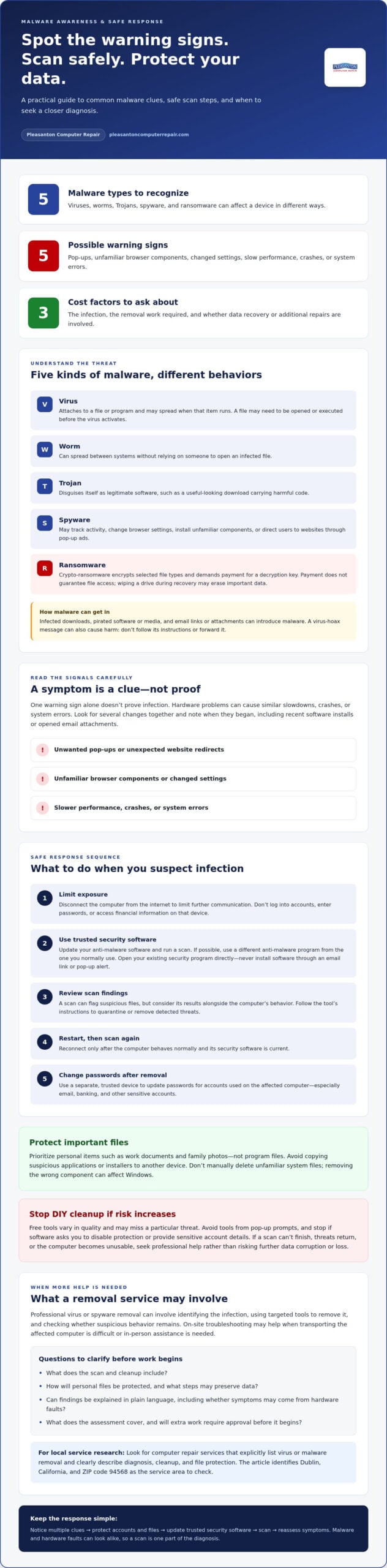
A virus attaches itself to a file or program and may spread when that item runs. Cal State LA explains that a virus can reach a computer without infecting it until activated, often when a file is opened or executed. A worm can spread between systems without relying on someone to open an infected file. A Trojan disguises itself as legitimate software, such as a useful-looking download that carries harmful code.
Spyware focuses on observation or unwanted advertising. It may track activity, change browser settings, install unfamiliar components, or direct users to websites through pop-up ads. Infected downloads, pirated software or media, and email links or attachments can all introduce malware. Ransomware has a different goal: crypto-ransomware encrypts selected file types and demands payment for a decryption key. Paying does not guarantee access to files, and recovery may involve wiping a drive, which can erase important data.
Virus hoaxes can also cause harm by prompting people to follow false instructions or forward alarming messages. Cal State LA advises deleting a virus-hoax message without following its instructions or sharing it. If an email claims your computer is infected, don’t install software through its link. Open your existing security program directly and run its scan instead.
Professional and On-Site Removal
Professional virus and spyware removal can involve identifying the infection, using targeted tools to remove it, and checking whether suspicious behavior remains. On-site malware removal brings troubleshooting to the affected computer, which can help when it’s difficult to transport or you need in-person assistance. Before work begins, ask for a clear explanation of the scan, cleanup, and any steps to preserve data.
How do I choose a reputable malware removal service near Dublin, CA? Look for a computer repair service that clearly describes its virus removal process, explains how it protects personal files, and provides findings in plain language. The service should distinguish malware symptoms from hardware faults, since failing hardware can also cause crashes or slow performance.
Which computer repair shops in Dublin, CA offer malware removal? Look for local computer repair services that explicitly list virus or malware removal, then compare how they describe diagnosis and cleanup. Focus on the specific service you need, not just broad claims about general repairs.
Removal Costs and DIY Tool Risks
How much does professional malware removal cost in Dublin, CA? Cost depends on the infection, the work needed to remove it, and whether data recovery or additional repairs are involved. Request a quote, and ask what the assessment covers and whether extra work requires approval before it begins.
DIY cleanup can make matters worse if you delete system files, install a fake removal tool, or erase data while trying to remove an infection. Free tools vary in quality, and some may not identify a particular threat. Use security software from a trusted source, avoid pop-up download prompts, and stop if a tool asks you to disable protection or provide sensitive account details. For malware removal help in Dublin, CA, prioritize safe diagnosis and preserving important files.
How do I know if my computer has a virus?
One warning sign alone doesn’t prove infection, because hardware problems can cause similar behavior. Look for several changes together, then take steps to protect your files and accounts.
Recognizing and Scanning for Infection
Unwanted pop-ups, unfamiliar browser components, changed settings, and a slower computer can point to spyware or another infection. Crashes and system errors can also occur with malware, but hardware faults may cause the same symptoms. Note when each problem started and what changed, such as installing software or opening an email attachment.
If you suspect infection, disconnect the computer from the internet to limit further communication. Don’t log into accounts, enter passwords, or access financial information on that device. Update your antivirus software and run a scan. If possible, use a different anti-malware program from the one you normally use. A scan can flag suspicious files, but consider its results alongside the computer’s behavior.
For important files, prioritize personal items such as work documents and family photos, not program files. Avoid copying suspicious applications or installers to another device. If you suspect a campus workstation is infected, Cal State LA advises turning it off and not using it again until it has been disinfected. Report the issue through your school’s established support process.
Windows Malware Removal Steps
How can I safely remove malware from a Windows PC step by step? Disconnect it from the internet, avoid sensitive logins, update trusted antivirus software, and run a scan. Follow the tool’s instructions to quarantine or remove detected threats. Restart and scan again, then reconnect only after the computer behaves normally and its security software is current.
Don’t delete unfamiliar system files manually, since removing the wrong component can affect Windows. Avoid installing removal software from pop-up alerts or unexpected email links. If the scan can’t finish, threats return, or the computer becomes unusable, stop experimenting and seek professional help rather than risking further data corruption or loss.
Once the infection is removed, change passwords for accounts used on the affected computer. Use a separate, trusted device to update them, especially for email, banking, and other accounts with sensitive information. Changing passwords after removal matters because an earlier infection may have exposed credentials even if the computer now scans clean.
Does malware removal include data backup, recovery, and prevention advice? Removal focuses on detecting and cleaning malicious software; backup or recovery may be separate work, particularly if files were encrypted or lost. Keep personal-file backups separate from the infected computer, and maintain updated antivirus software and application security patches to reduce future exposure.
Recognizing malware symptoms
A change from your computer’s usual behavior can be a useful clue, especially when several changes appear together. Spyware may cause unwanted pop-ups, unfamiliar browser components, or settings you didn’t change. A slow startup alone proves little. A slow startup combined with new ads and an altered homepage gives you more clues to investigate.
Note what happens, when it happens, and which applications are involved. For example, record whether pop-ups appear only in one browser or across the desktop, and whether the homepage changes again after you reset it. Write down when you first noticed each change and any recent download or email attachment. This timeline can help distinguish a persistent software issue from an isolated glitch.
Unusual performance can also mean delays when opening familiar programs, repeated errors, or unexpected browser redirects. These signs can have non-malware causes: hardware problems may also slow a computer, trigger crashes, or interfere with startup and shutdown. Check whether the problem persists after closing a demanding application. If one program consistently triggers it, record that detail rather than assuming every symptom means infection.
Check browser settings for unfamiliar extensions, a changed search engine, or a homepage that returns after you correct it. Spyware can track activity or direct users to particular websites through pop-up ads. Don’t click an unexpected warning that claims your computer is infected or urges you to install a tool. Open your existing antivirus software directly instead of trusting a browser message.
Keep a simple symptom log before taking action. Include the time, the program open, what appeared onscreen, and whether the computer was connected to the internet. Note whether the same behavior happens after restarting. These observations make it easier to describe the issue during a scan or computer assessment, and help distinguish a repeatable pattern from a one-time error.
If the signs point to malware, disconnect the affected computer from the internet and avoid entering passwords or financial details on it. Update trusted antivirus software and scan the system. A different anti-malware program can provide another check. Keep applications patched, because security updates address vulnerabilities that threats can use. Scan removable devices before opening or copying files, since they can carry viruses without an internet connection.
Prevention starts with cautious choices. Avoid suspicious links and attachments in email or social media, and don’t let unsolicited callers access your computer. Install antivirus software from a trusted source and keep it up to date. If pop-ups, changed settings, or unusual performance continue after a scan, treat them as symptoms to investigate, not proof of a specific infection.
Running an anti-malware scan
An updated anti-malware scan can flag dangerous files, software, or websites and may remove detected malware. Prepare your computer before running it, then review the results before opening suspicious files again.
Start with the security software already installed, or another trusted anti-malware program. Update its threat definitions first so the scan can recognize newer malicious files. If you suspect malware, scanning with a different program from your usual one can offer another way to identify a threat. Avoid tools promoted through unexpected pop-ups.
- Save your work and close open programs so the scan can examine files more easily.
- Open the security software directly from your computer, not through an email or browser warning.
- Choose a full scan when available. A quick scan may check only common locations, while a full scan examines more files and can take longer.
- Let the scan finish. Don’t open flagged files or interrupt the process to use the computer.
- Review each detection, then use the software’s quarantine or removal option for identified threats.
- Restart if prompted, update the software again, and run another scan if symptoms continue.
A detection is useful evidence, but read the result before taking action. Check the file name and location, and use the security program’s explanation to understand its recommendation. Don’t manually delete unfamiliar system files. Removing a legitimate component could create new software problems, while ignoring a genuine threat could leave malicious activity in place.
How can I remove malware from a Mac step by step? Update trusted security software, run a scan, and follow its quarantine or removal instructions for detected threats. If the Mac won’t start normally, hold Shift after hearing the startup tone and release it when the Apple logo appears to enter Safe Mode, then run the scan.
After cleanup, install available security patches for applications and keep antivirus software up to date. Scan removable devices before opening or copying files, because they can transfer viruses even without an internet connection. Avoid suspicious links and attachments, which can expose the computer to infected downloads again.
If a scan finds nothing but unwanted pop-ups, changed settings, or poor performance persist, record the behavior and try a different anti-malware program. Hardware issues can resemble infection symptoms, so repeated scans alone may not explain every crash or slowdown. A computer repair assessment can help distinguish a software threat from a failing component.
Service coverage in Dublin and ZIP code 94568
Dublin, California, and ZIP code 94568 are the focus for this malware removal guidance. People in this area can use the steps in this article to assess symptoms, run a scan, and decide what kind of help suits their computer. Coverage matters most when a device needs hands-on diagnosis or cannot be safely used at home.
Identify the device and problem before arranging support. Note whether it’s a PC or Mac, what symptoms appear, and whether antivirus software found a threat. Include examples such as repeated pop-ups, a changed browser homepage, or a computer that won’t start properly. These details help show whether the issue appears to involve malware, hardware, or both.
Support can take different forms. Remote assistance can address issues that allow the computer to operate safely online. On-site service can help when the device needs in-person troubleshooting, while in-store service gives technicians access to the computer for diagnosis. If you suspect an active infection, disconnect the device from the internet before seeking remote help. Don’t enter account passwords or financial details on a computer you suspect is compromised.
Before bringing a device in or arranging a visit, prepare a concise record:
- Write down the symptoms and when they began.
- Record any antivirus scan results and the names of detected files.
- List recent downloads, software installations, or suspicious email attachments.
- Identify important personal files, such as work documents or family photos.
These notes help keep diagnosis focused. A slow computer or repeated crash can result from a failing component rather than malware, so describe exactly what happens instead of naming a cause prematurely. If ransomware has encrypted files, explain which files are affected and avoid wiping the hard drive before considering data recovery.
For residents and businesses in Dublin, local coverage matters. Pleasanton Computer Repair serves residential and business customers throughout the East Bay area of California. Choose the method that fits the computer’s condition and the access needed. A device that cannot remain safely connected is not a good candidate for remote troubleshooting.
To take the next step, gather your symptom notes and scan results, then request help with a malware issue. This gives the discussion a practical starting point: the affected device, what it’s doing, and whether important files need attention.
Pleasanton Computer Repair: iPhone and iPad Repairs
Pleasanton Computer Repair is a practical next step when scans don’t resolve suspicious computer behavior or malware concerns persist. Its Virus Removal service addresses infected PCs and Macs, while Data Recovery may help when important files are inaccessible after a malware incident. If your issue involves a damaged mobile device, the shop also handles iPhone and iPad Repairs.
Before arranging help, note the device type, symptoms, any scan results, and which files matter most. This gives the repair team a useful starting point and helps distinguish virus removal needs from data recovery or a separate repair issue.
Contact Pleasanton Computer Repair to discuss the malware or device problem you’re facing.
Take the Next Step Toward a Reliable Device
Technology trouble can interrupt work, school, and everyday plans. Once you’ve noticed a problem, share clear details about what the device is doing and what you need to recover or repair. That gives the conversation a practical starting point without guessing at the cause or trying risky fixes.
For malware removal help in Dublin, CA, Pleasanton Computer Repair offers Virus Removal for affected computers. The team also handles PC and Mac Screen Replacement and iPhone and iPad Repairs when a damaged screen or mobile device is part of the problem. Choose support based on the device and issue you’re facing.
You can describe the symptoms, device type, scan findings, and any files that need attention when reaching out. Those details help frame the next step around your situation. Contact Pleasanton Computer Repair to discuss your repair needs and move toward getting your device back on track.
Frequently Asked Questions
Is it possible my problem isn’t a virus or spyware?
Yes, computer symptoms can have causes other than malware. A failing component, a damaged application, or a browser notification setting can create unexpected behavior. If an alert appears only on one website, close that tab rather than clicking its warning. Note whether the issue occurs across different programs or only one, then compare those details with antivirus scan results before deciding on the cause.
What malware removal services are available in Dublin, CA?
Pleasanton Computer Repair offers Virus Removal, with Data Recovery for situations where files are inaccessible or lost. These services address different needs: malware cleanup targets harmful software, while recovery focuses on retrieving files. Describe whether the computer still starts, whether a scan found a threat, and which documents matter. That helps clarify the support relevant to your situation in Dublin.
Do Dublin, CA computer repair providers offer on-site or same-day malware removal?
Some providers offer on-site support, while appointment timing and same-day options vary by service. Pleasanton Computer Repair provides on-site support; share the device type, symptoms, and scan findings when arranging service. If malware is suspected, disconnect the computer from the internet and avoid remote access from unsolicited callers. A device that cannot be used safely may need a different support approach than one that can run a scan.
What are the signs a computer is infected with malware?
Possible signs include unexpected pop-ups, browser settings that change without your input, unfamiliar browser components, or a sudden shift in performance. One clue alone doesn’t establish infection. For instance, an ad on a single webpage differs from repeated pop-ups during normal browsing. Record what happens, which program is open, and whether the same behavior returns after closing and reopening it.
What should I do if malware steals passwords or financial information?
Use a separate, trusted device to change passwords for accounts accessed on the suspected computer, starting with email and financial accounts. If you see unfamiliar transactions or account activity, contact the relevant bank or service through its official app or a known contact channel. Don’t use links in unexpected alerts. Keep notes about affected accounts and changes made, then address the computer infection before using it for sensitive logins again.