
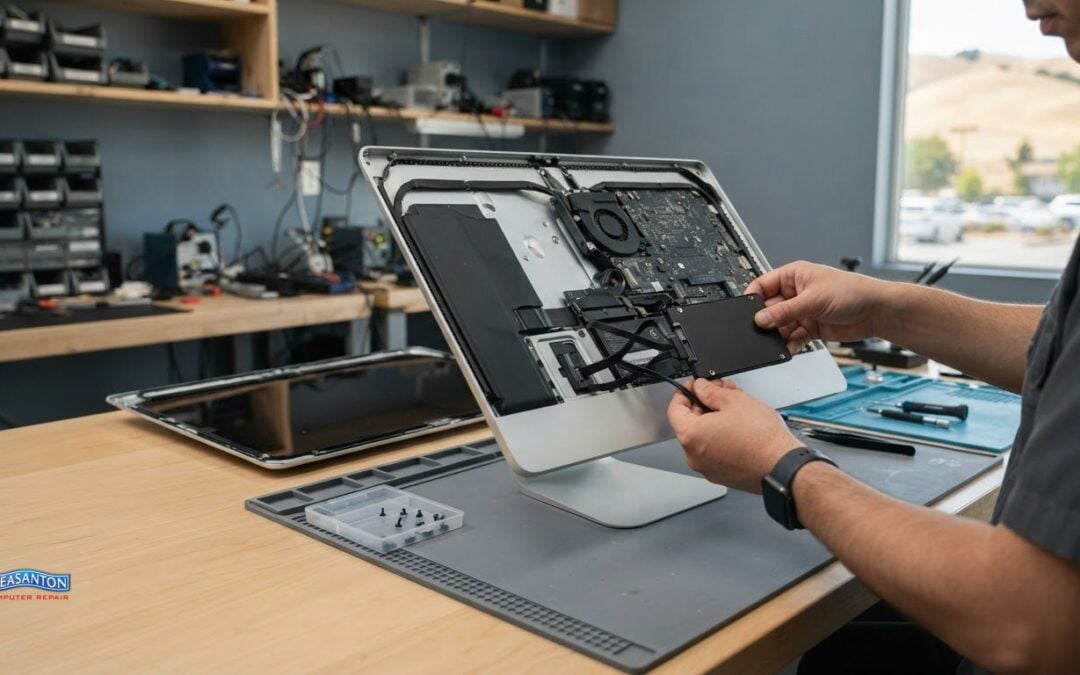
A slow iMac doesn’t automatically need replacing. For an iMac SSD upgrade in San Ramon, the price depends on the model, the SSD capacity, and the work involved, and is provided after a quote request. The iMac’s condition and any data-transfer needs also help shape the estimate.
It’s reasonable to want a clear idea of the cost and process before deciding. The right upgrade depends on your iMac’s design and what you need it to do, while a technician must assess the machine and handle its data and components carefully. This guide explains what affects the work, how the upgrade generally proceeds, and what to consider when arranging help in San Ramon. You’ll have a clearer picture of the decision and practical next steps.
Key Takeaways
- Understand which factors shape an iMac SSD upgrade quote, so you know what information matters before requesting one.
- Learn how your iMac’s model and configuration affect whether an internal SSD upgrade is practical.
- See why matching the SSD to the iMac’s connection and design is essential for compatibility.
- Know what to look for in a repair shop’s experience with iMacs and storage upgrades around San Ramon.
- Explore how an SSD may work alongside an existing hard drive or Fusion Drive, depending on the iMac’s setup.
Repair pricing
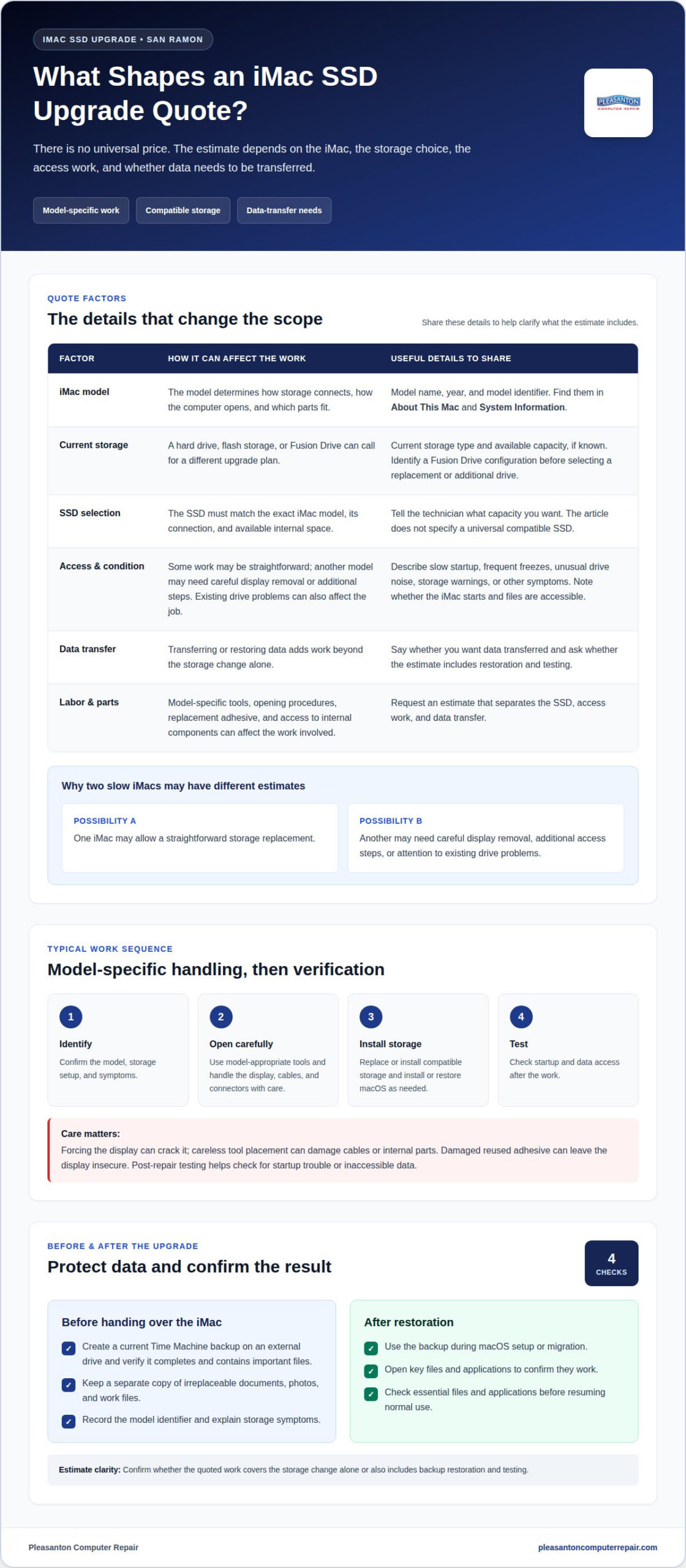
An iMac SSD upgrade in San Ramon doesn’t have one universal price. The work depends on the iMac’s model, current storage, selected SSD, and labor required to access internal components. When requesting a quote from Pleasanton Computer Repair, share the exact model and whether you want data transferred. The machine’s condition, parts, and data-transfer needs help determine the scope of work.
Two iMacs can need different work, even when both seem slow. One may allow a straightforward storage replacement; another may require careful display removal or additional steps because of its internal layout. Existing drive problems can also affect the job. Share the model identifier, current storage setup, and symptoms, such as slow startup or frequent freezes. Those details help clarify the work behind the estimate.
What tools and steps are required to upgrade an iMac SSD? The work may require model-appropriate drivers, plastic opening tools, suction handles, replacement adhesive, and electrostatic-discharge protection. A technician identifies the model, opens the enclosure, disconnects components as needed, replaces or installs storage, then tests startup and data access.
Tool choice matters because iMac designs differ. Displays secured with adhesive need controlled separation, while internal cables and connectors require careful handling. The technician also needs a compatible SSD and a way to install or restore macOS. Parts and opening procedures depend on the iMac’s model, so the work should be planned for that machine rather than treated as a generic desktop repair.
What are the risks of opening an iMac to replace its SSD? Forcing the display can crack it, and careless tool placement can damage cables, connectors, or other internal parts. Reusing damaged adhesive may also leave the display insecure. A rushed installation can lead to startup trouble or inaccessible data, so controlled opening, careful handling, and post-repair testing matter.
How should I back up and restore my iMac data before an SSD upgrade? Create a current Time Machine backup on an external drive, then verify that it completes and contains your important files. Keep a separate copy of irreplaceable documents, photos, and work files. After the upgrade, use the backup during macOS setup or migration, then open key files and applications to confirm they work.
- Confirm the backup is readable before handing over the iMac.
- Record the model identifier and explain any storage symptoms.
- Ask for an estimate that separates the SSD, access work, and data transfer.
- After restoration, check essential files and applications before resuming normal use.
These steps make the estimate easier to understand and help protect your files. They also clarify whether the quoted work covers the storage change alone or includes backup restoration and testing.
Which iMac models can have the SSD upgraded?
Upgrade eligibility depends on the exact iMac model, not just its screen size. The model determines how storage is connected, how the computer opens, and which parts fit. Two iMacs with similar displays may require different procedures. Identify the machine before deciding whether an internal SSD change is suitable.
Start in macOS: open the Apple menu, choose “About This Mac,” and record the model name and year shown. Then open “System Information” and select “Hardware” to find the model identifier. Those details give a technician a more precise starting point than “27-inch iMac” or “older desktop.” If the iMac won’t start, its serial number can help identify the specific configuration.
Next, establish what storage the computer currently uses. In “System Information,” review the storage details and note whether the iMac has a hard drive, flash storage, or a Fusion Drive. That distinction matters because the existing setup affects the upgrade plan. A Fusion Drive combines storage components, so identify its configuration before choosing a replacement or additional drive.
Use this checklist before requesting an assessment:
- Record the model name, year, and model identifier from macOS.
- Note the existing storage type and available capacity.
- Describe symptoms, such as slow startup, unusual drive noise, or storage warnings.
- Include whether the iMac starts and whether files remain accessible.
These details help distinguish a storage upgrade from a failing-drive problem. For example, an iMac that starts normally but has limited space presents a different situation from one that cannot access its startup disk. Symptoms alone don’t establish compatibility, but they help frame the assessment.
Don’t choose parts based only on the iMac’s year or screen size. The exact model identifier and internal configuration should guide compatibility decisions. The opening method also varies by model, affecting the labor and care required. A technician can use those identifiers to determine whether the existing storage can be replaced, supplemented, or should remain untouched.
If you’re in San Ramon, gather the model identifier before arranging a model-specific assessment. It makes the conversation more useful and helps focus attention on the right storage configuration. For a local next step, review iMac model assessment information and have your recorded details ready.
What SSD upgrade options are compatible with each iMac model?
There isn’t one SSD that fits every iMac. Compatibility depends on the exact model identifier, storage connection, drive format, and available internal space. An SSD that works in one iMac can be unsuitable for another, even if both computers have similar displays. Match the part to the machine before planning an installation.
Start with the model identifier and current storage details from macOS. The “About This Mac” screen gives a useful model description, while System Information provides more specific hardware details. Pair those details with the existing drive type. A hard drive, flash-storage device, and Fusion Drive are different starting configurations, so the upgrade choice depends on what the iMac already contains.
Compatibility checks focus on several connected details:
- Connection: The SSD must use an interface supported by the iMac’s storage connection.
- Physical format: The drive must fit the internal mounting space or use a suitable mounting solution.
- Protocol: SATA and PCIe/NVMe drives use different technologies, so they aren’t interchangeable by appearance alone.
- Adapter requirements: Some configurations need an adapter between the SSD and the iMac’s connector.
- Storage arrangement: A Fusion Drive requires a plan for how its existing components will function after the change.
A familiar connector name doesn’t settle every question. The SSD’s protocol, physical dimensions, and the iMac’s internal layout must all align. An adapter can address a connector mismatch, but it doesn’t make every drive compatible. The full configuration matters, including how macOS will recognize the storage and where the drive can be secured.
Capacity is a separate decision from compatibility. Choose storage based on the space needed for macOS, applications, and personal files, with room for growing projects. A larger capacity alone doesn’t make a part suitable; the connection and supported configuration still come first. Note your current drive type and intended use before comparing options.
For example, an iMac with a conventional hard drive and one with flash storage shouldn’t automatically receive the same SSD recommendation. A Fusion Drive also calls for a deliberate plan, rather than treating it like a single ordinary drive. The model identifier helps establish the right path for each setup.
Before ordering a part, gather the model identifier, existing storage type, and desired capacity. A model-specific compatibility review can narrow the options to drives and adapters suited to that iMac, rather than relying on a broad “fits iMac” label.
Which repair shops near San Ramon offer iMac SSD upgrades?
For an iMac SSD upgrade near San Ramon, choose a repair shop that handles Mac storage work. The service involves more than connecting a drive: the technician must identify the iMac’s configuration, select compatible storage, and work carefully around internal components. Pleasanton Computer Repair offers SSD upgrades for customers in San Ramon and the East Bay.
When discussing the work with Pleasanton Computer Repair, share the model and storage details, and explain whether you need data transferred. Ask what the upgrade involves for your specific iMac, including storage compatibility and post-installation testing. This helps establish the scope of the work rather than treating the job as a simple component swap.
For a useful comparison, focus on the details each shop can explain:
- Model assessment: The process should begin with the iMac’s model identifier and current storage setup.
- Part compatibility: The proposed SSD should match the iMac’s connection and internal configuration.
- Opening procedure: The technician should account for the iMac’s display and internal layout.
- Data handling: The work plan should make clear how files are preserved or restored.
- Completion checks: Startup, storage recognition, and access to important files should be tested.
A specific example helps reveal the difference between a general answer and a model-based plan. If an iMac has a Fusion Drive, the proposed work should address that configuration instead of treating it like a conventional hard drive. If the computer won’t start, the assessment should account for the possibility that diagnosing storage access comes before selecting an SSD.
Technician experience is reflected in the quality of the explanation. A useful assessment connects the iMac’s identifier to its storage arrangement and outlines how the upgrade affects existing files. It should distinguish replacing a drive from adding storage, since those choices can involve different internal work. Clear language matters: you should understand what the proposed steps are intended to accomplish.
Before arranging service, gather the iMac’s model identifier, storage type, and main symptoms. Include whether your files are backed up and whether the computer starts normally. These specifics give Pleasanton Computer Repair a practical basis for discussing the work and providing a quote, without relying on screen size or age alone.
For San Ramon residents, Pleasanton Computer Repair offers SSD upgrades and can discuss the work for your particular iMac. Use your model details to make the conversation specific, then clarify the proposed process, data handling, and testing plan. That gives you a practical basis for understanding the work.
Pleasanton Computer Repair can discuss the upgrade’s cost and explain how files can be preserved or restored during the work.
Can an iMac SSD be upgraded without replacing the existing hard drive or Fusion Drive
Sometimes an iMac can keep its existing hard drive while adding an SSD, but the model’s internal layout determines whether that approach works. The SSD may serve as the startup drive, while the original drive remains available for files. This differs from replacing the hard drive, so the installation plan must account for both devices and macOS.
For an iMac with a conventional hard drive, a technician first checks whether the model has a usable connection and mounting space for another drive. If it does, the SSD may be installed alongside the hard drive. The operating system can then be installed or migrated to the SSD, with startup settings set to use it as the boot volume. The original drive can remain for storage if it’s healthy.
A Fusion Drive needs a more deliberate plan. It combines flash storage and a hard drive into one logical storage arrangement. Adding a separate SSD doesn’t automatically make that arrangement an independent SSD or preserve the original combined setup. The technician must identify the Fusion Drive configuration and decide how the new SSD and existing components should be managed.
Before choosing to retain a drive, consider these points:
- Model layout: Confirm that the iMac has a supported connection and physical room for another drive.
- Drive condition: Keeping a failing hard drive can leave files or startup reliability at risk.
- Startup plan: Decide which volume will hold macOS and which will store personal files.
- Data protection: Back up important files before changing storage configuration.
- Fusion Drive handling: Establish how the combined storage arrangement will be treated after installation.
For example, an iMac owner may want an SSD for macOS and applications while keeping a larger hard drive for photos. That arrangement makes sense only when the specific model supports both drives and the old drive remains dependable. If the hard drive is failing, keeping it as the only copy of important photos risks losing access to those files.
After installation, test the arrangement rather than assuming it works. Confirm that macOS starts from the intended SSD, the original drive appears correctly, and important files open. For a Fusion Drive, verify that the selected configuration behaves as intended and that data remains accessible. Keep the backup until those checks are complete.
Share your iMac’s model identifier and current storage setup to plan the right configuration. Request help with an iMac SSD upgrade and describe whether you want to retain the hard drive or Fusion Drive.
Pleasanton Computer Repair: iPhone and iPad Repairs
Pleasanton Computer Repair can help when an iMac storage problem puts important files at risk. If the computer won’t start or files have become inaccessible, its data recovery service may be the right next step; data recovery does not guarantee that files can always be retrieved. The team also handles iPhone and iPad repairs, PC and Mac screen replacement, and virus removal.
For an iMac upgrade, keep a backup of important files and note the model identifier and storage symptoms. If data is already inaccessible, describe what happened and which files you need. Contact Pleasanton Computer Repair at (925) 460-5200 or visit 915 Main Street Suite A, Pleasanton, CA 94566 to discuss data recovery.
Choose a Storage Plan That Fits Your Next Step
For an iMac SSD upgrade in San Ramon, choose a plan that suits how you use the computer, not just a drive with more space. Consider which files and applications you rely on, whether the existing drive should remain, and how you’ll protect important data. Those priorities help turn an upgrade idea into a practical decision. If files are already inaccessible, data recovery may be more appropriate than starting with a storage change.
Pleasanton Computer Repair also handles iPhone and iPad repairs, PC and Mac screen replacement, and virus removal. Share the issue you’re trying to solve and the device involved. Call (925) 460-5200 or visit 915 Main Street Suite A, Pleasanton, CA 94566 to discuss your next step, or contact Pleasanton Computer Repair online. A clear plan can make your technology easier to rely on, and you can take that step at your own pace.
Frequently Asked Questions
How much does an iMac SSD upgrade cost in San Ramon, California?
A diagnostic helps identify the compatible storage and labor involved before a flat-rate quote is provided. For a useful assessment, share the model identifier and whether the iMac has a hard drive, flash storage, or Fusion Drive. Pleasanton Computer Repair serves customers in San Ramon and nearby East Bay communities.
