
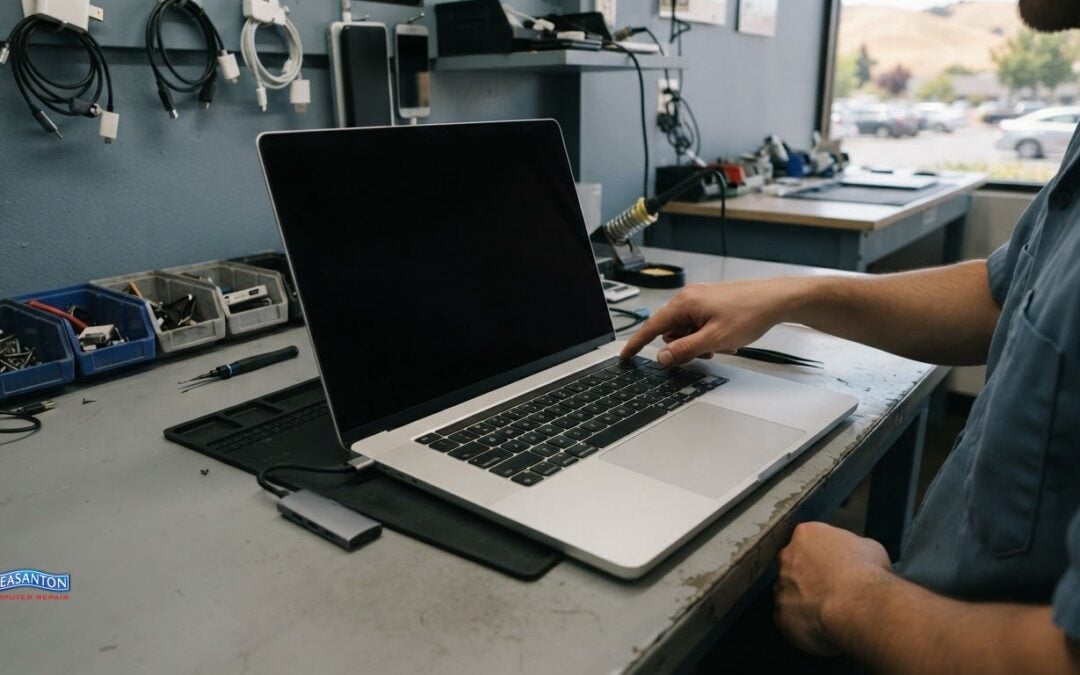
A MacBook stuck on the Apple logo in Dublin may still be working through a macOS update, so give the progress bar time if it’s moving slowly or pausing. If startup remains stuck, hold the power button for up to 10 seconds to turn the Mac off, then try macOS Recovery and run Disk Utility First Aid on the startup disk.
It’s unsettling when your Mac won’t start, especially when important files and everyday tasks are waiting. The cause isn’t always a major fault: an update or startup-disk issue may be involved, while persistent symptoms can point to a hardware problem.
This guide explains what to try first, how to enter Recovery Mode on Intel and Apple silicon MacBooks, and how First Aid may help. You’ll also learn when reinstalling macOS is a reasonable next step, which accessories to disconnect, and what signs suggest the problem needs hands-on diagnosis.
Key Takeaways
- Give a slow or paused macOS update time to progress before interrupting startup.
- Disconnect nonessential accessories, then restart to see whether a connected device is interfering.
- Use the Recovery Mode startup method for your MacBook’s processor type to access Disk Utility First Aid.
- If First Aid doesn’t resolve the startup issue, reinstalling macOS from Recovery may be the next software step.
- Persistent startup problems can point to a hardware fault and may need professional diagnosis.
MacBook Stuck on Apple Logo?
For a MacBook stuck on the Apple logo in Dublin, first check whether macOS is still installing. During an update or upgrade, the progress bar may move slowly or pause for a long time. If startup remains stuck, Recovery Mode lets you inspect and repair the startup disk before reinstalling macOS.
-
Identify a failed update or corrupted installation
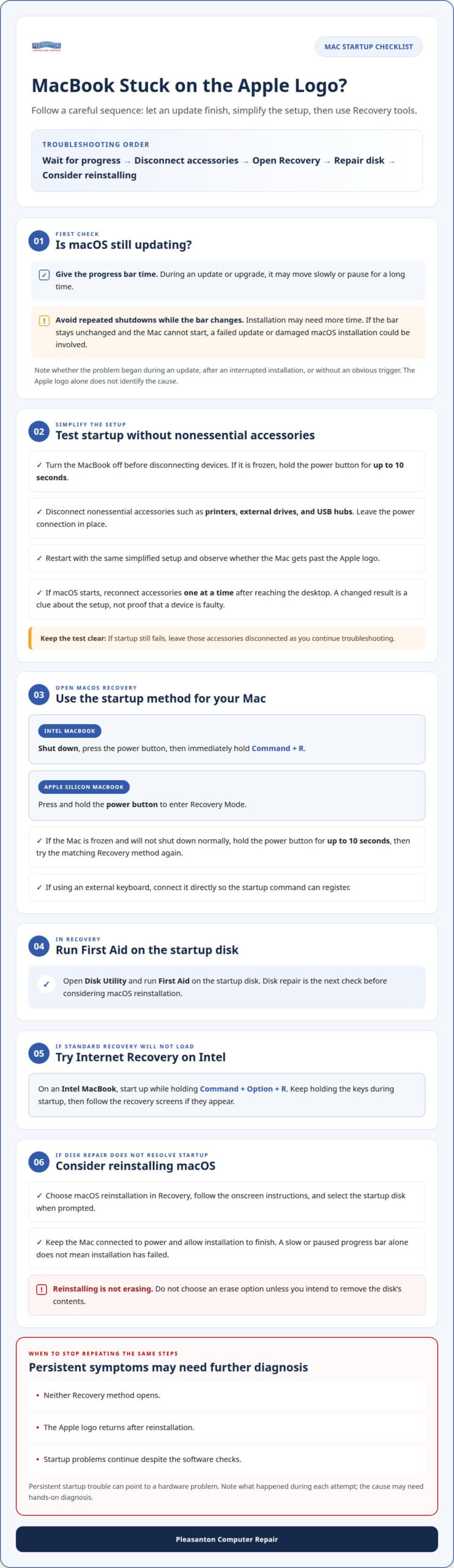
Consider what happened before the Apple logo appeared. A macOS update or upgrade may still be running, even if its progress bar moves slowly or pauses. Avoid repeatedly powering off while the bar changes, because installation may need more time. If the bar stays unchanged and the Mac can’t start, a failed update or damaged macOS installation could be involved.
Note whether the issue began during an update, after an interrupted installation, or without an obvious trigger. The sequence helps distinguish an installation issue from a startup problem that needs further checks. The logo alone doesn’t identify the cause. A MacBook stuck on the Apple logo in Dublin may need a different fix if startup trouble continues after the update stops progressing.
-
Start macOS Recovery
Use the Recovery startup method that matches your MacBook’s processor. On an Intel MacBook, shut it down, press the power button, then immediately hold Command + R. On an Apple silicon MacBook, press and hold the power button to enter Recovery Mode. If you’re using an external keyboard, connect it directly so the startup command can register.
If the Mac is frozen and won’t shut down normally, hold the power button for up to 10 seconds. Then try the relevant Recovery method again. Recovery provides tools without requiring a normal desktop startup. If the Mac returns to the Apple logo instead of opening Recovery, note that behavior before trying another route.
-
Reinstall macOS from Recovery
If the startup issue persists after disk repair, choose macOS reinstallation in Recovery. Follow the onscreen instructions and select the startup disk when prompted. Reinstallation can address damaged or incomplete system files that prevent startup, without first requiring a normal boot.
Read each screen carefully. Reinstalling macOS is different from erasing the disk, so don’t select an erase option unless you intend to remove its contents. Keep the Mac connected to power and allow installation to finish. A slow or paused progress bar doesn’t, by itself, mean installation has failed.
-
Use Internet Recovery
If standard Recovery doesn’t load on an Intel MacBook, try starting it while holding Command + Option + R. This alternate startup route can provide access to macOS reinstallation when local Recovery isn’t available. Keep holding the keys during startup, then follow the recovery screens if they appear.
Once the recovery tools load, use disk repair before reinstalling if the startup disk needs attention. Choose reinstallation if the Mac still won’t start. If neither Recovery method opens, or the Apple logo returns after reinstallation, stop repeating the same steps. Further diagnosis may be needed to determine whether the cause is hardware-related.
Disconnecting nonessential accessories
- Turn the MacBook off before removing connected devices. If it remains frozen, hold its power button for up to 10 seconds. Disconnect nonessential accessories, including printers, external drives, and USB hubs. Leave the MacBook’s power connection in place, then check that no accessory remains attached through another hub or adapter. This creates a simpler startup setup, making it easier to see whether a connected device or connection is involved.
- Restart the MacBook with only its essential power connection attached. Watch whether it gets past the Apple logo or stays at the same point. Keep the setup unchanged during this test; reconnecting a printer or drive immediately would make the result harder to interpret. If macOS starts normally, note that startup without accessories differs from the earlier attempt. That observation helps narrow the next troubleshooting step, but doesn’t identify the cause by itself.
- If startup still fails, keep the printer, external drive, and USB hub disconnected as you continue troubleshooting. This checks whether the problem persists without those nonessential devices in the connection path. Avoid opening files, changing settings, or attempting repairs on an external drive during this test. The goal is to isolate the MacBook’s startup behavior, not modify connected storage or add new variables.
- If the MacBook starts, reconnect one accessory at a time after reaching the desktop. Begin with a device you need, such as a printer, then test the MacBook before adding another device. Treat any return of the Apple logo problem as a clue about the changed setup, not proof that the accessory is faulty. Check its cable and connection path, especially if it uses a USB hub. If the MacBook remains stuck with everything disconnected, professional Mac troubleshooting can help investigate beyond accessory isolation.
If restarting doesn’t resolve the startup issue, disconnect nonessential accessories, including printers, drives, and USB hubs, before turning the Mac back on. Limit the change to removing those accessories, so the next startup attempt follows a clear sequence. Leave the power connection in place and avoid adding devices before checking whether the Mac starts. If it doesn’t, continue with the accessories disconnected rather than changing the setup during the same test. If it does start, reconnect accessories one at a time later and observe whether startup behavior changes.
Keep this step focused: start the Mac without nonessential accessories attached. A successful startup in that setup is useful information, but it doesn’t prove that a particular device is responsible. Likewise, if the startup issue remains, removing those accessories alone hasn’t resolved it. Keep that distinction in mind and avoid treating the result as a reason to make unrelated changes. A consistent setup makes startup attempts easier to compare and helps you decide what to investigate next.
Possible SMC or logic board faults
- After software checks fail, record exactly what the MacBook does during startup. Note whether it stays on the Apple logo, shuts down, or restarts repeatedly. These patterns can help distinguish a startup issue from a power or hardware symptom. The System Management Controller (SMC) handles power-related functions on some Mac models, while the logic board connects and coordinates major components. A symptom alone doesn’t identify which part has failed.
For example, a MacBook Pro in a reported case shut itself off after about 30 seconds. That timing describes one device, not a general diagnostic rule. Write down your own Mac’s behavior instead of treating another model’s symptoms as a diagnosis.
- Run Apple Diagnostics if your MacBook can reach its diagnostic startup screen. The tool tests hardware components and can report error codes. Record any code exactly as shown, along with the MacBook model and the behavior you observed. A code gives a technician useful diagnostic information, but doesn’t automatically prove the logic board needs replacement.
If the Mac can’t start Apple Diagnostics, note that result too. A test that won’t launch doesn’t establish a specific fault. Keep the power behavior, startup symptoms, and diagnostic result together so they can be considered as a whole.
- Use the three-minute observation cautiously if the Mac reaches a missing-operating-system state. A commenter suggested that no response within 3 minutes in that situation could indicate a deeper logic-board issue. Treat this as a clue from one reported case, not a standard Apple diagnostic threshold. The state and the device’s response matter; a Mac stuck at the Apple logo hasn’t necessarily reached that condition.
Don’t remove internal storage or open the MacBook to test this theory. In one reported case, removing the SSD didn’t change the Apple-logo behavior. That result shows why a single symptom or component test shouldn’t be taken as proof that the logic board is faulty.
- Stop repeating startup attempts if the MacBook keeps shutting down or can’t reach Recovery or diagnostics. Share the exact sequence with a repair professional: when the Apple logo appears, whether a progress bar shows, how long the Mac stays powered on, and any Apple Diagnostics error code. These details help distinguish a possible SMC-related power problem from a broader logic-board or startup fault.
A Mac that keeps stopping at the Apple logo after software troubleshooting may need service. Avoid guessing at board-level repairs or repeatedly changing components; proper diagnosis depends on testing the MacBook’s actual hardware and startup behavior.
Recovery Mode and Disk Utility First Aid
For a step-by-step startup fix, enter macOS Recovery, open Disk Utility, and run First Aid on the startup disk. To test Safe Mode, restart an Intel MacBook while holding Shift; on Apple silicon, hold the power button and select Safe Mode.
-
Start the MacBook in Recovery Mode
Choose the Recovery startup method for your MacBook’s processor. On an Intel model, start the Mac and immediately hold Command + R. On Apple silicon, press and hold the power button until startup options appear, then choose Options and continue. Follow the screen’s instructions on when to hold or press the button.
Once macOS Recovery opens, choose a user account if prompted, then enter its password. Select Disk Utility from the recovery tools. Don’t choose reinstall or erase options yet; first inspect and repair the startup disk. If Recovery doesn’t open, record whether the Mac returns to the Apple logo or shuts down, as that affects the next troubleshooting step.
-
Run Disk Utility First Aid
In Disk Utility, select the startup volume and choose First Aid. If the sidebar shows several volumes, start with the volume used for macOS. Run First Aid and read the result before changing anything else. The tool checks the disk’s structure and can repair errors it finds, which may address a startup problem caused by disk damage.
If Disk Utility offers a view option to show all devices, use it to inspect the available disk structure. Run First Aid on each relevant volume, then the container and physical disk if they appear. Follow the onscreen sequence, starting with volumes and moving outward. Don’t erase a disk instead of running First Aid; erasure removes stored data.
After the checks finish, quit Disk Utility and restart from the Apple menu. Note whether the Apple logo disappears, the progress bar advances, or the same startup failure returns. If First Aid reports errors it can’t repair, or the Mac remains stuck, save the exact message for diagnosis rather than repeating repairs without a plan.
- Try Safe Mode after the disk check if the Mac can restart. On an Intel MacBook, restart and hold Shift; on Apple silicon, hold the power button and select Safe Mode. If Safe Mode reaches the desktop, restart normally once and see whether startup improves. If it still stops at the Apple logo, note the result alongside Disk Utility’s report.
Common causes of a MacBook stuck on the Apple logo
- Compare the Apple logo behavior with the last change you made. If startup trouble began during a macOS update or upgrade, installation may still be running slowly or may have failed. A progress bar can pause for a long time. If it continues moving, don’t treat the pause alone as proof that macOS is corrupted.
Record whether the issue began during an update, after an interruption, or without an obvious trigger. That sequence helps distinguish an installation problem from other causes.
- Use Disk Utility First Aid to investigate a possible startup-disk problem. If First Aid reports errors it can’t repair, record the exact message. Disk errors can interfere with macOS startup, but one report doesn’t identify every affected component. Compare the result with the MacBook’s startup behavior before deciding what to try next.
If the disk check completes but the Apple logo remains, a damaged macOS installation may still be involved. Reinstalling macOS from Recovery is a further software step, not a reason to erase the disk automatically.
- Test startup with nonessential accessories disconnected. A printer, external drive, or USB hub adds another device or connection to the setup. If the MacBook starts only after those accessories are removed, reconnect them individually and observe what changes. If it remains stuck with accessories disconnected, focus on macOS, the startup disk, or hardware symptoms.
This comparison is useful: if startup behaves exactly the same without accessories, a connected device is less likely to explain the issue.
- Watch for power behavior that suggests more than a slow update. A MacBook that shuts down during startup, repeatedly restarts, or can’t open Recovery may need hardware checks. Apple Diagnostics can test hardware components and report error codes. Record each code and the exact startup symptom; neither the Apple logo nor one code alone identifies a failed logic board.
The System Management Controller handles power-related functions on some Mac models. Power symptoms can guide investigation, but they don’t prove an SMC fault.
- Choose the next step based on the evidence you gathered. A slow progress bar during installation points toward waiting and observing; a repairable disk error points toward disk repair. A Mac that remains stuck after software troubleshooting, or shuts down repeatedly, needs deeper diagnosis. Avoid erasing the startup disk or removing components just to test a theory.
If startup-disk problems put important files at risk, get help with Mac data recovery before attempting steps that could erase stored information.
Pleasanton Computer Repair: iPhone and iPad Repairs
Pleasanton Computer Repair offers iPhone and iPad Repairs for separate device issues. For a MacBook that remains stuck at startup, the priority may be protecting important files, especially if Disk Utility reports errors or macOS still won’t load. Pleasanton Computer Repair also offers Data Recovery to help address file access concerns when a device or storage problem puts data at risk.
Keep notes on the MacBook’s startup behavior and any Disk Utility messages. Those details can help explain the issue when you get in touch. If you’re also having trouble with an iPhone or iPad, ask about repairs for that device.
Contact Pleasanton Computer Repair to discuss Data Recovery or iPhone and iPad Repairs.
Choose a careful next step for your Mac
A practical fix for a MacBook stuck on the Apple logo in Dublin starts with protecting your files and keeping a clear record of what you’ve tried. If startup remains blocked or disk checks raise concerns, contact Pleasanton Computer Repair to discuss whether Data Recovery fits your situation. Avoid erasing the startup disk simply to force a fresh start, especially when important files aren’t backed up.
Pleasanton Computer Repair also offers iPhone and iPad Repairs, PC / Mac Screen Replacement, and Virus Removal for separate device needs. These services address different problems, so describe the device and symptoms when you get in touch.
For a calm next step, contact Pleasanton Computer Repair. You’ve already narrowed down what happens during startup; sharing those observations can help make the next conversation more useful. Take it one step at a time, and keep your important data in mind as you move forward.
Frequently Asked Questions
How do you use macOS Recovery and Disk Utility to repair a MacBook that won’t boot?
Use macOS Recovery to run First Aid on the startup disk before considering an erase or reinstall. On an Intel Mac, shut down, then start while holding Command-R; on Apple silicon, hold the power button until startup options appear and choose Options. Open Disk Utility, select View > Show All Devices, then run First Aid on each volume, followed by its container and physical drive. If errors remain, don’t erase the disk, as that can remove files.
When should you reset NVRAM or SMC on an Intel MacBook stuck at the Apple logo?
Reset NVRAM or SMC on an Intel Mac only when symptoms suggest a settings or power-management issue, rather than as a routine response to every startup failure. An NVRAM reset may help with startup-disk selection or display and sound settings: hold Option-Command-P-R during startup for about 20 seconds. An SMC reset may help with power, charging, fans, or thermal behavior, but the key sequence varies by model. Apple silicon Macs don’t use these manual resets.
What causes a MacBook to get stuck on the Apple logo, and what are the risks of DIY repairs?
Common causes include a failed macOS update, damaged system files, connected accessories, storage trouble, or failing hardware. Disconnect accessories and try Recovery before reinstalling; repeated forced shutdowns, erase commands, opening the laptop, or unverified tools can worsen data loss or complicate diagnosis. For a MacBook stuck on the Apple logo, Dublin users can ask Pleasanton Computer Repair about data recovery; retrieval isn’t guaranteed. Service also covers Pleasanton, Livermore, San Ramon, Danville, Brentwood, Walnut Creek, and San Jose.
