
Before moving your files, start by identifying what kind of help you need. If your old computer still works and you can open the files, a data transfer can move them to a new system or drive. If the drive is failing or your files are inaccessible, data recovery may be the right service instead. It’s understandable to worry about losing important photos, documents, or work during the move. Searching for a data transfer service near me should lead to clear guidance on which service fits your situation.
Pleasanton Computer Repair has served East Bay customers since 2002 and provides data migration support for moving files between systems. This guide explains what a professional transfer can include, how to prepare your devices, and how to distinguish routine migration from data recovery. It also covers local support in Pleasanton, including in-store, on-site, and remote service options.
Key Takeaways
- A routine transfer copies accessible files from a working device or drive to a chosen destination, often when you get a new computer or upgrade storage.
- Migration steps depend on your goal, the devices involved, the amount of data, and where you want the files moved.
- Use “data transfer service near me” to find local help, then match the service to your situation: accessible files need transfer or migration, while failing drives or inaccessible files may need recovery.
- Make the handoff smoother by bringing the source and destination devices and listing priority folders you want moved or easy to find.
- Pleasanton Computer Repair provides data migration and data recovery services at 915 Main Street Suite A, Pleasanton, CA 94566, serving communities throughout the East Bay.
When Is a Data Transfer Service Near You the Right Choice?
A new computer is exciting until you think about everything you need to move: family photos, tax records, work documents, and the folders you use every day. A data transfer service near me can help when your source device works and the files you want are accessible. The goal is to copy selected files from one device or drive to another, with the destination and priorities clear from the start.
“A transfer copies accessible files; migration moves files as part of a broader change to a new computer or storage setup; recovery attempts to retrieve lost or inaccessible data, often from a failing drive.” The distinction matters. If a drive is failing, repeated attempts to copy files may not be the right first step. Recovery is a separate service for that situation.
Data transfer, migration, and recovery: what is the difference?
A transfer can be focused, such as copying selected documents and photos from an old laptop to an external drive. Migration is broader: it means moving data to a new computer or reorganized storage setup, which requires planning the destination and what to bring along. Recovery addresses a different problem, such as files you can’t open or a failing drive. Pleasanton Computer Repair provides both data migration and data recovery support.
The transfer method depends on the devices and the job. Copying files directly between working devices is different from sending them across a network. For an online transfer, HTTPS is a protocol designed to protect information as it travels between a browser and a website. Learn more about secure data transfer using HTTPS. That reference explains network security, not the method used for every local migration.
Common reasons East Bay customers request file transfers
Households may switch to a new computer and want familiar folders available without sorting through every file again. A local business might move work documents to a replacement system while keeping project folders easy to find. Other common reasons include replacing a storage drive, consolidating files scattered across devices, or moving selected records from a personal computer to a dedicated work system.
Before choosing a service, consider two questions: Does the source device work, and can you open the files you need? If yes, transfer or migration may fit. If the drive makes unusual noises, disconnects, or won’t open files, stop treating it like a routine copy job. Continuing to use a failing drive can complicate access. In that case, data recovery may be more appropriate than copying accessible files.
For Pleasanton and Dublin residents, getting clear on the goal makes local support more useful. Identify whether you’re changing computers, changing storage, or trying to regain access to missing files. That distinction gives the technician a more useful starting point and helps shape a practical plan for your data.
What Happens During a Computer Data Migration?
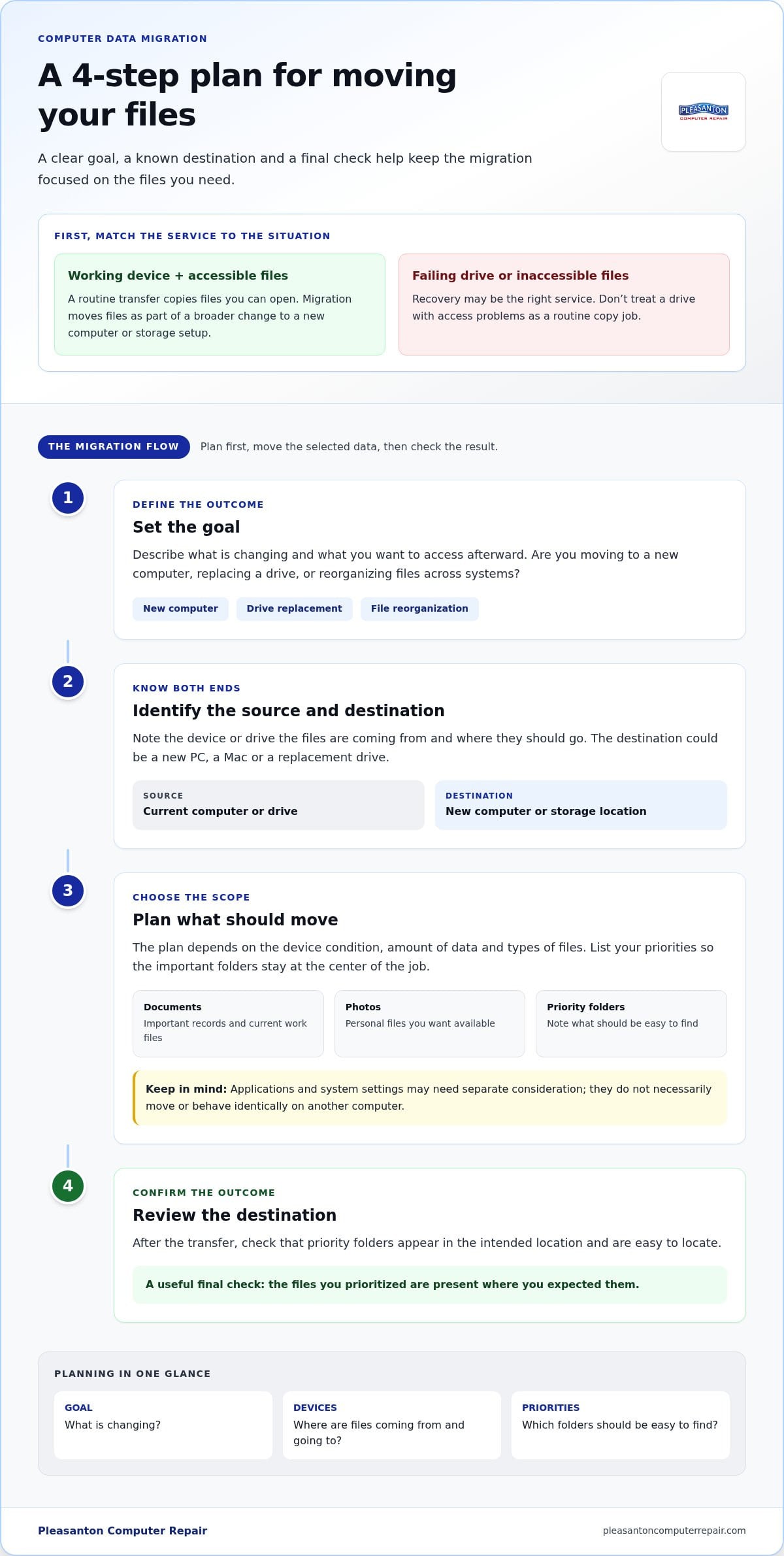
A successful migration starts with a clear destination, not a rush to copy everything. First, describe your goal: are you moving to a new computer, replacing a drive, or reorganizing files across systems? Then identify the source device and destination, such as a new PC, Mac, or replacement drive. This defines the scope and keeps the files you care about at the center of the plan.
A transfer copies files you can access; recovery addresses files that are lost, inaccessible, or on a failing device. If the source computer works normally, the job can focus on selecting and moving data. If it has problems opening files or recognizing its drive, recovery may be a better first step than routine migration.
- Set the goal. Describe what you’re changing and what you want to be able to access afterward.
- Identify both ends. Note the source computer or drive and the destination device or storage location.
- Plan the scope. Consider the device condition, amount of data, and types of files to move. These details shape the migration plan.
- Review the result. Once files are transferred, check that priority folders appear in the intended destination and are easy to locate.
Moving files to a new computer or upgraded drive
PC and Mac owners may need to move personal files when replacing a computer, but the devices and destinations can differ. An SSD upgrade can also involve transferring existing files to the replacement drive. The right approach depends on the computer, drive condition, and migration goal, so don’t assume every setup follows the same steps. If you’re considering a storage change, the SSD upgrade guide explains how an upgrade may fit into the plan.
Choosing what should move to the destination
Make a short list before the appointment. Include important documents, photos, and current work files, then note any folders you want kept easy to find. Applications and system settings may need separate consideration from personal files; they don’t necessarily move or behave identically on another computer. Clear priorities help define the scope and reduce the chance of overlooking an important folder.
File volume also affects planning. Moving selected folders is different from migrating a large collection across systems. If you’re searching for a data transfer service near me, having your goal, source, destination, and priority files ready makes the conversation more useful. Pleasanton Computer Repair provides data migration and recovery support for East Bay customers. For local computer service details, visit Pleasanton Computer Repair.
How to Evaluate a Data Transfer Service Near Me
The right service depends on the condition of your source device and whether you can access the files. Before choosing a data transfer service near me, use this comparison to match your situation to the help you need. A working device with accessible files points to transfer or migration; a failing drive or inaccessible files calls for a recovery approach.
| Your situation | Service type | What it addresses |
|---|---|---|
| Your computer or drive works, and you can open the files. | Routine transfer | Copying selected accessible files between functioning devices or storage locations. |
| You’re replacing a computer or upgrading storage. | Data migration | Planning and moving files to a new computer or storage setup, with the destination and priorities in mind. |
| Your drive is failing, or files are lost or inaccessible. | Data recovery | Retrieving data that can’t be accessed through a routine file copy. |
If the device itself has a problem, computer repair may also be relevant. Don’t treat every difficulty as a transfer issue: moving files from a working drive is different from attempting to recover inaccessible data. Pleasanton Computer Repair provides data migration and data recovery services, along with computer repair, so the service can match the device and file situation.
Explore local computer services from Pleasanton Computer Repair for help with computer-related needs.
Which service fits your device and file situation?
Start with a simple check: can the source device start, and can you open the files you want? If so, routine transfer may be appropriate. If you’re changing computers or moving files as part of an SSD upgrade, migration gives the move a broader plan. If files won’t open or the drive appears to be failing, avoid repeated copy attempts and consider data recovery instead.
Local service options in Pleasanton and the East Bay
Pleasanton Computer Repair serves customers in Pleasanton and communities throughout the East Bay, including Livermore, Dublin, San Ramon, Danville, Brentwood, Walnut Creek, and San Jose. In-store, on-site, and remote support are available. The right option depends on the service you need. For context on its broader local computer support, see the Pleasanton computer repair guide.
How to Prepare Your Devices for a File Transfer
A little preparation helps make a file transfer more focused. Bring the source computer or drive, identify the destination device, and decide which files matter most. If you’re arranging a data transfer service near me, these details give the technician a clearer starting point and help distinguish a straightforward copy from a device problem that needs a different approach.
Before bringing in a computer or storage drive
Gather the source and destination devices, along with relevant power cables or accessories if you have them. Write down the folders you want moved and describe any recent issues, such as error messages, unexpected shutdowns, or a drive that disconnects. If the source won’t start or reports drive errors, mention that before attempting another transfer. The history can help guide the next step.
- Bring the computer or storage drive that holds the files.
- Bring the destination device or drive, if it’s already available.
- Note the names of priority folders and where you’d like them placed.
- Describe unusual sounds, errors, or changes in how the device behaves.
Be ready to unlock the device if access is needed, but don’t post passwords in article comments or send them in a message. Keep account details private, and provide access directly only when it’s necessary for the work. If you’re unsure whether the device is failing, explain what you’ve noticed instead of repeatedly restarting it or trying more copies.
Personal and business files: set priorities first
Sort your list into essential files and items that can wait. For personal use, that might mean family photos, household records, and documents you need regularly. For work, identify current project folders, shared materials, and files needed to keep daily tasks moving. Clear priorities make it easier to focus on the data you rely on first.
- Separate key work documents from optional downloads.
- Flag duplicate or old folders that don’t need to move right away.
- Name folders you want kept easy to find on the new device.
- Note any timing concerns tied to work or household routines.
Applications and system settings may need separate consideration from personal files, so include them in your notes if they matter to your setup. Don’t assume every program or preference will carry over exactly as it was. A clear list helps define what the transfer should accomplish without relying on assumptions about the devices or the method used.
If the source drive is failing or files are inaccessible, describe the symptoms before attempting more transfers. Pleasanton Computer Repair provides data migration and data recovery services, with the right approach shaped by the device and its condition. Arrange local data transfer support when you’re ready to plan your file move.
Get Local Data Transfer Help from Pleasanton Computer Repair
Moving files can feel like a high-stakes task when they include family photos, business records, or documents you rely on. Pleasanton Computer Repair provides data migration for moving files between systems and data recovery for files that are lost, inaccessible, or on a failing drive. These services address different problems, so describing what your device is doing helps point the request in the right direction.
Pleasanton Computer Repair has served East Bay customers since 2002, including people in Pleasanton, Dublin, and surrounding communities. Visit the Pleasanton location at 915 Main Street Suite A, Pleasanton, CA 94566. In-store, on-site, and remote support are available for computer-related needs.
What to expect when arranging local data migration
Start with three details: the source device, the destination, and the files or folders you want moved. For example, note whether you’re moving documents from an old computer to a replacement or transferring data as part of a storage upgrade. Mention any error messages, trouble opening files, or unexpected drive behavior. This information helps the team distinguish a routine migration request from a recovery need.
A clear description also makes it easier to discuss the scope of the work. Think about which folders are essential, whether the destination is ready, and whether you have relevant cables or accessories. If you’re unsure how to describe the issue, use everyday language: say what you were doing when the problem began and what happens when you try to access the files. No technical vocabulary is needed.
Arrange computer help in Pleasanton
Whether you’re moving files between working systems or dealing with inaccessible data, start by outlining the outcome you need. Pleasanton Computer Repair can help with data migration and data recovery, while computer repair addresses problems affecting the device itself. The business serves Pleasanton and communities throughout the East Bay, giving local households and businesses a nearby option for computer support.
You don’t need to know which service label fits before getting started. Share the device symptoms and the goal for your files, then arrange an appointment online or visit the Pleasanton location. If you’ve been searching for a data transfer service near me, take the next step in the way that works for you: schedule local computer service online or stop by 915 Main Street Suite A, Pleasanton, CA 94566.
Make Your Next File Move a Clear One
Before you begin, picture what “ready” looks like after the move. Which files should be close at hand? What would make the new setup feel familiar and useful? A clear goal gives the process direction and keeps attention on the files that matter to your day, rather than treating every folder as equally urgent.
If you’ve been looking for a data transfer service near me, you don’t need to have every technical detail figured out first. Bring your questions and explain what you hope to accomplish. A practical conversation can help turn a stressful task into a manageable next step, whether you’re preparing for a change or dealing with a computer issue.
Pleasanton Computer Repair has served East Bay customers since 2002. Take the next step by arranging an appointment online or planning a visit to the Pleasanton location. Schedule local computer service and move forward with a clear plan for your files.
Frequently Asked Questions
What is the difference between data transfer and data recovery?
Data transfer copies files that are accessible, while data recovery addresses data that has become lost or inaccessible. For example, copying openable family photos from a working laptop to a replacement computer is a transfer. If the laptop’s drive stops responding and those photos can’t be opened, recovery may be needed first. The device’s condition helps determine which service fits, and recovery can’t guarantee every file will be retrievable.
Can a computer repair shop transfer files to a new computer?
Yes, a computer repair shop that provides data migration can help move files to a new computer. Pleasanton Computer Repair offers data migration between systems. Before arranging service, note the old and new computer types, which folders matter, and whether you can still open them. This gives the technician useful context, especially if the devices differ or the old computer has been behaving unusually.
How do I move files from an old computer to a new one?
You can move files yourself if both computers work and you’re comfortable selecting and copying folders. First decide what you need, such as documents, photos, or project files, then choose a destination with enough available storage. An external drive is one option; professional migration support is another if you’d rather have help planning the move. Keep the old computer unchanged until you’ve checked the new setup.
Can files be transferred from a computer that will not turn on?
Possibly, but a computer that won’t turn on isn’t a routine transfer situation. The files may be intact on its drive, or the drive itself may be affected; the cause needs assessment. Avoid repeated power attempts if the device is showing other signs of failure, and describe what happened before it stopped working. Pleasanton Computer Repair provides data recovery for situations involving failing drives or inaccessible data.
Is it better to transfer files before or after an SSD upgrade?
It depends on the condition of the existing drive and the upgrade plan. If the computer and files are accessible, migration can be planned as part of the SSD upgrade so the intended destination is clear. If the old drive is failing or files can’t be opened, treat that as a recovery concern rather than a standard copy. Explain the symptoms and goal before proceeding.
What should I bring to a local data transfer appointment?
Bring the computer or drive containing your files and, if available, the intended destination device, plus any relevant power cables or adapters. A written note with priority folder names, error messages, and recent device symptoms can save guesswork. Be prepared to unlock the device directly if access is needed, but don’t send passwords in comments or messages. Mention whether particular work files are especially important.
Does Pleasanton Computer Repair serve customers outside Pleasanton?
Yes. Pleasanton Computer Repair serves East Bay customers in Pleasanton, Livermore, Dublin, San Ramon, Danville, Brentwood, Walnut Creek, and San Jose. Support options include in-store, on-site, and remote service. Customers can schedule appointments online or visit the Pleasanton location at 915 Main Street Suite A. Share your location and the device issue when arranging service so the request is clear.