
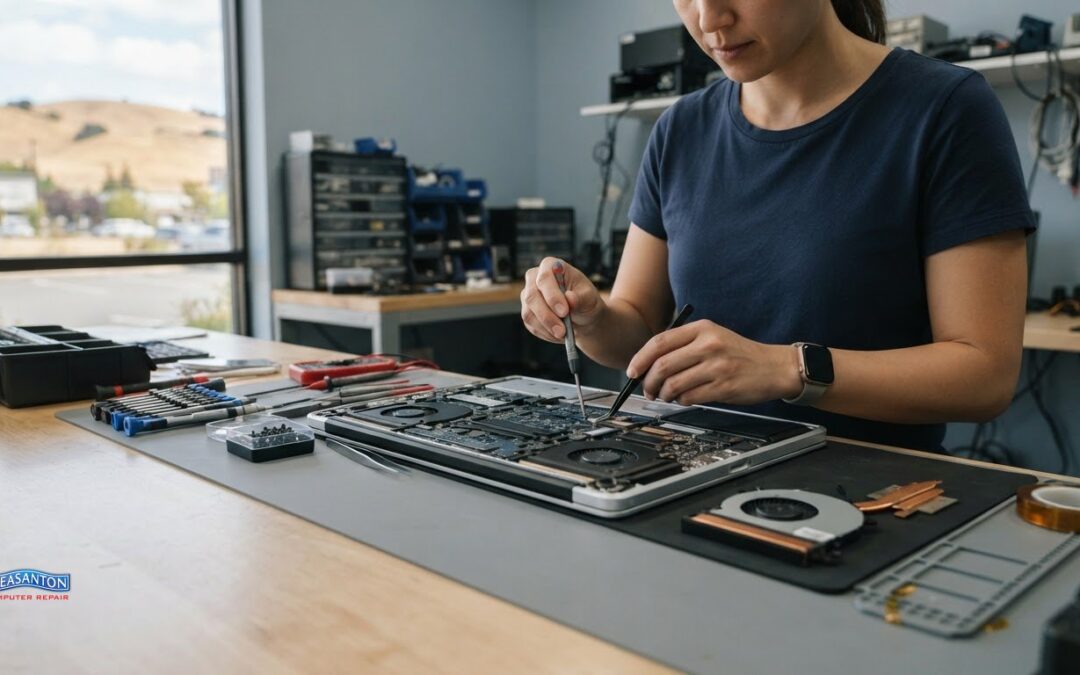
The right computer parts replacement starts with compatibility, not a part that merely looks similar. A replacement fan or heatsink must fit the device and work with its cooling system. Choosing the wrong component can leave the original problem unresolved.
It’s frustrating when a PC or laptop runs hot, gets noisy, or slows down. It’s natural to want a clear answer about which part needs attention. This guide explains how to identify repair parts, assess parts quality and coverage, and understand how replacement fans and heatsinks fit into the repair process.
You’ll also find practical guidance on PC and laptop components, how to approach repair guides safely, and which details matter when matching a cooling part to a device. Whether you’re weighing a DIY fix or planning a repair, understanding the component and its fit can help you make a more informed next move.
Key Takeaways
- Match a replacement component to the device’s exact model and connection requirements, not just its appearance.
- Learn which details help distinguish compatible PC and laptop parts, including the role of model numbers and component specifications.
- Understand what to look for in parts quality and guarantee terms before deciding on a repair.
- Use symptoms such as unusual noise, overheating, or instability to narrow down which component may need attention.
- Explore how fans and heatsinks support cooling, and what to consider before attempting a replacement.
PC and laptop repair parts
Computer parts replacement starts with identifying the failed component and the device model. The right part must match the computer’s physical dimensions and technical requirements.
Replacement Part Costs
How much do replacement computer parts cost in the United States? There’s no single price: the part type, device model, specifications, and quality all affect the cost. An SSD, memory module, power supply, and laptop battery serve different purposes, so their prices aren’t directly comparable. For a repair, the quote depends on the specific device and part. Key factors include component type, compatibility, capacity, and quality. Compare equivalent parts, not just similar names.
Checking Part Compatibility
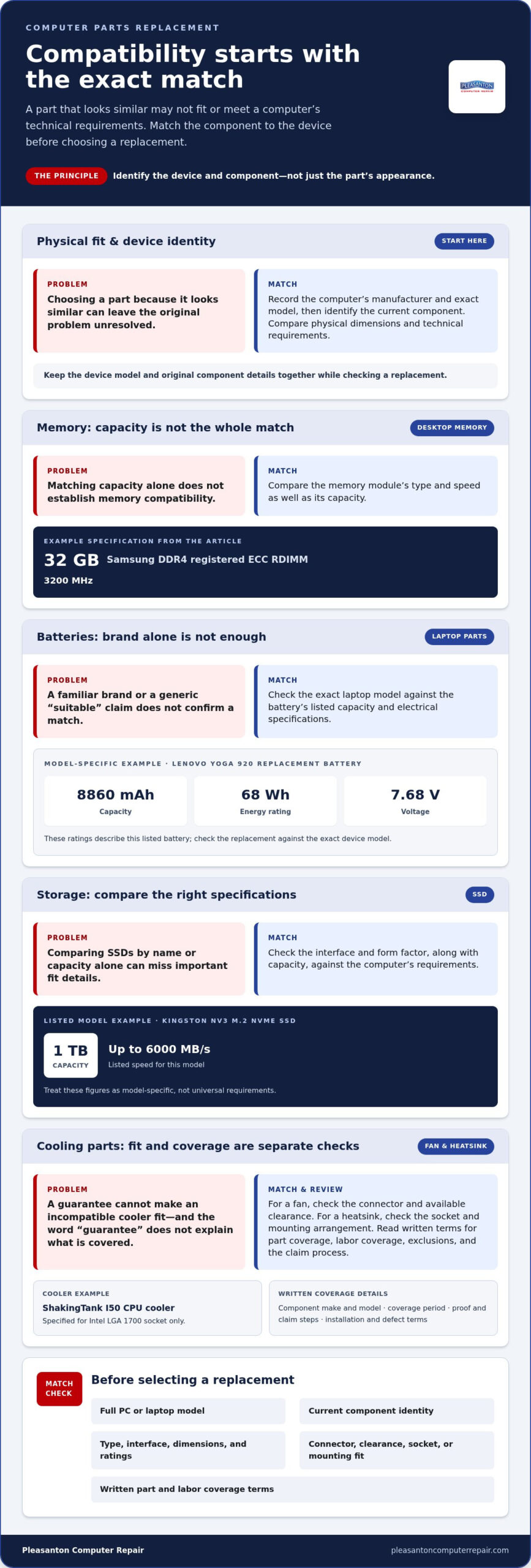
Identify the computer’s manufacturer, exact model, and current component before choosing a replacement. For desktop memory, compare the module type and speed because capacity alone does not establish compatibility. Listed Samsung DDR4 registered ECC RDIMM memory is 32 GB at 3200 MHz. Those descriptions show why capacity alone cannot establish a match.
Use the device model to narrow laptop parts, then compare the replacement’s stated specifications. For example, a replacement battery’s listed ratings can help determine whether it matches a specific laptop model. Lenovo battery models can differ in their stated capacity and electrical specifications, so check compatibility against the exact device model. A matching brand isn’t enough; the model and electrical ratings matter.
Other parts have their own compatibility details. The listed Dell Precision T5820 motherboard uses the Intel C422 chipset, while the listed HP Z840 workstation power supply has a rated output of 850 W. For an SSD, check its interface and form factor, as well as capacity. The Kingston NV3 M.2 NVMe SSD is listed at 1TB, with speeds up to 6000 MB/s. Treat those figures as model-specific, not universal requirements.
- Find the model: Record the PC or laptop’s full model name.
- Identify the part: Check its label or system information.
- Compare specifications: Match type, interface, dimensions, and ratings.
- Check the fit: Confirm the component suits the system’s design.
Keep the original component details with the device model when looking for a replacement. A mismatch can complicate installation or prevent the computer from recognizing the new part.
The Lenovo Yoga 920 replacement battery is rated at 8860 mAh, 68 Watt Hours, and 7.68 Volts.
When reviewing a candidate battery, keep its ratings with the device identification. Check its listed capacity and electrical specifications against the exact model, rather than relying on a generic claim that it is suitable. Don’t choose by brand alone. Keeping the original part information and device model together can help establish whether the replacement is a match.
Parts quality guarantee
A parts guarantee is useful only when its terms fit the repair. Review component coverage separately from labor coverage, and read both in writing. A manufacturer’s warranty and a repair provider’s policy are not automatically the same. For a CPU cooler, for example, find out which part is covered and what steps apply if it fails. The word “guarantee” alone doesn’t explain the full scope.
Start with the document for the exact replacement component. Look for its make and model, the coverage period, and the process for reporting a problem. Check whether the terms address defects, installation, or both. A ShakingTank I50 CPU cooler, for instance, is specified for Intel LGA 1700 socket only. That socket detail identifies the model, but it doesn’t tell you what its guarantee covers.
Review exclusions as well as coverage. The written terms should explain how they address physical damage, incorrect installation, or failures caused by another component. Check the actual policy rather than relying on general wording. If a fan stops working after installation, note when the issue began and what symptoms appeared. Clear records help describe the problem accurately.
- Match the paperwork: Compare the invoice with the component’s exact model.
- Read the scope: Separate part coverage from labor coverage.
- Find the process: Note the required proof and steps for a claim.
- Keep records: Save receipts, installation details, and symptom notes.
Keep those records together. An invoice that names only “cooler” may be less useful than one that identifies the specific model. Save the packaging and any warranty information, too. If a replacement fan makes an unusual sound, record the noise and when it occurs. That can help distinguish a component problem from blocked airflow or another source of vibration.
Quality also means suitability, not just coverage. A new part can still be wrong for the computer. Before installation, confirm the connector, dimensions, mounting points, and intended system. For a heatsink, check the socket and mounting arrangement. For a fan, compare the connector and available clearance. A guarantee cannot make an incompatible part fit.
Before approving a repair, ask for the part identity and applicable written terms together. If the documents describe different components, pause and resolve that discrepancy first. For help with a separate display problem, review PC and Mac screen replacement information as another repair path.
Replacement fans and heatsinks
Replacing a fan or heatsink can make sense when the rest of the computer still meets your needs. Compare the part and repair costs with the cost of a new computer. Also consider the device’s condition and whether other components need attention.
A fan moves air through the case or laptop chassis, while a heatsink draws heat away from a processor or another component. They work together, but they aren’t interchangeable. A noisy fan may have worn bearings, a loose mount, or an obstruction. A heatsink problem may involve poor contact or blocked fins. Identify the symptom before choosing a part.
Listen for grinding, rattling, or repeated changes in fan speed. Check the vents and visible fan blades for dust or anything that could block movement. A fan can still have an electrical fault even if it spins freely, so noise alone doesn’t identify the cause. Note whether heat builds up during a particular task, such as gaming or video editing, and record the pattern and computer model.
Compatibility involves more than matching a fan’s size. Check the mounting points, available clearance, connector, and intended placement. For heatsinks, match the processor socket and mounting system. The ShakingTank I50 CPU cooler is specified for Intel LGA 1700 socket only. That example shows why a cooler’s stated socket matters: matching the brand or appearance won’t establish fit.
Some cooling assemblies combine several components. The CORSAIR NAUTILUS 360 RS AIO liquid CPU cooler includes three RS120 fans. That configuration differs from a single case fan or a compact laptop cooling module. Before choosing an assembly, identify the computer’s available mounting space, existing connections, and cooling layout. Don’t assume a larger cooler fits or connects to every system.
- Record the device: Write down its manufacturer and full model.
- Locate the part: Identify whether it’s a case fan, CPU fan, or heatsink.
- Compare fit: Check connectors, mounts, clearance, and socket requirements.
- Assess the result: After installation, listen for noise and check airflow.
Replacing a desktop fan may be straightforward if its mount and connector match. Laptop cooling assemblies can be more integrated, so access and part fit depend on the model. Don’t force a connector or screw. If the replacement doesn’t align naturally, stop and recheck the part and its orientation.
After fitting a fan or heatsink, make sure cables are clear of moving blades and vents are unobstructed. Start the computer and listen for rubbing or vibration. If the original overheating or noise continues, another component or airflow path may be involved. A focused diagnosis can help prevent replacing a working cooler while leaving the actual fault unresolved.
Replacing a part may be more economical when the rest of the computer still meets your needs. Compare the part and repair costs with buying a new computer, especially if other components may also need attention.
How do I identify compatible replacement computer parts for my PC?
Start with the computer’s full model name and the component you plan to replace. Compare the part’s specifications with the system’s requirements. A familiar brand or matching capacity doesn’t prove compatibility. Successful computer parts replacement depends on fit, interface, and the component’s role.
Use the manufacturer’s model label or system information to identify the computer. For a custom-built desktop, record the motherboard model, processor, and case details. These identifiers help narrow the options. Keep the existing component’s label or clear photos nearby, especially when connectors or mounting points are hard to describe.
Check each specification that affects the connection or operation. Memory needs the correct generation and module type. For example, Hynix DDR4 load-reduced registered ECC memory is listed at 64 GB and 2933 MHz. Its capacity and speed alone don’t make it suitable for every PC. Compare the DDR generation, ECC support, buffering, and motherboard requirements.
Storage devices require a different check. An external Samsung T7 Portable SSD is listed with 1TB capacity. That information describes storage size, not whether it can replace an internal drive. For internal storage, identify the connection type and physical format your system accepts. Also confirm whether the computer needs a drive for its operating system or extra file storage.
Expansion cards must match both the available slot and the intended connection. The Intel E10G42BTDA network card has two SFP+ ports and supports 10 Gbps per port. Those details matter only if the computer can accommodate the card and the connected network equipment uses compatible ports. Compare the card’s interface and purpose with the motherboard and setup.
For workstation upgrades, check the whole platform. The Lenovo ThinkStation P620 is listed with one CPU, support for up to 64 cores, and support for up to 1TB of DDR4 memory. Those platform limits don’t mean every processor or memory module will fit. Verify the exact system configuration and part requirements before ordering.
- Identify the PC: Record its full model and motherboard details.
- Name the part: Note the current component’s model and role.
- Compare requirements: Match generation, interface, capacity, and format.
- Check the fit: Confirm slots, connectors, dimensions, and platform support.
Make a brief compatibility record before purchasing. Write down the PC model, component model, and matching specifications. If a detail conflicts, such as memory type or card interface, resolve the mismatch before proceeding. This comparison helps prevent ordering a part that fits the description but not the computer.
How can I diagnose which computer component needs replacement?
Record the symptom, when it happens, and what changed. A PC that shuts down during gaming shows a different pattern from one that fails to display an image. A symptom can narrow the possibilities, but it doesn’t identify a failed part by itself.
Note whether the problem occurs during startup, while idle, or during a specific task. Record any error message exactly. Repeated storage warnings and slow file access, for example, are reasons to investigate the drive, but they don’t prove it has failed. Keep important files backed up before troubleshooting further.
Check simple external causes first. Confirm the monitor input, power cable, and connected accessories. If a desktop starts but shows no image, see whether the monitor displays its own menu. A blank screen can be caused by the display, cable, graphics card, or PC startup. Change one connection at a time to help isolate the source.
If the computer shuts down unexpectedly, note whether it feels unusually hot or its fans get louder. Check that vents aren’t blocked and whether the shutdown repeats under the same workload. Fan symptoms can point to a cooling problem, but dust, airflow, or another component may also contribute. Record the pattern rather than replacing a part based on noise alone.
Distinguish software symptoms from hardware clues. If a slowdown began after installing an application, see whether it continues after you close the application. If the PC freezes before the operating system loads, the cause may lie outside that program. Recent changes, startup behavior, and recurring error messages provide useful diagnostic evidence.
- Describe the symptom: Write down what the computer does.
- Record the timing: Note startup, idle, or task-related failures.
- Change one variable: Test a cable or accessory separately.
- Capture evidence: Save error wording and symptom patterns.
Base a replacement decision on testing, not a guess. A slow computer may need storage attention, but low available space or background software can also affect performance. A diagnostic process compares symptoms with component behavior and checks whether the fault follows the suspected part. This helps avoid replacing a working component while overlooking the actual cause.
Keep the computer’s model, recent changes, and symptom notes together. If the issue is a damaged display rather than an internal component, explore PC and Mac screen replacement as a repair option.
Pleasanton Computer Repair: iPhone and iPad Repairs
Pleasanton Computer Repair can help when a device problem goes beyond choosing a replacement part. The company repairs iPhones and iPads with damaged displays. For a cracked computer display, PC / Mac Screen Replacement may be the right service. Virus Removal and Data Recovery can help with specific software or file-access problems.
Bring clear details about the device and symptoms, such as its model and what changed before the problem began. That information helps frame the issue and distinguish a display repair, virus concern, or data-access problem from a component fault. For help with an eligible device issue, contact Pleasanton Computer Repair at (925) 460-5200 or visit 915 Main Street Suite A, Pleasanton, CA 94566.
Make Your Repair Decision With Confidence
Let the computer’s role guide your next step. A machine used for essential work may call for a different repair plan from one used occasionally. Consider what you need the device to do, how long you expect to keep it, and whether preserving its files is a priority. These goals help focus the repair conversation on restoring the experience that matters to you. A clear description of the problem can also distinguish a hardware concern from a separate need involving a screen, software, or stored data.
Pleasanton Computer Repair offers iPhone and iPad Repairs, PC / Mac Screen Replacement, and Virus Removal for those related needs. Share the problem you’re trying to solve and take the next step at Contact Pleasanton Computer Repair. With a clear goal, you can move forward with a repair decision that fits your needs.
Frequently Asked Questions
Which computer parts can be replaced or upgraded in a desktop or laptop?
Commonly replaceable parts include storage drives, memory, batteries, fans, and screens. Desktop systems may also allow replacement of graphics cards, power supplies, and expansion cards. Laptop options depend on the model: some components are modular, while others are integrated into the board or chassis. For example, a desktop graphics card may use a removable slot, while a laptop graphics processor may be built into its motherboard.
What tools and steps are needed to replace common computer parts?
The tools needed depend on the device and component. A small screwdriver set, clean work surface, and containers for screws can help with many repairs. A desktop graphics card or storage drive may need different handling from laptop memory. Identify the exact model and part, then follow a model-specific repair guide. Track each screw and cable, avoid forcing connectors, and test the component after reassembly.
Can I replace laptop components like RAM, SSD, battery, or screen myself?
Yes, if the laptop design provides access and you can follow instructions for its exact model. First identify whether the RAM or SSD is removable, then review the battery or screen replacement procedure. A screen repair may involve delicate cables and adhesive, while a battery may be internal. If opening the case could damage connectors or the display assembly, a repair technician can handle the work.
How do computer part warranties, returns, and refurbished-part policies work in the US?
Policies vary by seller, manufacturer, and part condition, so read the written terms for the specific purchase. Separate the manufacturer’s component coverage from the seller’s return terms and any labor coverage. For a refurbished part, review its stated condition, included components, coverage period, and return process. Keep the receipt, packaging, and model details together so you can identify the purchase if an issue arises.
