
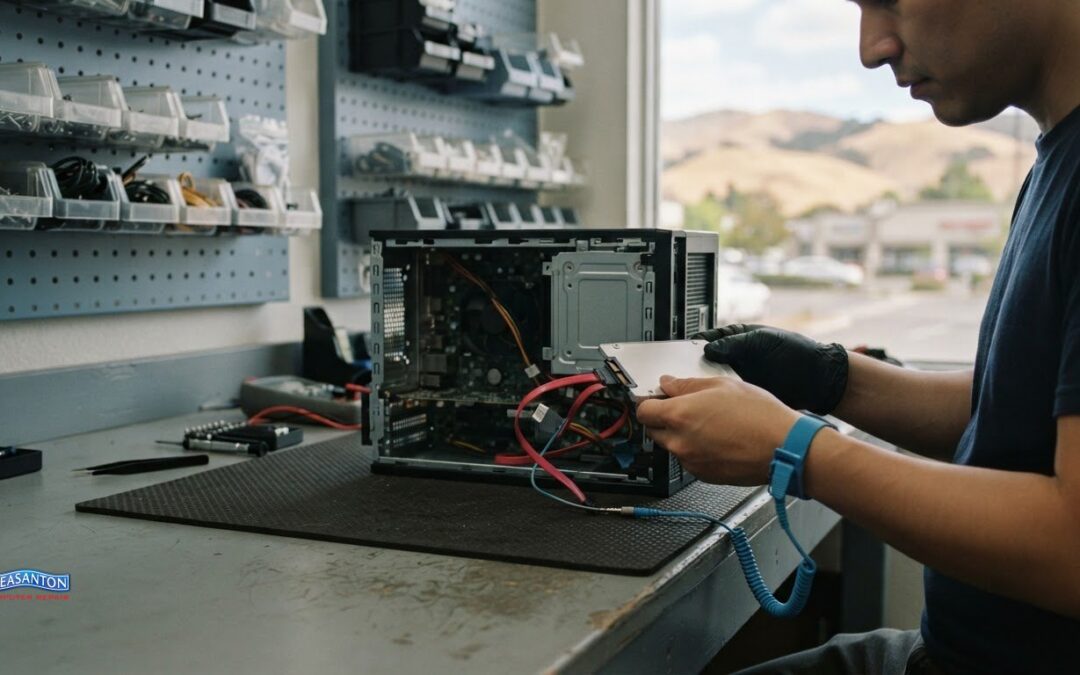
A computer problem can disrupt a whole team’s work. Commercial computer services in Danville can help businesses address hardware and software issues, including repairs, virus removal, and data recovery.
It’s frustrating when a computer slows down, displays errors, or won’t start, especially when work depends on it. Effective repair starts by identifying the cause and choosing a practical fix for the device and problem.
This article explains what business computer repair and software support can cover, what affects a repair, and when professional help makes sense. It also outlines screen replacement, SSD upgrades, virus removal, and data recovery, so you can understand the options and next steps without getting lost in technical jargon.
Key Takeaways
- Separate hardware faults from software problems to narrow down the kind of repair your business computer may need.
- Match the service to the issue, such as screen replacement for display damage or virus removal for suspected malware.
- When comparing local repair options, look for specialties that fit your device and business needs, including whether support can be provided onsite.
- Read reviews for details about similar repair work and communication, rather than relying on ratings alone.
- For data concerns, understand the recovery options before deciding how to proceed with the affected device.
Residential and business computer repair
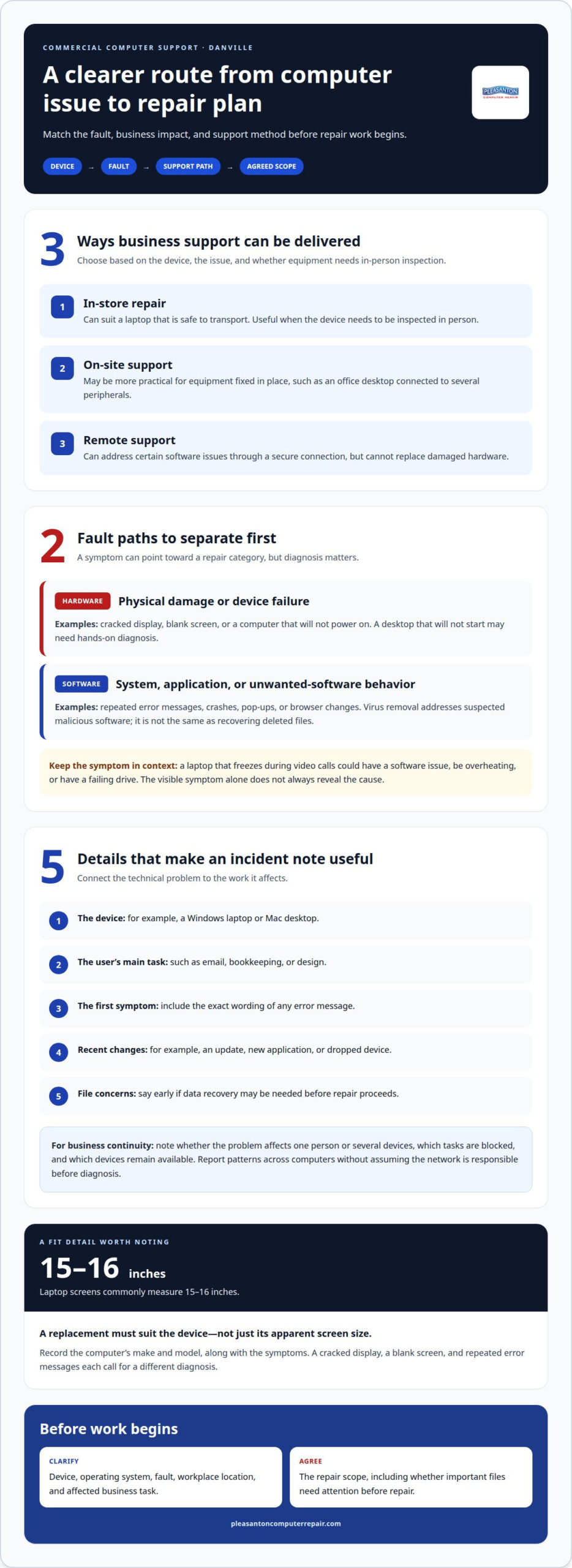
Start by separating symptoms from possible causes. A laptop that freezes during video calls could have a software issue, be overheating, or have a failing drive. A cracked display, by contrast, points to physical damage. Note when the problem occurs, the device and any error message, and recent changes. These details give a technician a useful starting point.
Residential repairs often involve one device and its user’s files. A home computer, for example, may fail to start after an update or run slowly when opening everyday applications. Business repairs also affect shared workflows, deadlines, and access. A malfunctioning workstation can interrupt invoicing or customer service, so the repair plan should account for both the device and the work it supports.
From symptoms to a repair plan
A clear process reduces guesswork. Identify the affected computer and describe its symptoms. Note whether the issue affects one person or several devices, then distinguish physical damage from software behavior. A laptop with a blank display needs a different diagnosis from one showing repeated error messages. Agree on the repair scope before work begins.
Useful details include the computer’s make, model, and operating system, along with the exact wording of any error. Explain whether the issue began after a drop, update, or new application. If the device contains important files, mention that early so the technician can consider data recovery alongside the repair. This helps distinguish a storage problem from an ordinary slowdown.
Hardware symptoms can be direct or misleading. A damaged keyboard may prevent reliable sign-in. A cracked laptop display may still show part of the desktop. Laptop screens commonly measure 15-16 inches. A replacement must suit the device, not just its apparent size. A computer that shuts down unexpectedly may need a deeper hardware assessment. The visible symptom alone does not always reveal the cause.
Software problems call for a different approach. Pop-ups, browser changes, or unfamiliar behavior can indicate unwanted software. Repeated crashes may involve an application, an update, or damaged system files. Virus removal addresses suspected malicious software; it is not the same as recovering deleted files. If the computer holds business records, describe the issue before making changes.
Business IT support and continuity
Business IT support starts with understanding the impact of an outage. One employee’s computer failing is different from a shared office printer stopping. A point-of-sale workstation may interrupt customer transactions, while a design computer may contain active project files. Describe which tasks are blocked and which devices remain available. This helps set a sensible repair priority without treating every fault as equally urgent.
For a small office, keep an incident note with these details:
- The affected device, such as a Windows laptop or Mac desktop.
- The user’s main task, such as email, bookkeeping, or design.
- The first symptom, including any exact error message.
- Recent changes, such as an update or dropped device.
- Whether files need recovery before repair proceeds.
These notes connect a technical fault to its business impact. If multiple computers show the same problem, report the pattern. A shared symptom may point to a common cause, while an issue on one device may be separate. Don’t assume the network is responsible before diagnosis. Specific examples, such as several users losing access to one application, make the situation easier to assess.
Repair decisions depend on how the computer is used. A home user may prioritize personal photos and routine browsing; a business may need a workstation restored for accounting or client communication. Both benefit from clear details about files, symptoms, and intended use. For Danville businesses, that context keeps repair discussions practical. The next step is a focused diagnosis and an agreed repair scope.
Which local providers offer business computer repair and onsite support in Danville?
Business support in Danville can be delivered in different ways. In-store service means bringing a device to the shop; on-site support takes place at the business; remote support can address certain software issues through a secure connection. Each approach suits different problems. The best fit depends on the device, the work interruption, and whether equipment needs to be inspected in person.
Start by defining the issue. A damaged laptop screen usually needs physical repair, while a software error may be assessed remotely. A desktop that won’t power on may need hands-on diagnosis. Write down the device type, symptoms, and affected work. This helps clarify whether you need a specific repair or broader IT support.
Understand what each service model covers
In-store repair can suit a laptop that is safe to transport. On-site support may be more practical when equipment is fixed in place, such as an office desktop connected to several peripherals. Remote support can address some software issues, but it cannot replace damaged hardware.
These labels describe how support is delivered, not every service a provider performs. Clarify what the repair covers by identifying the device, fault, workplace location, and business task affected. A business needing one laptop repaired has different requirements from an office seeking help with several workstations.
Compare providers by the problem, not the label
For Danville businesses, compare service descriptions with the specific issue. Look for a clear match: a provider focused on device repairs may not describe office visits, while a provider offering on-site support may specialize in different work. Match the stated services to the repair you need.
Use these steps to narrow the options:
- Record the device and operating system, such as a Mac laptop.
- Describe the failure, such as a display that stays black.
- State whether the device can leave the office.
- Explain which business task the device supports.
- Choose onsite, in-store, or remote help based on the fault.
A brief, specific description keeps the discussion focused. “The office laptop cannot connect to its accounting application” is more useful than “the computers are broken.” If several devices share a symptom, include that detail. A shared issue may need a different assessment from a single damaged machine.
Before arranging an on-site visit, describe the work area and equipment involved, including whether the technician needs to inspect a desktop, laptop, or connected accessory. For remote support, explain the error and when it appears. Avoid sending passwords in ordinary messages; provide access details through the provider’s stated process.
Location also affects what is practical. A business near central Danville may find in-store drop-off convenient for a portable laptop, while a fixed workstation may be better suited to an on-site visit. Neither option is automatically better. The device’s condition, transport needs, and type of fault determine the useful service model.
Reviews can offer clues about customer experiences, but compare them with your needs. A review about a home laptop repair may say little about office visits. Look for specific details about the repair and communication, then compare them with the provider’s stated services. Danville businesses can use this approach to judge fit, rather than relying on a broad label alone.
How do Danville commercial computer service providers compare by reviews and specialties?
An overall rating gives only part of the picture. For business computer repair, compare written reviews with the service you need. A comment about replacing a laptop screen tells you little about on-site office support, while a review about malware removal may be more relevant to suspicious pop-ups. Match review details to the problem, device, and service model.
Start with the specialty. Some repair businesses focus on individual devices, such as laptops or phones; others describe on-site support for workplace computers. A desktop that won’t start calls for different capabilities from an office seeking help with several workstations. Read service descriptions and compare them with the actual task.
Read reviews for useful details
Look beyond praise or criticism alone. A useful review names the device, the issue, and the experience. “The technician explained a MacBook display repair” gives more context than “great service.” Look for details about communication, diagnosis, and whether the work addressed the stated problem. This helps you judge relevance without assuming every repair will have the same result.
Consider when reviews were written and whether experiences vary. Recent comments may describe current customer interactions, while older reviews may reflect a different period. Look for recurring themes: if several people mention unclear updates, that pattern may matter to a business coordinating a repair. One isolated complaint or compliment offers less context than repeated, specific examples.
Review counts need context, too. A large number of comments does not establish expertise in every repair category. A smaller set may include detailed feedback about the issue you have. Compare written experiences with the provider’s listed specialties. Reviews about home Wi-Fi setup, for example, do not directly show experience repairing a damaged business laptop screen.
Compare specialties against the work
Compare the issue, the service needed, and the relevant review details. A cracked laptop display calls for screen replacement experience; unwanted pop-ups point to virus removal; inaccessible files raise data-recovery questions. For an on-site request, look for clear descriptions of workplace visits rather than assuming every repair business serves offices.
- Device: Identify a PC, Mac, laptop, or desktop.
- Fault: Describe the exact symptom or physical damage.
- Specialty: Match the issue to a stated repair skill.
- Support model: Distinguish onsite, remote, and drop-off service.
- Review evidence: Find comments describing similar work.
A Danville office, for example, may need an on-site desktop repair. If reviews mention laptop tune-ups but the service description says nothing about office visits, that does not establish on-site capability. Another provider may describe business visits but have reviews focused on device repairs. Weigh those details against the actual need instead of relying on a single rating.
Keep comparisons focused on verifiable details. Record each provider’s stated specialties and matching review examples. Separate specific accounts from general praise, and don’t treat a star score as a technical assessment. If the task involves several devices, prioritize evidence related to business environments. For one damaged laptop, reviews about that repair type may be the closest comparison.
Before choosing, summarize the request in one sentence: “Our office Mac laptop has a damaged display and needs a repair assessment.” This helps align service specialties, review evidence, and the support method required. For virus concerns or inaccessible files, name that issue specifically. A focused comparison makes the next discussion clearer and keeps attention on the work your business needs.
Pleasanton Computer Repair
Pleasanton Computer Repair can help with focused device repairs for businesses in Danville and surrounding East Bay communities. PC / Mac Screen Replacement addresses damaged displays, Virus Removal can address suspected malicious software, and Data Recovery can help when important files become inaccessible, though recovery is not guaranteed. The company also provides iPhone and iPad Repairs for business devices.
Describe the affected device, its symptoms, and the work it supports to clarify the repair need and next steps. If your business needs help with a device repair, data access, or unwanted software, contact Pleasanton Computer Repair to discuss the issue.
Choose a practical next step for your business
When a computer issue interrupts work, a clear description helps move the conversation forward. Note which device is affected, what it’s doing, and how the problem affects daily tasks. Then focus on the repair needed rather than broad labels like “IT support.” For Danville businesses seeking commercial computer services, matching the problem to a specific repair is a practical place to start.
Pleasanton Computer Repair offers PC / Mac Screen Replacement for damaged displays, Virus Removal for suspected malware, and iPhone and iPad Repairs for mobile devices. Share the symptoms and device details to explain the repair you need. Contact the team to discuss the next step and get a clearer picture of what the problem involves.
Contact Pleasanton Computer Repair to discuss your repair needs and take the next step with confidence.
Frequently Asked Questions
What commercial computer services are available in Danville, California?
Businesses in Danville can get computer and device repairs through in-store, on-site, and remote support. Services include PC and Mac screen replacement, virus removal, data recovery, and iPhone and iPad repairs. A business can seek screen repair for a damaged work laptop or virus removal for a computer showing suspicious activity. Pleasanton Computer Repair also serves Pleasanton, Livermore, Dublin, San Ramon, Brentwood, Walnut Creek, and San Jose.
What should businesses check when choosing a commercial computer services provider in Danville?
Businesses seeking commercial computer services in Danville should match the repair capabilities and support method to the device and issue. Consider what access or information the repair may require: note whether a laptop contains business files that need recovery and any account access needed for software troubleshooting. Keep a clear record of the requested work and agreed scope, especially when a repair involves both hardware and stored data.
