
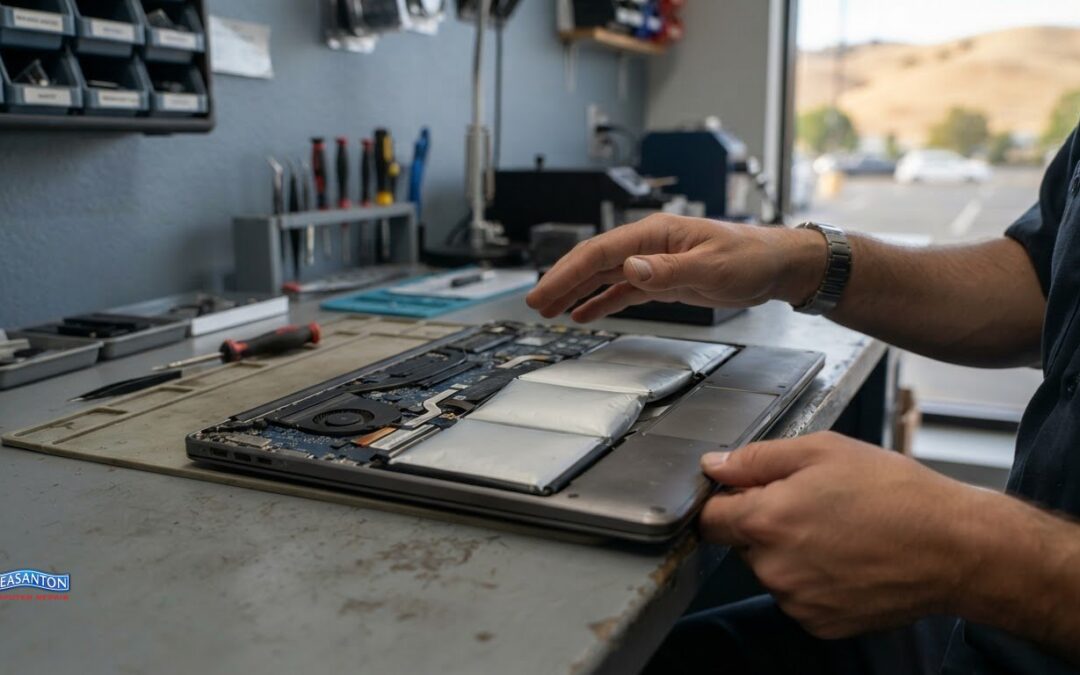
Below 80% battery health is a useful point to consider replacement, especially if your laptop’s runtime has dropped or it shuts down unexpectedly. On a Mac, battery health below 80% maximum capacity may also mean replacement could improve performance.
It’s frustrating when a laptop that once lasted through your day suddenly needs to stay plugged in. A low battery-health reading is only one clue. Shorter runtime, abrupt shutdowns, slow performance, and system warnings can also be signs your laptop battery is failing.
Learn how to recognize the signs your laptop battery is failing, where to find battery-health information, and which symptoms need prompt attention. You’ll also learn how to distinguish battery trouble from other performance or charging issues, so you can decide what to do next.
Key Takeaways
- Consider replacement when battery health falls below 80%, especially if the laptop’s runtime is also declining.
- Compare how long a full charge lasts now with your laptop’s usual runtime to spot a meaningful change.
- Unexpected shutdowns and abrupt charge drops can point to a battery that’s no longer delivering steady power.
- Learn how operating-system alerts and battery health reports can help distinguish normal wear from a more urgent issue.
- Take overheating or a visibly swollen battery seriously, and understand when to stop using the laptop.
1. At what health percentage should I consider replacing my battery?
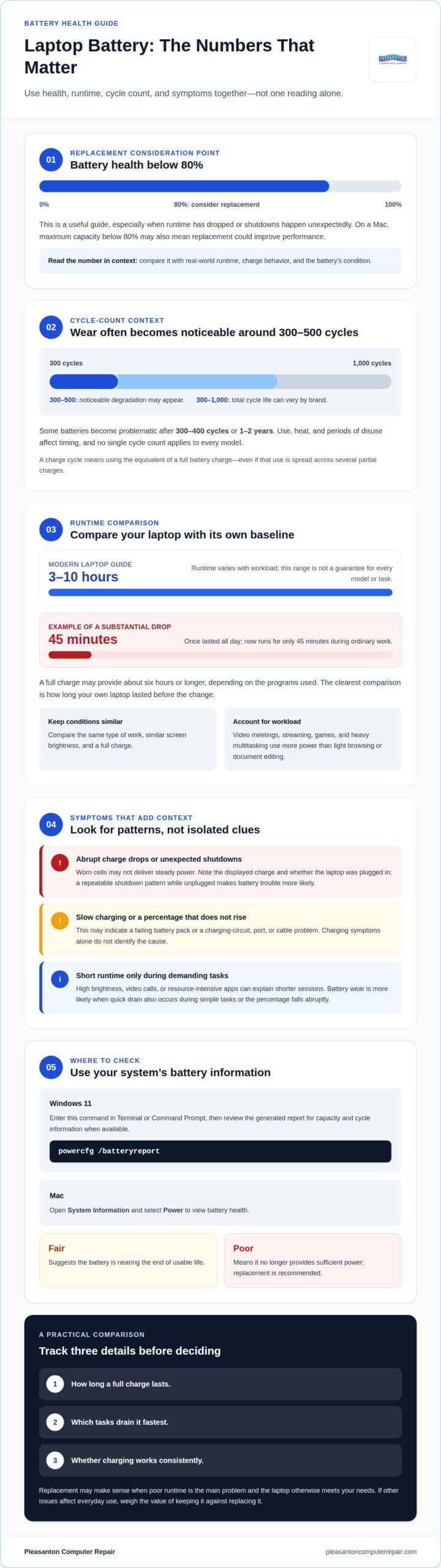
Consider replacement when battery health falls below 80%, particularly if runtime is short or shutdowns happen unexpectedly. On a Mac, maximum capacity below 80% may signal that replacement could improve performance. A percentage is a useful guide, not the only one: compare it with real-world runtime, charge behavior, and the battery’s condition.
Battery age and charge cycles help explain why capacity declines. A charge cycle represents using the equivalent of a full battery charge, even when that use happens across several partial charges. Laptop batteries typically show noticeable degradation after 300 to 500 full charge cycles, while their total cycle life can range from 300 to 1000 cycles, depending on the brand. Some batteries become problematic after 300 to 400 cycles, or after 1-2 years, but use, heat, and periods of disuse affect the timing.
What battery cycle count indicates a laptop battery needs replacement? There isn’t one cycle count that applies to every model. Treat 300 to 500 cycles as a point where noticeable wear may appear, then weigh the battery’s health reading and symptoms; replacement is worth considering below 80% health or when runtime has sharply declined.
To check a Windows 11 laptop, enter powercfg /batteryreport in Terminal or Command Prompt, then review the generated report for battery capacity and cycle information when available. On a Mac, open System Information and select Power to view battery health. Status labels such as “Fair” suggest the battery is nearing the end of usable life; “Poor” means it no longer provides sufficient power and replacement is recommended.
Charging features don’t restore worn cells. If Dell’s ExpressCharge appears in system settings, treat it as a charging feature, not a battery-health measure or replacement threshold. A laptop that takes much longer than usual to charge, or whose percentage stays unchanged while plugged in, may have a failing battery pack or a problem with its charging circuit, port, or cable.
Why does a laptop battery drain quickly or shut down unexpectedly? Worn cells hold less charge, so the displayed percentage may drop abruptly or the laptop may shut down while still showing power remaining. Heat, battery age, and repeated charge cycles can contribute to wear.
How can I improve laptop battery life and slow battery wear? Reduce sustained heat and avoid leaving the laptop plugged in at 100% charge for long periods, especially when it runs hot. These habits may slow wear, but they can’t reverse capacity already lost through age or charge cycles.
2. Short battery runtime as a replacement warning
A laptop battery that no longer lasts through your usual work session deserves attention. A full charge may provide about six hours or longer, depending on the programs used, while modern laptops can run for 3 to 10 hours depending on workload. Those ranges are guides, not guarantees for every model or task. Compare today’s runtime with what your own laptop delivered before the change.
For example, a laptop that once lasted all day but now runs for only 45 minutes has lost substantial usable runtime. That pattern is more concerning than a shorter session caused by a demanding video call, high screen brightness, or several resource-intensive apps running together. Repeat the comparison under similar conditions: use the same type of work, similar brightness, and a full charge. A consistent decline makes battery wear more likely.
Workload matters. Streaming video, video meetings, games, and heavy multitasking use more power than light browsing or document editing. If runtime drops only during one demanding task, the battery may simply be responding to higher power use. If it also drains quickly during simple tasks, or its percentage falls abruptly, battery wear becomes more likely.
Charging behavior provides more context. A battery that takes much longer than usual to charge, or whose percentage doesn’t rise while plugged in, may point to a failing battery pack or charging-circuit issue. A faulty charging port or cable can cause similar problems. Note whether the laptop charges normally with its usual cable and adapter, and whether the displayed percentage changes.
Is it better to replace a laptop battery or buy a new laptop? Replacing the battery may make sense when poor runtime is the main problem and the laptop otherwise meets your needs. If other issues also affect everyday use, compare the value of keeping the laptop with the benefits of replacing it before deciding.
Battery health can help distinguish normal workload variation from declining capacity. Battery warnings can provide useful context, but compare them with your observed runtime. A health reading below 80% may support considering replacement, especially when the laptop also runs briefly or shuts down unexpectedly. One reading alone doesn’t explain every charging or power problem.
Before deciding, record three practical details: how long a full charge lasts, which tasks drain it fastest, and whether charging works consistently. For instance, a drop to 45 minutes during ordinary document work is more concerning than a shorter session during intensive video editing. This simple comparison gives a clearer basis for deciding whether battery replacement, further diagnosis, or a new laptop better fits your needs.
3. Unexpected shutdowns
A laptop that powers off while its charge indicator still shows energy is giving a clear warning. A worn battery may struggle to deliver steady power, shutting the system down before the displayed percentage reaches empty. The charge reading may drop abruptly, too. Save your work often, and note the displayed charge and whether the laptop was plugged in when it shut down.
Look for a repeatable pattern. If shutdowns happen while the laptop is unplugged but not while connected to its adapter, battery trouble becomes more likely. If it also shuts off while plugged in, the battery reading alone doesn’t explain the problem. Record what was running, whether the system felt unusually hot, and whether the charge indicator changed suddenly. These details help distinguish a power issue from overheating or another fault.
Protect important files before investigating further. A sudden shutdown can interrupt work and leave unsaved changes unavailable, so back up documents, photos, and other essential files while the computer is on. If Windows or macOS is still running, save active files first, then copy them to a separate storage location. Don’t wait for another unexpected shutdown to make a backup.
Overheating changes the priority. If the laptop becomes unusually hot, unplug it and stop using it to avoid further damage. Don’t keep it running on AC power to push through a shutdown. Once it has cooled, note whether the heat appeared during a particular task, such as a video call or demanding application. Repeated shutdowns alongside overheating need attention, not just a routine battery check.
A swollen battery is an urgent safety warning, not a routine runtime problem. Stop using the laptop immediately and disconnect the AC adapter. A swollen battery can leak or catch fire, and may damage internal components. Don’t press, puncture, pry, or open the battery casing, and don’t try to force a built-in battery out. Keep the device out of normal use and arrange professional repair.
Describe the shutdown pattern clearly: note whether the laptop was on battery or AC power, the displayed charge, any abrupt percentage change, and signs of overheating. A laptop that shuts down with charge remaining points toward unstable battery output; shutdowns during overheating mean you should stop using it. These observations help focus diagnosis without repeatedly restarting the computer and risking more lost work.
4. Can a worn-out battery cause my laptop to run slower?
A worn battery can contribute to slow performance if heat leads to thermal throttling, which reduces processing speed. But sluggishness alone doesn’t prove the battery is failing. A laptop that once booted in 20 seconds but now takes two minutes may also have a failing hard drive or failing RAM. Treat the slowdown as a clue to investigate, not a battery diagnosis by itself.
Compare the laptop’s behavior while plugged in and on battery power. If performance drops mainly on battery and the system also gets unusually hot or loses charge quickly, battery-related power or heat may be involved. If it runs slowly in both situations, other hardware or software problems may better explain the change. Note which programs are open and whether the slowdown begins during a particular task.
Overheating calls for a safety-first response. If the laptop becomes unusually hot, unplug it and stop using it to avoid further damage. Don’t keep running demanding applications to test whether performance improves. After it cools, note where the heat seems concentrated and whether the slowdown occurred during video calls, gaming, or another heavy workload. These observations help describe the pattern without stressing the system further.
A healthy battery should provide power without obvious swelling or unusual heat. If the case or trackpad appears lifted, or the laptop no longer sits flat, stop using it and disconnect the charger. A swollen battery can damage internal parts and may catch fire or leak. Don’t press on the bulge, open the battery shell, or try to pry out an internal battery.
Use the operating system’s battery report alongside real-world symptoms. A report can show battery condition, while performance and temperature reveal how the issue affects daily use. If the report indicates poor health but the laptop stays responsive and cool, reduced capacity may be the main concern. If slowness appears with overheating or sudden power changes, the battery may be part of a broader problem.
Separate battery symptoms from general performance trouble with a short observation routine. First, note whether the slowdown happens on battery, AC power, or both. Then record the active task, heat, and any charge change. Finally, compare startup behavior with normal use. A two-minute boot after a 20-second baseline deserves attention, but it doesn’t identify the failed component on its own.
Repeated heat and slow performance call for more than a battery-health reading. A technician can assess whether battery condition, thermal throttling, storage, or memory best explains the symptoms. If the laptop shows swelling or becomes unusually hot, stop using it rather than continuing tests. If it remains stable, note when the slowdown starts and the power conditions before arranging a diagnosis. If you need professional assistance evaluating power issues, Contact RepairPro to discuss diagnostic and repair options.
5. Operating-system battery warnings
An alert on your screen can make battery wear clearer. macOS may display “Service Battery,” while Windows may show “Consider replacing your battery.” These alerts are useful signals, but they may not explain every cause of poor runtime or charging trouble. Note the exact wording and whether it appears alongside a sudden charge drop, short runtime, or shutdown.
On a MacBook, open System Information and select Power to view battery health and cycle count. Open the Apple menu, choose About This Mac, then open the system report. Compare the health status and cycle count with your day-to-day runtime. A warning paired with reduced runtime is stronger evidence of wear than a message viewed without context.
How do I check MacBook battery health and cycle count? Open System Information, choose Power, and review the battery’s health information and cycle count. Compare those details with your usual runtime and any service message macOS displays.
Pay attention to physical changes, too. A swollen battery may push up the trackpad or keyboard, make the case bulge, or stop the laptop from sitting flat. The screen or case may no longer close evenly. Don’t press on a raised area to test it. A changing shape is a safety warning, not a cosmetic issue to ignore.
If the battery looks swollen, stop using the laptop immediately and disconnect its AC adapter. A swollen battery can leak or catch fire, and may damage internal components. Don’t charge it, poke it, pry it open, or try to remove an internal battery yourself. Keep the computer out of normal use and arrange professional repair.
A system message without swelling calls for a different response. Save your work, back up important files, and record the alert’s wording. Then compare it with recent runtime, shutdowns, and charging behavior. For example, “Service Battery” alongside a sharp decline in unplugged runtime gives more context than the warning alone. If the laptop also shuts down unexpectedly, avoid relying on it for unsaved work.
Windows and macOS warnings are useful signals, but they don’t identify every hardware issue. A charging port or cable problem can affect charging, while a worn battery can reduce runtime. If the message persists or symptoms worsen, professional diagnosis can separate these causes. If you need help with a computer problem, explore computer repair options.
Pleasanton Computer Repair
If an unexpected shutdown has put important files at risk, Pleasanton Computer Repair offers Data Recovery. The service may help when files become inaccessible after a laptop loses power, though it does not guarantee that files can always be retrieved. Note which files you need and what happened before access was lost, so you can clearly describe the issue.
Battery warnings, abrupt shutdowns, and swelling point to different concerns. Stop using a laptop with a swollen battery, and don’t try to open or remove it yourself. For other symptoms, keep a record of the warning and the laptop’s behavior so you can clearly describe the issue. Pleasanton Computer Repair can help assess computer problems and discuss the next step.
Choose the next step that fits your needs
Think beyond getting through the next charge. The useful question is whether your current laptop still suits the work you need it to do. If battery trouble is the main limitation, that points to a different decision than a computer with several ongoing problems. Consider the tasks your laptop needs to handle, the applications you depend on, and whether keeping it or choosing another device better supports your routine.
Recognizing signs your laptop battery is failing helps you plan instead of making a rushed decision after a shutdown. If another device makes more sense, Pleasanton Computer Repair offers refurbished PC and Mac laptops. You can discuss which option suits your needs without assuming a battery warning tells the whole story.
Contact Pleasanton Computer Repair to talk through your next step. A clear plan can help you get back to work with confidence.
Frequently Asked Questions
At what health percentage should I consider replacing my battery?
Consider replacement when health drops below 80%, especially if your laptop no longer meets your daily runtime needs. Treat the percentage as a decision point, not a stand-alone diagnosis: compare it with shutdowns, charging behavior, and battery reports. For example, a laptop below that level but still working reliably presents a different situation from one with the same reading and frequent power loss.
Can a worn-out battery cause my laptop to run slower?
Heat can contribute to slower performance if it triggers thermal throttling, which reduces processing speed. However, a slow computer may also have a failing hard drive or RAM. Consider whether the slowdown happens on battery power, while plugged in, or under a demanding workload. A laptop that starts slowly in every situation needs broader diagnosis than one that slows down only alongside battery or heat symptoms.
What are the common signs of a failing laptop battery?
Common signs your laptop battery is failing include much shorter runtime, abrupt charge drops, unexpected shutdowns, and operating-system alerts. Charging that takes much longer than usual, or a percentage that doesn’t rise while plugged in, can also signal trouble. Notice whether symptoms happen together. For example, a warning paired with sudden shutdowns is more concerning than a short session during demanding work.
How can I check laptop battery health on Windows?
In Windows 11, open Terminal or Command Prompt and enter powercfg /batteryreport. Windows generates a battery report that you can open to review battery information and compare it with your experience. Look for warning labels such as “Replace Soon,” then consider whether runtime or charging behavior has changed too. The report helps organize clues; it doesn’t by itself explain every power problem.
How long should a laptop battery last before it needs replacing?
There’s no single lifespan that applies to every laptop. Batteries can weaken after a few years, and their cycle life varies by brand, typically ranging from 300 to 1000 charge cycles. Noticeable degradation may appear after 300 to 500 full charge cycles. Heat, usage, and long periods without use can also affect wear, so evaluate the battery’s health and performance together.
Can a swollen laptop battery be dangerous, and what should I do?
Yes. A swollen battery can damage internal components, leak, or catch fire. Stop using the laptop immediately and disconnect its AC adapter. Don’t press, puncture, pry, or open the battery, and don’t try to remove an internal battery yourself. Keep the computer out of normal use and arrange professional repair. If the case or trackpad is lifting, don’t keep charging the device.
