
Removing malware is only the first step. Lasting protection means closing the gaps it may have left behind. To learn how to protect your computer after virus removal, keep your operating system and security software updated, browse carefully, back up important files, and watch for phishing attempts.
It’s natural to wonder whether your computer is truly safe once the infection is gone. These practical habits can reduce the risk of another infection and help protect your data without complicating everyday use. The steps below cover updates, suspicious links and attachments, safer backups, and warning signs that may call for further help.
Key Takeaways
- Use follow-up scans thoughtfully and avoid running multiple anti-malware apps at the same time.
- Keep your operating system, applications, and security software updated to address vulnerabilities.
- Pause before opening links or downloads, especially when an email or website seems unusual.
- Back up important files in more than one place so they’re easier to recover if malware returns.
- Learn to spot suspicious attachments and phishing messages before they put your accounts or files at risk.
1. Limitations of antivirus scans and manual malware removal
An antivirus scan is a useful check, not proof that every trace of malware is gone. Scanning can detect and remove known threats, but malicious software may change browser settings, add unwanted extensions, or leave damaged files behind. Even if the computer seems faster after cleanup, follow up carefully, especially if pop-ups, redirects, or unfamiliar apps continue to appear.
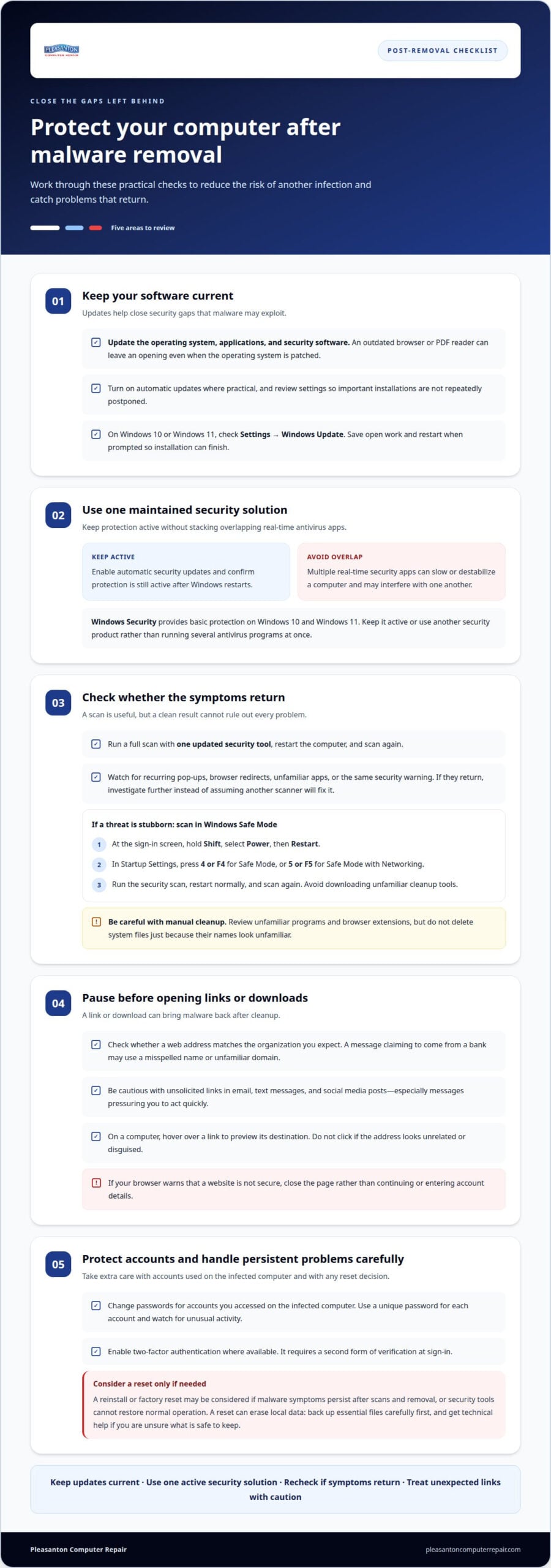
Use one trusted antivirus or anti-malware application at a time. Running multiple security apps with real-time protection can slow down or destabilize a computer, and overlapping tools may interfere with one another. Windows 10 and Windows 11 include Windows Security, which provides basic protection against threats. Keep its protection active or use another security product, rather than stacking several antivirus programs.
Manual removal can miss hidden files or changes that aren’t obvious in a list of installed apps. Review unfamiliar programs and browser extensions, but don’t delete system files just because their names are unfamiliar. Removing the wrong file can disrupt Windows or an application. If the same warning or suspicious behavior returns after cleanup, investigate further rather than assuming another scanner will solve the problem.
For a stubborn threat, try scanning in Windows Safe Mode, where fewer programs start automatically. On Windows 10 and Windows 11, reach the sign-in screen, hold Shift, and select Power, then Restart. In Startup Settings, press 4 or F4 for Safe Mode, or 5 or F5 for Safe Mode with Networking. Run the security scan, then restart normally and scan again. Avoid downloading unfamiliar cleanup tools during this process.
How do I verify that malware has been completely removed? Run a full scan with one updated security tool, restart the computer, and scan again. Then check whether the original symptoms return. A clean scan can’t rule out every problem, so recurring alerts, redirects, or unknown apps call for further investigation.
Should I change passwords after a computer virus infection? Yes. Change passwords for accounts you accessed on the infected computer, use a unique password for each account, and watch for unusual activity. Enable two-factor authentication where available. It requires a second form of verification at sign-in.
When should I reinstall or factory-reset a computer after a virus infection? Consider a reset if malware symptoms persist after scans and removal, or if security tools can’t restore normal operation. Back up essential files carefully first, since a reset can erase local data. Get technical help if you’re unsure which files are safe to keep.
2. Keeping security software and operating systems updated
After malware removal, updates help close security gaps that malicious software may exploit. To protect your computer after virus removal, keep Windows and your other operating systems current, along with installed applications and antivirus software. An outdated browser, PDF reader, or security tool can leave an opening even when the operating system is patched. Turn on automatic updates where practical, then review your settings so important installations aren’t repeatedly postponed.
On Windows 10 and Windows 11, Windows Update helps install security updates automatically. Some updates require a restart before installation is complete, so save open work and restart when prompted. To check manually, open Settings, select Windows Update, and choose the option to check for updates. If an update fails, note the message and try again after restarting, rather than repeatedly interrupting installation.
Security software also needs current threat information. Enable its automatic updates, and confirm protection remains active after Windows restarts. Windows Security provides basic protection on Windows 10 and Windows 11. If you use another antivirus product, avoid installing a second real-time antivirus alongside it. One properly maintained security solution is easier to monitor and less likely to interfere with normal system operation.
Updates address known vulnerabilities, while behavioral analysis can help identify suspicious activity that doesn’t match familiar malware signatures. For example, security software may flag an unfamiliar program trying to change protected settings or access files unexpectedly. Detection methods vary by product, so don’t treat one feature as complete protection. Keeping your tools current is one practical part of protecting a computer after virus removal.
Use layers of protection to cover different ways threats can reach your computer. Antivirus checks files and activity; web filtering can block risky sites; email security can screen suspicious messages. Windows Firewall adds a layer between your computer and network traffic, while services like VPN Secure help encrypt internet traffic across devices to safeguard your connection. Because these tools serve different purposes, a layered approach can limit exposure if one measure misses a threat. Keep enabled tools updated and remove overlapping products if they cause conflicts.
For a home computer, install operating system and application updates, restart when required, and confirm antivirus updates are current. On a work network, coordinate restarts around active tasks and apply updates across connected devices, not just the main computer. If update errors or security warnings persist after malware removal, help with computer security issues can make the next troubleshooting step clearer.
3. Avoiding suspicious links and downloads
A link or download can bring malware back after cleanup. Before opening a page, check the address and ask whether it matches the organization you expect. For example, a message claiming to come from a bank may use a misspelled name or unfamiliar domain. If your browser warns that a website isn’t secure, close the page rather than continuing or entering account details.
Be cautious with links in unsolicited email, text messages, and social media posts. A message urging you to unlock an account or claim a package may pressure you to act quickly. On a computer, hover over a link to preview its destination, but don’t click if the address looks unrelated or disguised. For a familiar service, open its app or type its known address instead of following an unexpected link.
Download software from the publisher’s official website or a trusted app store. Avoid sponsored search results, file-sharing pages, and download buttons placed beside the genuine one. For example, if you need a PDF reader, look for the publisher’s name and product rather than a generic “free download” page. Read each installer screen before continuing, and decline optional programs you didn’t intend to install.
Your browser’s security settings can block some dangerous pages and warn about risky downloads. Keep those protections enabled. Don’t dismiss a warning just to open one page, and don’t install an extension that promises to “fix” browser problems unless it comes from a clear, trusted source. If a page keeps redirecting, close the tab and remove unfamiliar extensions in your browser settings.
Treat email attachments as carefully as links. An unexpected invoice, delivery notice, or password-protected archive can carry malware, even if its filename looks familiar. Don’t open attachments from unknown senders or messages you weren’t expecting. If a known contact sends an unusual file, confirm it through a separate conversation before opening it. A familiar display name alone doesn’t prove who sent the message.
If you accidentally download a suspicious file, don’t open or run it. Delete it, then scan the computer with your security software. If you already opened the file or entered a password on a questionable page, stop using that page and change the affected account’s password from a trusted device. These steps can help prevent one online mistake from leading to another infection.
4. Backing up important data
A reliable backup gives you another copy if ransomware encrypts files or malware damages them. Keep important documents, photos, and work files in three places: the working computer, an external storage device, and another location, such as cloud storage. Don’t rely on copies stored only on the same device. If malware reaches files connected to the computer, an isolated backup may still be available.
Choose a backup method you can use consistently. An external drive works well for files you want to copy directly, while cloud storage keeps a separate copy away from your computer. After copying files to an external drive, disconnect it when the backup finishes. A drive left connected may be affected if malware spreads to accessible files. For cloud backups, secure your account and review which folders are included.
Set a backup schedule based on how often your files change. A household that edits family photos may back them up after organizing a batch, while a business updating project files may need more frequent copies. Automatic backup software can help prevent missed sessions, but confirm that it runs and reports completion. Keep several dated versions where available, so one damaged or encrypted file doesn’t replace every usable copy.
System snapshots or restore points can preserve a clean state for recovery after an infection. They complement file backups but don’t replace separate copies of personal data. A snapshot may help restore system settings to an earlier condition; a backup protects files such as spreadsheets and photos. Keep recovery instructions with your backup plan, and test the process by restoring a sample file.
Protect access to your backups as well as the files themselves. Use a strong, unique password for the account storing cloud copies, and enable two-factor authentication when available. Don’t share backup credentials by email or save them in an unprotected document on the same device. If an unfamiliar login alert appears, secure the account from a trusted device and review recent activity.
How do I restore files safely from a backup after a virus infection? First, make sure the computer is clean and its security software is active. Then connect an isolated drive or access the cloud copy. Restore essential files selectively, scan them before opening, and leave the original backup unchanged until you confirm the restored files work.
A tested recovery plan makes the next steps clearer if an infection returns. Check that important folders are included, confirm backup dates, and practice restoring a sample file. For a business, document who can access each backup and how to recover essential work. Preparation helps protect files, limit identity risks, and avoid depending on a single computer for recovery.
5. Recognizing phishing and suspicious attachments
Phishing messages imitate people or organizations you trust to trick you into revealing information or opening a harmful file. A message may use a bank’s logo but come from an unfamiliar sender, or demand immediate payment to prevent an account closure. Look for unexpected requests, unusual wording, mismatched sender details, and pressure to act quickly. One warning sign doesn’t prove a message is fraudulent, but several call for caution.
Before responding, pause and consider whether the message fits the conversation you expected. An unexpected supplier invoice, a password-reset notice you didn’t request, or a delivery alert for an order you never placed deserves scrutiny. Don’t reply with personal details or use contact information in the message. Reach the organization through a contact method you already trust.
Attachments can spread viruses when opened. Treat files such as invoices, shipping notices, and password-protected archives carefully, especially if you weren’t expecting them. Confirm the sender through a separate channel before opening a file. Avoid file transfers from people you don’t know, and don’t assume a familiar display name proves who sent a message.
Pay attention to what an email asks you to do. A phishing message may urge you to select a link, download a program, or enable a setting to view a document. Unexpected requests to install software or disable security features are strong reasons to stop. If a work message requests a payment or account change, confirm it with the person through a separate conversation.
Use your email provider’s report-phishing or report-spam option for suspicious messages. Reporting can separate the message from your inbox and help the provider identify similar attempts. Don’t forward a suspicious attachment to coworkers or family as a warning. Instead, describe what they should watch for without spreading the file.
If suspicious emails keep appearing after cleanup, your email account may have been compromised. From a trusted device, change its password, enable two-factor authentication, and review account activity, forwarding rules, and recovery details. Remove rules you didn’t create, since they may hide security messages or send copies elsewhere. If the same phishing message reaches your contacts, alert them through another channel.
For a family or small team, discuss phishing examples such as fake password alerts and unexpected document requests. Agree on a simple rule: verify unusual demands before sharing credentials, sending money, or opening files. If a suspicious attachment was opened and the computer begins acting unusually, get help with a potentially infected computer before using it for sensitive accounts.
Pleasanton Computer Repair: Virus Removal
Pleasanton Computer Repair provides Virus Removal when computers continue showing pop-ups, redirects, or other suspicious behavior after cleanup. If scans keep finding threats or unfamiliar programs return, have the computer assessed and the malware addressed before using it for sensitive accounts again.
If an infection has also made important files inaccessible, Data Recovery may help retrieve them. Virus removal and file recovery address different problems, so the next step depends on whether your main concern is persistent malicious activity or missing files.
For help with a lingering computer infection, contact Pleasanton Computer Repair.
Make protection part of your routine
A practical way to protect your computer after virus removal is to make security regular upkeep, not a one-time task. Set aside a time that suits your household or workday to check that your devices are behaving as expected and your recovery plan still covers the files and accounts you rely on. A short written note can help everyone using a shared computer know whom to tell if a warning returns or something unfamiliar changes.
Keep the note accessible, but don’t store passwords in it. Include where trusted recovery information is kept and who should respond to an unexpected security alert. Revisit these expectations when you add a device, create an account, or change how work is shared. Clear ownership can help people notice issues and respond deliberately.
If your computer continues showing signs of infection, or you’d like help deciding on a next step, contact Pleasanton Computer Repair. You can build safer habits one practical step at a time.
Frequently Asked Questions
How do I protect my PC from unwanted software?
Use a standard Windows account for everyday work, and approve administrator changes only when you understand the request. User Account Control can prompt you before changes that require administrator permission. Review each installer screen, since optional toolbars or bundled programs may be preselected. Remove software you no longer use, and note programs you intentionally install. This makes unexpected additions easier to spot later.
What steps should I take after removing a virus from my computer?
After cleanup, check whether important accounts show unfamiliar sign-ins or changed recovery details. Use each account’s security settings to sign out other active sessions, especially for email and financial services. Then review recent transactions, sent messages, and account alerts for activity you don’t recognize. If you find anything suspicious, secure the account from a trusted device and follow the service’s account-recovery steps.
How do I update Windows or macOS and all installed software?
On Windows, open Settings and select Windows Update to check for operating-system updates. On a Mac, open System Settings, choose General, then Software Update. Install available updates and restart if prompted. Update applications through the app’s update menu or the store where you obtained it. For programs installed directly from a publisher, use the program’s built-in updater or its official source.
What antivirus and real-time protection settings should I use after malware removal?
Keep real-time protection enabled in your chosen security application, and check that its status shows no warnings. On Windows, use Windows Security to review antivirus and firewall status. Windows Firewall should be enabled for all network types. Avoid running two antivirus products with active real-time protection, since they can conflict. Review alerts before allowing a program to change protected settings or access files.
How can I prevent reinfection from email attachments, downloads, and websites?
Confirm unusual requests through a separate route, such as calling a known business number instead of replying to an unexpected email. Before downloading a file, make sure you intended to get it and recognize its publisher. Close pages that trigger browser security warnings. If a message appears to come from someone you know but its request feels out of character, verify it directly before acting.
Should I reset my browser settings or remove suspicious extensions after malware removal?
Remove extensions you don’t recognize or no longer need, and reset the browser if its home page, search provider, or startup behavior changed unexpectedly. Before resetting, note any saved settings you rely on, since a reset may clear custom preferences. If you use browser sync, review extensions on your other signed-in devices too. Otherwise, an unwanted extension could return when the browser synchronizes your profile.
How do I protect my computer and home network from future malware attacks?
Use secure settings for your home Wi-Fi, and consider creating a separate network for guests. Keep your router’s management credentials private, and avoid sharing the main Wi-Fi password more widely than needed. For a small organization, separate networks and access controls can help limit an infection’s spread between devices. Keep work files accessible only to accounts that need them, or work with managed IT support providers like proactive-networking.co.uk to maintain business network security.
