
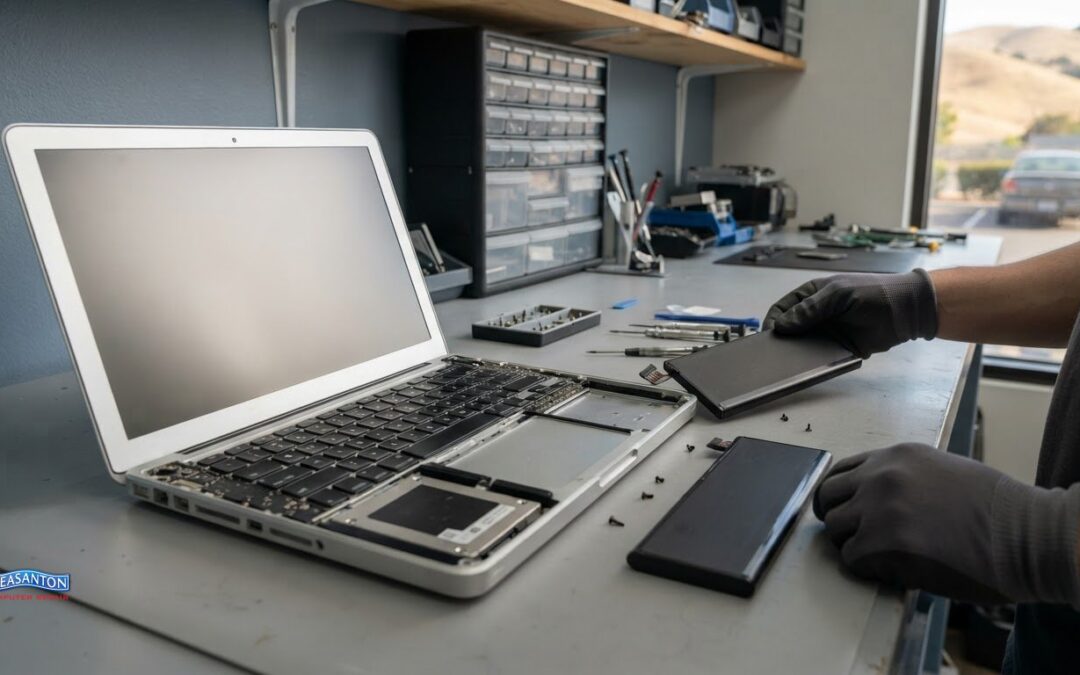
Fixing an old MacBook can be worthwhile when one repair restores a computer that still meets your needs. Replacement may make more sense if the repair is a large share of the MacBook’s current value, another significant fault appears within twelve months, or the model is losing macOS support. These are practical starting points for deciding whether it is worth fixing an old MacBook.
It’s understandable to hesitate: repairing a familiar computer may cost less than replacing it, but age, battery condition, and software support affect its long-term usefulness. The right decision depends on more than the repair alone.
This guide compares repair and replacement by looking at hardware limits, battery health, macOS updates, and personal files. Use these factors to weigh the likely cost against the useful service your MacBook may still provide.
Key Takeaways
- Compare the repair with your MacBook’s current value, and weigh multiple faults or declining software support as signs replacement may make more sense.
- Consider whether memory and storage can still handle the work you rely on your MacBook to do.
- Use battery condition and service warnings to judge whether a battery repair could extend the computer’s useful life.
- Check how continued macOS support affects the apps and online services you depend on.
- Protect important files and factor in sentimental value before deciding whether to repair, replace, or recover data.
MacBook Repair Cost Guide: Is It Worth Fixing?
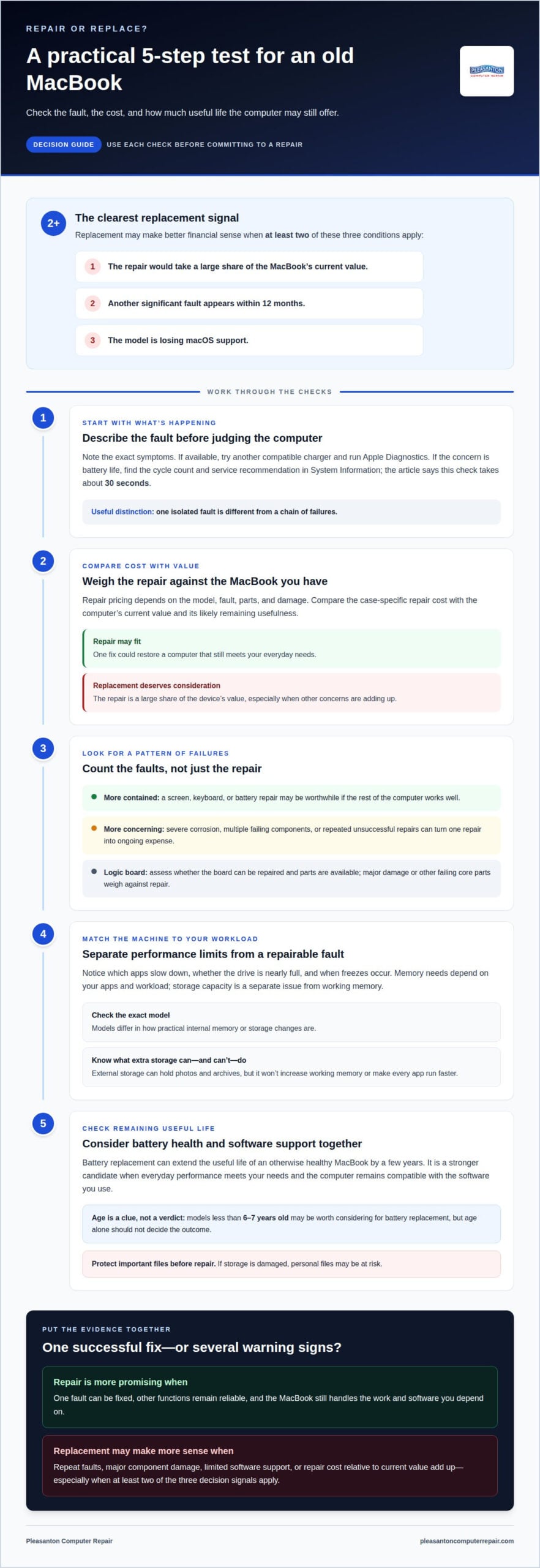
Use three tests: repair cost versus current value, repeat faults, and remaining software support. Replacement may make better financial sense when at least two apply: the repair takes a large share of the MacBook’s value, another significant fault appears within twelve months, or the model is losing macOS support.
A single fault is different from a chain of failures. A screen, keyboard, or battery repair may be worthwhile if the rest of the computer works well. By contrast, severe corrosion, multiple failing components, or repeated unsuccessful repairs can turn one repair into an ongoing expense. Repair pricing depends on the model, fault, parts, and damage; a case-specific quote follows a quote request.
A logic board fault needs its own assessment. An older MacBook may still be repairable when parts are available and the board can be repaired. Replacement may make more sense if the board is badly damaged, other core parts are failing, or the repair would consume a large share of the computer’s value.
Battery replacement can extend the useful life of an otherwise healthy MacBook by a few years. It is a stronger candidate when the computer still handles your everyday work and remains compatible with the software you use. Models less than 6-7 years old may be worth considering for battery replacement, while age alone shouldn’t decide the outcome.
AppleCare or warranty coverage depends on the plan, eligibility, and cause of the fault. Consumer-law remedies depend on the rules that apply and the purchase circumstances. Apple’s battery-replacement charge varies by MacBook model and coverage status, so compare the applicable charge with the computer’s condition and likely remaining usefulness.
Repairs on vintage MacBooks can involve scarce or incompatible parts, fragile connectors, or additional faults discovered during disassembly. If storage is damaged, personal files may also be at risk. Before committing to repair, note the exact symptoms, try another compatible charger if one is available, and run Apple Diagnostics. You can also find the battery cycle count and service recommendation in System Information in about thirty seconds.
| Option | Best fit | Decision signal |
|---|---|---|
| Single-fault repair | Screen, keyboard, or another isolated issue | Other functions remain reliable |
| Battery replacement | Healthy MacBook with short battery life | Everyday performance still meets your needs |
| Logic board repair | Repairable board and available parts | No severe corrosion or cluster of failures |
| Multiple repairs | More than one important fault | Costs and support concerns are accumulating |
| Replacement | Several core components are failing | Repair cost approaches the value of the device |
Choose repair when one fix can restore a MacBook you still rely on. Consider replacement when repeat faults, limited support, and major component damage add up.
Memory and storage limitations
Slow performance doesn’t always mean a MacBook needs replacement. A three-year-old MacBook with eight gigabytes of memory may struggle with video editing, while email and documents remain manageable. Many browser tabs, large creative projects, and video calls compete for memory. Compare the tasks that slow down with your regular workload before treating one sluggish app as proof of hardware failure.
Memory capacity matters most when the programs you use demand more than your MacBook handles smoothly. An older MacBook Pro with 8G RAM, for example, may pause during demanding multitasking even if its keyboard and screen work properly. At least 16GB of RAM was recommended for a new machine in one example, but that isn’t a universal requirement. The right amount depends on your apps and workload.
Is it worth fixing an old MacBook if demanding apps still struggle because of limited memory? It depends on the model’s upgrade options and whether its processor can meet your needs. Storage is a separate issue. A nearly full drive leaves less room for files and applications, while failing storage can cause freezes, startup trouble, or missing files.
These symptoms can resemble low memory, so note whether the trouble occurs during one demanding task or across regular use. Before choosing a repair, protect important files and distinguish limited capacity from a failing drive or another component. A storage upgrade may help when capacity is the main bottleneck, but it won’t solve every performance problem.
Check the exact MacBook model before planning an upgrade. Models differ in how practical internal memory or storage changes are. External storage can hold photos and archives, but it won’t increase working memory or make every app run faster. It can still help if the MacBook performs well and you mainly need more room for files.
- Identify the bottleneck: Note which apps slow down, whether the drive is nearly full, and when freezes occur.
- Check model limits: Find out whether the specific model can support the memory or storage change you’re considering.
- Separate capacity from speed: Extra file storage won’t resolve limited memory or a failing internal drive.
- Compare value: Weigh the repair cost against everyday performance and the work you need done.
Is it worth fixing an old MacBook when a storage change could solve the main problem? It may be, if the computer handles your regular tasks and the model supports a useful upgrade. Replacement may make more sense when demanding apps remain frustrating, upgrades aren’t practical, or several limitations combine. Weigh the likely improvement against the repair cost and the tasks you depend on.
Battery cycle count and service warnings
A MacBook’s battery cycle count offers one clue about wear, not a complete diagnosis. A cycle reflects battery use over time, even when that use happens across several partial charges. Check it alongside the service recommendation and your actual battery life. Apple’s System Information shows both details, and checking them takes about thirty seconds.
To find the reading, open the Apple menu, choose About This Mac, then open System Report and select Power. Look for the cycle count and battery condition. Menu wording can vary between macOS versions, but the Power section identifies battery information. Record the result, then compare it with how the MacBook performs away from its charger.
Pay attention to the message as well as the number. A service recommendation means the battery needs attention; it doesn’t automatically mean the whole computer needs replacement. A high count with adequate runtime may feel different in daily use from a lower count paired with sudden shutdowns. Track how quickly the charge falls during the same routine, such as writing documents or joining a video call.
- Check the reported condition: Note whether macOS recommends service or reports normal operation.
- Test everyday runtime: Use the MacBook unplugged for a familiar task and note when the battery drops sharply.
- Compare repeated readings: Revisit System Information after regular use to see whether the count changes alongside worsening runtime.
- Separate battery symptoms: If the MacBook also freezes, fails to start, or loses files, consider causes beyond the battery.
A short runtime can matter even when the computer otherwise works well. For example, someone who carries a MacBook between classes may need a battery repair sooner than someone who uses it beside a desk outlet. That difference reflects how the computer is used, not the cycle count alone. Match the battery’s actual performance to where and how you use the device.
Before deciding, consider the service message, cycle count, runtime, and MacBook’s overall condition together. A battery replacement may make sense when the rest of the computer remains useful and the battery is the main problem. If the MacBook has other faults, a battery repair won’t resolve them. Keep personal files backed up, especially if the computer also shows storage problems or unexpected shutdowns.
The cycle count answers part of the question, not all of it. Use the service warning to guide your assessment, then judge whether battery life fits your daily routine. A MacBook that remains dependable for the work you need may justify a battery repair; one with several unrelated problems needs a broader decision.
MacBook software support and device age
Software support can matter as much as a MacBook’s physical condition. Apple supports MacBooks with software updates for about 7 years.
Apple repair eligibility depends on the model’s service status and available parts; age alone doesn’t determine whether repair is possible.
Repairing an Older MacBook
Age is a useful comparison point, not an automatic repair cutoff. A MacBook may remain repairable when parts are available and its logic board can be repaired. Software status is another consideration: if the model is losing macOS updates, weigh that limitation alongside its condition and your everyday needs.
For example, liquid damage can affect several components, while a single worn part may require a narrower repair. A model that still runs the software you need differs from one that can no longer receive updates. Consider both the fault and the support outlook before deciding whether MacBook repair makes practical sense.
Typical MacBook Lifespan
There isn’t one fixed lifespan that applies to every MacBook. Software support lasts about 7 years, but a seven-year-old MacBook may still suit email and documents with a fresh battery and continued updates. That differs from a device whose apps or online services require newer macOS versions.
Some online services may require one of the three most recent macOS versions. Check whether the apps and services you rely on still run on the MacBook’s installed system. A computer that opens documents reliably can still be a poor fit if essential services no longer work.
To assess support, open About This Mac and note the model and installed macOS version. Then open Software Update in System Settings to see whether an update is available. Compare the result with the system requirements for your essential apps. This connects the MacBook’s age to the work it needs to do.
Use these checks together:
- Model: Identify the MacBook model and its current macOS version.
- Updates: See whether macOS offers a newer compatible version.
- Daily use: Test your essential apps, documents, and online services.
- Repair outlook: Consider whether available parts can address the actual fault.
A MacBook is too old to repair only when the repair cannot restore useful function or its limitations outweigh the benefit. A seven-year-old model may remain useful for basic tasks, while a younger device with liquid damage and limited software support may be a weaker candidate. Compare model support, repairability, and the tasks you need it to handle.
Sentimental value and preserving personal files
A MacBook can be worth more than its resale value to you. It may contain family photos, school projects, work records, or years of familiar settings. Those files and memories can make repairing a broken device worthwhile, even when replacement looks simpler. Consider the value of the hardware separately from the importance of its contents.
Data safety depends partly on which component failed. A repair to another component does not automatically erase data, but damaged storage can put files at risk. A broken screen, for example, doesn’t mean files are gone. Liquid damage or storage failure can affect access, so avoid repeated startup attempts when the device shows signs of serious damage.
Start with a backup if the MacBook still opens normally. Use Time Machine or copy irreplaceable documents and photos to separate storage. Then check that the copied files open on another device. An untested backup may not help when you need a specific photo or project later.
If the MacBook won’t start, don’t assume its files are lost. A repair may restore access if the storage remains intact, while storage damage can require a different recovery approach. Tell the technician which folders matter most, such as a family photo library or work documents. Clear priorities help focus the assessment on preserving important information.
- List essential files: Identify photos, documents, account records, and creative projects you can’t easily replace.
- Protect the original: Avoid erasing or reinstalling macOS before understanding the storage condition.
- Describe the failure: Note whether the MacBook was dropped, exposed to liquid, or stopped working during an update.
- Separate repair from recovery: A hardware repair restores function; damaged storage may need data recovery instead.
Sentimental value can reasonably change the decision. Someone might repair an older MacBook to retrieve a late relative’s photographs, even if the device won’t become their everyday computer again. Another owner may choose replacement but still prioritize recovering business files. In either case, consider the value of personal data separately from the value of the components.
Before authorizing work, ask what the proposed repair involves and whether the storage is affected. Share any backup details and explain which files matter most. If the MacBook contains irreplaceable files and the hardware is damaged, get help protecting your MacBook data before deciding what to do with the device.
Pleasanton Computer Repair
Pleasanton Computer Repair can help you weigh practical next steps when damage or missing files complicate your MacBook decision. If a broken display is the main problem, PC / Mac Screen Replacement may address that specific fault. If the MacBook won’t start and important files are inaccessible, Data Recovery can help you pursue those files, though recovery does not guarantee that files can always be retrieved.
Bring the model details, a description of what happened, and any backup information. These details help focus the discussion on the issue and what matters most, whether that’s restoring screen use or preserving personal data.
Contact Pleasanton Computer Repair to discuss your MacBook and decide on the next step.
Make a Confident Next Move
Your next step is to turn uncertainty into a clear choice. Decide what matters most: getting the MacBook working again, protecting files, or moving to a device that better fits your needs. If you’re still weighing whether it is worth fixing an old MacBook, focus on the outcome you need rather than age alone.
Pleasanton Computer Repair can help with related issues, including PC / Mac Screen Replacement and Virus Removal. The team also provides iPhone and iPad Repairs. If a damaged display or suspected malware is part of your decision, describe the symptoms and what you want to accomplish.
Contact Pleasanton Computer Repair to discuss your MacBook situation and choose a practical next step. A thoughtful decision can help you move forward with confidence, whether you keep your current computer or replace it.
Frequently Asked Questions
Does MacBook Repair Affect Performance or Data?
A successful repair should restore the function affected by the fault, but it won’t make an older processor faster than its design allows. Repair work doesn’t normally erase files, though storage damage can put them at risk. Before service, note whether you have a recent backup and identify files you can’t replace. If the MacBook still starts, open a few important documents from your backup to make sure they’re accessible.
How do I know when to replace my MacBook instead of fixing it?
Consider replacement when repair costs take a large share of current value, another major fault appears within twelve months, or the model is losing macOS support. Two of these signs together make replacement a stronger option. Also consider your workload: a MacBook that struggles with essential tasks may no longer be practical, even if it handles lighter work.
Is It Cheaper to Repair or Replace an Old Mac?
Repair is usually the lower-cost route when one isolated fault keeps an otherwise suitable MacBook out of use. Replacement may offer better value if several core components need attention or essential apps no longer run. Compare the repair cost with that of a suitable replacement and the computer’s current condition. Include setup and file-transfer effort in your decision, not just hardware costs.
Should I fix my MacBook before selling it?
Repairing a MacBook before a sale makes sense only if the likely increase in resale value outweighs the repair expense and effort. A working MacBook generally retains more value than a non-functional one, but that doesn’t mean every repair pays for itself. Check the model’s current resale value, describe its condition accurately, and erase personal data securely before transferring ownership.
Start With the Most Important Question: What Is the Mac Worth Right Now?
Start with the value of the same model in comparable condition, not its original purchase price. That range is a reference for that model and condition, not a valuation for every MacBook. Account for its specifications, visible wear, battery condition, and whether it works before weighing a repair.
What About Logic Board Problems?
A logic board problem deserves a diagnosis before you commit to replacement. An older MacBook may be repairable if the board can be repaired and parts are available. Replacement is more compelling when board damage comes with other failing components, severe corrosion, or repeated unsuccessful repairs. Ask for a clear explanation of which functions failed and whether the proposed work addresses the underlying fault.
What About Older MacBooks?
Age alone doesn’t make a MacBook unrepairable. Apple software updates support MacBooks for about 7 years, so an older model may become less useful if it can’t run the macOS versions required by your essential apps. For example, a computer used only for local documents has different software demands from one needed for current online services. Check compatibility against your daily tasks.
What About a Bad Battery?
A bad battery can justify repair if the MacBook otherwise fits your needs. Compare its unplugged runtime with the way you use it: someone who works at a desk near power may tolerate reduced runtime, while a frequent traveler may not. Check the battery condition and service recommendation in System Information. If shutdowns or performance problems continue while connected to power, investigate other faults too.
