
The quickest software troubleshooting support isn’t always another Windows tool. It’s choosing the right help for the problem. Use built-in diagnostics for clear, contained issues; seek experienced guidance when symptoms are confusing or a registry or driver change could affect the whole system.
It’s understandable to try a scan, update a driver, or follow a repair guide first. Those steps can help, but changing system settings without identifying the cause may create new problems. Match your approach to the issue’s risk and complexity.
This guide compares Windows diagnostic tools, registry and driver fixes, and remote help. It explains what each can resolve and when to stop a do-it-yourself attempt, so you can decide whether to continue troubleshooting or get support.
Key Takeaways
- Use Windows diagnostic tools for straightforward problems, and avoid editing the registry unless you understand the change and have protected important data.
- For driver issues, identify the affected device and use a driver that matches its hardware and Windows version.
- Remote desktop support can help when a technician needs to observe or guide software troubleshooting on your computer.
- Choose support based on the problem: a clear, isolated issue may suit a built-in tool, while recurring or unclear symptoms may need hands-on guidance.
- For iPhone or iPad problems that call for repair rather than software guidance, Pleasanton Computer Repair offers device repairs.
Broken registry entries
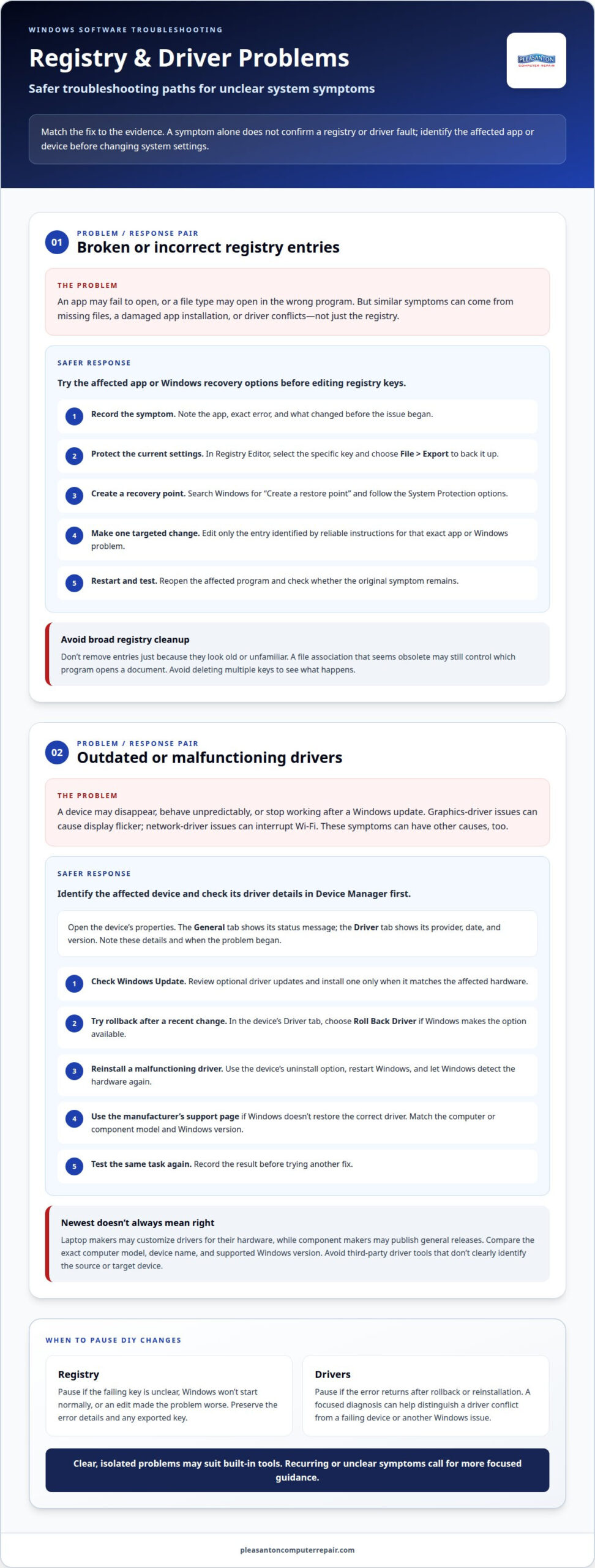
The Windows Registry stores configuration settings for Windows and installed applications. A damaged or incorrect entry can contribute to problems such as an app failing to open or a file type opening in the wrong program. But an error message alone doesn’t prove the registry is the cause. Missing files, damaged app installations, and driver conflicts can cause similar symptoms.
Start with the application or device named in the error. If one program fails while others work, repair or reinstall that program before editing registry keys. Windows Settings may offer a repair option under the installed app’s advanced options. For broader startup or system problems, use Windows’ built-in recovery options rather than making several registry changes at once.
Registry Editor, also called regedit, lets you view and edit keys and values. A change in the wrong location can affect Windows or another application, so identify the exact entry before editing it. Use this cautious sequence:
- Record the symptom. Note the affected app, the exact error, and what changed before the issue began.
- Protect the current settings. In Registry Editor, select the specific key and use File > Export to save a backup of that key.
- Create a recovery point. Search Windows for “Create a restore point” and follow the available System Protection options.
- Make one targeted change. Edit only the entry identified by reliable instructions for that exact app or Windows problem.
- Restart and test. Reopen the affected program and check whether the original symptom remains.
A registry-cleaning utility isn’t a reliable first step. Removing entries because they look old or unfamiliar may disrupt settings that an installed application still uses. For example, a file association that appears obsolete may control which program opens a document. Keep changes narrow, and don’t delete multiple keys just to see what happens.
In organizations, log a recurring registry issue in the ticketing system with the device, app, error text, and attempted fix. This gives the support team a clear record and helps prevent automation from applying a broad fix to the wrong configuration. A technician can compare the affected computer with a working one before changing settings.
Choose software troubleshooting support when the failing key is unclear, Windows won’t start normally, or a registry edit has made the problem worse. Pause further changes and preserve the error details and any exported key. A focused diagnosis can distinguish a registry fault from an app, system-file, or hardware problem.
Outdated or malfunctioning drivers
A driver lets Windows communicate with a component such as a graphics card, printer, or network adapter. If a driver is outdated, damaged, or incompatible, the device may disappear, behave unpredictably, or stop working after a Windows update. A faulty graphics driver, for instance, can cause display flicker, while a network driver problem can interrupt Wi-Fi access. These symptoms can have other causes, so identify the affected device before changing its software.
Start in Device Manager. Find the device, open its properties, and read the status message under the General tab. The Driver tab shows its provider, date, and version, helping you compare the installed driver with the correct one for that device. Note these details and when the problem began, such as after an update or new hardware installation.
Use this sequence to test a driver issue without making several changes at once:
- Check Windows Update. Open Settings and review optional driver updates. Install an update only when it matches the affected hardware.
- Try rollback after a recent change. In Device Manager, open the device’s Driver tab and choose Roll Back Driver when Windows makes that option available.
- Reinstall a malfunctioning driver. Use the device’s uninstall option, restart Windows, and let Windows detect the hardware again.
- Use the manufacturer’s platform. If Windows doesn’t restore the correct driver, use the computer or component maker’s support page and match the model and Windows version.
- Test the same task again. Check whether the device works, then record the result before trying another fix.
A driver with the newest date isn’t automatically the right choice. A laptop maker may customize drivers for its hardware, while a component manufacturer may publish a general release. Compare the exact computer model, device name, and supported Windows version. Avoid third-party driver download tools that don’t clearly identify the source or target device.
In an enterprise network, one failed update can affect multiple computers or interrupt shared access. Record the device model, driver version, Windows platform, and steps already attempted in the incident ticket. This gives the support team a consistent way to resolve repeat cases, while automation can flag patterns without applying driver changes indiscriminately. Use a user’s report and a test on one affected machine to guide any wider deployment.
If the error returns after rollback or reinstallation, pause before repeating the same update. A focused computer diagnosis can help distinguish a driver conflict from a failing device or another Windows issue.
Remote desktop support
Remote desktop support lets a technician view or control a computer over a network connection while you remain at the device. It can help with software problems that are difficult to describe, such as a missing setting, an installation error, or a printer that won’t appear in an application. You can show the exact screen and reproduce the issue, giving the support person useful context.
Remote support tools can let you share your screen with someone you trust. The person receiving help starts the session and shares a code with the helper. Read the prompts carefully, confirm the helper’s identity, and end the session when the work is complete. Don’t share access codes with an unexpected caller or message sender.
Before a remote session, prepare the problem details:
- Describe the symptom. Name the application, the task you attempted, and the exact error text.
- Show the issue. Keep the relevant window open, then reproduce the problem while the helper watches.
- Protect private information. Close personal messages, financial accounts, and documents unrelated to the repair.
- Stay present. Watch each action and ask the helper to explain changes to settings or files.
A remote session works best when the computer starts normally and connects to the network. It may resolve an application setting, installation problem, or account configuration issue, and help identify whether physical access is needed. A technician can’t inspect a damaged screen or reconnect a loose cable through a remote desktop window.
For organizations, remote access can fit into service desk workflows. A ticket can record the incident, affected user, device asset, and steps taken during the session. Asset records help match the computer model and installed software to the reported issue. Reporting can reveal recurring problems, such as the same application failing after a configuration change. These tools are useful when a support team handles many devices, but they don’t replace clear user consent or careful diagnosis.
Remote tools may be part of a broader support platform or offered as a premium feature. Compare practical capabilities rather than the label: session approval, visible control, file-transfer options, and a clear way to end access. These controls help users understand what the helper can see or change. Avoid unattended access on a personal computer unless you deliberately set it up and know how to disable it.
Choose remote desktop help when a software issue is visible, repeatable, and safe to demonstrate. If the computer loses network access, won’t start, or shows signs of hardware failure, screen sharing may not be enough. Save the error message and describe what happened before the failure to help determine the next troubleshooting step.
Software troubleshooting and end-user support
Software troubleshooting works best when the user’s symptoms are clearly connected to the support process. A help desk can record the affected application, device, error message, and steps already tried. For example, “email fails to send after a password change” gives support agents a clearer starting point than “email is broken.” A shared knowledge base can then guide users through safe, repeatable checks.
Software vendors know their applications, in-house IT understands the organization’s devices and policies, and independent support can address problems across different systems. Choose help based on where the fault lies: contact the software vendor about a product defect, in-house IT about access or company settings, and an independent technician about issues involving both software and the computer. When enterprise software issues stem from deeper application defects rather than local configuration, engineering partners like The Code Factory specialize in code remediation and production readiness reviews.
Response times and service-level agreements vary by provider, support plan, business hours, and issue priority. An SLA should clarify what counts as an initial response, which incidents receive priority, and how updates are provided. Response time isn’t the same as time to resolution.
To troubleshoot safely, record the error and recent changes before adjusting settings, and protect important files with a backup. If you suspect an active attack, disconnect the affected device from the internet and protect important data before taking further steps. Run a full antivirus scan from a known clean environment, change passwords, and update software after containment.
Escalate an issue when the same error returns after a documented fix, multiple users lose access, or a proposed change could affect data or security. Share the application name, device details, error text, and actions taken. This record helps technical support avoid repeating failed steps and focus on the unresolved cause.
For local software troubleshooting support in Pleasanton, look for help that covers software faults, device problems, and remote or in-person diagnosis. Before a session, prepare the error message and note whether the issue affects one application or the whole computer.
For organizations, service desk software can connect tickets, a knowledge base, and reporting in one workflow. This helps teams prioritize a blocked business application over a minor display issue, while agents can use documented fixes for recurring incidents. Automation can route common requests, but a person should review unusual symptoms, security concerns, or possible data loss. A clear ticket and practical escalation path make software troubleshooting support more useful for individual users and teams.
For mobile-device issues, identify whether the affected device is Android or iOS before choosing a troubleshooting tool. ADB and fastboot are Android tools, while iTunes or iMazing can be used with iOS devices. Include the platform in the ticket, along with the symptoms and steps already taken, to help support choose an appropriate approach. Keep the description focused on the problem, and distinguish a device-wide issue from one tied to a particular app when possible. If you’re unsure of the platform, say so rather than guessing. This gives support useful context about what you observed, the error, and recent changes.
What are the best software troubleshooting support services in the United States?
There isn’t one best option for every software problem. Match the help to the device, application, urgency, and access required. A product-specific error may call for the vendor, while a computer that won’t start needs device-level diagnosis. Use the comparison below to narrow your software troubleshooting support options.
| Option | Best fit | Key consideration |
|---|---|---|
| Software vendor support | Errors within one application | Knows its product; may not diagnose the computer. |
| Operating system support | Windows or macOS features | Useful for system-level questions. |
| In-house IT | Work devices and company access | Understands internal settings and policies. |
| Third-party technical support | Problems across apps or devices | Describe the issue and prior fixes clearly. |
| Local computer repair | Software symptoms with possible hardware causes | Can examine the computer directly. |
| Remote desktop help | Visible, repeatable software issues | Requires a working connection and your approval. |
| Help desk | Workplace incidents and account requests | Uses ticketing and escalation workflows. |
| Managed IT support | Organizations needing ongoing technology assistance | Scope depends on the service arrangement. |
| Application knowledge base | Common setup or usage questions | Works best when instructions match your version. |
| Windows diagnostic tools | Basic system checks | Can identify issues without explaining every cause. |
| Community forums | Comparing user-reported workarounds | Assess steps carefully before changing settings. |
For a single app failure, start with its vendor or documentation. If the issue affects several programs, Windows startup, or connected devices, choose support that can assess the whole computer. For work-managed devices, contact in-house IT first, since company settings may restrict repairs or software changes.
Before contacting support, gather the application and device names, exact error, when it began, and steps already attempted. Keep sensitive account details private. For remote access, approve only a session you initiated or expected, and end it when the work is complete. These details make software troubleshooting support more focused and help avoid repeating steps.
For a persistent issue that may involve both software and the computer, get help diagnosing a computer problem. Choose support that explains the next step clearly, then keep a record of any changes made.
AI is also becoming part of the support landscape. Gartner projects that agentic AI will autonomously resolve up to 80% of common customer service issues by 2029. That projection may make automated assistance a useful first stop for routine questions, such as finding instructions or checking a familiar error. It does not mean every fault can be solved without a person: problems involving several programs, device access, or unclear causes may still need a technician to investigate. Treat automated guidance as one route to a solution, not as a reason to skip the safeguards that apply to remote help.
A 2026 industry report found that 74% of organizations use AI in at least one Service Management team. When choosing support, consider whether an automated service can explain what it will do and offer a clear way to reach a person if the issue remains unresolved. For a work device, continue to use in-house IT where company access or settings are involved. For any service that proposes changes, review the steps before approving them and keep a record of what was done. This lets you benefit from faster assistance while keeping the choice of support aligned with the problem and the access it requires.
Pleasanton Computer Repair: iPhone and iPad Repairs
Pleasanton Computer Repair provides iPhone and iPad Repairs when a device needs hands-on attention beyond software troubleshooting. If an app problem continues after basic steps or the device has a damaged screen, repair can address a physical issue affecting everyday use. For a computer affected by malware or inaccessible files, Virus Removal and Data Recovery may be relevant next steps.
Share the device model, symptoms, and any troubleshooting already attempted when arranging help. This makes it easier to explain the problem and the repair you need. For iPhone or iPad repair in Pleasanton, visit Pleasanton Computer Repair at 915 Main Street Suite A, Pleasanton, CA 94566, or call (925) 460-5200.
Take the next step toward a working device
A useful repair starts with a clear account of what changed, what you’ve tried, and what still isn’t working. This helps distinguish a software fault from a device problem and keeps the next step focused. If a damaged display is part of the issue, Pleasanton Computer Repair also provides PC / Mac Screen Replacement.
For software troubleshooting support, choose help that considers the whole device, not just one error message. Pause risky system changes if you’re unsure what they affect, and protect important files while the problem is assessed.
Ready to discuss your repair needs? Contact Pleasanton Computer Repair and explain what your device is doing. A clear starting point can make the path forward easier.
Frequently Asked Questions
What does software troubleshooting support include?
Software troubleshooting support can identify whether a fault comes from an application, account setting, or device configuration. For example, if one spreadsheet won’t open, support can test another file and another app to narrow down the cause. Help may also cover permissions, sign-in problems, installation errors, or conflicting settings. The goal is to isolate the issue, apply a relevant fix, and confirm the affected task works afterward.
