
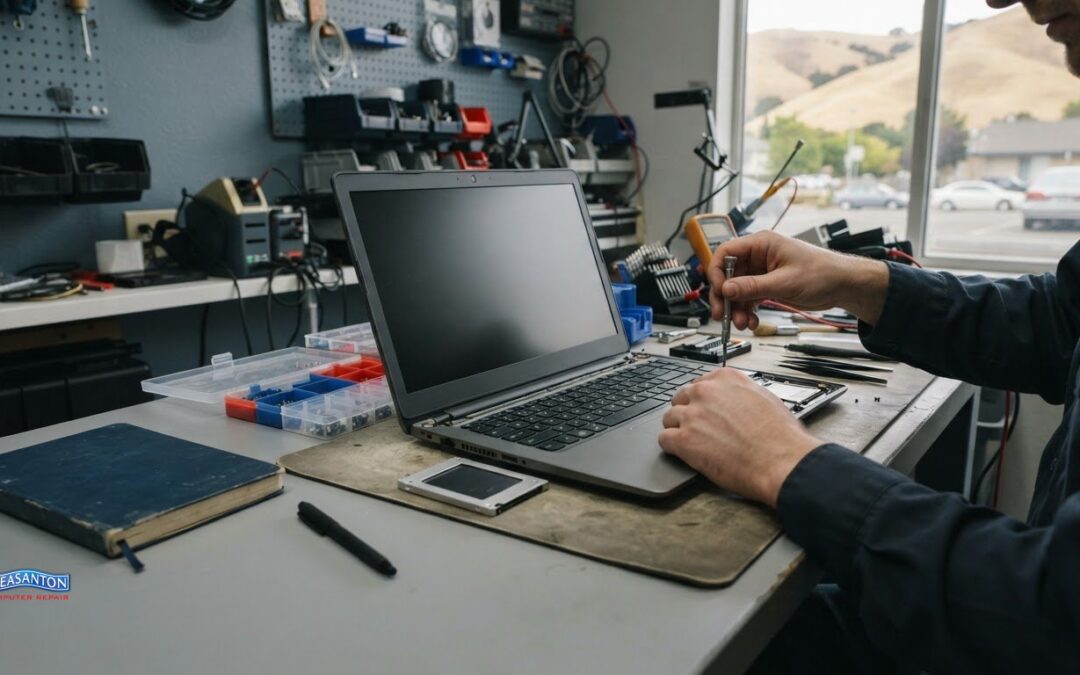
A dependable laptop doesn’t have to cost as much as a new one. Affordable refurbished laptops in San Ramon can suit school, work, home, and small-business needs, from everyday browsing and documents to multitasking. The right choice depends on the programs you use and the memory and storage your routine requires.
It’s reasonable to want a reliable device without stretching your budget. Refurbished laptops can offer that balance, but the processor, memory, storage, condition, and intended use all matter when comparing options.
This guide explains what to look for in refurbished laptops near San Ramon, how specifications suit common tasks, and what to consider before choosing a budget-friendly model. You’ll also learn when refurbished is a sensible fit and when another solution may better meet your needs.
Key Takeaways
- Match a laptop’s processor, memory, and storage to the school, work, or home tasks you actually do.
- Compare local refurbished models by their specifications and intended use, not just by the model name.
- Learn how laptop options differ from compact desktop computers when space and portability matter.
- Understand what to look for in refurbished and certified listings, and where repair support can help with other device problems.
Affordable refurbished laptops
Affordable refurbished laptops in San Ramon can handle school, work, and home tasks. Compare each model’s specifications, condition, and seller terms before choosing.
Refurbished Laptop Price Comparisons
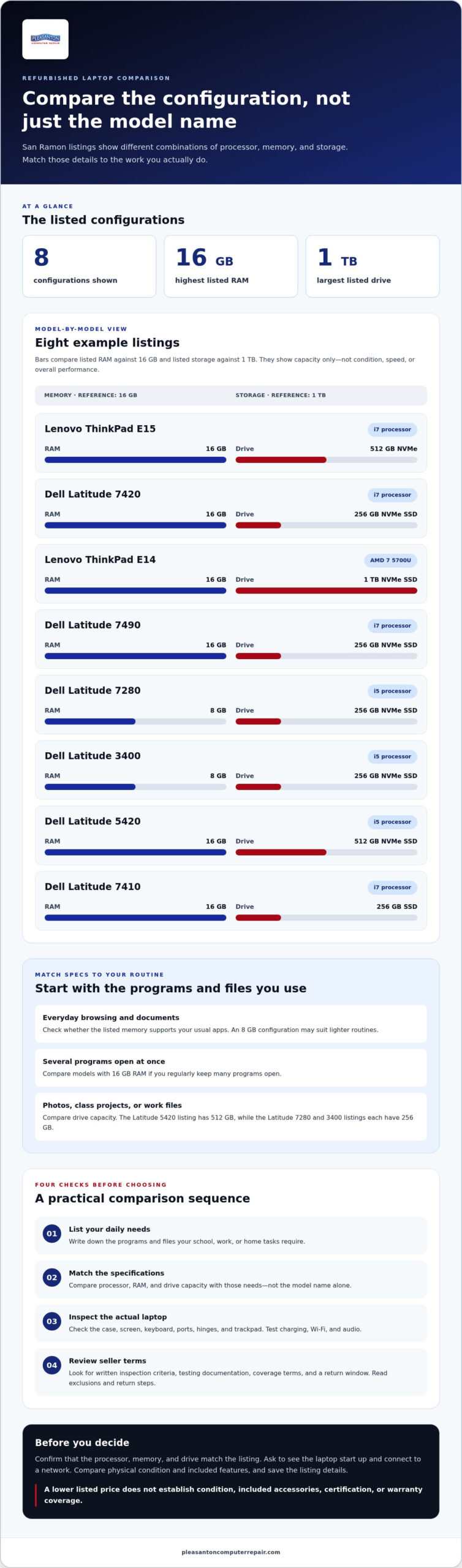
San Ramon listings include business-class models with distinct specifications. A Lenovo ThinkPad E15 is listed with an i7 processor, 16 GB RAM, and a 512 GB NVMe drive. A Dell Latitude 7420 has an i7 processor, 16 GB RAM, and a 256 GB NVMe SSD. Use those details to compare capability, rather than relying on model names alone.
Local Buying Options
Local listings may include refurbished Lenovo ThinkPad and Dell Latitude laptops. Certification and warranty terms vary by seller. For certified options, look for written inspection criteria, testing documentation, coverage terms, and a return window. Read the terms, including exclusions and return steps, before buying.
Before buying, inspect the case, screen, keyboard, ports, and hinges. Test Wi-Fi, audio, charging, and the trackpad. Confirm that the processor, memory, and drive match the listing. Ask to see the laptop start up and connect to a network. These checks can reveal issues a product description may miss.
Discount programs vary by seller. Student, senior, or low-income eligibility may require different documentation. Compare eligibility rules, qualifying models, and whether refurbished stock is included. A discount is worthwhile only if the laptop also meets your software and storage needs.
Available Brands and Models
San Ramon examples include Lenovo ThinkPad E15 and Dell Latitude 7420 laptops. Other listings include a Lenovo ThinkPad E14 with an AMD 7 5700U processor, 16 GB RAM, and a 1 TB NVMe SSD. Compare the processor and storage alongside memory, especially if you keep large files or run several programs.
Several Dell Latitude options cover different needs. A Latitude 7490 has an i7 processor, 16 GB RAM, and a 256 GB NVMe SSD. The Latitude 7280 and Latitude 3400 listings each include an i5 processor, 8 GB RAM, and a 256 GB NVMe SSD. The Latitude 5420 pairs an i5 processor with 16 GB RAM and a 512 GB NVMe SSD.
Choose a laptop for your workload. For document editing and browsing, check whether the listed memory supports your usual apps. For large project files, compare drive capacity. For school or commuting, assess the screen, keyboard, and portability in person. A familiar model name alone doesn’t establish condition, certification, or warranty coverage.
San Ramon listings include Dell Latitude models with different configurations. Compare processor, memory, and storage before choosing. The right budget laptop should suit your actual workload, not just your spending limit. The examples below show how configurations differ. Each listing is a market example, not a price from a seller discussed in this article.
- Dell Latitude 7490: i7 processor, 16 GB RAM, and 256 GB NVMe SSD.
- Dell Latitude 7280: i5 processor, 8 GB RAM, and 256 GB NVMe SSD.
- Dell Latitude 3400: i5 processor, 8 GB RAM, and 256 GB NVMe SSD.
- Dell Latitude 7410: i7 processor, 16 GB RAM, and 256 GB SSD.
- Dell Latitude 5420: i5 processor, 16 GB RAM, and 512 GB NVMe SSD.
These configurations suit different priorities. The Latitude 7490 and 7410 combine an i7 processor with 16 GB RAM. The Latitude 5420 offers an i5 processor, more memory than the 7280, and a larger drive. The 7280 and 3400 share listed memory and storage. Compare condition and included features to distinguish similar specifications.
For school documents, browsing, and video meetings, consider the apps you use together. An 8 GB configuration may suit lighter routines. If you keep many programs open, compare models with 16 GB RAM. For photos, class projects, or work files, check drive capacity. The 512 GB drive in the Latitude 5420 provides more listed storage than 256 GB models.
Before deciding, use this short comparison process:
- Write down the programs and files your daily tasks require.
- Match those needs against processor, RAM, and drive capacity.
- Compare the laptop’s physical condition and seller terms.
- Test the keyboard, screen, ports, charging, Wi-Fi, and audio.
Model numbers alone don’t establish condition or included support. A Latitude 7280 and Latitude 3400 share key listed specifications, but their physical condition can differ. Inspect both carefully. Read any return terms before paying, and save the listing details. For a student, check the keyboard and webcam. For office work, test the ports used by your accessories.
A budget ceiling narrows your search, but specifications determine how useful a laptop will be. Choose a model that can handle your workload, then assess its condition and the seller’s terms. This helps you avoid choosing by processor label or appearance alone.
These prices offer concrete comparisons between systems with different memory and processor combinations, keeping the focus on configuration rather than model name alone.
Laptop options for school, work, home, and small businesses
Start with your tasks, then compare laptops. A student writing essays has different priorities from a bookkeeper. Microsoft Word, Zoom, and QuickBooks are useful examples. List the programs and files you use before choosing.
Schoolwork often involves research tabs, documents, and video classes. If you use Google Docs, check keyboard comfort and screen condition. For Zoom classes, test the webcam, microphone, speakers, and Wi-Fi. If assignments involve large media files, compare storage carefully. The best fit is a laptop that handles your school routine.
For office work, consider your daily applications and accessories. Someone using Microsoft Excel may keep spreadsheets open alongside email. Compare the laptop’s memory and processor with that workload. Then inspect ports for a monitor, mouse, or external drive. Test each port with an accessory rather than relying on appearance.
Home use may include browsing, banking, streaming, and family documents. Make a short list of those tasks. If a household shares one laptop, consider separate user accounts and storage needs. Check the screen, keyboard, charging connection, and audio. For online banking, confirm that the laptop starts normally and reaches the intended sign-in page.
Small businesses should match each role to its daily tasks. A receptionist may use email and scheduling tools; a bookkeeper may need spreadsheets and accounting software. A mobile worker may prioritize manageable size and reliable charging. Compare each role’s applications with the laptop’s listed processor, RAM, and storage.
- For students: Test the keyboard, webcam, and video-call audio.
- For office staff: Match memory and ports to applications and accessories.
- For home users: Check shared-use needs, storage, and screen comfort.
- For small teams: Match each laptop to one employee’s tasks.
Finally, make sure the operating system works with your required software. Check whether your school portal, workplace tools, or printer supports it. Keep your task list beside the model details. This simple comparison helps you avoid paying for features you won’t use or choosing a machine that struggles with essential work.
Where can I buy affordable refurbished laptops near San Ramon, CA?
Start by comparing refurbished laptop listings serving San Ramon. Review the seller’s location, device details, and purchase terms. A local listing may let you assess the laptop in person, but treat it as a starting point, not a substitute for testing. Record the model and configuration before arranging a viewing so you can compare the actual device with its description.
Some listings name a specific model, such as a Dell Latitude or Lenovo ThinkPad; others give specifications without clear condition details. Look for the processor, RAM, storage type, and drive capacity. Compare them with your intended use, such as school documents or office spreadsheets. If the listing gives an exact configuration, check it against the device’s system information during inspection.
Use a straightforward local buying process. First, shortlist models suited to your work. Then compare their descriptions and seller terms in writing, and arrange a hands-on inspection when available. Test the keyboard, screen, charging connection, Wi-Fi, speakers, and ports. Open a browser and type a short sentence. These checks can reveal practical problems before purchase.
- Check the listing: Match the model and specifications to the laptop itself.
- Inspect the screen: Open a document and check for visible display issues.
- Test connections: Try Wi-Fi, charging, audio, and available ports.
- Read purchase terms: Review return instructions and written coverage details.
Read certification and warranty terms carefully. “Refurbished” describes a device category, while certification and coverage depend on the seller’s written terms. Find out what testing was performed and what the warranty covers. Note its duration, exclusions, and claim process, along with the return window and return conditions. Keep a copy of the listing and receipt with these terms.
For a student near San Ramon, test the webcam and microphone with a video-call application. For a home office, connect the monitor and other equipment you plan to use. A small-business buyer can compare each laptop with the employee’s software and accessories. Bring that list to the inspection. A laptop you can start and connect is easier to assess than one shown only in photos.
Before paying, compare the device description, physical condition, and written terms. Confirm that the model, processor, memory, and storage match the listing. Check for damage around the screen hinges, keyboard, and charging port. Save the seller’s description and purchase record. This gives you a reference if the device you receive differs from the one you inspected.
Which San Ramon stores sell certified refurbished laptops with warranties?
Choose a San Ramon seller that provides certification and warranty terms in writing. Certification is seller-specific, so the label alone doesn’t explain what testing was done. Look for details about the inspection, repairs, and checks performed. The warranty should identify the covered device, coverage period, exclusions, and claim process. Clear terms make offers easier to compare.
For example, a listing might say “certified refurbished” without explaining the tests. The label alone doesn’t tell you whether the keyboard, screen, charging port, or storage was examined. Look for a written checklist or clear description of the seller’s process. Compare it with the laptop’s condition and specifications before deciding.
A warranty is useful when its terms are clear. Check whether it covers hardware, labor, or both, which faults are excluded, and how to start a claim. Note whether you need to keep the receipt or contact the seller directly. After purchase, save the listing and warranty document together.
- Certification: Find the seller’s stated inspection and testing process.
- Coverage: Read the warranty period, exclusions, and claim steps.
- Returns: Review the return window and required device condition.
- Records: Keep the listing, receipt, and written terms.
Distinguish return policies from warranty coverage. A return policy explains whether and how you can return a purchase; a warranty addresses problems covered under its written terms. Read both before paying. For example, check whether a return requires original packaging or proof of purchase. Don’t assume one policy replaces the other.
At a local store, compare the written device description with the laptop itself. Confirm its model and configuration, then inspect the screen, case, hinges, keyboard, and ports. Start the computer and test Wi-Fi, sound, and charging. These hands-on checks complement certification details and may reveal physical wear that a warranty doesn’t cover.
Ask for certification and warranty documents before checkout. Read the named coverage provider’s terms and claim instructions. If any wording is unclear, request a plain-language explanation before buying and keep it with your records. A clear store policy helps you compare testing, coverage, returns, and the exact laptop being sold.
Use the written details to compare San Ramon store offers side by side. Prioritize a seller whose testing process, warranty limits, and return steps are easy to understand. Then match the laptop’s condition and specifications to your needs. A certification label is most useful when it points to specific checks and clear coverage terms.
These listings provide models and configurations to compare. Confirm certification and warranty terms with the seller in writing.
Pleasanton Computer Repair: iPhone and iPad Repairs
Pleasanton Computer Repair provides iPhone and iPad repairs, as well as PC and Mac screen replacement, virus removal, and data recovery. These services can help when a cracked display, suspicious software, or inaccessible files disrupt everyday work. They’re separate from choosing a refurbished laptop, but may solve other device problems affecting school, work, or home routines.
If a damaged screen, virus concern, or lost files are disrupting your routine, contact Pleasanton Computer Repair to discuss the relevant service.
Choose a setup that supports what comes next
Choose a laptop for the work ahead, not just today’s budget. Before buying, list the programs you rely on, the files you keep, and where you use your device. This can help you compare available models and avoid paying for unused features. For affordable refurbished laptops in San Ramon, base your decision on everyday tasks and the condition and written terms of the specific device.
If another device problem is interrupting your routine, Pleasanton Computer Repair provides iPhone and iPad repairs, PC and Mac screen replacement, and virus removal. Contact the team to discuss the issue and support you need.
Contact Pleasanton Computer Repair to take the next step. With a clear idea of your needs, you can move forward with confidence and choose technology that works for your day.
Frequently Asked Questions
Need a reliable laptop without the new-laptop price?
A refurbished laptop can be a practical choice when its condition and specifications suit your needs. When comparing affordable refurbished laptops in San Ramon, assess the specific device, not just its model name. Check that it can run your required software and handle your daily workload. Before deciding, review the seller’s written terms and test the functions you rely on, such as charging, keyboard input, and connecting to your home network.
Good candidates in local listings include Dell Latitude models with different processor, memory, and storage configurations. For example, the Latitude 5420 listing has an i5 processor, 16 GB RAM, and a 512 GB NVMe SSD. The Latitude 7490 listing pairs an i7 processor with 16 GB RAM and a 256 GB NVMe SSD. Choose between them based on your software, multitasking, and file-storage needs.
