
What if another cleanup app is the wrong first move? When everyday tasks start dragging, it’s natural to look for a quick fix, but the slowdown may come from full storage, a demanding app, or aging hardware. If you’re trying to speed up slow macbook performance, start by finding the cause, not by installing more software.
You can take sensible steps without putting your files at risk. This guide walks you through a safe troubleshooting order, from checking available storage and Activity Monitor to reviewing startup items and macOS updates. You’ll learn what to try first, what to avoid, and how to tell whether software is likely behind the lag.
If those steps don’t restore a smoother everyday experience, a hardware issue or upgrade may be worth considering. We’ll explain when a professional diagnosis can help and why an SSD upgrade may suit some older, compatible MacBooks, while newer models may not support internal upgrades. By the end, you’ll have a clearer next step, without guessing or rushing into a cleanup that could disrupt your Mac.
Key Takeaways
- Startup delays, app lag, and beachballs are clues, but no single symptom reveals the cause on its own.
- Use Activity Monitor to spot resource-heavy apps, then consider whether background activity or browser tabs are affecting responsiveness.
- Follow the safe, reversible checks in this guide in order, and note which changes help speed up slow macbook performance.
- Compare temporary software issues with persistent system-wide slowness before deciding whether repair or an SSD upgrade is worth exploring.
- If freezes or unusual behavior continue, a professional diagnosis can help clarify the next step. Pleasanton Computer Repair has served the East Bay as an independent business since 2002.
How to Tell What Is Making Your MacBook Slow
A MacBook that takes ages to start, pauses before opening apps, shows frequent beachballs, or lags during simple tasks can make routine work frustrating. But a symptom is a clue, not a diagnosis. Software, limited storage, heat, and hardware problems can all affect performance. One slow app doesn’t necessarily mean the whole Mac is struggling.
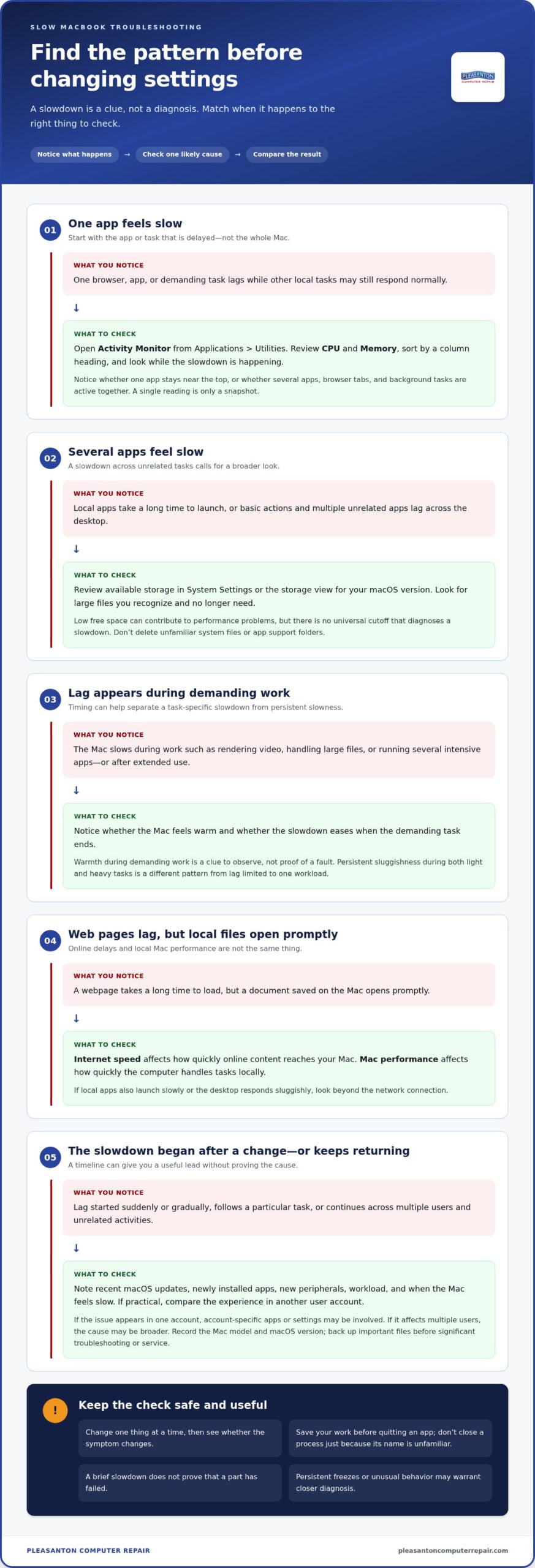
Start by noticing where the delay occurs. If a webpage takes a long time to load but a document saved on your Mac opens promptly, the issue may be your internet connection or the website. If local apps also take a long time to launch, or the Mac responds slowly across the desktop, look beyond the network. Keep this distinction in mind: Internet speed affects how quickly online content reaches your Mac; Mac performance affects how quickly the computer handles tasks locally. It can help you speed up slow macbook performance without chasing the wrong problem.
Use a simple process: notice what happens, change one thing at a time, then see whether the symptom changes. That’s the basic idea behind this general troubleshooting guide. Avoid treating a brief slowdown as proof that a part has failed. A demanding task, temporary background activity, or a warm Mac may cause short-lived lag. Persistent delays across unrelated tasks deserve closer attention.
Which MacBook symptoms point to a broader slowdown?
Compare startup with everyday use. A slow startup followed by normal performance may point to a different pattern than a Mac that remains sluggish after you reach the desktop. If only one browser or app is delayed, focus on it first. If several unrelated apps and basic system actions lag, the slowdown is broader.
Think about timing, too. Did the problem begin suddenly after a change, or build gradually? Does it appear during a particular task, such as video calls or handling large files, or after the Mac has been in use for a while? A slowdown after extended use makes heat or sustained workload worth investigating. Write down what you notice rather than relying on memory.
What to check before changing settings
Before troubleshooting, record the MacBook model, macOS version, and approximate age if you know it. On most Macs, you can find model and system details through the Apple menu and About This Mac. Menu wording can vary by macOS version. These details help put symptoms in context, especially if hardware service or an upgrade becomes a possibility.
If practical, compare the experience in another user account. When the issue appears in only one account, account-specific apps or settings may be involved. If it affects multiple users, the cause may be broader. This comparison won’t identify the fault on its own, but it can help narrow the next check.
Make sure important files are backed up before significant troubleshooting or hardware service. Start with observation and low-risk checks. You don’t need to erase files or make major changes just to begin finding the cause.
Diagnose the Cause: Apps, Storage, Heat, or Hardware
Once you’ve noticed when the slowdown happens, look for patterns before changing settings. The same slow symptom can have different causes: a delayed app may be using heavy resources, competing with background activity, or waiting on a system or hardware issue. One glance at a meter or one moment of lag won’t settle the question. Check what’s happening when the Mac feels slow, then compare it with normal use.
Use Activity Monitor to spot resource-heavy apps
Open Activity Monitor from Applications > Utilities, then review the CPU and Memory tabs. CPU shows which processes are using processing capacity; Memory shows what’s occupying working memory. Sort by a column heading to bring higher-use items into view, and check the list while the slowdown is happening. One reading is only a snapshot, so look for a pattern that matches the delay.
Notice whether one app stays near the top, or whether several open apps, browser tabs, and background tasks are active together. A video editor exporting a project or a browser handling many tabs may use more resources during that work. Save your work before quitting an app, and don’t close a process just because its name is unfamiliar. Some processes belong to macOS or other software the Mac needs.
Check storage, temperature, and recent changes
Review the Mac’s available storage in System Settings, or use the storage view available in your macOS version. Low free space can contribute to performance problems, but there isn’t one universal cutoff that diagnoses a slowdown. Look for large files you recognize and no longer need before removing anything. Don’t delete unfamiliar system files or app support folders as a quick fix.
Think about what changed around the time the lag began: a macOS update, newly installed app, new peripheral, or different workload. A change can offer a useful lead, but timing alone doesn’t prove it caused the problem. For background on the operating system and its built-in features, Apple’s overview can add context as you consider optimizing macOS performance.
Heat is another clue to observe, not proof of a fault. A Mac may feel warm during demanding work, such as rendering video or running several intensive apps. Note whether the slowdown appears during that workload or after extended use, and whether it eases when the task ends. Persistent sluggishness across light and heavy tasks points to a different pattern than lag limited to one demanding activity.
Write down what you find: active apps, storage situation, recent changes, and when the Mac feels warm or slow. That record helps you choose a measured next move instead of guessing. If the results remain unclear or the problem persists, a professional Mac diagnosis can help narrow down whether software, storage, or hardware needs attention.
Try These Safe Steps to Speed Up a Slow MacBook
Work through these checks in order, changing one thing at a time. That makes it easier to see what helped and avoids turning a manageable slowdown into a bigger troubleshooting puzzle. Before you begin, note the task that was slow so you can retest it consistently.
- Save your work, then restart. Save open work, then restart your Mac. A restart closes active sessions and gives you a clean starting point without deleting files. Once the Mac is back on, retry the same task. If it feels more responsive, temporary activity may have played a part. If not, continue.
- Close apps and tabs you aren’t using. Save any changes, then quit unused apps and close extra browser tabs. Reopen only what you need and try the original task again. If the Mac responds better, competing activity may have contributed to the lag. This is a temporary test, not a reason to permanently give up apps you use.
- Review apps that open at login. On recent macOS versions, look in System Settings > General > Login Items & Extensions. The menu name and location may differ on older versions. Disable only apps you recognize and don’t need to launch automatically. This tests whether startup activity is slowing sign-in or adding background work. Leave unfamiliar items alone.
- Check for macOS and app updates. On recent versions of macOS, open the Apple menu, choose System Settings, then select General > Software Update. Older versions may use System Preferences or different wording. Update individual apps through their usual update method or the App Store, as applicable. Updates can address software issues, but won’t necessarily resolve every slowdown.
- Back up before larger changes. Keep important files backed up before a major macOS update or extensive troubleshooting. After each change, retest the same task and note the result before moving on. For another perspective on common fixes, see this guide to diagnosing and fixing a slow MacBook.
Keep troubleshooting low risk
Don’t delete unfamiliar system files, app support folders, or items just because they take up space. Avoid installing untrusted “cleanup” utilities that promise to fix everything; they can introduce new problems or make it harder to identify the cause. Use the Mac’s built-in settings and tools first. If you can’t tell what an item does, leave it in place and focus on changes you can safely reverse.
These steps can help you speed up slow macbook performance when the cause is a temporary workload or an adjustable setting. If the Mac remains sluggish, freezes, or behaves unusually after careful checks, stop before making deeper changes. A professional Mac repair diagnosis can help clarify whether the next step involves software or hardware.
Software Fix, SSD Upgrade, or Repair: Which Path Fits?
The right next step depends on the pattern, not just how slow the Mac feels. A problem limited to one app may call for a software check, while sluggishness across the system that persists through restarts may deserve a hardware assessment. Use this comparison to narrow the options, not as a diagnosis on its own.
| Symptom pattern | Reasonable next step | Caution |
|---|---|---|
| One app or browser is slow, but other tasks feel normal | Review that app’s settings, workload, and updates | Don’t assume the whole Mac needs an upgrade |
| Slowness began after a setting or software change | Retest after a restart and review the recent change | Change one thing at a time |
| Several apps and system tasks remain slow | Arrange a model-specific hardware assessment | Persistent lag doesn’t prove the SSD is the cause |
| Storage is limited and the Mac is older | Explore storage options for that exact model | Internal SSD upgrades aren’t available for every MacBook |
When software troubleshooting may be enough
If only one browser, app, or recently changed setting seems involved, begin there. Quit and reopen the app, check its update options, and compare performance after a restart. If the slowdown disappears and stays away during your usual tasks, a hardware upgrade may not be the next step. A cleanup app or factory reset isn’t an automatic fix, and major changes can create extra work or put data at risk.
Keep a simple record of what you changed and whether the original task improved. If the issue returns only when a particular app or workflow is active, that pattern can focus further troubleshooting. If the whole Mac remains slow regardless of the app, consider a broader assessment rather than repeating the same app-level fixes.
When an SSD assessment or repair makes sense
Persistent sluggishness, recurring freezes, or other unusual behavior across multiple tasks may justify a professional diagnosis. An SSD upgrade can be relevant for some older Macs, but compatibility depends on the exact model and configuration. Some MacBooks have storage that isn’t designed for a post-purchase internal upgrade, so don’t order parts or assume an upgrade is possible based only on age or appearance.
For a closer look at model-specific storage options, see this SSD upgrade guide for Pleasanton. If symptoms point beyond storage, the Mac repair guide in Pleasanton outlines broader repair considerations. A diagnosis can help you choose a sensible next step instead of guessing. If you’re ready to explore that option, schedule a MacBook assessment with Pleasanton Computer Repair.
If your goal is to speed up slow macbook performance, match the next step to what you’ve observed: app-specific problems suggest software checks; persistent system-wide symptoms call for a closer look at the hardware. That distinction keeps troubleshooting focused and can help you avoid upgrades or resets that may not address the cause.
Get Help With a Slow MacBook in Pleasanton and the East Bay
If the slowdown continues after careful troubleshooting, freezes keep returning, or the Mac shows unusual behavior, a professional diagnosis can help narrow down what’s happening. This is especially useful when several apps and system tasks are affected, or when you’re unsure whether symptoms point to storage, another hardware issue, or software. You don’t need to know the cause before asking for help. A clear description of what you’re seeing is a good place to start.
Pleasanton Computer Repair is an independent local provider founded in 2002, serving residential and business customers in Pleasanton and across the East Bay. Support options include in-store, on-site, and remote assistance. A record of the symptoms can make the first conversation more useful and help focus the assessment.
What to prepare before requesting MacBook support
A few notes can help explain the problem clearly and save you from having to remember every detail on the spot. Gather what you can before arranging support:
- The MacBook model and macOS version, plus its approximate age if known.
- When the slowdown first appeared and whether it began suddenly or gradually.
- The steps you’ve already tried, with a note about whether each one changed the symptoms.
- Examples of what feels slow, such as startup, several apps, or a recurring freeze.
- Important files backed up when possible, along with relevant device or account details.
Don’t send or share account passwords in your notes. Describe the issue first and keep sensitive details private until they’re needed for a specific reason.
Choose a practical local next step
For local support, Pleasanton Computer Repair is at 915 Main Street Suite A, Pleasanton, CA 94566. You can arrange support online or visit the Pleasanton location. In-store service is practical when the Mac itself needs examination; on-site or remote support may suit other situations. The goal is to identify a sensible next step, not assume a repair or upgrade before the cause is understood.
If you’re trying to speed up slow macbook performance and the problem persists, professional diagnosis can help distinguish a software issue from a hardware concern. An SSD upgrade may be relevant for some MacBooks, but compatibility depends on the particular model and configuration. An assessment can clarify the options without promising a specific outcome in advance.
Bring your notes and a backed-up Mac if you’re able. Pleasanton Computer Repair works with home users and businesses across the East Bay, with in-store, on-site, and remote support options. If you’re in Pleasanton, Livermore, Dublin, San Ramon, Danville, Brentwood, Walnut Creek, or San Jose and the slowdown is disrupting your day, arrange support online or visit the Pleasanton service location.
Choose Your Next Step With Confidence
A slow MacBook doesn’t have to mean replacing the computer or making risky changes. Let the pattern guide you: if the lag is tied to one app, keep troubleshooting there; if it continues across everyday tasks, get a clearer picture before deciding what to do next. A measured approach can help you speed up slow macbook performance without guessing or disrupting files you rely on.
If the cause still isn’t clear, Pleasanton Computer Repair can assess a slow MacBook and discuss whether repair or an SSD upgrade may be appropriate for its model. Schedule MacBook support with Pleasanton Computer Repair to take the next step toward a smoother everyday experience.
Frequently Asked Questions
Can I speed up my MacBook without deleting my files?
Yes, you can try several low-risk changes without removing personal files. Quit apps you aren’t using, restart the Mac, and check whether a browser extension or a single app is causing trouble. To speed up slow macbook performance, make one adjustment at a time and test the task that felt sluggish. Before deeper troubleshooting, make sure important files are backed up. Avoid deleting unfamiliar folders or system files to free space.
Why is my MacBook slow after a macOS update?
A Mac may feel slower for a while after an update if background tasks are still running, such as organizing files or syncing content. Check whether the lag eases after the Mac has been idle and connected to power for a while. If one app is the main problem, check whether that app also has an update. Persistent slowdown, repeated freezes, or unusual behavior deserves a closer look rather than another update or reset by guesswork.
Can a full iCloud account make my MacBook run slowly?
A full iCloud account is more likely to interrupt syncing or prevent new content from uploading than to directly slow the Mac’s processor. Check whether files or photos are waiting to sync, and review iCloud storage separately from the Mac’s built-in storage. These are different limits. If the Mac’s own disk is nearly full, local tasks may be affected. Deleting iCloud content can also remove it from synced devices, so check what’s stored before removing anything.
Does restarting a MacBook actually make it faster?
Sometimes. Restarting closes active sessions and can clear a temporary problem, such as an app that has stopped responding or background activity that hasn’t settled. It won’t fix a persistent hardware issue or create more storage space. After restarting, try the same task that was slow and note whether the improvement lasts. If the lag returns as soon as a particular app opens, that app or its workload may be a better place to investigate.
Can an old MacBook be made faster with an SSD upgrade?
Possibly, if the MacBook’s exact model and configuration support an internal SSD upgrade. Compatibility varies, so don’t buy a drive based only on the computer’s age or a general model description. An assessment can clarify whether an internal upgrade is an option or whether another solution makes more sense. A new SSD may address a storage-related bottleneck, but it can’t guarantee that every cause of sluggishness will be resolved.
How can I tell whether my MacBook needs repair or just software troubleshooting?
If the issue is limited to one app and changes when you adjust that app or your workflow, software troubleshooting is a reasonable first step. Slowness across unrelated tasks, recurring freezes, or symptoms that continue after basic checks may warrant a professional assessment. If you’re in Pleasanton, Livermore, Dublin, San Ramon, Danville, Brentwood, Walnut Creek, or San Jose, Pleasanton Computer Repair provides local Mac repair support to help investigate whether hardware is involved.
Is it safe to use Mac cleaner apps to speed up a slow MacBook?
Some cleanup utilities may remove files or change settings, but installing one isn’t a reliable first response to a slowdown. Be cautious with apps that promise a complete fix or request broad access to your files. Start with macOS’s built-in storage and activity tools, and remove only files you recognize and no longer need. If a utility recommends deleting system components or unfamiliar support folders, don’t proceed until you understand what those items do.