

A black-screen iPad may not be dead. A drained battery, frozen software, damaged charging port, display fault, or failing internal component can all leave it unresponsive. If you’re searching for “fix dead iPad Dublin CA” help, you may also be worried about your photos, files, and everyday access. Repeating the same charging or restart attempts won’t identify the cause, so start with a few safe checks and note how the device responds.
This guide walks you through checking the power source, cable, port, and basic device response. It also explains when to stop troubleshooting and what a technician may examine to narrow down the problem. If the iPad remains unresponsive, Pleasanton Computer Repair provides iPad repair for Dublin customers from its Pleasanton location.
Key Takeaways
- A blank screen doesn’t always mean an iPad is completely unresponsive. Check for charging signs, sounds, or computer recognition.
- Follow a safe troubleshooting sequence. Stop if the iPad is hot, swollen, wet, or physically damaged.
- A faulty accessory, battery issue, damaged port, display fault, or internal problem can cause similar symptoms. One sign alone may not identify the fault.
- A technician can test the device’s charging response, display behavior, and startup symptoms before recommending a repair.
- Pleasanton Computer Repair serves Dublin customers at 400 Main Street, Suite 205, Pleasanton.
Dead iPad in Dublin, CA? Start by Identifying What “Dead” Means
A “dead” iPad won’t start or respond as expected, but that description doesn’t identify the cause. A drained battery, software freeze, charging problem, display fault, or internal damage can produce similar symptoms. Before trying to fix dead iPad Dublin CA, note exactly what happens. A blank screen is different from an iPad that briefly shows a charging icon, makes a sound, or is recognized by a computer.
One symptom can’t confirm that the battery has failed. The iPad might be running while its display stays blank, making a screen problem look like a power failure. A repeatedly appearing Apple logo is also different from a device with no display activity. Treat these signs as clues, not a diagnosis.
What does a dead iPad look or sound like?
Notice whether the screen stays blank, shows the Apple logo in a loop, or briefly displays a charging symbol before going dark. Listen for sounds, check for vibration, and observe whether the iPad responds to button presses. Note whether it feels warm and whether a computer recognizes it when connected. These details can help distinguish a display problem from an iPad that isn’t responding.
Which details should Dublin iPad owners note first?
Write down the iPad model if you know it. If you’re unsure, the iPad overview provides general background on the device and its models. Also note when the problem began and whether the iPad was recently dropped or exposed to liquid. These details help explain what happened when you troubleshoot or bring the device in for assessment.
Keep track of the charging cable, adapter, and outlet you’ve tried, along with any changes in the iPad’s behavior. This avoids repeating checks and gives the technician a clearer starting point. Before attempting a reset or arranging a repair, consider whether important photos or files may not be synced or backed up. A reset or repair can’t be assumed to preserve data, so explain your concerns before proceeding.
Careful observations make troubleshooting more useful and help a technician focus on the symptoms instead of guessing at a failed component.
How to Troubleshoot a Dead iPad Safely Before Seeking Repair
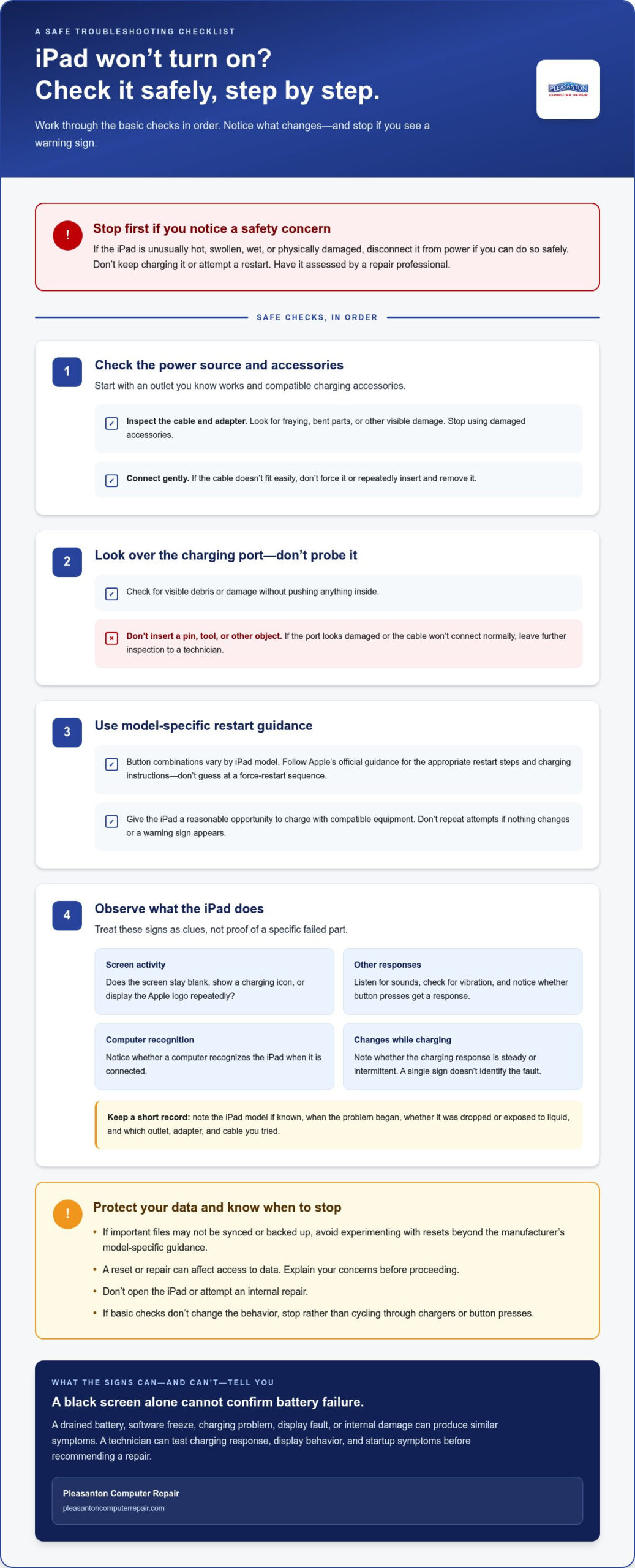
Work through these checks in order, and stop if you spot a safety concern. If the iPad is unusually hot, swollen, wet, or physically damaged, disconnect it from power if you can do so safely. Don’t keep charging it or attempt a restart. Have it assessed by a repair professional instead.
Check the outlet, adapter, cable, and charging port
Start with the power source. Try an outlet you know works and compatible charging accessories. Inspect the cable and adapter for fraying, bent parts, or other visible damage. Stop using damaged accessories. Connect the cable gently. If it doesn’t fit easily, don’t force it or repeatedly insert and remove it.
Look into the charging port for visible debris or damage, but don’t push a pin, tool, or other object inside. If the port looks damaged or the cable won’t connect normally, leave further inspection to a technician.
Try a model-appropriate restart and observe the result
Button combinations vary by iPad model, so don’t guess at a force-restart sequence. Follow Apple’s official guide to fixing a dead iPad for the appropriate steps and charging guidance. Give the iPad a reasonable opportunity to charge with compatible equipment, but don’t repeat attempts if nothing changes or a warning sign appears.
As you troubleshoot, note what happens. Does an Apple logo appear, even briefly? Do you see a charging icon, hear a sound, feel vibration, or see the iPad recognized by a computer? Does it repeatedly restart? These observations may help narrow down the symptom, but they don’t prove which component is at fault.
Keep your data in mind. If important files may not be synced or backed up, avoid experimenting with resets beyond the manufacturer’s model-specific guidance. Don’t open the iPad or attempt an internal repair. A reset or repair can affect access to data, so mention unsynced files before proceeding.
If basic checks don’t change the behavior, stop troubleshooting rather than cycling through chargers or button presses. Pleasanton Computer Repair provides iPad repair for Dublin customers from its Pleasanton shop. You can explore local iPad repair help as your next step.
What Can Cause an iPad to Stop Turning On?
A no-power symptom can have several explanations, and clues aren’t proof. A damaged cable may prevent charging, while a screen fault can hide signs that the iPad is still running. Battery condition, charging-port damage, software trouble, and internal hardware faults can also overlap. A technician tests the device before recommending a repair instead of concluding that one component has failed based on a black screen alone.
A black screen alone cannot confirm battery failure. The iPad may be powered on while its display or charging connection has a problem.
| What you observe | Possible areas for technician testing |
|---|---|
| No response with one charger | Adapter, cable, outlet, charging port, or battery |
| Charging works intermittently | Charging connection, port condition, cable, or adapter |
| Sounds or computer recognition, but no image | Display behavior or related internal connections |
| Apple logo appears repeatedly | Startup software or hardware behavior |
| No response after a drop or liquid exposure | Possible internal damage, even if the outside looks intact |
Charging, battery, and port issues
A faulty adapter or damaged cable may fail to deliver power, while debris or damage in the port can interrupt the connection. An aging or faulty battery is another possibility. If charging comes and goes when the cable moves, the connection may be unstable, but that doesn’t show whether the cable, adapter, port, or another part is responsible. A technician can examine the charging response and connection before recommending a repair.
Display, software, or internal hardware faults
An iPad may start up without showing an image if the display or its connection has a fault. A repeated Apple logo can reflect a startup problem involving software or hardware; the symptom alone doesn’t distinguish between them. A drop or liquid exposure can also contribute to internal damage, which may not be visible on the outside.
These are possibilities, not a remote diagnosis. If you’re looking to fix dead iPad Dublin CA issues, share what the device does and whether it was dropped or exposed to liquid. Those details can help a technician decide what to test first. The next step is a symptom-led diagnosis, not an assumption that the battery is the cause.
What Happens During a Professional Dead-iPad Diagnosis?
A professional diagnosis starts with the symptom, not a guess about which part needs replacing. The technician works to reproduce what you’ve observed, then narrows down possible causes by checking the iPad’s power response, charging connections, display behavior, and startup symptoms. An iPad that shows no image but is detected by a computer, for example, may need different testing from one that doesn’t respond to charging.
How technicians narrow down a no-power problem
Diagnosis is the process of testing an iPad to identify the likely source of a problem before repair begins. Checks depend on the device’s behavior and the information you provide. The technician may look for a charging response, an unstable connection, screen activity, or a repeated startup pattern. The findings guide the next repair step. One symptom alone doesn’t establish that the battery, port, display, or another component has failed.
Share what you’ve already tried, including any changes to the outlet, adapter, or cable and whether a restart produced a different result. Mention if the iPad was dropped or exposed to liquid, even if you don’t see exterior damage. This context helps the technician interpret the symptoms and focus the assessment.
How to prepare your iPad for a repair visit
Bring the iPad and any charging accessories related to the issue. If you know the model, note it, along with when the problem began and whether the device’s behavior has changed over time. A short record of troubleshooting attempts helps avoid repeating steps that didn’t work.
Before service, explain whether the iPad contains important files that may not be synced or backed up. Be clear about your data priorities as the diagnosis and next steps are discussed. No repair process should be assumed to preserve data, so raise this concern early.
Pleasanton Computer Repair provides iPad repair for Dublin owners at its Pleasanton shop. You can also read about computer repair in Pleasanton for local service context. To take the next step, schedule iPad repair online.
Get a Dead iPad Repaired Near Dublin, CA
If your iPad still won’t respond after safe troubleshooting, Pleasanton Computer Repair serves Dublin customers from its Pleasanton shop. Bring in the device, explain what you’ve observed, and let the diagnosis guide the repair path.
The shop is at 400 Main Street, Suite 205, Pleasanton, California. You can schedule online or visit the location. If you’re looking for help to fix dead iPad Dublin CA problems, prepare a few details about the issue and your priorities before you come in.
What Dublin customers can bring to Pleasanton Computer Repair
Bring the iPad and, if convenient, the charger and cable you’ve been using. Accessories can provide useful context when the issue seems connected to charging. Don’t keep using equipment that’s visibly damaged or force a connector into the port.
Be ready to explain when the iPad last worked normally and what happened afterward. For example, note whether it stopped responding suddenly, began restarting, or showed a charging symbol only briefly. Share which troubleshooting steps you tried and whether the device was dropped or exposed to liquid. These observations help explain the symptoms without treating them as a certain diagnosis.
If you depend on the iPad for work, communication, or daily tasks, mention any urgent access needs. Tell the team about important photos or files that may not be synced or backed up before diagnosis begins. Data access can’t be assumed during repair, so make your concerns clear when discussing next steps.
How to take the next step
Schedule online or bring the iPad to the Pleasanton location. Diagnosis helps identify the likely source of the problem and determine what repair makes sense. The symptom alone doesn’t establish which part needs attention, so assess the device before settling on a repair approach.
You don’t have to figure out the cause on your own. Describe what the iPad is doing and share what you’ve already tried. Schedule iPad repair with Pleasanton Computer Repair.
Take the Next Step Toward a Working iPad
A black screen doesn’t automatically mean the battery has failed. Check compatible power accessories carefully, note how the iPad responds, and stop troubleshooting if it’s unusually hot, swollen, wet, or damaged. If it remains unresponsive, a professional diagnosis can help narrow down the cause before a repair is recommended.
Pleasanton Computer Repair provides iPad repair and data recovery services at its Pleasanton shop, located at 400 Main Street, Suite 205, Pleasanton, California. The team serves East Bay customers in Dublin, Pleasanton, Livermore, San Ramon, Danville, Brentwood, Walnut Creek, and San Jose. If important files may not be backed up, raise your data concerns before service begins.
You don’t have to guess what’s wrong or keep repeating steps that aren’t helping. Schedule iPad repair with Pleasanton Computer Repair and take a practical step toward getting your device assessed.
Frequently Asked Questions
Why will my iPad not turn on even after charging?
Several issues can prevent an iPad from turning on, including a faulty cable or adapter, a damaged charging port, a depleted or failing battery, a display problem, or another hardware or software fault. Try compatible, working charging accessories and observe whether an icon, sound, or other response appears. If the iPad remains unresponsive, don’t open it or keep guessing at the cause. Arrange a professional diagnosis to identify the likely fault.
How do I force restart an iPad that has a black screen?
The force-restart button sequence depends on the iPad model, so avoid relying on a generic combination. Identify your model and follow Apple’s instructions for that specific device. If it still doesn’t respond after a model-appropriate restart and a check with working charging equipment, it may need professional diagnosis. Note any change, such as a brief Apple logo or charging icon, to help explain what happened.
Can a dead iPad be repaired without losing data?
Whether your data remains accessible depends on the underlying fault and the iPad’s condition. A power or display issue doesn’t automatically mean your files are lost, but no repair can guarantee continued access to local data. Before service, tell the repair team which photos or files matter and whether they’re backed up or synced. If preserving local data is a priority, avoid unnecessary resets and explain your concern before repair steps begin.
How can I tell if my iPad battery or charging port is broken?
Intermittent charging, no charging indicator, or a response only when the cable is positioned a certain way can offer clues, but none proves that the battery or port has failed. First try compatible, working accessories. If the port looks damaged, stop rather than pushing or adjusting the connector. A technician can assess the charging response and connection, then narrow down whether the issue may involve the cable, adapter, port, battery, or another fault.
Should I keep charging an iPad that will not turn on?
Stop charging the iPad if it becomes unusually hot, appears swollen, has been exposed to liquid, or shows physical damage. Otherwise, try compatible, undamaged charging equipment and monitor for a response. If there’s still no sign of power, repeated charging attempts won’t identify the cause. Avoid opening the device or forcing the connector. Arrange a diagnosis if the iPad remains unresponsive after basic, safe checks.
Where can I get a dead iPad fixed near Dublin, CA?
Pleasanton Computer Repair serves Dublin customers from its shop at 400 Main Street, Suite 205, Pleasanton, California. You can schedule online or visit with the iPad and relevant charging accessories. The business also serves customers in Pleasanton, Livermore, San Ramon, Danville, Brentwood, Walnut Creek, and San Jose. Note what you’ve tried so the team can assess the symptoms.
What should I do if my iPad stopped working after a drop or getting wet?
If you suspect liquid exposure, stop charging the iPad and don’t use heat or insert objects into its ports. After a drop, note any visible damage and whether the screen, buttons, or charging behavior changed. Share what happened before repair, even if the outside looks undamaged, since internal damage may not be visible. If the device is wet, unusually hot, or swollen, don’t continue troubleshooting; arrange a professional assessment.