
What if your slow iMac doesn’t need replacing? Long startup times and apps that take ages to open are frustrating, but the cause may be something you can address safely. If you’re searching for “fix slow iMac Walnut Creek,” first look for clues about the slowdown before choosing an upgrade, repair, or replacement.
Low storage, too many open apps, outdated software, and aging hardware can cause similar symptoms, but they need different next steps. When important files are at stake, guessing or trying invasive fixes can make things worse. A few careful checks can help narrow down the cause. Persistent problems or signs of a hardware issue call for a more thorough diagnosis.
This guide covers practical first steps, when to stop troubleshooting, and how Mac repair, an SSD upgrade, or data recovery may fit different findings. Pleasanton Computer Repair has served East Bay customers, including Walnut Creek, since 2002, with in-store, on-site, and remote support. Use the steps below to decide what to try and when to get help.
Key Takeaways
- Note when the slowdown happens, such as during startup or when opening apps, to give troubleshooting a useful starting point.
- Try low-risk checks first, and protect open work and important files before making changes.
- Storage, software, memory pressure, and aging hardware can cause similar symptoms, but each calls for different next steps.
- If you need to fix slow iMac Walnut Creek issues, know when to stop troubleshooting and seek a professional diagnosis before choosing a repair.
- Gather your iMac’s model details and a brief record of symptoms and checks to help clarify whether Mac repair, an SSD upgrade, or data recovery is appropriate.
Fix a slow iMac in Walnut Creek: start by identifying the symptoms
A slow iMac can turn routine tasks into a wait: startup drags, apps take time to launch, or the spinning beachball appears while you’re working. Before changing settings or removing files, note what happens and when. A useful way to describe computer performance is how quickly a system responds and completes tasks. For your iMac, record which actions feel delayed and whether the problem happens consistently.
One symptom can’t tell you whether software, storage, or hardware is responsible. Symptoms help guide diagnosis, but they don’t prove the cause. If you can still access your files, back up important documents and photos before extensive troubleshooting. That gives you a safer starting point if the issue worsens or further investigation is needed.
Which slow-iMac symptoms should you pay attention to?
Separate startup delays from slowdowns that happen after you’ve signed in. If the desktop takes a long time to become usable, note that. If startup seems normal but one particular app stalls, record the app and what you were doing. Also note whether the whole iMac feels sluggish or the delay is limited to one task.
Track whether the problem appeared suddenly or built up gradually. Write down recurring error messages, unexpected sounds, or moments when the iMac freezes. Describe what you observed rather than labeling it a failing drive or software fault. These patterns help a technician narrow down what to investigate.
What to record before troubleshooting
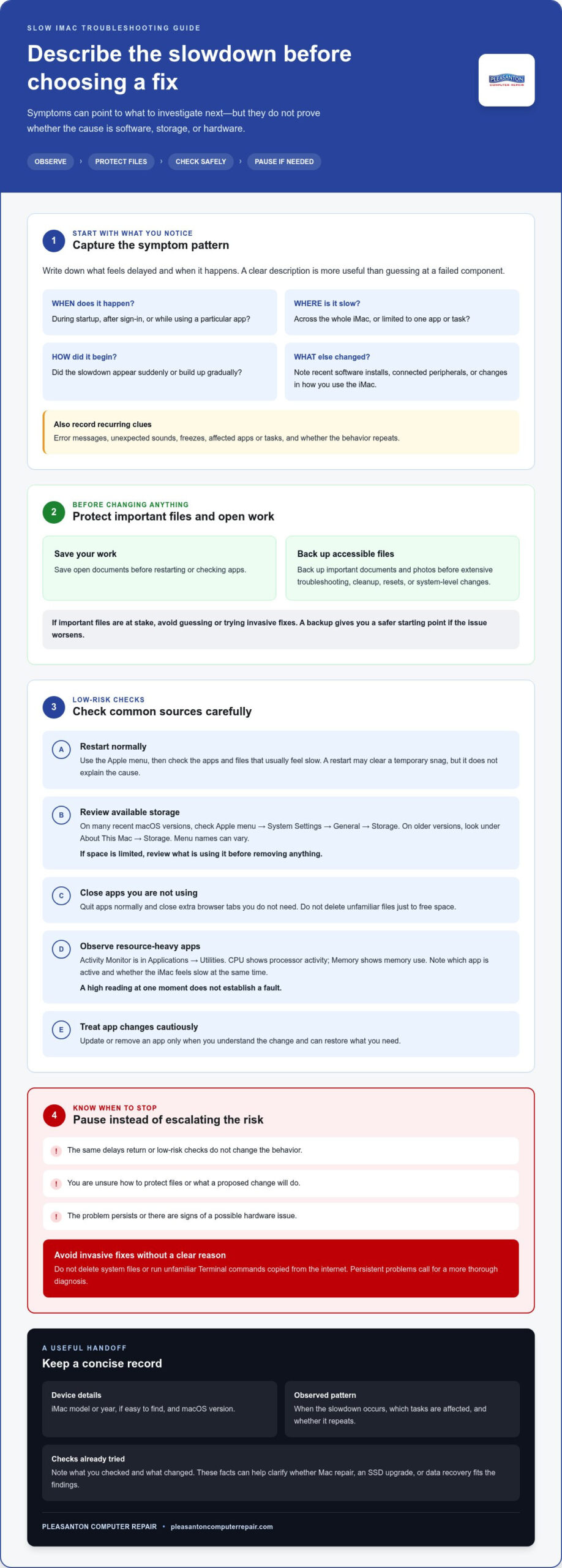
Keep a short note on your phone or paper. Include the iMac’s model or year, if it’s easy to find, and the macOS version. Then record when the slowdown occurs, which apps or tasks are affected, and whether the behavior repeats.
- Does the delay happen during startup, after sign-in, or while using a certain app?
- Did it begin suddenly, or has performance declined over time?
- Did you recently install software, connect a peripheral, or change how you use the iMac?
These details create a clearer picture than “it’s slow” alone. If you’re looking to fix slow iMac Walnut Creek problems, a concise symptom record helps guide the next steps without guesswork. Keep notes factual, protect accessible files, and use the pattern to decide whether basic checks or professional diagnosis makes sense.
Try these safe checks before arranging slow-iMac repair
Start with simple steps that don’t alter system files or erase data. Save open work, then restart the iMac normally from the Apple menu. Once it’s back on, open the apps and files that usually feel slow and see whether anything has changed. A restart can clear a temporary snag, but it doesn’t explain what caused the slowdown.
A restart or app check can reveal a pattern, but it can’t diagnose failing hardware. If the same delays return, treat the checks as clues, not proof of a specific fault.
Check storage, apps, and background activity
Work through these checks in order, and stop if you’re unsure about a change:
- Review available storage. On many recent macOS versions, open the Apple menu, choose System Settings, then General and Storage. On older versions, look under About This Mac and Storage. Menu names can vary. If space is limited, review what’s using it before removing anything.
- Close apps you’re not using. Quit them normally, and close extra browser tabs if you don’t need them. Avoid deleting unfamiliar files just to free space.
- Look for resource-heavy apps. Open Activity Monitor from Applications, then Utilities. The CPU tab shows processor activity, while Memory shows memory use. A busy app may contribute to the slowdown, but a high reading at one moment doesn’t establish a fault. Note which app is active and whether the iMac feels slow at the same time.
- Review app changes carefully. Update or remove an app only if you understand what the change does and can restore anything you need. Apple’s If your Mac runs slowly guide offers additional steps for reviewing disk space, memory, and apps.
Keep troubleshooting safe for your files
Before major cleanup, resets, or system-level changes, make a current backup if you can. Don’t delete system files or run unfamiliar Terminal commands copied from the internet. If storage remains tight after reviewing your files, an SSD upgrade may be worth discussing. The guide SSD Upgrade Pleasanton CA: The 2026 Guide to Reviving Your Slow Computer explains how storage upgrades may fit into a repair decision.
If these low-risk checks don’t change the behavior, or you’re unsure how to protect your files, pause rather than trying more invasive fixes. Pleasanton Computer Repair provides Mac repair and diagnostic support for Walnut Creek customers. A clear record of what you tried can help guide the next step toward a fix slow iMac Walnut Creek owners can approach with confidence. Explore Mac repair and diagnostic support.
Is your slow iMac a software issue, an aging drive, or another fault?
Similar symptoms can have different causes. An app that stalls while the rest of the iMac responds normally points to a different pattern than delays across the whole system, but neither pattern proves what’s wrong. Use the clues to decide what to observe next, not to diagnose a component yourself.
| Symptom pattern | Possible explanation | Sensible next step |
|---|---|---|
| One app is slow, while other tasks seem normal | The app may be busy, outdated, or affected by its own settings or workload. | Note when the delay happens and whether it repeats in that app. |
| Several apps slow down, especially with little storage available | Limited free space or background activity may be contributing to system-wide sluggishness. | Review storage and activity before removing files or making major changes. |
| Startup and file access are consistently slow on an older iMac | Drive performance may be one possibility, among other causes. | Back up accessible files and arrange a professional assessment if the pattern persists. |
| Freezing, repeated failures, unusual sounds, or worsening performance | A hardware or software fault may need closer investigation. | Protect important data and seek diagnostic help rather than assuming a specific part has failed. |
Clues that point toward software or storage pressure
If only one app struggles, consider its workload and recent changes first. System-wide sluggishness deserves a broader look. Low available storage can affect everyday use, but it may not be the only factor. Avoid deleting unfamiliar files just to free space. An SSD upgrade may suit some iMacs, but whether it’s appropriate depends on the exact model and its condition.
When symptoms call for professional diagnosis
Persistent freezing, repeated failures, or performance that keeps getting worse are good reasons to stop experimenting and seek an assessment. Unusual sounds or trouble opening files also deserve attention, especially if important data isn’t backed up. Don’t assume a drive or another component has failed based on a symptom alone. Inspection and diagnostic findings help distinguish a repair need from software, storage, or other issues.
The iMac’s model, condition, and diagnostic results all matter when deciding whether repair or an SSD upgrade makes sense. Pleasanton Computer Repair provides Mac repair for Walnut Creek customers and can help explain the findings and possible next steps. Learn about Mac repair in Pleasanton. A clear diagnosis keeps the focus on the actual cause, not a guess about how to fix slow iMac Walnut Creek performance.
When should Walnut Creek iMac owners stop troubleshooting and seek help?
Basic checks are useful until they stop being useful. If the iMac keeps freezing, won’t start normally, or shows worsening performance, pause before trying more invasive fixes. Do the same if you’re unsure whether important files are safe. Repeating resets or making major system changes without a current backup can add risk without identifying the cause.
For Walnut Creek iMac owners, professional diagnosis can clarify the problem before you decide whether repair or an upgrade makes sense. A slowdown doesn’t automatically mean a part has failed, and it doesn’t mean the iMac needs replacing. Diagnostic findings help separate possible software issues from storage or hardware concerns.
Signs that continued DIY troubleshooting may not help
- The problem is getting worse: Freezing, startup trouble, or repeated failures continue despite simple checks.
- Your files may be at risk: You’re experiencing file-access problems or don’t know whether important data is backed up. Avoid repeated resets and invasive steps. Data recovery may be relevant depending on the findings.
- Your checks haven’t changed anything: The same slowdown returns, and further troubleshooting would involve changes you’re not comfortable making.
Before arranging an assessment, note when the symptoms happen, what you’ve tried, and whether anything changed before the slowdown began. That history gives the technician a clearer starting point and helps focus the assessment.
What local Mac repair can help determine
Mac diagnostics can help identify whether the next step is software troubleshooting, hardware repair, or a closer look at storage. If findings point to a storage limitation and the iMac’s model and condition make it suitable, an SSD upgrade may be considered. If files can’t be accessed, data recovery may be a possible path. The right option depends on the assessment.
Learn more in the Mac repair service guide. Pleasanton Computer Repair serves residential and business customers across the East Bay, including Walnut Creek, with in-store, on-site, and remote support. The type of support depends on the issue. Each path starts with understanding what the iMac is doing and what the findings indicate.
If the slowdown persists or your data is a concern, arrange Mac diagnostic and repair support before attempting more disruptive changes. A calm, evidence-led assessment can help you decide how to fix slow iMac Walnut Creek performance without guessing at the cause.
Get a slow iMac in Walnut Creek assessed and choose the next step
Once basic checks are complete, an assessment can turn scattered symptoms into a clearer repair plan. Pleasanton Computer Repair provides Mac diagnostics and repair, SSD upgrades, and data recovery for East Bay customers, including Walnut Creek. Recommendations depend on the diagnostic findings, your iMac’s model and condition, and what you need it to do.
Preparing a few details can make the first conversation more focused. You don’t need to identify the fault yourself. Bring what you’ve noticed and what you’ve already tried.
Prepare for an iMac assessment
- Note the model details. Bring the iMac’s model or year and macOS version if you can find them easily.
- Describe the pattern. Record when the slowdown began, what tasks trigger it, and whether it’s getting better, worse, or staying the same.
- List your troubleshooting steps. Include checks such as restarting, reviewing storage, or closing apps, along with any changes you noticed.
- Protect your files. Back up accessible important data before further troubleshooting. Bring relevant error messages or account details needed to describe the issue, but don’t share passwords in article comments or unsecured messages.
If file access is unreliable, mention that before attempting more changes. A clear account of what’s happening helps guide the assessment without putting pressure on you to keep experimenting.
Choose a repair path based on the findings
The assessment may point toward software troubleshooting, Mac hardware service, an SSD upgrade, or data recovery. An upgrade is not automatically the right answer for every slow iMac. The model, its condition, the diagnostic results, and your priorities all shape the recommendation. If storage is part of the discussion, explore SSD upgrade options for slow computers as background, then use the assessment to understand whether that path fits your iMac.
There’s no need to commit to a particular fix before the cause is understood. The goal is a practical next step based on evidence, whether that means addressing software, repairing hardware, considering an upgrade, or focusing on data recovery. Pleasanton Computer Repair offers in-store, on-site, and remote support, depending on the issue and the assistance needed.
If you’re ready to take the next step, schedule local computer repair for your Walnut Creek iMac. Sharing your model details and symptom notes can help start the process with a clear picture of what you’re experiencing and what you want from the computer.
Take the next step toward a dependable iMac
A slow iMac doesn’t automatically need replacing. Start with safe checks, protect important files, and use symptom patterns as clues rather than proof of a specific fault. If the slowdown persists, professional diagnosis can help clarify whether software troubleshooting, Mac repair, an SSD upgrade, or data recovery is the sensible path.
If you’re looking to fix slow iMac Walnut Creek performance, Pleasanton Computer Repair serves customers in Walnut Creek and nearby communities, including Pleasanton, Livermore, Dublin, San Ramon, Danville, Brentwood, and San Jose. Mac diagnostics and repair, SSD upgrades, and data recovery are available with in-store, on-site, and remote support.
Bring your model details, notes about when the slowdown occurs, and a record of the checks you’ve tried. That gives the assessment a practical starting point. Schedule service for your slow iMac online or visit Pleasanton Computer Repair at 400 Main Street, Suite 205, Pleasanton.
Frequently Asked Questions
Is a slow iMac always a sign that it needs to be replaced?
No. A slowdown alone doesn’t mean your iMac is beyond repair or needs replacing. Performance can be affected by software, limited storage, drive performance, or another issue, and symptoms by themselves can’t confirm the cause. Start with low-risk checks, protect important files, and arrange an assessment if the problem persists. Recommendations should depend on your iMac’s model, condition, and diagnostic findings, so you can weigh troubleshooting, repair, or an upgrade.
Can I speed up my iMac without losing my files?
Yes, you can begin with low-risk checks that don’t involve deleting files: save your work, restart normally, close unused apps, and review available storage. Back up important files before deleting data or making system-level changes. Don’t remove unfamiliar files or run commands from untrusted sources. If slowness continues, a diagnostic assessment can help identify a safer next step without guessing at the cause.
How much does it cost to fix a slow iMac in Walnut Creek?
There’s no reliable one-size-fits-all cost for slow-iMac repair in Walnut Creek. The amount depends on the cause, your iMac model, any parts needed, and the work involved. A diagnostic assessment helps clarify what’s happening and which options are relevant before you decide. To discuss your iMac, schedule service with Pleasanton Computer Repair, which serves Walnut Creek and other local communities.
What happens if my iMac is slow because of its hard drive?
A hard drive may be involved, but sluggishness alone can’t confirm a failing drive. If the iMac still opens files, back up what matters and avoid repeated troubleshooting if access becomes unreliable or errors appear. A technician can assess the drive and the iMac as a whole. Depending on the model, condition, and findings, suitable options may include repair, an SSD upgrade, or another approach to your data and performance.
Can an SSD upgrade make an older iMac faster?
Possibly. An SSD upgrade may improve responsiveness on some compatible older iMacs, but it isn’t a guaranteed fix for every slowdown. Software load, limited free space, or other hardware concerns can also affect performance. Whether an upgrade makes sense depends on the iMac’s model, condition, and diagnostic findings. Treat it as one possible repair path, not a promise of a particular speed or outcome.
When should I take a slow iMac to a repair shop?
Seek professional assessment if basic checks make no difference, performance worsens, important files become hard to access, or the iMac repeatedly freezes or struggles to start. Stop invasive troubleshooting and protect accessible data. If you’re searching for “fix slow iMac Walnut Creek,” Pleasanton Computer Repair provides Mac diagnostics and repair for customers in Walnut Creek and nearby communities, including Pleasanton, Livermore, Dublin, San Ramon, Danville, Brentwood, and San Jose. Next steps depend on your iMac’s condition.