
A used laptop listing alone can’t tell you how the previous owner’s data was handled. When searching for used laptops for sale in Dublin, CA, look for clear information about data removal, specifications, and condition. Prices vary with the processor, memory, storage, age, and physical condition, so compare the details rather than relying on the word “used.”
It’s reasonable to want a capable computer without uncertainty about what you’re buying. This guide explains what affects pre-owned laptop prices, what types of computers and tablets appear in listings, and what software support to consider. It also explains the difference between resetting a device and securely removing its data, helping you make a more informed choice.
Key Takeaways
- Compare used laptop prices by processor, memory, storage, age, and condition, not by the “used” label alone.
- Inventory can range from compact productivity laptops to larger-screen models, with configurations such as 32 GB RAM and 512 GB SSD storage.
- Check the display, keyboard, ports, battery behavior, and overall condition in person before deciding whether a laptop fits your needs.
- Before buying, make sure the device starts cleanly and isn’t still tied to another person’s account or device-management settings.
- Learn what data removal involves and why a basic reset may not provide the same assurance as a deliberate erasure process.
Pre-owned laptop inventory and prices
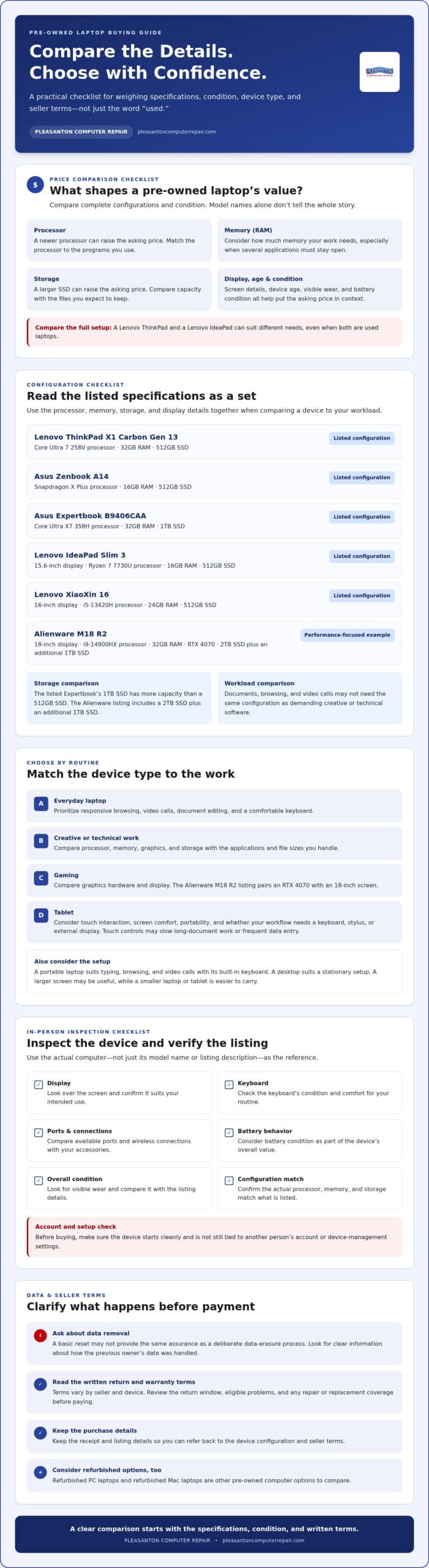
Pre-owned laptop prices depend on the processor, memory, storage, display, age, and physical condition. A newer processor or larger SSD can raise the asking price, while visible wear or a worn battery can affect value. Compare complete configurations, not just model names. A Lenovo ThinkPad and a Lenovo IdeaPad, for example, can suit different needs even when both are used laptops.
What return policies and warranties do local used laptop sellers offer? Terms vary by seller and device, so read the written policy for the return window, eligible problems, and any repair or replacement coverage. Review it before paying, and keep the receipt and listing details.
Specific configurations help make comparisons more useful. For example, the listed Lenovo ThinkPad X1 Carbon Gen 13 pairs a Core Ultra 7 258V processor with 32GB RAM and a 512GB SSD. That combination gives a buyer concrete specifications to weigh against the asking price and intended workload. The Asus Zenbook A14 has a Snapdragon X Plus processor, 16GB RAM, and a 512GB SSD. Its listed configuration differs in both processor platform and memory.
- Asus Expertbook B9406CAA: Core Ultra X7 358H processor, 32GB RAM, and 1TB SSD.
- Lenovo IdeaPad Slim 3: 15.6-inch display, Ryzen 7 7730U processor, 16GB RAM, and 512GB SSD.
- Lenovo XiaoXin 16: 16-inch display, i5-13420H processor, 24GB RAM, and 512GB SSD.
Use these details to match a machine to everyday tasks. Documents, browsing, and video calls may not require the same configuration as demanding creative or technical software. A 1TB SSD, such as the listed Expertbook’s, offers more storage capacity than a 512GB drive. Memory also matters when several applications must remain open. Compare processor, RAM, and drive capacity together rather than treating one specification as the whole story.
Before choosing, list the software you use and the files you expect to keep on the laptop. Compare each listing’s specifications with those needs. Inspect the condition and confirm that the listed configuration matches the device. Refurbished PC laptops and refurbished Mac laptops are another option for buying a pre-owned computer. A clear comparison helps you judge whether the price fits the hardware and condition.
Computers and tablets
Computer listings can include standard laptops, large-screen systems, and tablets. Match the device type to the work you need to do. A portable laptop suits typing, browsing, and video calls with its built-in keyboard. A tablet can work well for reading, streaming, and touch-based tasks. A desktop computer suits a stationary setup, while a gaming laptop combines portability with dedicated graphics. Each type affects how you work, connect accessories, and carry files.
The listed Alienware M18 R2 shows what a performance-focused laptop configuration can look like. It has an 18-inch display, an i9-14900HX processor, and 32GB RAM. Its storage includes a 2TB SSD plus an additional 1TB SSD, alongside an RTX 4070. Those specifications can help readers compare demanding systems with simpler everyday computers. Consider whether your programs need dedicated graphics or extensive local storage. If not, a less specialized device may better match your daily tasks.
For a tablet, start with how you’ll use its screen and input options. Check whether it feels comfortable for reading, drawing, or viewing documents. Consider whether you need a physical keyboard, stylus, or external display. A tablet is portable, but touch controls may slow tasks involving long documents or frequent data entry. List your routine, such as editing spreadsheets, attending video calls, or reading ebooks, and compare devices against those tasks.
Separate computer listings by purpose before comparing their features:
- Everyday use: Prioritize responsive browsing, video calls, document editing, and a comfortable keyboard.
- Creative work: Match the processor, memory, graphics, and storage to the applications and file sizes you handle.
- Gaming: Compare the graphics hardware and display, as shown by the Alienware M18 R2’s RTX 4070 and 18-inch screen.
- Tablet use: Focus on touch interaction, screen comfort, portability, and the accessories your workflow requires.
Next, compare operating systems and software compatibility. A program built for one platform may not work the same way on another. List essential applications, peripherals, and file formats before choosing a laptop, tablet, or desktop. For example, confirm that your printer and work software support the system you plan to use. Check the device’s ports and wireless connections against your existing accessories. This practical comparison narrows your options beyond screen size alone.
Finally, compare the complete configuration and physical format. An 18-inch gaming laptop may offer a broad display, but a smaller laptop or tablet is easier to carry. Think through where you’ll use it, which applications matter, and how much storage your files require. Those steps make listings easier to assess and help you focus on a device that fits your actual routine.
What used laptop stores and computer shops are near Dublin, CA?
For buyers in Dublin, California, local searches can surface several kinds of computer sellers. Dedicated computer retailers may carry new and pre-owned devices. Independent refurbishers may focus on inspected laptops, while general electronics stores can offer a broader selection of computers and accessories. These shopping channels don’t guarantee the same inventory. A search result or storefront name alone won’t tell you which devices are currently available.
Start with a focused search for used laptops in Dublin, CA, then note each listing’s seller type and location. Look for details identifying the exact computer, its specifications, and its condition. A listing that says only “laptop” gives you little basis for comparison. A model name, processor, memory, storage, and clear photos provide a more useful starting point. Treat online listings as a snapshot, since stock and the condition of individual devices can change.
Before traveling, sort the options by what you need to accomplish. A student who mainly writes documents may prioritize a comfortable keyboard and portable design. A business user may care more about compatibility with required applications and workplace equipment. Someone working with large media files may need more storage. Comparing devices by task helps narrow a broad search without assuming the most powerful computer is the best fit.
- Retail listings: Compare the exact model and configuration shown, not just the brand or product family.
- Refurbished listings: Look for a description of the computer’s condition and the work completed before resale.
- Local pickup listings: Plan to inspect the device in person and compare its physical condition with the description.
- Computer shops: Separate repair-focused businesses from sellers offering pre-owned computers, since their services differ.
Make a short comparison note for each candidate: seller type, device model, specifications, condition, and stated return terms. Keeping those details together makes gaps easier to spot and similar machines easier to compare. Two laptops with the same model name, for example, may have different memory or storage configurations. Record the differences rather than treating them as identical options.
For used laptops for sale in Dublin, CA, start by narrowing your search to a device category and a realistic description of how you’ll use it. Then review the specific listing and seller terms before making a trip. A computer shop may be the better fit when you need help with a technical problem; a retail listing is more relevant when you’re comparing a laptop to buy. Keeping your purpose clear helps you avoid unrelated results.
What should I check before buying a used laptop in person?
Bring a short test plan and compare the actual laptop with its listing. Check the model name, processor, memory, and storage in system settings. Compare those details with the seller’s description before discussing payment. For example, a listed 512GB SSD should match the installed drive shown by the computer. Test the device while it’s plugged in, then unplug it to assess battery behavior.
Inspect the exterior before starting the laptop. Look closely at the display, hinges, keyboard, trackpad, ports, and charger. A cracked corner, loose hinge, or damaged charging port can affect everyday use. Gently open and close the screen, test keys across the keyboard, and move the pointer with the trackpad. Connect a compatible USB device if you expect to use that port regularly.
- Display: Open a white page and a dark page. Look for flicker, lines, uneven brightness, or visible damage.
- Keyboard and trackpad: Type a sentence, test modifier keys, and move the pointer across the screen.
- Battery and charger: Confirm the laptop charges, then unplug it and watch for unexpected shutdowns or warnings.
- Wireless connections: Connect to Wi-Fi and pair a familiar Bluetooth device if your routine depends on either feature.
- Camera and audio: Open the camera app, play a sound, and test the microphone with a recording tool.
Check startup and basic performance with a familiar task. Open a browser, load a page, and launch a document editor. Notice whether the laptop freezes, makes unusual noises, or displays repeated error messages. On a Windows laptop, review System Information and Device Manager. On a Mac, open About This Mac and check the listed hardware. These screens can help confirm the model and installed components.
Software compatibility matters as much as hardware. List the applications you need, such as Microsoft Office or a work-specific program. Check that the installed operating system supports them and that your files can transfer correctly. Test the ports you rely on, including HDMI or USB-C, with a compatible accessory. A laptop that runs smoothly may still be unsuitable if it cannot connect to your required monitor.
Before agreeing to buy, read the seller’s return and warranty terms. Make sure the receipt or written sale record identifies the laptop and its stated condition. Save the listing and any messages describing included accessories or known faults. If the seller mentions a battery issue, cosmetic mark, or missing charger, compare that description with the device in front of you. Careful inspection helps you make a considered decision before pickup.
How can I verify a used laptop is not stolen or still locked to an account?
Check ownership details and account access before paying for a used laptop. Ask the seller for a receipt, original order record, or other proof connecting them to the device. Compare the laptop’s serial number with its system settings and any matching paperwork. Resolve any mismatch before proceeding with the sale. Keep a written record identifying the computer and seller.
Then watch the seller remove their accounts and reset the device. Don’t rely on a promise that the laptop is “ready”; see it start through setup yourself. A Mac should no longer request the previous owner’s Apple Account credentials during activation. On a Windows laptop, look for organization enrollment or setup screens that require a workplace account. Those prompts can prevent personal setup and use.
- Ask about ownership: Request purchase records and compare the device’s serial number with its system information.
- Remove the previous account: Have the seller sign out and remove their account through the normal device settings.
- Test setup: Restart the laptop and proceed through setup until it reaches a usable desktop without another person’s credentials.
- Check management prompts: Look for organization or remote-management screens that indicate the computer remains tied to an employer or institution.
- Keep sale records: Save the listing, seller messages, receipt, and serial number details with your purchase documents.
A factory reset alone doesn’t establish ownership or remove every account-based restriction. Apple’s Activation Lock may remain associated with an owner’s account, while Windows devices may be enrolled in organizational management. Ask the seller to remove those links through the standard account or management process. Don’t try to bypass a password, activation lock, or company enrollment screen. The rightful owner or managing organization must release the device.
Serial-number searches can provide useful identifying details, but they don’t prove a laptop’s ownership history on their own. Compare the serial number in system settings with the label on the computer, if present. Note any discrepancy and ask the seller to resolve it before completing the transaction. If the seller can’t explain the discrepancy or complete the reset, you may not be able to set up the device cleanly.
For an in-person purchase, complete these checks before handing over payment. Confirm the laptop starts, reaches its setup process, and accepts your own account without requesting the former owner’s credentials. Keep the receipt and seller’s written description. If you’d rather choose a computer through a business offering refurbished laptop options, review the available refurbished PC and Mac laptop choices.
Pleasanton Computer Repair: iPhone and iPad Repairs
When a device problem persists after your laptop search, Pleasanton Computer Repair can help. If a PC or Mac has a damaged display, the PC / Mac Screen Replacement service addresses that issue. Data Recovery can help retrieve inaccessible files. Virus Removal is available when unwanted software disrupts a computer’s normal use.
Pleasanton Computer Repair also handles iPhone and iPad Repairs, useful when a phone or tablet needs attention alongside a computer. Choose support based on the device and problem: screen damage, suspected malware, and difficulty accessing data each call for a different service. These repair options are separate from buying a pre-owned laptop, but can help with devices you already rely on.
Contact Pleasanton Computer Repair to discuss your device problem and the repair service that fits it.
Make your next tech decision with confidence
Choosing among used laptops for sale in Dublin, CA, is only one part of keeping your devices useful. Consider the next step in your setup: which computer fits your daily work, and which existing device needs attention? If a PC or Mac screen is damaged, a virus is disrupting your computer, or an iPhone or iPad needs repair, matching the problem to the right service can clarify what to do next.
Pleasanton Computer Repair offers PC / Mac Screen Replacement, Virus Removal, and iPhone and iPad Repairs. For help with one of these issues, contact Pleasanton Computer Repair and describe the device and problem. A clear starting point helps you focus on the solution that fits your needs. Take the next step when you’re ready, and keep your technology moving in the right direction.
Frequently Asked Questions
Is my data removed from a laptop before it’s resold?
Data removal depends on the seller’s preparation process, so resale alone doesn’t prove that a laptop has been wiped. Before buying, watch the computer restart to its initial setup screen and confirm that it doesn’t show another person’s files or account. A clean setup is a useful check, but it doesn’t replace a clear explanation of how the previous data was erased. Don’t accept a device that still opens to someone else’s profile.
Where can I buy used laptops in Dublin, California?
You can compare local computer retailers, refurbished-device sellers, and listings offering in-person pickup around Dublin. Pleasanton Computer Repair offers refurbished PC laptops and refurbished Mac laptops to customers in Dublin and other East Bay communities. Compare the exact model, hardware configuration, stated condition, and included accessories. Keep the listing or written description so you can check it against the laptop you receive.
What are typical prices for used laptops in Dublin, CA?
Used laptop prices vary with the model, processor, memory, storage capacity, age, and physical condition. A machine with dedicated graphics or a larger SSD differs from a basic device intended for browsing and documents. Compare listings with matching specifications, and note whether a charger or other accessories are included. This gives you a more useful price comparison than relying on the model name alone.
Which local stores sell refurbished laptops with warranties?
Pleasanton Computer Repair sells refurbished PC and Mac laptops, and refurbished systems include a limited warranty. Review the written warranty terms alongside the laptop’s specific condition and configuration, since coverage details matter as much as the refurbished label. The business serves Dublin and nearby East Bay communities, including Pleasanton, Livermore, San Ramon, Danville, Brentwood, Walnut Creek, and San Jose.