
Keeping a computer healthy usually takes a few steady habits, not a long list of complicated fixes. If you’re wondering how to maintain your computer’s health, focus on three essentials: keep it updated, protect your files, and pay attention to changes in performance.
A slowdown might come from clutter or an update waiting to install, but it can also point to a failing drive or a security problem. When important files are at stake, guessing can make the situation more stressful. Start by noticing what has changed, then take steps that protect your data.
This practical 2026 guide lays out a repeatable routine for everyday use. You’ll learn how to manage updates, reduce security risks, back up your data, and troubleshoot common slowdowns without making unnecessary changes.
If problems persist, warning signs appear, or your data may be at risk, pause and get a professional diagnosis. Pleasanton Computer Repair supports East Bay homes and businesses with virus removal, data recovery, SSD upgrades, and system optimization.
Key Takeaways
- Learn how to maintain your computer’s health with a simple routine for software, storage, and physical upkeep.
- Track everyday signs like startup behavior, available storage, unusual fan noise, and recurring errors to spot changes early.
- Protect important files with a backup kept separately from your computer, and check that it completes successfully.
- Use weekly, monthly, and occasional check-ins to make maintenance manageable without turning it into a daily chore.
- Recognize when repeated crashes, malware alerts, worsening performance, or inaccessible files call for professional diagnosis.
What Does a Healthy Computer Look Like, and What Should You Monitor?
Computer health is a device’s ability to run reliably, stay protected with current software, retain enough free storage, and keep personal data recoverable if something goes wrong. It doesn’t mean your computer will never pause or need attention. It means you know what’s normal for your device and can spot meaningful changes before they disrupt everyday work.
Establishing a baseline makes how to maintain your computer’s health easier to answer. Notice how long startup usually takes, how much storage is free, how long the battery lasts, and whether the fans are typically quiet or audible during demanding tasks. The general idea of computer maintenance covers both hardware and software, so pay attention to what you can observe physically as well as what appears on screen.
Record a few observations in a note, especially if the computer is new or has recently returned to normal after an issue. A brief delay after restarting or installing an update may be occasional and explainable. A pattern that gradually worsens, such as startup taking longer over time or interruptions recurring during routine tasks, deserves closer attention. Compare similar activities: opening a large file may take longer than starting a simple note-taking app.
Which changes suggest your computer needs attention?
Watch for repeated freezes, unexpected restarts, unusual heat, or alerts that keep returning. None of these signs identifies the cause on its own, so don’t treat one incident as a diagnosis. A single slow startup may follow an update; frequent slow starts that interfere with your normal routine are a different signal. Note when each symptom began, how often it happens, and what changed shortly beforehand, such as a new app, update, or connected device.
What should you check before changing settings?
Start with observations, not repairs. Review available storage in your operating system’s settings and check its update history or update screen for recent installations and pending restarts. Write down error messages exactly as they appear. If the computer still starts and your files are accessible, back up important documents and photos before major cleanup or troubleshooting. That gives you a safer starting point if a change has an unexpected result.
You can check storage, observe behavior, and record alerts; identifying a failing component or resolving recurring system errors may require technical diagnosis. Don’t delete unfamiliar system files or change settings just to see what happens. If key files become inaccessible, the device repeatedly crashes, or unusual heat accompanies worsening performance, pause experiments and seek professional guidance. Pleasanton Computer Repair provides PC and Mac support, including data recovery and system optimization.
How to Maintain Computer Software, Storage, and Physical Hardware
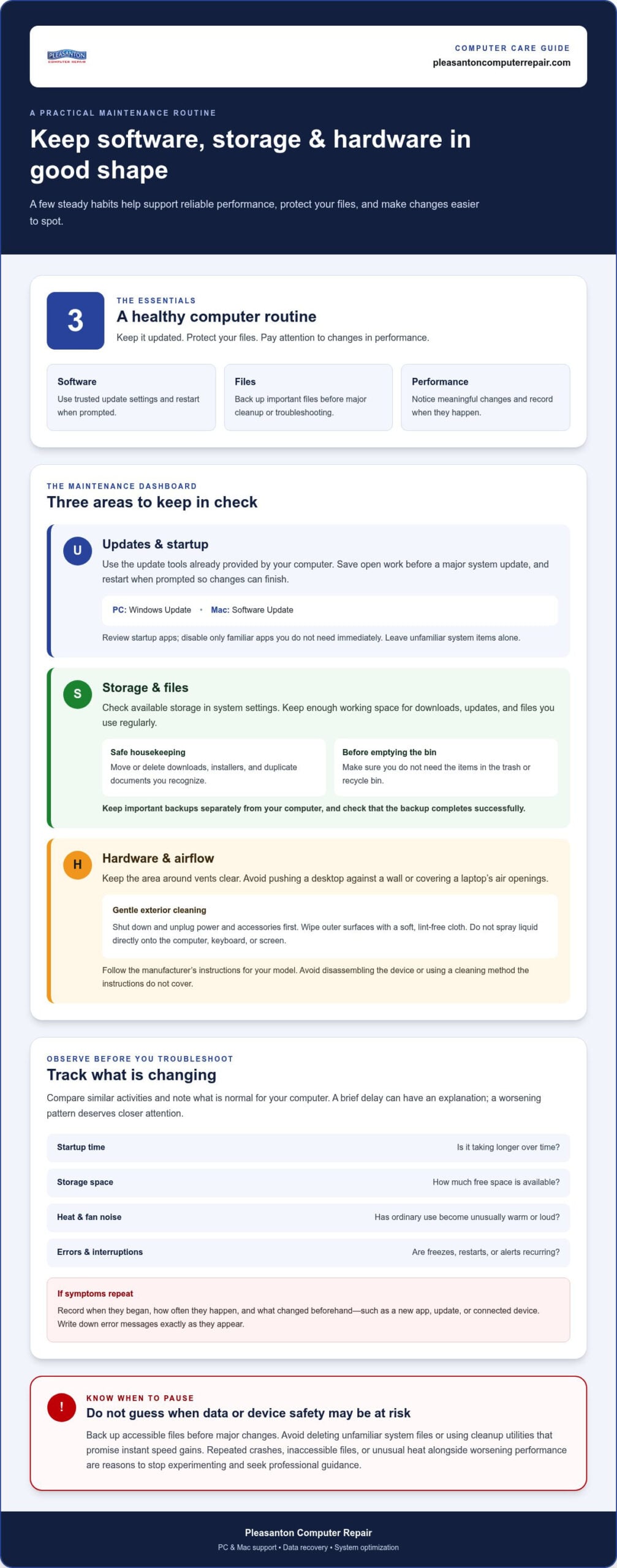
Once you know what’s normal for your computer, build a few safe habits around updates, storage, and cleaning. These basics support how to maintain your computer’s health without turning routine care into risky tinkering. Use tools built into your operating system, remove only items you recognize, and clean the exterior gently.
How should you handle updates and storage?
Use the update settings already provided by your computer: Windows Update on a PC or Software Update on a Mac. Operating system updates can address security and compatibility issues, while application updates help keep programs working with current system software. Turn on trusted automatic update settings where appropriate, and restart when prompted so changes can finish. Save open work before a major system update.
Review installed applications and remove programs you know you no longer use. Check which apps launch at startup, too. Disabling a familiar app you don’t need immediately may reduce startup clutter, but leave unfamiliar system items alone. If you’re unsure what an item does, don’t delete it just to make the list shorter.
For storage housekeeping, start with files you recognize. Move or delete unneeded downloads, installers, and duplicate documents, then empty the trash or recycle bin when you’re sure you don’t need those items. Keep enough working space for downloads, updates, and the files you use regularly. Avoid unfamiliar cleanup utilities that promise instant speed gains; they may remove files you need or make changes that are difficult to undo.
How can you clean and protect computer hardware?
Dust and blocked airflow can interfere with ventilation, so keep the area around your computer’s vents clear. Don’t push a desktop against a wall or pile papers over a laptop’s air openings. If the fan seems louder than usual or the device feels unusually warm during ordinary use, note the change rather than opening the case to investigate.
For exterior cleaning, shut the computer down and unplug its power and accessories first. Use a soft, lint-free cloth on the outer surfaces. Don’t spray liquid directly onto the computer, keyboard, or screen. Follow the manufacturer’s instructions for your specific model, particularly for cleaning screens, vents, or removable parts. Avoid disassembling a device or using a cleaning method that the instructions don’t cover.
Keep the routine modest: install updates through trusted settings, clear only files you recognize, and clean exterior surfaces gently. If a cleanup or update leads to recurring errors, or you’re unsure whether a change is safe, pause rather than trying more utilities. For ongoing PC or Mac performance concerns, computer system optimization support can help identify what needs attention.
How to Protect Computer Files, Accounts, and Security
Good computer care includes protecting the files you keep on it. A device can run smoothly and still leave you vulnerable if a drive fails, an account is compromised, or an important file is accidentally deleted. Make backups and account security part of your regular plan, not tasks to consider only after something goes wrong.
A current backup reduces the impact of device failure or malware by giving you a separate copy of important files to recover. That’s a practical part of how to maintain your computer’s health and protect the work, photos, and personal records you rely on.
What is a practical computer backup routine?
Start by identifying the files you couldn’t easily replace: work documents, family photos, and other personal records. Then choose a backup approach that keeps a copy separate from the computer itself. An external drive stores files on a separate physical device, while cloud backup stores copies online. Each approach has different setup and access considerations, so choose one that fits your files and how you use your computer.
Don’t assume a backup is working just because you turned it on. Check its status periodically, and try restoring a small, noncritical file to a different location. Confirm that it opens. This simple test can reveal missing folders, incomplete copies, or access problems before you need the backup in a hurry. If you use an external drive, keep it disconnected when a backup isn’t running; a connected copy may be affected by some problems that reach the computer.
Which security habits reduce everyday risk?
Keep your operating system’s built-in protection enabled and install security updates through its trusted update settings. Use a unique password for each important account, particularly email and financial accounts, and enable multifactor authentication where available. This adds a verification step beyond a password. Never share a verification code with someone who contacts you unexpectedly.
Pause before opening an unexpected attachment or clicking a message link, even if it appears to come from someone you know. If a message asks you to sign in, go to the service’s website or app directly instead of following its link. Be cautious of urgent requests for passwords, payment details, or codes. When practical, use a standard user account for everyday tasks and reserve administrator access for changes that require it. This can limit the changes an ordinary app or action is allowed to make.
These habits work best together: keep protection updated, secure account access, and maintain a separate backup you’ve tested. If files suddenly become inaccessible or you suspect malware has affected the computer, avoid experimenting with unfamiliar recovery tools. Pause and get professional guidance; data recovery and virus removal may require careful diagnosis to protect what remains.
How to Build a Computer Maintenance Schedule You Can Keep
A routine only helps if it’s easy to follow. Set recurring reminders that fit your workload, and let automatic updates and backups handle what they can in the background. Your part is to check that they’re working, notice changes, and avoid risky cleanup. This keeps how to maintain your computer’s health practical, not another daily chore.
What computer checks belong on a weekly or monthly routine?
Choose a regular time to check for anything that needs your attention. Weekly checks can be brief; monthly ones give you a chance to review storage and notice trends. Adjust the schedule to how heavily you use your computer, but keep it consistent enough to catch missed backups or recurring alerts.
- Weekly: Review backup status and update notifications. If a backup or update reports a problem, note the message and follow the instructions from your operating system or backup service.
- Monthly: Check available storage and remove only files you recognize and no longer need. Look for recurring alerts, crashes, or changes in startup, fan noise, or temperature. Record when they happen so you can distinguish a one-off event from a pattern.
- After a noticeable change: Note if a problem begins after an update, new application, or change in how you use the device. That context can make troubleshooting clearer later.
Which tasks should happen only occasionally?
Some checks don’t need to be on a weekly list. Review them when your computer use changes, when you add users, or as part of a periodic check-in. The goal is to keep the device and its data organized without repeatedly changing settings that are already working.
- Check exterior condition and ventilation: Power down and unplug the computer before gently cleaning its exterior. Look for blocked vents and keep airflow clear, following the manufacturer’s cleaning guidance for your model.
- Review apps and account access: When your needs or household users change, remove applications you recognize and no longer need, and review who can access the computer and important accounts. Avoid deleting unfamiliar system files or changing unfamiliar settings.
- Test a backup: Periodically restore a selected file to another location and open it. A successful backup message is useful, but a restore test shows whether you can actually use the copy.
Keep the list short enough to repeat. A calendar reminder or a note with weekly, monthly, and occasional tasks can prevent maintenance from slipping while keeping it manageable. Still, no routine can prevent every hardware failure or replace professional diagnosis. If crashes, unusual sounds, or worsening performance persist, stop repeated DIY fixes and get guidance. Get help diagnosing persistent computer problems before they disrupt more of your work or put files at risk.
When Routine Computer Maintenance Is Not Enough
Basic maintenance can help prevent avoidable problems, but it can’t identify every fault or stop every component from wearing out. If crashes repeat, updates keep failing, malware alerts return, or performance steadily worsens, pause before trying another cleanup tool or changing several settings at once. Symptoms can have different causes, and a careful diagnosis is safer than guessing.
Which warning signs call for professional assessment?
Pay attention to recurring shutdowns, persistent pop-ups, suspected malware, and repeated errors when opening or saving files. One isolated glitch may pass, but a pattern that disrupts everyday work deserves attention. Note what happens and when. If you see a malware alert, avoid entering passwords or handling sensitive information on the affected device until you understand the risk.
Take unusual drive noises seriously, especially clicking or grinding sounds, and stop using the computer if important files suddenly become inaccessible. If storage failure is possible, repeated restarts and continued use may put the data at further risk. Don’t run cleanup, repair, or recovery utilities on your own if you’re unsure what they’ll change. Get professional guidance before trying more fixes.
Persistent slowness can have several explanations, from software problems to a storage or hardware issue. If the computer remains slow after routine checks, an SSD upgrade Pleasanton CA may be worth discussing as one possible option, after the underlying cause is assessed.
What can a local repair team help with?
Software symptoms and hardware faults can look similar. Repeated errors or pop-ups may call for checking the system and security, while unusual sounds, failed storage, or inaccessible files can require hardware or data-focused diagnosis. A professional assessment can help determine what’s happening and which next step makes sense, without assuming that every slowdown needs a new component or that every error is a software issue.
Pleasanton Computer Repair supports East Bay customers with in-store, on-site, and remote help for PCs and Macs. The company serves customers in Pleasanton, Livermore, Dublin, San Ramon, Danville, Brentwood, Walnut Creek, and San Jose. Relevant services include virus removal when security is a concern, data recovery when files can’t be accessed, SSD upgrades for suitable performance needs, and system optimization. These services address different problems, so diagnosis helps clarify which path fits the symptoms.
Knowing how to maintain your computer’s health also means recognizing when home troubleshooting should stop. If the device keeps crashing, a drive makes unusual noises, or important data is at risk, avoid further changes and get experienced guidance. Get help with your computer from a local team.
Make Your Next Check-in Count
You don’t need a perfect computer or a complicated maintenance plan. You need a routine you’ll actually return to, and the confidence to pause when a problem goes beyond safe troubleshooting. Pick one small action to start today, such as checking that your backup completed or setting a reminder for your next maintenance check-in.
That steady attention is the real answer to how to maintain your computer’s health. It helps you respond thoughtfully instead of waiting until a minor concern becomes a disruption. If something feels beyond your comfort level, you don’t have to keep guessing or risk your files with repeated fixes.
Pleasanton Computer Repair helps East Bay customers work out a sensible next step for computer problems involving performance, security, or access to important data. Get help with your computer and move forward with a clearer plan.
A few repeatable habits can make computer care feel manageable. Start small, stay observant, and get experienced help when you need it.
Frequently Asked Questions
How often should I maintain my computer?
Most people can keep maintenance manageable with a brief weekly or monthly check, rather than daily tasks. Set a reminder for a consistent time, such as the start of your workweek, and adjust it if you rely on your computer heavily or handle changing files often. The best approach to how to maintain your computer’s health is one you can sustain. Follow your device maker’s guidance for model-specific care.
Is it safe to use compressed air to clean a computer?
It may be suitable for some computers, but check the manufacturer’s instructions for your exact model before using it. Power down and unplug the device first. If the guidance doesn’t explain how to clean internal parts, don’t open the case or direct air inside. Stick to the exterior and keep vents clear. If dust appears trapped inside or you’re unsure what’s safe, have Pleasanton Computer Repair assess the device rather than improvising.
Do I need antivirus software if my computer is up to date?
Updates alone don’t cover every security risk, so keep your operating system’s built-in protections enabled and use cautious account habits. A separate security program may suit your needs, but installing several unfamiliar tools can create conflicts or confusion. Before adding one, check what protection is already active. If you suspect an infection, avoid signing in to sensitive accounts on that computer and get professional help.
Can regular maintenance prevent my computer from slowing down?
It can reduce some avoidable slowdowns, but it can’t guarantee that a computer will stay fast. If the delay happens only in one application, note that; if it affects several tasks, record that too. Include when the slowdown occurs, such as after startup or during a particular task. Those details help distinguish an isolated app issue from a broader performance change without deleting files at random.
What should I do if my computer will not install an update?
Save your work and write down the exact error code or message before trying anything else. Check whether the update screen shows a pending restart, paused update, or storage warning, since these details can point to the next safe step. Keep the device connected to power during an update and use the operating system’s own instructions. If the same update fails repeatedly, avoid unofficial repair utilities.
Is cloud storage the same as a computer backup?
Not necessarily. A synced folder can copy a deletion or unwanted edit across devices, while a backup may offer ways to retrieve an earlier version. The exact options depend on the service and its retention settings. For example, check whether you can recover a file you deleted or restore a previous version of a document. Don’t assume every folder on your computer is included in an online copy.
When should I stop troubleshooting a computer problem myself?
Stop if the issue returns after basic steps, important files become inaccessible, malware seems possible, or the computer shows signs of hardware trouble. Note error messages and what happened just before the problem began. If you hear unusual drive noises, avoid repeated restarts and seek professional guidance. Pleasanton Computer Repair supports computer users in Pleasanton, Livermore, Dublin, San Ramon, Danville, Brentwood, Walnut Creek, and San Jose.