

You’ve settled into your favorite spot with a fresh cup of coffee, ready to tackle your morning to-do list, but when you press the power button, your laptop remains a silent, black rectangle. That sudden jolt of panic is something we’ve all felt. Searching for a reliable laptop not turning on repair solution usually starts with the fear that your photos, documents, and school assignments are gone forever.
It’s completely normal to worry about the high cost of a replacement or the stress of being disconnected from your digital life. You might feel like your only choice is to give up on the device, but many “dead” laptops are actually suffering from minor power states or simple component glitches that are often easy to resolve.
We’re here to help you navigate this frustration with calm, expert advice. In this guide, you’ll discover how to safely diagnose the issue yourself, confirm that your data is secure, and determine if your laptop can be restored to full health without a trip to the shop.
We’ll walk through a methodical sequence of checks, from power supply resets to identifying hardware failures. You’ll gain the clarity needed to decide if a DIY fix is the answer or if a laptop repair Pleasanton professional is the most cost-effective way to get back to work.
Key Takeaways
- Perform a simple hard reset to drain residual static electricity and potentially restore power to your device instantly.
- Master the visual and audible signs of a black screen versus a total power failure to narrow down your laptop not turning on repair options.
- Discover how reseating internal components like RAM can resolve boot issues and save you from the cost of an unnecessary replacement.
- Understand why a hardware failure rarely means your files are lost and learn how to safely access data even from a non-responsive laptop.
- Apply the “50% Rule” to determine if a professional repair is a smart investment or if upgrading to a refurbished model makes more sense.
Immediate Triage: The “No Power” Checklist
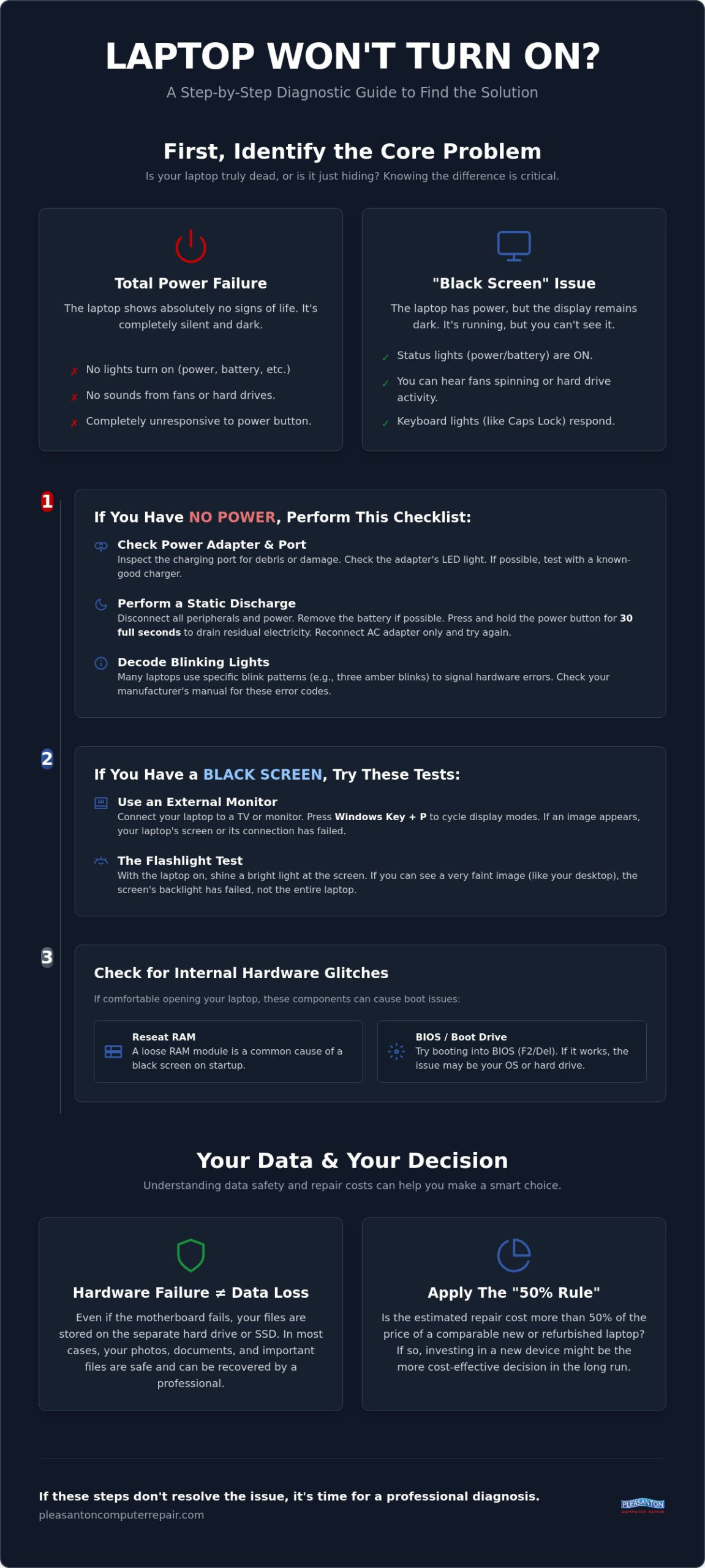
When your laptop refuses to wake up, the silence can be deafening. Before assuming the worst, remember that many power issues stem from simple connectivity failures or trapped electricity. This initial triage is your first line of defense in laptop not turning on repair. It’s about ruling out the easy fixes so you don’t spend money on a professional diagnostic for a problem you can solve at home.
Start by inspecting the charging port. Dirt, lint, or a tiny piece of debris can prevent a solid connection. Use a flashlight to look for bent pins or a loose center post. If the port feels wobbly when you plug in the cable, that’s a clear sign of physical wear. Next, watch the battery indicator lights. Many modern laptops use specific blink patterns to communicate why they aren’t starting. Three amber blinks followed by a white one, for example, might indicate a specific battery or motherboard error. These codes are often listed in the manufacturer’s service manual and can save you hours of guesswork.
Testing Your Power Adapter and Cable
The external brick acts as the bridge between your wall outlet and the internal power management system, essentially serving as the computer power supply unit for your device. Start by checking the cable for frayed wires or teeth marks from pets. If the “Power On” LED on the adapter brick isn’t lit when plugged into the wall, the adapter itself has likely failed. Try a different wall outlet first. If you have access to a known-good compatible charger, swap it out. A faulty adapter is one of the most common reasons for a laptop not turning on repair situation, and it’s much cheaper to replace a cable than a whole computer.
How to Perform a Static Discharge
Sometimes, your laptop’s motherboard gets “confused” by residual static electricity. This trapped charge can prevent the system from initiating the boot sequence. Performing a hard reset clears this energy and resets the power management controller. First, disconnect every peripheral. This includes USB drives, external monitors, and even your mouse. If your laptop has a removable battery, take it out. Unplug the AC adapter so the device has no power source at all. Now, press and hold the power button for a full 30 seconds. This might feel like a long time, but it’s necessary to fully drain the capacitors. Once finished, plug only the AC adapter back in and try to power it on. If it springs to life, you’ve just saved yourself a trip to the repair shop.
Identifying the Problem: Black Screen vs. No Power
Is your laptop truly dead, or is it just hiding? Distinguishing between a total power failure and a display issue is the most critical part of a laptop not turning on repair. Many users assume their motherboard has failed when, in reality, the computer is running perfectly fine behind a dark screen. Knowing the difference can save you from unnecessary stress and help you communicate more clearly with a technician if you eventually need one.
Start with your senses. Lean in and listen for the faint hum of internal fans or the rhythmic clicking of a mechanical hard drive. Look closely at the edges of the chassis for status lights. If the Caps Lock key lights up when pressed or the battery LED is glowing, your machine has power. If everything is silent and dark, refer back to the triage steps in the previous section to ensure the power adapter is functioning correctly. You should also try tapping the F2 or Delete key during the startup process. If the BIOS or UEFI screen appears, your hardware is essentially healthy, and you’re likely facing a software glitch or a boot drive failure.
One clever trick is the “flashlight test.” Shine a bright light directly against the screen at a sharp angle while the laptop is supposedly on. If you can see the faint outline of your wallpaper or a login window, your screen’s backlight has likely failed. In this scenario, the computer is healthy, but the display panel requires professional attention. Following these systematic troubleshooting steps ensures you aren’t guessing about the health of your hardware.
The External Monitor Test
If you suspect a screen failure, an external monitor is your best diagnostic tool. Connect your laptop to a TV or a desk monitor using an HDMI or DisplayPort cable. Once connected, use the keyboard shortcut Windows Key + P to toggle through display options. If an image appears on the external screen, your graphics card is functioning, but you likely need a PC / Mac Screen Replacement to restore your laptop’s portability. This simple test confirms whether the issue is isolated to the display panel or something deeper inside the chassis.
Interpreting Beep Codes and LED Patterns
When a laptop faces a hardware hurdle, it uses a language of beeps or blinking LEDs to tell you exactly what’s wrong. These are called POST codes. A specific sequence of three amber blinks might mean your RAM isn’t being detected, while a steady beep could signal a processor error. Documenting these patterns allows you to identify the specific component at fault. It turns a mysterious failure into a manageable task, giving you a clear path forward for your laptop not turning on repair.
Internal Hardware Culprits: RAM, CMOS, and Motherboards
If your screen remains dark after trying the external monitor test, the issue likely lies within the chassis. Don’t worry. This doesn’t automatically mean your laptop is trash. Many internal laptop not turning on repair scenarios involve parts that have simply lost a clean connection over time. Vibrations from travel or even a small bump can nudge sensitive components out of place, preventing the system from completing its initial electrical circuit.
Reseating Your Memory (RAM)
Your laptop’s RAM (Random Access Memory) is vital for the boot process. In 2026, most systems use DDR5 or LPDDR5X modules to handle demanding AI tasks. If these aren’t seated perfectly, the computer will refuse to start. Safety is your first priority. Ground yourself by touching a grounded metal object to prevent electrostatic discharge. Open the access panel and gently release the clips holding the RAM sticks. Pull them out, then firmly click them back into place. If your laptop has two sticks, try starting it with just one at a time. This helps you isolate whether a specific module has failed or if the slot itself is the problem.
The “Secret” CMOS Battery
Every motherboard features a small, coin-shaped battery called the CMOS battery. It powers the chip that stores your BIOS settings and keeps the system clock running when the main battery is dead. If this battery fails, especially in laptops older than four or five years, it can cause a “no boot” situation. You’ll know it’s failing if your system clock resets every time you unplug or if the BIOS settings seem to vanish. Replacing this tiny battery is a simple, inexpensive fix that can solve a seemingly “dead” motherboard issue instantly.
Beyond these common fixes, you should check for signs of liquid damage or serious motherboard failure. A faint smell of burnt plastic or visible green corrosion on the circuit board are clear indicators of a deeper problem. If you find these, it’s time to evaluate the repair cost. A motherboard replacement is usually the most expensive fix, often ranging from $300 to $700 depending on the model. If the quote for your laptop not turning on repair exceeds 50% of the cost of a new, comparable machine, it’s often more practical to consider a refurbished laptop. This allows you to upgrade to modern hardware standards like Wi-Fi 7 without the sticker shock of a brand-new device.
Data Safety: Protecting Your Files During a Failure
The primary source of anxiety when a laptop fails isn’t just the hardware. It’s the years of family photos, tax documents, and school projects trapped on the drive. If you’re facing a laptop not turning on repair, take a deep breath. A motherboard failure or a dead battery rarely means your data is gone. Your files live on a separate storage component; as long as that specific part hasn’t suffered physical damage, your information is likely waiting for you to retrieve it.
You should be cautious about using “fix-it” software in these situations. If your laptop is struggling with a failing drive, running aggressive recovery software can actually cause more harm. These programs stress the drive by reading every sector multiple times, which can lead to permanent failure. If you hear any clicking or grinding sounds, stop immediately. Knowing when to put down the screwdriver is the best way to ensure your files remain recoverable.
Removing the Hard Drive or SSD
Most laptops in 2026 use M.2 NVMe SSDs, which look like small sticks of gum. Older models might still have 2.5-inch SATA drives. Once you open the chassis, you can typically remove the single screw holding the drive in place. By placing this drive into an external USB enclosure, you can plug it into a working computer just like a thumb drive. However, keep your recovery keys handy. Most modern Windows systems use BitLocker encryption by default. Without your 48-digit recovery key, which is usually stored in your Microsoft account, the data will remain locked even on a healthy machine.
Professional Data Recovery in Pleasanton
Sometimes, DIY attempts aren’t enough. If the drive itself has suffered a physical failure or a complex logical error, you need specialized tools. We handle these delicate situations with a calm, methodical approach. Our team distinguishes between logical issues, where the files are scrambled, and physical failures, where the drive’s internal components have stopped moving. We prioritize your peace of mind by offering a transparent process and local reliability.
If your files are currently unreachable, don’t risk a permanent loss by waiting. We provide expert Data Recovery services for East Bay residents, operating with a “No Data, No Fee” philosophy. If we can’t get your important files back, you don’t pay for the recovery. This ensures your laptop not turning on repair journey ends with your digital life intact, regardless of whether the computer itself can be saved.
When to Visit Pleasanton Computer Repair
DIY troubleshooting is a fantastic way to save money and learn about your device, but some hardware failures are simply too complex for a home office setup. If you’ve worked through the resets and internal checks without success, don’t feel defeated. A laptop not turning on repair often requires professional diagnostic tools that can pinpoint a microscopic short on a motherboard or a failing power rail. We’ve been serving the East Bay since 2002, and we’ve seen every possible reason a laptop might stay dark.
One of the most common questions we hear is whether a repair is actually worth the investment. We suggest using the “50% Rule” as your guide. If the estimated cost to fix your device is more than half the price of a comparable new machine, your money might be better spent on an upgrade. However, for many high-end laptops, a targeted repair is a fraction of the replacement cost. If you decide to move on, we offer Refurbished Mac Laptops and PCs that provide modern performance while keeping your budget intact.
There’s often a silver lining to a hardware failure. If your machine is older, this could be the perfect time for an SSD Upgrade. Replacing a traditional hard drive or an older, slower SSD with a modern NVMe drive can make your system feel faster than the day you bought it. We love helping our clients turn a frustrating technical headache into a significant performance boost that extends the life of their favorite computer. If your laptop does power back on but feels sluggish afterward, our computer tune up Pleasanton CA service can help you squeeze every bit of performance out of your restored machine.
What to Bring to Your Appointment
To give us the best chance of a quick resolution, please bring your power adapter and any external battery packs you use. These components are often the hidden culprits behind power failures. It also helps if you can tell us the “story” of the failure. Did it happen right after a large software update? Was there a small coffee spill last week? Knowing these details allows us to work more efficiently. You can find our physical location at 400 Main Street, Suite 205, right in the heart of Pleasanton.
The Local Repair Advantage
Choosing a local expert over a massive manufacturer’s mail-in program offers several benefits. You won’t have to worry about the risks of shipping your fragile device across the country or waiting weeks for a factory center to even open the box. We pride ourselves on transparent, flat-rate labor fees for many common fixes; this ensures there are no surprises when you pick up your machine. By choosing us, you’re also supporting the Pleasanton and Dublin business community. We’re your neighbors, and we’re committed to getting you back to work or school as quickly as possible with a reliable laptop not turning on repair solution.
Get Your Laptop Back in Action Today
Facing a dark screen doesn’t have to mean losing your digital life. By working through the power checks and hardware diagnostics we’ve discussed, you’ve taken the first steps toward a stress-free resolution. You now know that many issues are just trapped static or simple connection glitches. Most importantly, your data is likely safe even when the power is out.
When your own troubleshooting reaches its limit, we’re here to act as your dependable partner. As expert data recovery specialists with an A+ rated local service, we have the tools to solve the technical headaches that DIY methods can’t reach. If you’re still struggling with a laptop not turning on repair, visit us at our convenient Main Street location. We prioritize your functional continuity and will give you a clear, honest path forward.
Schedule Your Laptop Diagnostic in Pleasanton today. We’ll help you restore your device’s function and your own peace of mind. You don’t have to face technical hurdles alone when expert help is just around the corner.
Frequently Asked Questions
How much does it cost to fix a laptop that won’t turn on?
The total cost depends entirely on which component has failed. A simple issue like a faulty power adapter is an inexpensive fix, while a complex motherboard failure or a damaged display panel will be higher. We focus on transparent diagnostics to ensure you understand exactly what needs to be replaced before any work begins. Most common hardware fixes fall well below the cost of a brand new machine.
Is it worth repairing a 5-year-old laptop?
It’s often worth it if the repair cost is less than half the price of a comparable new laptop. For many five-year-old machines, a targeted laptop not turning on repair combined with an SSD upgrade can actually make the device faster than it was when you first bought it. However, if the repair is very expensive, we might suggest moving your data to one of our high-quality refurbished models instead.
Will I lose my files if my laptop motherboard is dead?
Your files are almost always safe because they are stored on a separate SSD or hard drive. Even if the motherboard is completely non-functional, the data remains on the storage module. We can typically remove that drive and use professional tools to retrieve your photos and documents. Data safety is our top priority, and a dead computer rarely means your digital life is gone forever.
Can a dead battery prevent a laptop from turning on even when plugged in?
Yes, a battery that has suffered an internal short can sometimes block the flow of electricity from your power adapter. In these cases, the laptop might not respond at all even when it’s plugged into a wall outlet. We often test this by temporarily bypassing the battery to see if the system boots on AC power alone. If it does, a simple battery replacement will solve the problem.
How do I know if my laptop screen is broken or if the whole computer is dead?
Look for signs of life like glowing status lights, humming fans, or a lit Caps Lock key. If you see these indicators but the screen is dark, the computer is likely running. You can confirm this by plugging the laptop into a TV or external monitor. If an image appears on the external screen, you only need a display fix rather than a full laptop not turning on repair.
Do you offer on-site laptop repair in San Ramon or Dublin?
We perform all our technical work at our specialized diagnostic lab in Pleasanton to ensure the highest level of precision. While we don’t provide on-site visits, our Main Street shop is a very short drive for our neighbors in San Ramon and Dublin. Working in a controlled environment allows us to use advanced tools that aren’t portable, leading to more reliable and lasting repairs for your device. For a comprehensive overview of what professional service entails, our laptop repair Pleasanton 2026 guide covers common failures and your rights under California’s Right to Repair Act.
How long does a typical power-related repair take at your shop?
Most power-related diagnostics and repairs are finished within two to four business days. This timeline can vary if we need to source a specific manufacturer part that isn’t currently in our local inventory. We understand how much you rely on your technology for work and school, so we always strive for a fast turnaround. We will keep you updated throughout the process so you know exactly when to expect your machine back.