
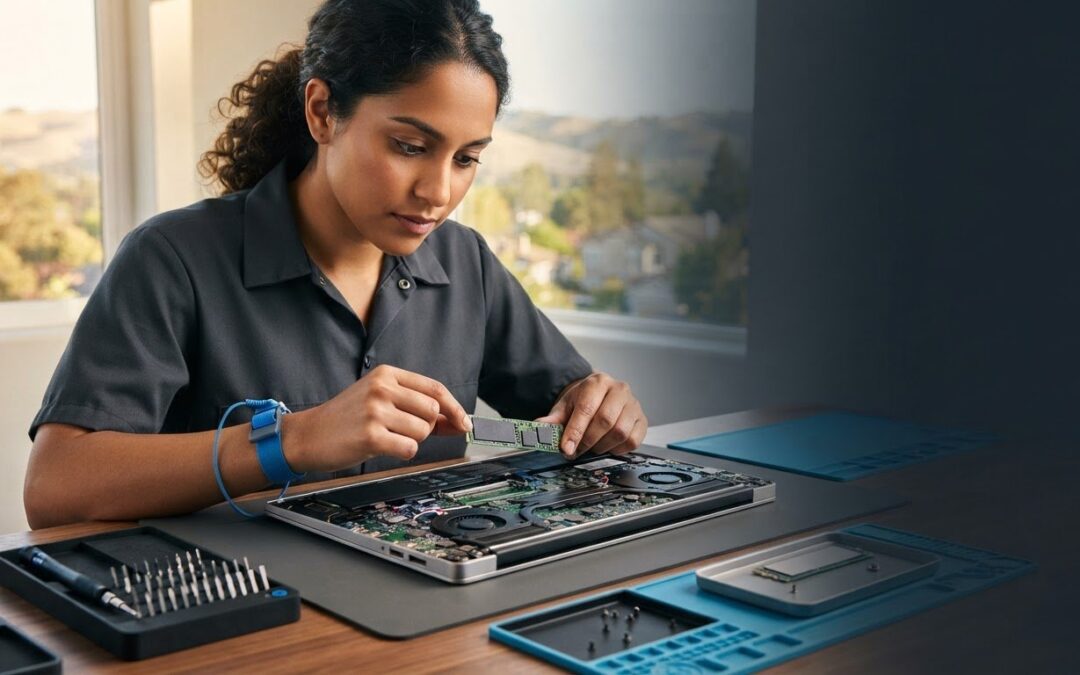
What if the biggest risk in an SSD upgrade isn’t installing the drive, but buying one your laptop can’t use? If you’re asking, “can I upgrade my own laptop to SSD,” the answer depends on your exact model. Some laptops have replaceable storage, while others use storage soldered to the motherboard that can’t be swapped.
It’s reasonable to feel cautious. The wrong drive or a rushed installation can lead to compatibility problems, lost files, or a laptop that won’t start. A few checks before you buy or open anything can make the decision clearer.
This guide explains how to identify your laptop’s upgrade options, compare drive sizes and connections, and prepare your files for cloning or a fresh operating system installation. You’ll also learn what to consider before opening the case and how to decide whether the work suits your comfort level. Pleasanton Computer Repair provides SSD upgrades, data recovery, and migration services for customers in Pleasanton, Livermore, Dublin, San Ramon, Danville, Brentwood, Walnut Creek, and San Jose.
Key Takeaways
- To answer “can I upgrade my own laptop to SSD,” start with the exact model. Its design determines whether storage can be replaced or expanded.
- Check the manufacturer’s specifications or service manual for the supported drive size, connection type, available slot, and capacity limits before buying.
- Consider case access, required tools, data migration, and your comfort with delicate parts when choosing between a DIY upgrade and professional help.
- Back up important files and decide whether cloning your current drive or installing the operating system fresh fits your needs.
- Pleasanton Computer Repair provides PC and Mac SSD upgrades, along with related data recovery and migration support, for customers across the East Bay.
Can you upgrade your own laptop to an SSD? Start with the laptop design
Yes, many laptops allow an SSD upgrade, but what you can replace or add depends on the exact model. An SSD is a storage drive that holds your operating system, applications, and files. Unlike a traditional hard drive, it uses flash memory rather than spinning disks. A Solid-state drive (SSD) can make everyday tasks feel more responsive, though the improvement varies with the laptop’s age, other components, and current condition.
“Upgrade” can mean replacing the existing storage drive with a compatible SSD, or adding a second drive if the laptop has an unused storage slot. These options aren’t interchangeable. Some laptops have accessible storage bays, while others are tightly assembled or have storage soldered to the motherboard, making a conventional drive replacement difficult or impossible. Check the manufacturer’s information for your specific model before assuming either option is available.
What makes an SSD upgrade a reasonable DIY project?
A DIY upgrade is more manageable if you’re comfortable handling small parts, can follow model-specific instructions, and have the appropriate basic tools. An accessible drive bay can make physical replacement straightforward. A compact design that requires removing multiple components makes the same task more delicate, even if the replacement drive is compatible.
Separate three jobs that are often bundled together: installing the drive, setting up the operating system, and moving your files. Completing one doesn’t automatically complete the others. Before deciding you’re ready, consider whether you can manage each step your laptop needs, or whether you’d rather get help with installation and data migration.
When should you pause before opening the laptop?
Stop and gather more information if you’re unsure of the full model number, can’t identify the internal layout, or don’t know what storage configuration the laptop supports. A swelling battery, visible internal damage, or important files that haven’t been backed up adds risk. Don’t press on a swollen battery or continue disassembly around it. Protect your data and resolve the uncertainty before attempting an upgrade.
Upgrade feasibility depends on the specific laptop model, not just the fact that it’s a laptop. Once you know whether the storage is replaceable and how the case opens, you can judge the physical work more realistically. A model with a clearly documented, accessible drive bay may suit a careful first-time DIYer. If access is complicated or the stakes feel high, professional installation is a sensible alternative.
If you’re asking, “can I upgrade my own laptop to SSD,” start with the model, not the screwdriver. Confirm the design first, then decide whether installation, operating system setup, and file transfer are all within your comfort level. Next, check the drive specifications and compatibility for that exact laptop.
Check laptop SSD compatibility before buying a drive
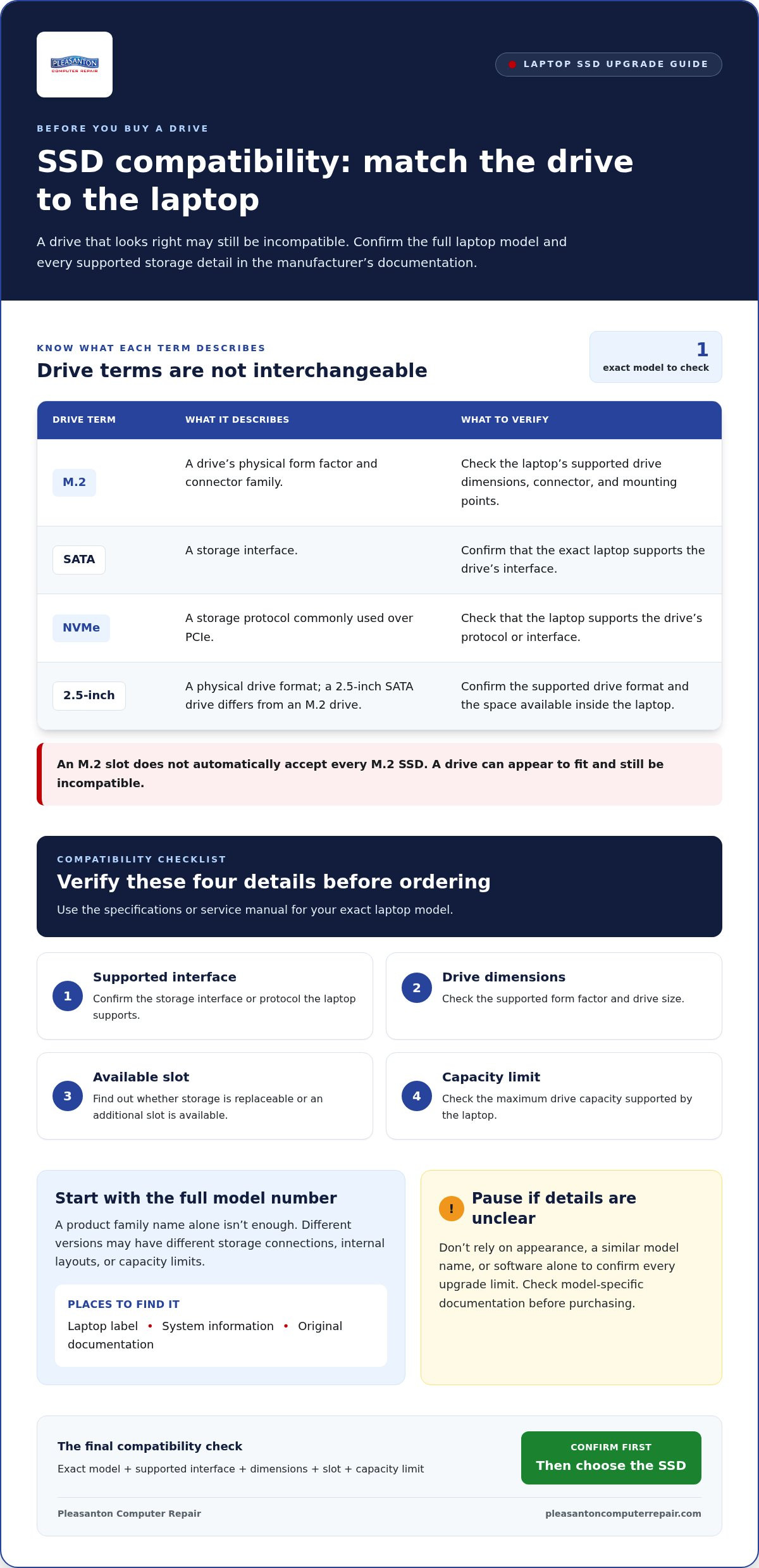
Before ordering an SSD, identify the laptop’s full model number and check the manufacturer’s specifications or service manual. A product family name alone isn’t enough: different versions can use different storage connections, have different internal layouts, or support different drive capacities. Find the model number on the laptop’s label, in its system information, or in the documentation that came with it.
Compatibility checklist: verify the exact model’s supported interface, drive dimensions, available slot, and maximum capacity in the manufacturer’s documentation before choosing an SSD. If any detail is unclear, pause rather than relying on a drive that looks as though it might fit.
How do you find the laptop’s storage type?
Start with the complete model number, including any letters or numbers after the main product name. Check the manufacturer’s specification page and service manual for storage details and upgrade instructions. System information or a drive utility may identify the storage currently installed, but that doesn’t confirm every upgrade limit, such as whether an additional slot exists or what capacity the laptop supports.
Don’t infer compatibility from appearance or a similar model name. Two laptops in the same product line may have different configurations, and software can’t always show whether a slot is accessible or suitable for another drive. Use model-specific documentation to confirm what the machine supports before purchasing.
Will an M.2, SATA, or NVMe SSD fit?
These terms describe different parts of the compatibility question. M.2 refers to a drive’s physical form factor and connector family. SATA is an interface, while NVMe is a storage protocol commonly used over PCIe. A 2.5-inch SATA drive is a different physical format from an M.2 drive.
An M.2 slot doesn’t automatically accept every M.2 SSD. The laptop must support the drive’s interface or protocol, and the drive’s dimensions must match the available space and mounting points. A drive can appear to fit yet still be incompatible with the system. Confirm the exact supported configuration in the manufacturer’s manual or specifications. Tom’s Hardware guide to upgrading a laptop SSD provides additional general context, but your laptop’s documentation should determine the final choice.
- Model: Match the full model number, not just the product family.
- Form factor: Confirm whether the laptop supports a 2.5-inch drive or an M.2 drive, and verify its dimensions.
- Interface and protocol: Check whether the system supports SATA, NVMe, or the specific option documented for that slot.
- Slot and capacity: Verify whether you’re replacing an existing drive or using an available slot, and check supported capacity.
If the manual is unclear or model compatibility feels uncertain, Pleasanton Computer Repair can help with an SSD upgrade. Pleasanton SSD upgrade support is available to customers in Pleasanton and nearby East Bay communities.
DIY SSD upgrade vs. professional help: compare risk, time, and data needs
DIY can be manageable, but a compatible drive doesn’t guarantee an easy installation. The laptop’s case may be difficult to open, delicate connectors may be in the way, and migrating files is a separate task from fitting the hardware. Choose based on the whole job, not just whether the SSD matches.
For an overview of how SSD storage works, IBM’s overview of solid-state drive technology offers technical context. The practical decision still comes down to your laptop’s construction, your preparation, and the importance of its data.
When does a DIY replacement make sense?
DIY is a reasonable choice when you’ve confirmed the laptop supports the drive, the components are accessible, and your files are backed up. You should also have instructions for the exact model. A tutorial for a laptop that looks similar may show a different internal layout, so don’t treat visual resemblance as proof that the steps apply.
Preparation matters more than confidence gained from a generic video. Read the disassembly instructions first, make sure you understand how the drive is secured, and plan separately for installing the operating system or transferring your files. If a step doesn’t match what you see, stop rather than forcing a part.
If hands-on installation feels right for you, Explore SSD upgrade help in Pleasanton as another option to consider.
When is professional installation the calmer choice?
Consider professional help if the case is hard to open, storage details remain uncertain, or the installation involves components you’re not comfortable handling. Extra care is also sensible if the existing drive is failing or important files aren’t backed up. Avoid experimenting with the only copy of valuable data.
Pleasanton Computer Repair provides SSD upgrades for PCs and Macs, along with data recovery and migration services. If you’re still asking, “can I upgrade my own laptop to SSD,” weigh not only whether the drive fits, but whether you’re comfortable managing access, installation, and data safely.
How to prepare for a laptop SSD upgrade without risking your files
A safe upgrade starts before you open the case. Plan for the data transfer as carefully as the physical installation, and follow instructions written for your exact laptop model. If the original drive is failing or contains files you can’t replace, pause before attempting a clone or removing it. Preparation can help prevent a hardware task from becoming a data recovery problem.
Work through this checklist before handling internal components:
- 1. Verify the model and drive. Match the full laptop model to its manufacturer specifications and service manual. Confirm that the replacement drive and installation method are supported.
- 2. Back up important files. Copy essential documents, photos, and other files to a separate storage location. Then check that the backup opens and contains what you expect. A backup that hasn’t been tested may not be useful when you need it.
- 3. Gather the required tools and materials. Requirements vary by laptop and installation method. Use the model’s instructions to identify the tools you’ll need, and determine whether cloning requires an appropriate external enclosure or adapter.
- 4. Review the steps before starting. Read the complete model-specific procedure, including how to open the case and secure the drive. Don’t rely on a guide for a laptop that merely looks similar.
Back up and choose a data-transfer approach
Cloning copies the existing drive’s system, applications, settings, and files to the new drive. A clean operating system installation starts fresh, so you’ll need to reinstall applications and restore personal files from your backup. Choose based on whether you want to preserve the current setup or begin again, and understand the process before removing the original drive.
If the original drive shows signs of failure, repeated errors, or unusual performance problems, avoid unnecessary attempts to copy it. Valuable files without another copy also call for extra care. A failing source drive can make migration more complicated, so consider professional data recovery or migration help before proceeding.
What happens during installation and first startup?
Follow the manufacturer’s steps for your model. After shutting the laptop down, disconnect its power source and follow the manual’s safety guidance before handling internal parts. Remove the existing drive and fit the replacement only if the documented procedure permits it. Depending on your chosen approach, you may need to complete cloning or install the operating system before the laptop is ready for normal use.
After startup, check that the system recognizes the new drive, your files are accessible, and the laptop operates as expected. Then install available operating system updates and confirm that essential applications open. If the drive isn’t recognized or files are missing, stop and avoid writing more data until you understand the cause.
If you’d rather have help with installation, migration, or file concerns, get professional SSD upgrade help from Pleasanton Computer Repair.
Get laptop SSD upgrade help in Pleasanton when DIY is not the right fit
You don’t have to open the laptop yourself to get the benefit of an SSD upgrade. Pleasanton Computer Repair provides SSD upgrades for PCs and Macs, with related data migration and recovery support when moving files is part of the job. If you’re still weighing “can I upgrade my own laptop to SSD,” professional help can reduce uncertainty about model compatibility, installation, and protecting important data.
What to share when arranging SSD upgrade help
Share what you know about the laptop’s make, exact model, and current storage symptoms. For example, mention whether it’s running slowly, showing drive errors, or having trouble starting. These details help focus the assessment on the laptop’s actual condition rather than assumptions based on its brand or product line.
Also explain the state of your files and any steps you’ve already taken. Useful details include:
- Whether you have a backup and whether you’ve checked that it opens.
- Which files are essential or especially difficult to replace.
- Whether you’ve attempted cloning, file transfer, or an operating system installation.
- Any error messages or changes in performance you’ve noticed.
If the laptop still works, avoid unnecessary experimentation before bringing it in, particularly if the drive seems to be failing or the only copy of important files is on that device. Clear information about symptoms and previous attempts helps guide a focused upgrade and data plan.
Local support for Pleasanton and East Bay laptop owners
Pleasanton Computer Repair serves residential and business customers in Pleasanton, Livermore, Dublin, San Ramon, Danville, Brentwood, Walnut Creek, and San Jose. Laptop owners can access in-store and on-site support, while remote support may suit related issues that can be handled without physically working on the device. The right approach depends on whether the laptop needs hands-on access, data assistance, or help with setup after the upgrade.
If you’re comparing options, the SSD upgrade guide and computer repair service guide can help you understand the local assistance available. Share the laptop’s model details, storage symptoms, backup status, and data concerns to give the repair team a clearer starting point for discussing next steps.
Ready to move forward? Schedule an appointment online or visit Pleasanton Computer Repair at 400 Main Street, Suite 205, Pleasanton, for help with an SSD upgrade, migration, or recovery needs.
Choose the upgrade path that protects your peace of mind
The best next step isn’t necessarily the one that gets the laptop open fastest. It’s the one that lets you move forward without guessing about the hardware or taking chances with files you can’t replace. If you’re still asking, “can I upgrade my own laptop to SSD,” use your comfort with the full process, not just the physical installation, to make the call.
For a DIY upgrade, confirm the laptop’s requirements and make sure your backup is usable before starting. If either point remains uncertain, getting help is a practical choice, not a setback. Pleasanton Computer Repair can assist with SSD upgrades and related data recovery or migration needs for customers throughout Pleasanton, Livermore, Dublin, San Ramon, Danville, Brentwood, Walnut Creek, and San Jose.
Get help with an SSD upgrade in Pleasanton and take the next step with confidence. A careful plan, whether DIY or technician-assisted, can make your laptop upgrade feel manageable.
Frequently Asked Questions
Can I upgrade my own laptop to an SSD?
Yes, if your laptop has replaceable storage and you’re comfortable following its model-specific service instructions. Assess the whole task, not just the drive swap. For example, a laptop may require extensive disassembly or operating system setup after installation. If either part feels beyond your experience, a technician can handle the hardware and help with migration so you don’t have to guess at delicate steps.
How do I know if my laptop supports an SSD upgrade?
Check the complete model number on the laptop’s label or in its system information, then look up that exact configuration in the manufacturer’s service documentation. Pay attention to whether storage is replaceable, what drive types are supported, and whether an unused slot is available. A system utility may identify the drive currently installed, but it can’t necessarily tell you whether another drive can be fitted or what limitations apply.
Can I replace my laptop’s existing SSD without losing my files?
You can preserve files by backing them up or transferring the existing drive’s contents, but replacing a drive alone doesn’t move its data. Before changing hardware, make sure important documents, photos, and saved work exist somewhere separate from the laptop, then open a few files from that backup. If you rely on a cloned drive, keep the original untouched until the replacement starts properly and your essential files are accessible.
Is upgrading a laptop to an SSD difficult for a beginner?
It can be manageable for a beginner if the laptop has straightforward access, clear service instructions, and no unexpected damage. The challenge may be less about fitting the SSD and more about handling small connectors, keeping track of screws, and setting up the system afterward. If the case resists opening or the instructions don’t match what you see, stop. Forcing parts can turn a routine upgrade into a more involved repair.
Can I install an NVMe SSD in any laptop with an M.2 slot?
No. An M.2 slot describes a physical format, but it doesn’t guarantee support for every drive protocol. A laptop’s slot may support NVMe, SATA, or a specific configuration, and the drive’s dimensions must also suit the space. Check the manufacturer’s documentation for the exact model and slot before ordering. A similar-looking connector isn’t enough to confirm that an NVMe drive will work.
Should I clone my laptop drive or do a clean SSD installation?
Cloning is useful if you want the replacement drive to carry over your existing operating system, applications, settings, and files. A clean installation gives you a fresh system, but you’ll need to reinstall programs and restore files separately. Consider how much you depend on your current setup and whether it has ongoing problems you’d rather not carry forward. In either case, keep a separate backup of important files.
What should I do if my laptop’s original drive is failing?
Limit unnecessary use and avoid repeated cloning attempts if the drive is producing errors or becoming inaccessible. If important files are at risk, seek data recovery help before removing or replacing the drive. Pleasanton Computer Repair provides SSD upgrades and data recovery for customers in Pleasanton, Livermore, Dublin, San Ramon, Danville, Brentwood, Walnut Creek, and San Jose. Share the symptoms and which files matter most.