
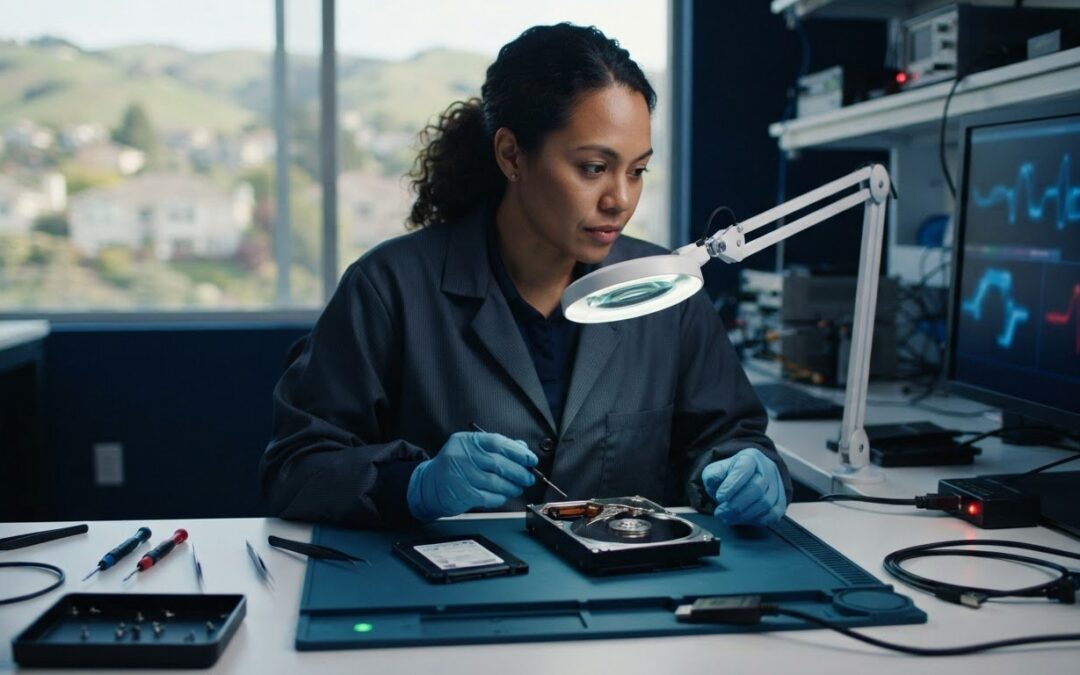
The safest first move when a drive starts failing may be to stop trying to fix it. If important files have disappeared, your computer is freezing, or the drive is making unusual noises, repeated scans and restarts could put remaining data at greater risk. Careful data recovery from failing drive problems starts with protecting the original, not trying every tool available.
It’s understandable to wonder whether recovery software might help or whether you should unplug the drive and get help. The right next step depends on the symptoms. Deleted files or file-system corruption may point to a logical problem, while clicking, grinding, or a drive that won’t respond may indicate physical damage.
This guide explains how to recognize warning signs, protect important files, and decide when troubleshooting should stop. You’ll learn how logical and physical failures differ, when recovery software may be appropriate, and when hands-on recovery is the safer path. Pleasanton Computer Repair provides data recovery for East Bay customers, with standard in-store and advanced clean-room recovery options. Results depend on the drive and the nature of its failure, but a careful first step can help avoid making a difficult situation worse.
Key Takeaways
- One warning sign doesn’t prove a drive has failed, but repeated noises, errors, or disconnects call for caution.
- Logical problems, such as file-system corruption, differ from possible physical damage.
- For data recovery from failing drive problems, the safest next step depends on the symptoms and how important the files are.
- Reduce risk by avoiding unnecessary writes, repeated restarts, and attempts to force a noisy drive to work.
- Pleasanton Computer Repair assesses recovery needs and selects between standard in-store and advanced clean-room recovery options.
Data recovery from a failing drive: warning signs to take seriously
One warning sign doesn’t confirm that a drive is failing. A loose connection or temporary software problem can also cause trouble. But repeated symptoms deserve caution, especially if files are becoming harder to open or the drive is making unfamiliar sounds. The data recovery overview explains that data loss can involve logical problems, physical damage, or both. Symptoms are clues, not a diagnosis.
Which failing-drive symptoms need immediate attention?
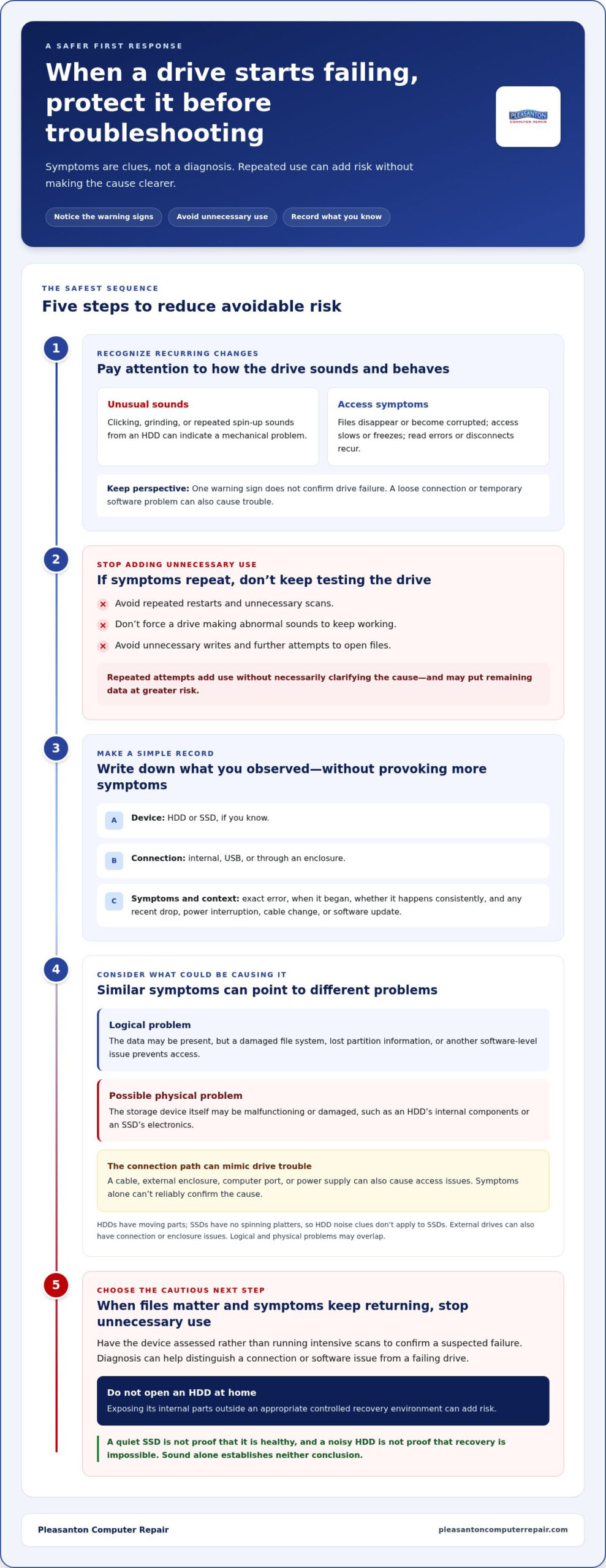
Pay attention to changes in how a drive sounds and behaves. Clicking, grinding, or repeated spin-up sounds from a hard disk drive can indicate a mechanical problem. Stop unnecessary use rather than opening files, restarting repeatedly, or running scans to see whether the noise goes away. Don’t force a drive making abnormal sounds to keep working.
- Files disappear or become corrupted: Data may be inaccessible, or the drive may be having trouble reading it.
- Access slows or freezes: Long delays when opening files or starting the computer can point to worsening access problems.
- Read errors or disconnects repeat: Messages that files can’t be read, or a drive that drops from the computer, deserve attention, especially if they recur.
Note when the symptoms began and what changed around that time, such as a drop, power interruption, new cable, or recent software update. Record what you observed, but don’t keep testing the drive to gather more evidence. Each additional attempt adds use without necessarily clarifying the cause.
Is the drive failing, or is another component causing the problem?
A cable, external enclosure, computer port, or power supply can mimic drive failure. An external drive that disconnects may have a connection problem, while a drive that clicks raises a different concern. The same error message can have more than one cause, so symptoms alone can’t reliably show whether the drive itself is damaged.
Before seeking a diagnosis, write down a few useful details:
- The device involved, including whether it’s an HDD or SSD, if you know.
- How it connects, such as internally, by USB, or through an enclosure.
- The exact error message, when it first appeared, and whether it happens consistently.
Avoid intensive scans just to confirm a suspected failure. If files matter and symptoms keep returning, stop unnecessary use and have the device assessed. Careful diagnosis can help distinguish a connection or software issue from a failing drive without making repeated troubleshooting another source of risk.
What happens inside a failing HDD or SSD?
A drive can appear to have failed even when its storage components are intact. Sometimes the data is present, but the computer can’t organize or access it because of a damaged file system, lost partition information, or another software-level problem. These are logical failures. A physical failure involves malfunction or damage to the storage device itself, such as a hard drive’s internal components or an SSD’s electronics.
Logical problems affect how data is organized; physical problems affect the storage device itself. That distinction matters because the right recovery approach depends on the cause. Software tools may help with some logical issues, but they can’t repair damaged hardware. The categories can also overlap: a device problem can corrupt file-system information, so symptoms alone can’t establish a definite diagnosis.
How hard drive failure can affect recovery
Hard disk drives (HDDs) use moving parts to read and write data on spinning platters. Mechanical trouble or difficulty reading data may show up as unusual sounds, slow access, or errors, but noise isn’t a reliable measure of whether files can be recovered. A clicking drive doesn’t reveal exactly what has failed or how much data remains accessible. Don’t open the drive at home. Exposing its internal parts outside an appropriate controlled recovery environment can add risk.
Why SSD and external-drive problems need different diagnosis
Solid-state drives (SSDs) have no spinning platters, so advice based on HDD noises doesn’t apply. An SSD may become inaccessible without the same audible clues. External drives add possible failure points, including the cable, enclosure, connection, or power supply. Encryption, the drive’s design, and the specific failure all influence what data recovery may be possible.
Describe the whole setup, not just the drive. A desktop computer’s internal HDD, a portable SSD connected by USB, and an external HDD inside an enclosure can show similar access errors while needing different checks. If an external device isn’t detected, the issue could be in its connection path. If the drive itself is physically damaged, changing cables won’t address that underlying problem.
For data recovery from failing drive cases, diagnosis should account for both the storage technology and the reported symptoms. Don’t assume that a quiet SSD is healthy or that a noisy HDD is beyond recovery. Neither conclusion follows from sound alone. If files are important and the cause isn’t clear, a professional assessment can help determine a safer next step. Professional data recovery takes the device type and the possibility of logical, physical, or overlapping problems into account.
DIY recovery or professional help: which path is safer?
The safer choice depends on how the drive is behaving and how difficult it would be to lose the files. A stable drive with a likely logical problem may be a candidate for a cautious software attempt. A drive showing physical warning signs, or holding irreplaceable work, calls for a more conservative approach. No DIY tool or professional process can promise that every file will be recovered.
Start with low-risk checks only if the drive is quiet and consistently accessible. Confirm that connections are secure, and check whether the computer reports a clear software or file-system issue. Recovery software can sometimes help locate data affected by logical problems. It can’t repair damaged hardware or make an unstable drive safe to use.
- Low-risk checks: Gather basic information when the device remains stable, without repeated reconnecting or testing.
- Software attempt: This may be reasonable for certain logical problems if the drive has no physical warning signs and the files aren’t so critical that experimentation would be an unacceptable risk.
- Hands-on assessment: Choose this when access is deteriorating, physical symptoms are present, or the data has high personal or business value.
One rule applies to any software attempt: don’t install the recovery program on the affected drive, and don’t save recovered files back onto it. Both actions write data to the source and can complicate recovery. Use a separate computer or storage device where possible. A scan isn’t automatically a harmless first step for data recovery from failing drive problems. Repeatedly reading a deteriorating drive can add stress, and more scans don’t guarantee better results.
When a limited software attempt may be reasonable
Consider a single, cautious attempt only if the drive remains stable, is consistently recognized, and has no clicking, grinding, repeated disconnects, or worsening access. Keep the recovery software and destination storage separate from the source drive. If the scan stalls, errors increase, or the drive becomes less accessible, stop rather than restarting the process.
When to stop and choose hands-on recovery
Stop using the drive if it clicks, disconnects repeatedly, or becomes harder to access. Prioritize an expert assessment when files are irreplaceable or business-critical. The consequences of an unsuccessful DIY attempt may be more serious than the convenience of trying software first. Some physical failures may call for advanced clean-room recovery options. An assessment helps determine whether that path fits the device and its condition.
The goal isn’t to try every available method. It’s to preserve the best chance of accessing the files by matching the next step to the likely problem. When symptoms point to physical trouble or the stakes are high, leave the drive unused and choose a careful recovery assessment over repeated experiments. For organisations looking beyond individual drive recovery to broader workplace hardware management, IT asset lifecycle specialists like greenbox.com.au provide secure and sustainable solutions for retired enterprise technology.
What to do first when a drive starts failing
Act calmly and avoid turning a possible drive problem into a series of risky tests. The first priority is limiting further use, not testing every recovery utility. Preserve the original drive and gather useful information before attempting repairs. This checklist can help:
- Stop unnecessary activity. Don’t save, download, copy, or install files on the affected drive. Avoid repeated restarts, which can prompt more reading and writing without addressing the cause.
- Pay attention to physical symptoms. If a hard drive is clicking, grinding, or making other abnormal noises, don’t force it to keep running. Avoid disconnecting a device while it’s actively being used or during a file transfer. If it’s safe, shut down the computer and disconnect the drive. If you’re unsure, leave it alone for assessment.
- Don’t run repairs on the original. Avoid formatting, initializing, repartitioning, or running file-system repair commands before the recovery situation has been assessed. These actions can change data or drive structures that may matter during recovery.
- Check for a backup without probing the failing drive. If you have a current backup, verify it from another device or the backup location. Don’t repeatedly reconnect or scan the original just to confirm what’s there.
- Record what happened. Note the symptoms and relevant device details, then prepare a short list of the files you most need.
Protect the original drive and the files that remain
Preservation and repair are different goals. The first is to avoid further changes to the source; the second is to make the device work again. If your priority is recovering files, don’t treat a repair prompt as a routine fix. A computer asking to scan, format, or initialize a drive doesn’t establish that doing so is safe for its data. Pause before approving changes, especially if you don’t have a verified backup.
Keep notes about errors, sounds, or disconnections. If the drive is external, leave it disconnected once it’s safe to do so rather than repeatedly swapping ports or cables. Even well-intended checks add activity, and a deteriorating device may become less accessible.
Prepare useful details for a recovery assessment
Clear notes help explain the situation without requiring more tests. Record the operating system, whether the storage is an HDD or SSD if known, how it connects, and the exact error message. Include when symptoms began and whether the device experienced a drop, liquid exposure, or power loss. Mention encryption if it applies, since it can affect access to files.
List priority folders or business files, such as current project documents or accounting records. This helps clarify what matters most during a recovery assessment. To discuss a careful next step, arrange a drive recovery assessment with Pleasanton Computer Repair.
How failing-drive recovery works at Pleasanton Computer Repair
When a drive becomes unreliable, knowing what to do next can feel difficult. A careful recovery process starts with understanding the device and symptoms, not assuming every case needs the same approach. Pleasanton Computer Repair provides data recovery for residential and business customers in Pleasanton and across the East Bay.
From initial assessment to a recovery approach
The first step is assessing the drive, its condition, the problems you’ve observed, and which files matter most. Details such as whether the drive is an HDD or SSD, whether it still appears on the computer, and whether access problems are getting worse can help clarify the situation. Sharing any previous scans, repair attempts, or unusual events also gives useful context.
Next, the symptoms and device condition help guide an appropriate recovery path. A logical issue, such as damaged file-system information, differs from a physical malfunction. Some cases may involve both, so initial signs don’t always tell the whole story. The goal is to choose an approach that fits the drive rather than applying the same steps to every device.
Recovery may use standard in-store recovery or, for certain cases involving physical failure, an advanced clean-room recovery option. These approaches suit different circumstances. An assessment helps determine which is appropriate, but the drive’s condition and type of failure affect what data may be recoverable. No process can promise that every file will be restored.
Local data recovery support for Pleasanton and the East Bay
Bringing a failing drive to a local Pleasanton business can provide a clear next step without further experimenting at home. Customers from Livermore, Dublin, San Ramon, Danville, Brentwood, Walnut Creek, and San Jose can share what they’ve observed and identify priority files, whether they’re personal photos, work documents, or business records. For a Mac storage device, the computer model and any Mac-specific messages are useful context for assessment.
Before bringing in the device, leave it unused if it’s making abnormal noises or becoming harder to access. Include relevant cables or its external enclosure when they’re part of the setup, and note any error messages. These details help explain how the problem appears in everyday use, while repeated attempts to reconnect or scan the drive may add activity without clarifying the cause.
A recovery assessment is a practical way to move from uncertainty to an informed plan. Describe the symptoms and recovery priorities, then learn which path fits the device. The outcome depends on the drive’s condition, so recovery results can’t be guaranteed.
Schedule a data recovery assessment with Pleasanton Computer Repair or visit the Pleasanton location to discuss the drive and the files you’re hoping to recover.
Make your next step a careful one
When important files are at stake, you don’t have to decide on a recovery method alone or keep experimenting with the drive. An assessment can help clarify which options fit its condition and your priorities, whether you’re trying to recover personal memories or keep essential work moving.
For data recovery from failing drive concerns, choose preservation over guesswork. Share what you’ve noticed and which files matter most, then let the device’s condition guide the next step. Recovery outcomes depend on the specific drive and failure, but acting carefully helps avoid unnecessary risk.
Schedule a data recovery assessment and take the next step with steady, practical support.
Frequently Asked Questions
Can data be recovered from a failing hard drive?
Sometimes. The outcome depends on the drive’s condition and the type of failure. A hard drive that still responds may allow more options than one with severe mechanical damage, but symptoms alone can’t predict the result. For data recovery from failing drive problems, note which files matter most and share that list during an assessment. This keeps recovery priorities clear without promising that every file can be restored.
Should I turn off a hard drive that is making clicking noises?
Yes. If a hard drive is clicking, stop using it and shut down the computer if you can do so safely. Don’t keep restarting it to see whether the sound stops, and don’t tap, shake, or open the drive. If it’s an external drive, disconnect it only after it’s no longer active. Leave it untouched afterward, since repeated power-ups can add stress without revealing what’s wrong.
Can I use data recovery software on a failing drive?
Sometimes, if the drive is stable and the problem appears logical rather than physical. Use a separate computer to run the tool if possible, and save recovered files to a different storage device. Don’t install the program on the affected drive. If the scan causes freezes, new errors, or worsening access, stop. On SSDs, deleted data may be difficult or impossible to recover after TRIM has cleared it.
What should I avoid doing when a drive starts failing?
Avoid actions that change the drive or create extra activity: formatting, initializing, repartitioning, or approving repair prompts before you understand their effect. Don’t download recovery tools onto it, save recovered files back to it, or run several scans in a row. If the computer offers to “fix” the drive, pause and record the exact message first. A repair operation may alter information that could matter for recovery.
Can files be recovered from a failed SSD?
Sometimes, but recovery depends on what failed and how the SSD handles data. An SSD that won’t appear on a computer may have a controller or other device-level problem, while deleted files can be affected by TRIM, which may permanently clear their data blocks. Encryption and the drive’s design can also influence what is accessible. Avoid repeated experiments, especially if the files are important, and don’t assume a failed SSD is either recoverable or beyond help without assessment.
Does formatting a drive permanently erase the data?
Not always. Formatting can remove file-system references, so files may no longer appear even if some underlying data remains. However, using the drive afterward can overwrite information, and SSD behavior such as TRIM may make deleted data unrecoverable. If you formatted the wrong drive or need files from a newly formatted one, stop writing to it. Don’t format it again or install recovery software there, as further changes can reduce recovery options.
How do I know whether my external drive or its cable has failed?
You usually can’t tell from one error alone, since a cable, port, enclosure, power issue, or the drive itself can cause similar symptoms. If there are no abnormal noises or signs of physical damage, a single check with a known-good cable or another port may help narrow down the connection. Avoid repeated plugging and unplugging. Record whether the drive’s indicator lights turn on and the exact message your computer displays.
Where can I get data recovery help near Pleasanton, California?
Pleasanton Computer Repair provides data recovery from its Pleasanton location at 400 Main Street, Suite 205. Residential and business customers can get local support across the East Bay, including Livermore, Dublin, San Ramon, Danville, Brentwood, Walnut Creek, and San Jose. Bring the drive’s cables or enclosure if they’re part of its setup, along with notes about symptoms and priority files, to help explain the situation.