
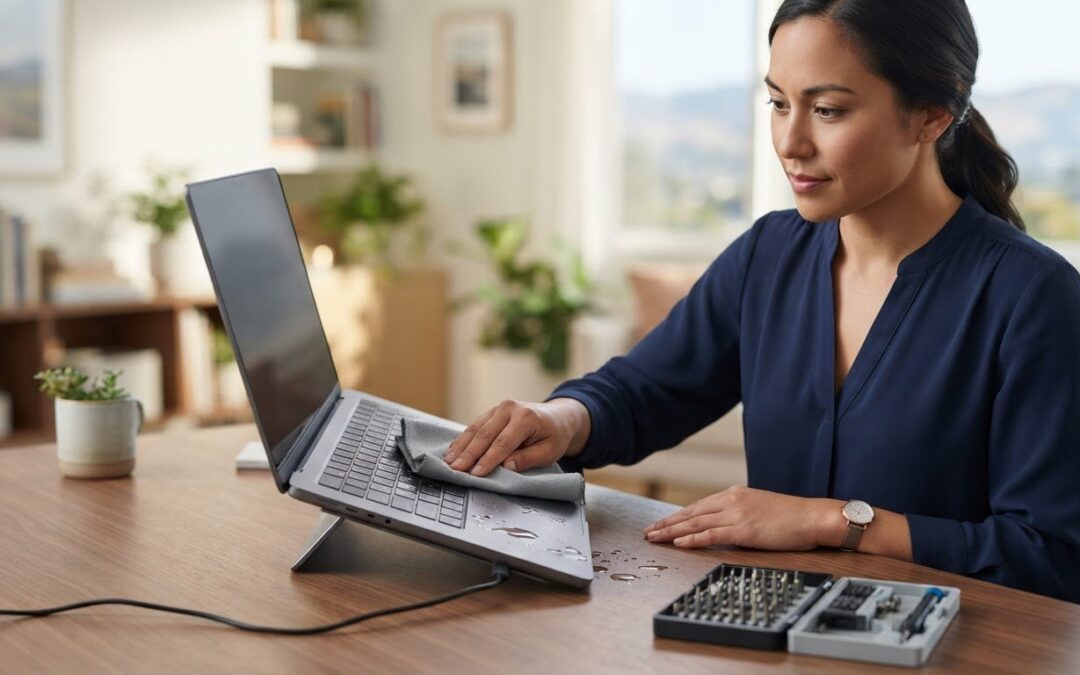
Your laptop’s first few minutes after a spill matter more than any drying trick. If you’re wondering what to do when you spill water on a laptop, resist the urge to turn it back on and check whether it still works. That quick test can make the damage worse.
It’s natural to worry about a costly repair or losing important files, especially if your laptop was open and in use. Calm, careful first steps can help reduce further risk. This guide explains what to do right away, what to avoid, and how to protect your data while deciding on your next step.
You’ll learn how to shut down and disconnect the laptop safely, handle visible moisture, and understand why rice and direct heat aren’t reliable fixes. We’ll also cover how coffee, soda, and other liquids can leave residue, which warning signs call for professional evaluation, and when an expert assessment may be the most practical way to protect the device and its files.
Key Takeaways
- Knowing what to do when you spill water on a laptop starts with shutting it down and disconnecting power and accessories safely.
- Keep the laptop off, unplugged, and untested. Powering or charging it can increase the risk of further damage.
- A laptop can look dry while moisture remains inside, so consider where the liquid went and whether symptoms appear before deciding what to do next.
- There’s no universal safe restart time. If liquid may have entered the device, get a professional assessment before turning it on.
- If important files are at risk, a PC or Mac assessment and data-recovery support can help clarify practical next steps.
What to Do Immediately After You Spill Water on a Laptop
Take a breath. Prompt, careful action can limit additional risk, and you don’t need to open the laptop to take the first steps. If you’re searching for what to do when you spill water on a laptop, focus on stopping power and handling the device gently, not testing whether it still works.
Quick summary: Shut down the laptop, disconnect its charger and accessories when safe, then gently blot visible liquid without moving the device around.
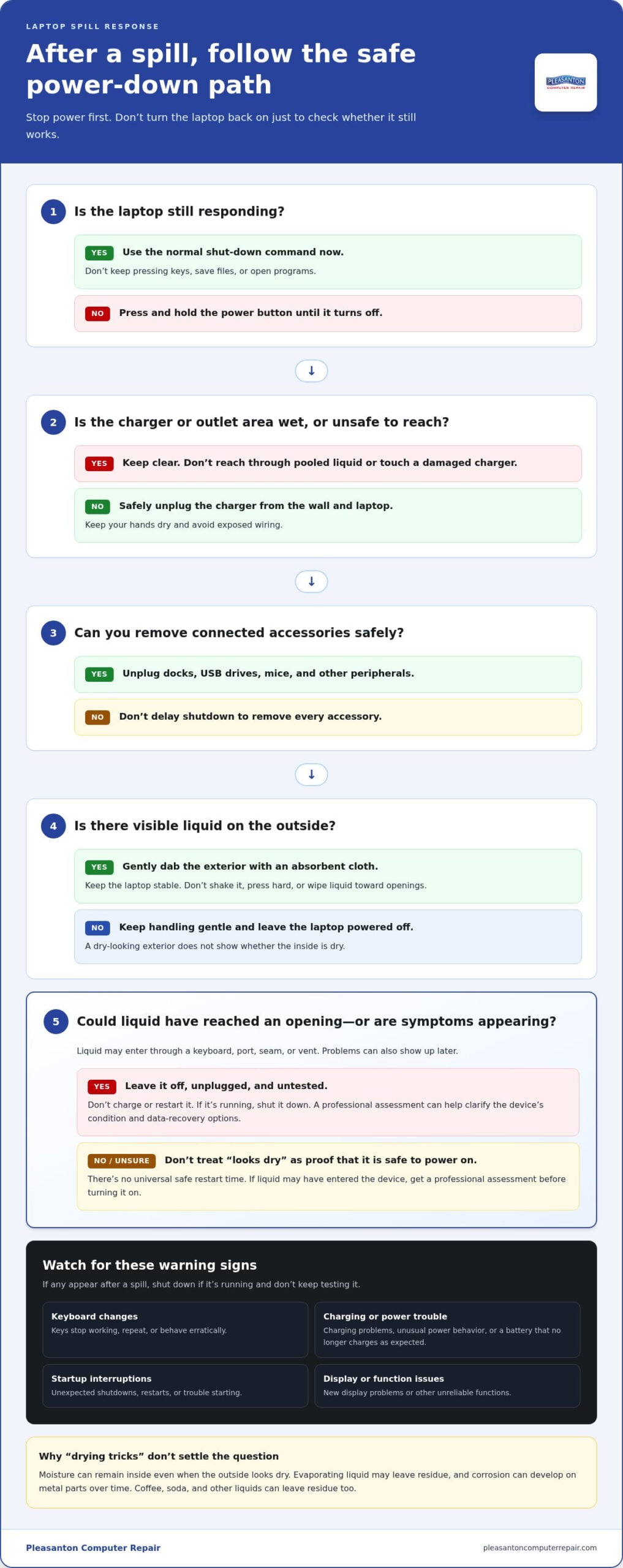
- 1. Shut it down. If the laptop is responding, use the operating system’s normal shut-down command right away. Don’t keep pressing keys, save files, or open programs. If it won’t respond, press and hold the power button until it turns off.
- 2. Disconnect external power. Unplug the charger from the wall and laptop if you can reach it safely. Don’t touch a damaged charger or reach through pooled liquid, especially near an outlet.
- 3. Remove connected accessories. Unplug docks, USB drives, mice, and other peripherals if it’s safe. Don’t delay shutdown to remove every accessory.
- 4. Blot visible liquid. Use an absorbent cloth to gently dab the exterior. Keep the laptop stable, and don’t shake it or rub liquid toward openings.
The first minute: disconnect power and shut down
Move quickly, but don’t rush into an electrical hazard. If the charger or outlet area is wet, leave it alone and keep clear rather than reaching for the plug. Once the laptop is off, don’t turn it back on to check whether the screen, keyboard, or files still work. Repeated power tests can add risk if moisture has reached internal components.
Disconnecting a USB device or dock is useful, but shutting down and safely disconnecting external power come first. Keep your hands dry, and avoid touching exposed wiring or a charger that looks damaged.
Remove visible liquid without creating new risks
Gently blot the keyboard, palm rest, and exterior surfaces. Don’t press hard or wipe across ports and other openings, where you could push moisture farther inside. Keep the laptop stable rather than turning it aggressively to drain it. Even when the outside looks dry, liquid may remain inside and contribute to the process of corrosion on metal components.
These first actions reduce immediate risks, but they can’t show whether liquid reached the laptop’s internal parts. Leave it powered off and avoid further handling beyond what’s needed to keep it safe.
How to Handle a Wet Laptop Without Increasing the Damage
Once the laptop is off and disconnected, leave it that way. Liquid can travel through a keyboard, port, seam, or vent and reach components beneath the surface. A dry-looking case, screen, or keyboard doesn’t tell you whether the parts inside are dry.
Visible drying is not proof that a laptop’s internal components are dry or safe to power on.
Why power and liquid are a risky combination
Inside a laptop, electrical current follows specific paths through closely spaced components. Moisture can create an unintended path between them, potentially causing a short circuit while the device is powered. The risk depends on how much liquid entered, where it went, and whether the laptop was running. A spill doesn’t guarantee permanent damage, but applying power before the device has been assessed can add to the risk.
Don’t charge the laptop or switch it on to see if it still works. Even if it appears dry on the outside, moisture may remain around internal connections. Keep it powered off while you decide whether it needs professional evaluation.
Why symptoms may appear after the spill
Problems aren’t always immediate. As moisture evaporates, residue may remain, and corrosion can develop on metal parts over time. A laptop might start normally at first, then show trouble later as a connection or component is affected. A successful startup is reassuring in the moment, but it doesn’t confirm that the inside is undamaged.
Watch for changes such as:
- Keys that stop working, repeat, or behave erratically.
- Charging problems, a battery that no longer charges as expected, or unusual power behavior.
- Unexpected shutdowns, restarts, or trouble starting.
- New display issues or other functions that become unreliable.
If you notice any of these signs after a spill, shut the laptop down if it’s running and don’t keep testing it. Use the same caution if it seems to work normally but liquid entered the keyboard, ports, or another opening. Understanding what to do when you spill water on a laptop includes recognizing that an exterior check can’t rule out hidden moisture or developing damage.
If important files are at risk or symptoms appear, a professional assessment is a practical next step. PC and Mac repair support can help you understand the device’s condition and discuss data-recovery options without assuming a particular outcome.
What Not to Do After Spilling Water on a Laptop
It’s understandable to want to check whether your laptop survived the spill or try a familiar drying trick. Resist that urge for now. Avoid actions that could push moisture farther inside, expose wet components to power, or create a new hazard. Gentle exterior blotting is different from trying to dry or clean the laptop internally.
Avoid charging, restarting, and repeated testing
Don’t reconnect the charger or press the power button to see if the laptop still works. Startup attempts can send electricity through components that may still be wet, increasing the risk of additional damage. One quick test can be risky, and repeated tests don’t make the device safer or reveal whether liquid remains inside.
If the laptop is still on, shut it down if you can do so safely. Stop using it if it becomes unusually hot, makes unexpected sounds, or gives off an unusual odor. Don’t handle a hot or visibly damaged charger, and keep away from smoke, sparks, or liquid near an electrical outlet.
Skip heat, rice, and improvised internal repairs
A hair dryer, heater, oven, or direct sunlight may seem like a fast way to dry a wet laptop, but intense or uneven heat can harm components. Air around the device also can’t reliably reach moisture trapped beneath the keyboard or inside the case. Rice isn’t a dependable fix either: it won’t draw liquid out of internal components, and loose dust or particles can enter openings.
Different liquids can leave different residues. Coffee, soda, and other drinks may leave deposits as they dry, so an exterior that looks clean doesn’t establish that the laptop is clear of residue inside. Keep it off and avoid trying to clean internal parts yourself.
Stick to what you can safely do on the outside. Gently blot visible moisture with an absorbent cloth, taking care not to rub it into ports, keys, or seams. Don’t shake the laptop or use compressed air to force moisture around.
Opening the case is a different matter. Internal components can be delicate, and laptop designs vary. Removing parts or cleaning a circuit board without the right experience and tools can cause further damage. Unless you’re qualified and equipped to work on that device, leave disassembly and internal cleaning to a professional.
When to Restart Your Laptop and Protect Your Files
There’s no single waiting period that makes every water-exposed laptop safe to restart. How quickly moisture dries depends on where it went, how much entered, and the laptop’s design. A dry exterior or several hours of waiting can’t confirm that internal components are dry. If liquid entered the laptop or it’s showing symptoms, get a professional assessment before powering it on again.
Warning signs that call for professional assessment
Keep the laptop off if it won’t start, the display flickers, keys don’t respond, charging behaves unusually, or the device gets unexpectedly hot. A burning smell or abnormal sound is a reason to stop using it immediately. Don’t reconnect power to investigate. If there’s smoke, sparking, or a hot or damaged charger, keep clear and prioritize safety.
No warning signs? That’s encouraging, but it doesn’t rule out hidden moisture or damage that may develop later. The safest next step depends on what happened during the spill and whether liquid may have reached the keyboard, ports, or case openings. If you’re unsure, avoid using the laptop until it’s been assessed.
Protecting important files after liquid exposure
It’s tempting to start the laptop just long enough to copy work or photos. But powering it repeatedly to reach those files can expose wet components to electricity and increase the risk of further damage. If the files are irreplaceable, don’t make another startup attempt just to retrieve them.
Data-recovery options depend on the laptop’s condition and how its storage is configured. A professional can assess the device and discuss appropriate next steps, though recovery can’t be guaranteed. If you’re reading what to do when you spill water on a laptop because important documents or family photos are stored on it, tell the technician which files matter most and whether you’ve already tried to power it on.
Keep the laptop powered off while you decide what to do. Don’t connect it to another computer or remove internal storage unless you’re qualified to handle it.
If liquid entered your laptop or valuable files are at risk, arrange a PC or Mac assessment and discuss data recovery before attempting another restart.
When to Get Laptop Water-Damage Help in Pleasanton and the East Bay
Stop DIY steps and seek a professional evaluation if liquid may have entered the laptop, it behaves differently, or important files are at risk. A device that won’t start, has unresponsive keys, flickers, heats up, or has charging problems needs more than an exterior check. Don’t keep testing it to see whether the symptoms disappear. An assessment can clarify the laptop’s condition and the practical options, without assuming a particular repair or data-recovery outcome.
What to bring and explain during a laptop assessment
Clear details help the technician understand what happened. You don’t need to diagnose the problem yourself. Share:
- What spilled, approximately when it happened, and whether the laptop was on at the time.
- Whether you shut it down, connected the charger, or tried starting it again afterward.
- Any changes you noticed, such as unexpected shutdowns, charging issues, heat, unusual odors, or keys that stopped responding.
- Whether restoring laptop function or protecting particular files is your main priority.
If you’ve already tried to turn it on, say so. That information helps build a useful picture of the incident and the laptop’s current behavior.
A local next step for laptop and data concerns
Pleasanton Computer Repair serves residential and business customers across the East Bay, including Pleasanton, Livermore, Dublin, San Ramon, Danville, Brentwood, Walnut Creek, and San Jose. The company provides PC and Mac repair and data-recovery services, with in-store and on-site support. An assessment can help you understand the device’s condition and discuss next steps, especially if liquid may have reached internal components or your files are important.
There’s no need to feel embarrassed about the spill or the steps you took afterward. Explain what happened as accurately as you can, and keep the laptop powered off while arranging an evaluation. Sharing the spill details and your priorities can help guide an informed conversation about the device and its data.
For local support with your laptop and data concerns, explore computer repair in Pleasanton.
Keep Your Laptop Off and Choose a Safe Next Step
After a spill, the safest response is to shut the laptop down, disconnect power if it’s safe, and gently blot visible moisture. Avoid charging, restarting, applying heat, or relying on rice to dry internal components. A laptop that looks dry or starts normally may still need assessment, especially if liquid reached inside or important files are at risk.
Knowing what to do when you spill water on a laptop can help you avoid actions that add risk, but there’s no universal wait time that proves it’s safe to restart. If the device shows unusual symptoms or your files matter, pause before testing it again and get advice based on its condition.
Pleasanton Computer Repair provides PC and Mac repair, data-recovery services, and in-store and on-site support for East Bay customers. Explore local laptop and computer repair support to choose a safe next step.
Take it one step at a time. Careful action now can help you make a more confident decision about your laptop and files.
Frequently Asked Questions
What should I do first if I spill water on my laptop?
First, disconnect the charger from the wall and laptop if you can do so safely, then unplug connected accessories and shut the laptop down if it’s still operating. Blot visible liquid from the exterior with an absorbent cloth, without rubbing or shaking the device. If you’re wondering what to do when you spill water on a laptop, don’t charge or restart it to test whether it works. Seek an assessment if liquid entered an opening or symptoms appear.
Should I turn my laptop on after spilling water on it?
No. Don’t turn on or charge a laptop while moisture may remain inside, since power can increase the risk of electrical damage. If it’s still on, shut it down if you can do so safely, then disconnect external power. A dry-looking laptop, or one that starts normally, may still have internal moisture or residue. Don’t use startup as a test. If liquid reached an opening, get professional advice before using it again.
Can a laptop survive a water spill?
Yes, a laptop can survive a spill, but there’s no way to know from the outside alone. The outcome depends on how much liquid entered, where it reached, and whether the laptop was powered. A device might appear to work at first and develop problems later. Shut it down, avoid charging or repeated tests, and seek an assessment if liquid reached the keyboard, ports, or case openings.
How long should I let a wet laptop dry before turning it on?
There’s no universal drying time that confirms a wet laptop is safe to restart. Moisture can remain inside even after the exterior feels dry, and drying depends on where liquid entered. Waiting alone doesn’t verify the condition of internal components. Don’t use heat or repeatedly test the device. If liquid reached the laptop’s interior or it behaves unusually, have it assessed before powering it on again.
Does putting a water-damaged laptop in rice work?
No. Rice isn’t a reliable way to remove liquid trapped inside laptop components, and loose particles can enter openings. Instead, keep the laptop off and unplugged, and gently blot visible moisture from the exterior without rubbing it toward ports or keys. Avoid improvised heat, too. If liquid entered the laptop or important files are at risk, a professional assessment can help you understand the device’s condition and possible next steps.
Can I recover files from a laptop that got wet?
File recovery may be possible, but it depends on the laptop’s condition and its storage. Avoid turning it on repeatedly just to copy files, since applying power could worsen damage if moisture remains inside. Tell a repair professional that preserving data is your priority and identify any especially important files. Pleasanton Computer Repair provides data-recovery services and can assess the situation, but recovery can’t be guaranteed.
When should I take a water-damaged laptop to a repair shop?
Seek professional assessment if liquid entered the laptop, it won’t start, or you notice flickering, unresponsive keys, charging problems, or unusual heat. Stop using it if you detect a burning smell or abnormal sound, and don’t reconnect the charger to test it. If files matter, mention data recovery as a priority. Pleasanton Computer Repair serves customers in Pleasanton, Livermore, Dublin, San Ramon, Danville, Brentwood, Walnut Creek, and San Jose.